

For Outlook.com subscribers, cold outreach has a published ceiling of 1,000 daily non-relationship recipients, not the 5,000-recipient total; Microsoft 365 business mailboxes have a 10,000-recipient rolling limit, but no published quota establishes a safe cold-email volume. Treating that business limit as a campaign target is the wrong advice.
Outlook sending limits describe service capacity, not permission to contact unfamiliar people at scale. A useful sending plan separates account quotas, recipient relationships, and actual inbox placement before increasing volume.
The Outlook Sending Limits You Should Plan Against
Outlook Sending Limits by Account Type
| Account type | Daily recipients | Per message | Non-relationship cap | Rate limit |
|---|---|---|---|---|
| Microsoft 365 / Exchange Online business mailbox | 10,000 recipients in a rolling 24-hour window | 500 recipients by default | No equivalent consumer-style allowance established here | Depends on submission method |
| Exchange Online using SMTP AUTH client submission | Same mailbox recipient ceiling | Organization configuration applies | Business anti-abuse controls still apply | 30 messages per minute |
| Outlook.com consumer account with a qualifying subscription | 5,000 daily recipients | 500 recipients | 1,000 daily recipients | Account- and history-sensitive |
| Outlook.com without a subscription or with limited sending history | Lower, dynamic limits may apply | Account-dependent | Account-dependent | Account-dependent |
The business figures above are documented in Microsoft's Exchange Online limits, while the consumer figures come from Microsoft's Outlook.com sending limits. These are documented limits, not a claim of live verification on a particular publication date. Administrators should recheck both pages before changing production sending schedules.
Recipients and messages aren't interchangeable. A message addressed to several people consumes recipient capacity for those addresses, rather than counting only as a single sent message. Internal correspondence also uses the business mailbox recipient allowance.
The SMTP AUTH rate is another separate constraint. A campaign can remain below its mailbox allowance while submitting messages too quickly through that particular sending method.
Separate mailbox limits from tenant limits
Microsoft also applies a tenant-level external recipient rate limit, or TERRL. That organization-wide control is separate from the mailbox allowance, so adding mailboxes doesn't automatically create unrestricted external sending capacity.
There's an important correction to older limit charts. Microsoft announced a mailbox-specific external-recipient sub-limit, but subsequently said it was “canceled indefinitely at this time” in its Exchange Online cancellation announcement. The same announcement explicitly says the existing recipient-rate limit and TERRL remain unchanged.
Calling every external limit postponed is therefore misleading. The canceled mailbox proposal and the continuing tenant-level control aren't the same policy.
Planning rule: Identify the account type, submission method, and tenant restrictions before calculating campaign capacity. The smallest applicable allowance governs sending.
For teams operating across providers, Gmail sending limits and sending limits by provider provide useful companion planning references. A schedule built for one provider shouldn't be copied into another mailbox without checking its constraints.
The Limit That Matters for Cold Email Is Much Lower
A mailbox can have unused sending capacity and still produce poor campaign results. That isn't a contradiction. Acceptance, sending permission, and inbox placement are different outcomes.
The consumer non-relationship category makes this distinction especially clear. Outlook.com separates unfamiliar recipients from established correspondents instead of treating every address as equally low risk. Planning only against the total allowance ignores the category most relevant to cold outreach.
A fresh contact list doesn't become an established audience because the sender has a paid subscription. Nor does a business mailbox inherit a safe cold-email allowance because its published service boundary is higher.
There isn't a universal reputation quota
The illustration below contrasts service capacity with a much smaller hypothetical outreach volume. Its smaller value is illustrative, not a Microsoft-published threshold, and shouldn't be used as a universal daily recommendation.
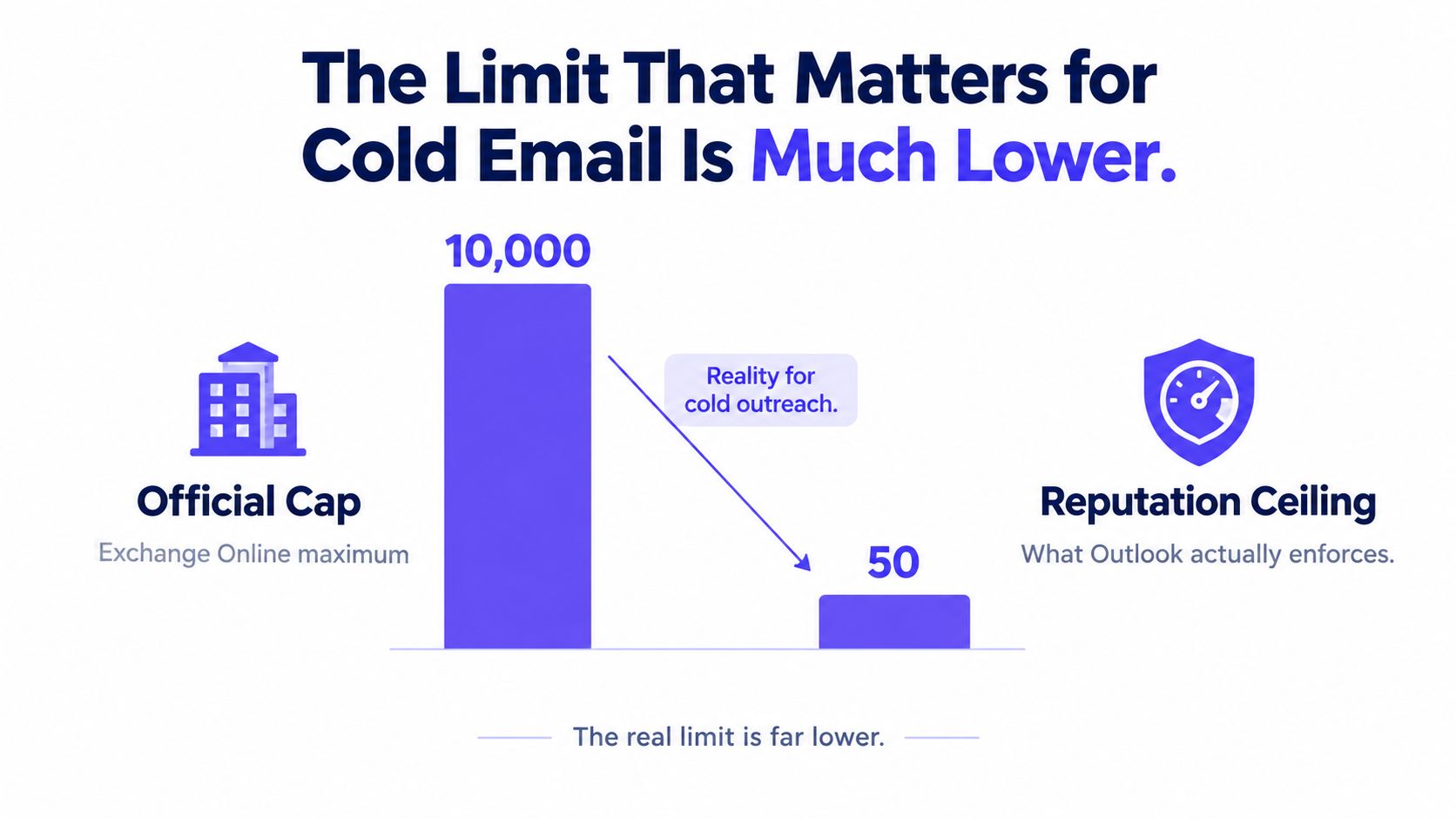
The right operational question isn't how much unused quota remains. It's whether additional sending continues to reach the intended inboxes without creating delivery problems.
A practical review should distinguish these signals:
- Recipient relationship: Established correspondence and first-contact outreach shouldn't share an undifferentiated campaign budget.
- Recipient quality: Invalid or poorly selected addresses are a reason to fix targeting, not increase throughput.
- Delivery response: Deferrals and rejections require investigation before another volume increase.
- Placement: Successful submission doesn't establish that a recipient saw the message in the inbox.
A larger historical allowance didn't remove enforcement
Microsoft's historical reference dated March 7, 2012 listed 1,500 daily recipients for a cloud-based account, illustrating how different older service boundaries were in the historical Exchange Online limits documentation?redirectedfrom=MSDN). Today's larger mailbox allowance operates alongside additional controls, rather than replacing them.
That history doesn't support the argument that cold senders should increase volume until the service refuses it. It supports the opposite conclusion: a headline allowance describes only part of the system.
Reputation, not unused quota, is the useful basis for deciding whether cold outreach is ready to grow.
The safest recommendation is deliberately unexciting. Increase only after delivery evidence supports the change, and don't turn an illustrative daily number into a promise.
What Happens When You Hit a Limit
The first task is to identify what failed. A message stuck in Outlook, a server rejection, a temporary deferral, and delivery to Junk call for different responses.
The image below depicts a sending failure. Its displayed code isn't enough on its own to diagnose a recipient-rate restriction.
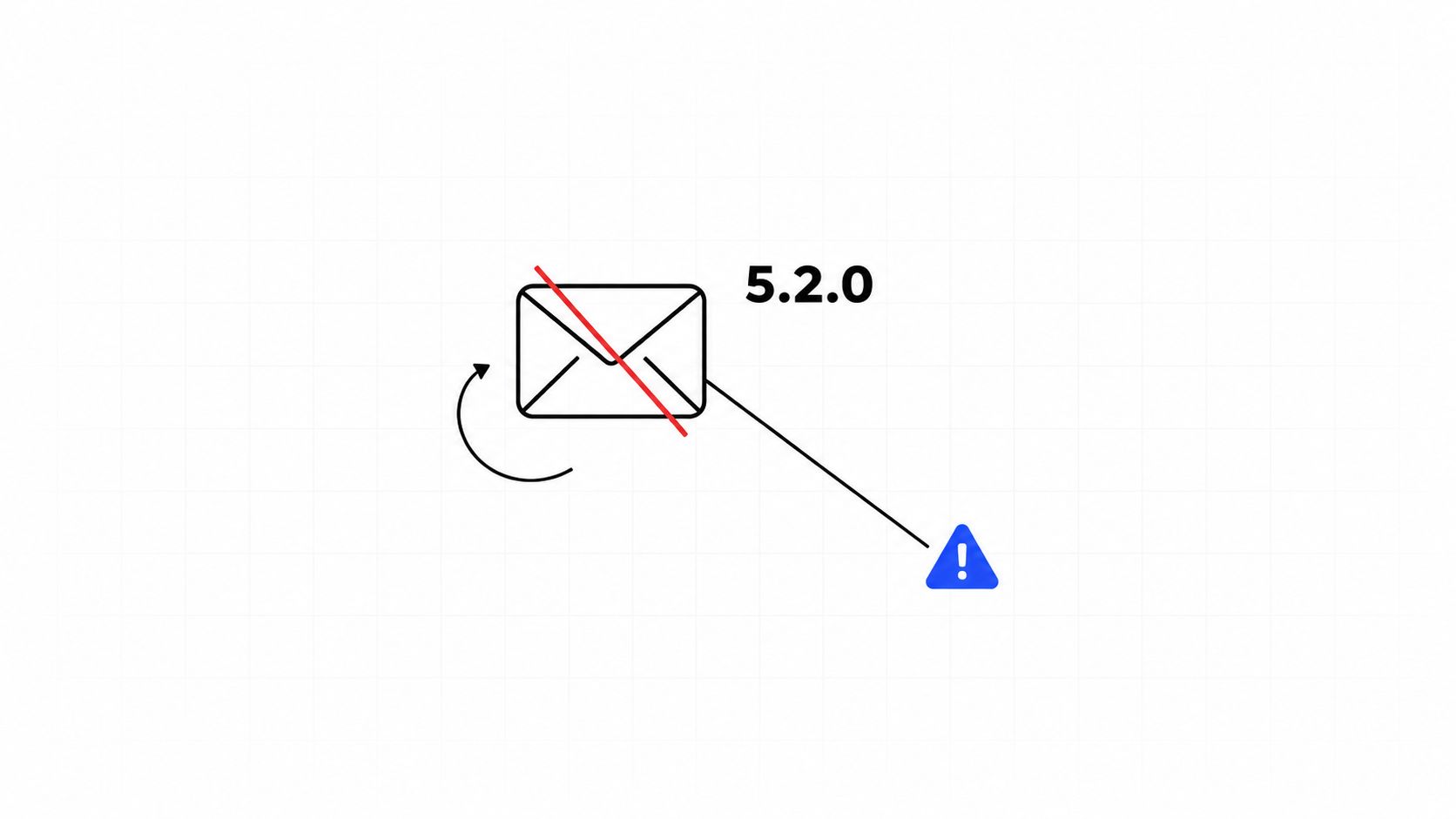
Preserve the full diagnostic
Save the complete non-delivery report, affected recipient, sending time, and server response. A shortened error label can hide the distinction between a quota issue, an account restriction, and another delivery failure.
| Observed symptom | What to investigate |
|---|---|
| Message remains in Outbox | Client connectivity, account state, and submission |
| Server temporarily defers mail | Full response and sending cadence |
| Server rejects mail | Complete diagnostic and applicable policy |
| Account cannot send | Recipient history and administrator restrictions |
| Message reaches Junk | Placement and recipient response, not just quota |
The Mailwarm guide to outbox issues helps separate client-side symptoms from a server-side sending restriction.
Authentication-related high-volume sender rejections also shouldn't be classified automatically as daily-quota failures. The exact policy and complete diagnostic should be checked against current Microsoft documentation before assigning a cause.
The allowance doesn't reset at midnight
Exchange Online evaluates recipients over a rolling 24-hour window. Once the 10,000-recipient threshold is reached, sending remains unavailable until the preceding window falls below it, as explained in Microsoft's outbound sending-limit troubleshooting guidance.
Turning a campaign off doesn't immediately remove its earlier recipients from that calculation. Restarting Outlook doesn't change the server's sending history either.
- Pause automation: Prevent repeated attempts while the cause is investigated.
- Inspect administrator controls: Determine whether the mailbox is restricted beyond its recipient allowance.
- Resume deliberately: Don't release an accumulated campaign backlog as soon as sending returns.
For teams coordinating email and social outreach, LeadBeast's LinkedIn connection request limits explained is a useful parallel resource. Each channel needs its own operating rules; shifting a blocked email campaign into another channel shouldn't mean abandoning pacing there.
How to Raise Sending Volume Safely
A sending plan should make increases conditional on delivery evidence, not a calendar alone. Warmup, authentication review, recipient selection, and pacing belong in the same operating process.
The process below is useful as a sequence, not as a fixed timetable that every mailbox should follow.
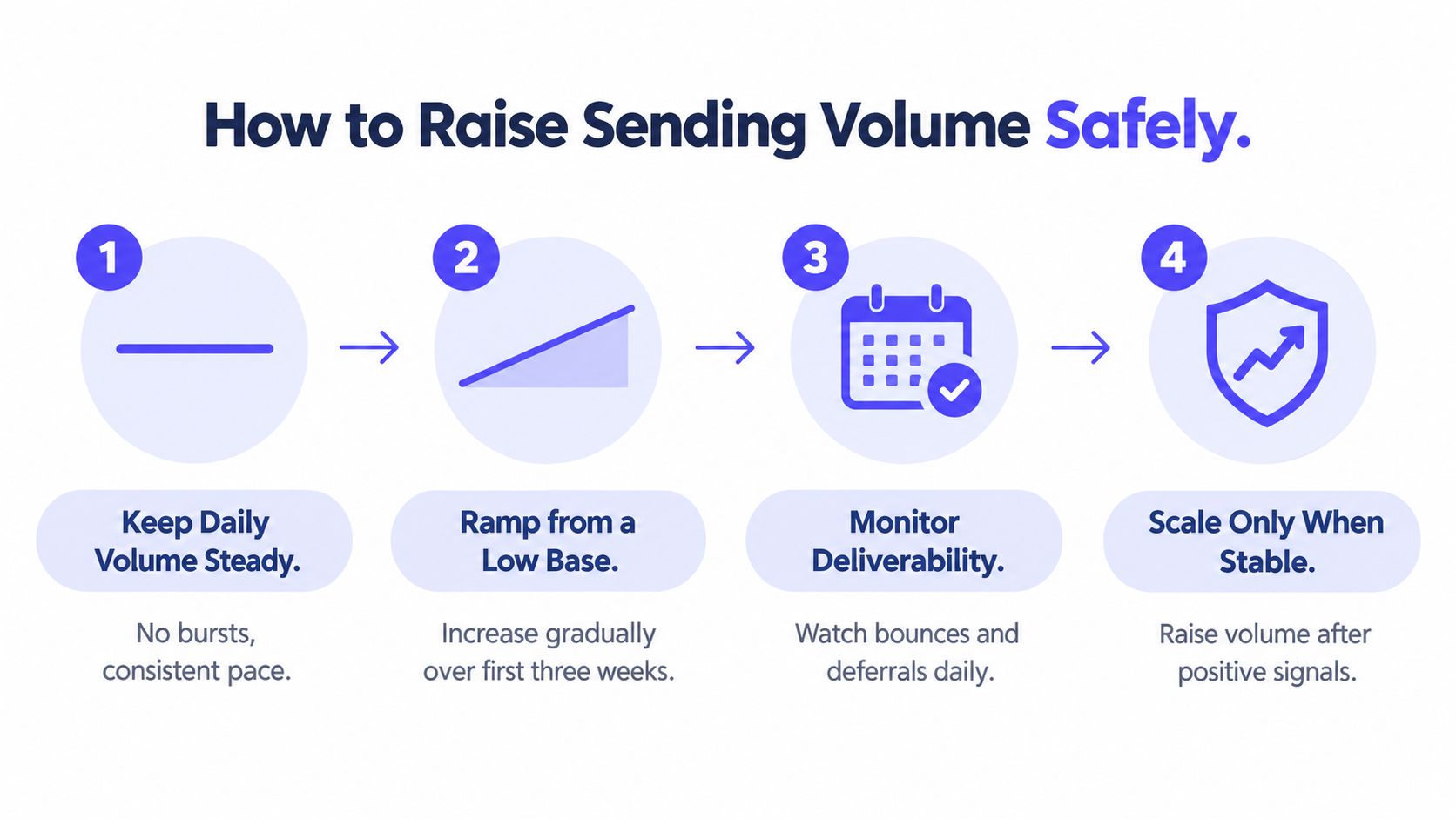
Establish a stable baseline
Start with a level that allows meaningful observation without creating a large backlog if delivery deteriorates. Keep the schedule predictable rather than compressing the entire campaign into a short burst.
A practical operating sequence is:
- Review the mailbox setup. Confirm that authentication is configured for the actual sending domain and submission path.
- Start conservatively. Use a small, relevant recipient segment rather than launching the complete prospect database.
- Inspect responses and placement. Separate invalid addresses, policy rejections, temporary delays, and spam-folder delivery.
- Increase only after stability. Hold or reduce volume when negative signals appear.
Warmup isn't permission to ignore recipient quality. A mailbox with background engagement can still send an unwanted campaign. Targeting, relevance, and suppression handling remain essential.
Add capacity without treating infrastructure as an escape route
Additional mailboxes and domains can support a legitimate sending operation, but each needs its own setup, monitoring, and reputation development. Moving the same problematic campaign across fresh accounts doesn't fix its underlying cause.
Tenant controls also remain relevant across the organization. Capacity planning should account for the whole operation, not just the mailbox currently connected to the campaign platform.
For implementation guidance, Mailwarm's Outlook warmup tips describe a mailbox-specific approach. The platform is a premium email warmup and deliverability option that combines real inbox engagement with placement monitoring and expert guidance, rather than treating warmup activity alone as the result.
Operational advice: A stable sending day is more useful than a large sending day followed by troubleshooting and emergency pauses.
Automation should respect both the campaign schedule and the provider's responses. Pipecorn's rate limit guide offers useful context for teams implementing throttling and retry behavior in their own systems.
The important distinction is between controlled growth and repeated maximum-capacity tests. A sending system should slow down when conditions worsen, not interpret every temporary failure as a reason to retry harder.
What Improved Microsoft Inbox Placement Looks Like in Practice
Improved placement means more than a campaign completing without an error. A useful evaluation compares where messages arrive, which provider receives them, and whether sending remains stable as activity changes.
A customer testimonial can illustrate an individual experience, but it shouldn't substitute for measurable evidence. An exact quotation and its public source are necessary before presenting a named customer's performance claim as proof.
The same standard applies to anonymized recoveries. Without a citable underlying study, precise percentage improvements and volume comparisons shouldn't be presented as established results.
Measure the outcome that matters
A sensible evaluation distinguishes several kinds of evidence:
| Evidence | What it establishes | What it doesn't establish |
|---|---|---|
| Successful submission | The sending system accepted the message | Inbox placement |
| Successful delivery | The receiving system accepted the message | Visibility in the primary inbox |
| Placement testing | Where monitored test messages arrived | Identical results for every recipient |
| Provider-level comparison | Whether outcomes differ across destinations | The cause of every difference |
| Recipient responses | Actual interaction with delivered messages | Permission to raise volume without review |
This distinction matters particularly when an audience includes Microsoft-hosted business accounts and consumer Outlook addresses. A pooled result can conceal differences between recipient groups.
A useful workflow is to check where your emails land, record the conditions of that test, and compare later results under reasonably similar conditions. Testing after a change is more informative than assuming the change worked.
Keep conclusions narrower than the evidence
If monitored volume grows while spam placement falls, the defensible conclusion is that those outcomes occurred together. That doesn't prove warmup alone caused the change.
Authentication work, recipient selection, campaign content, and sending cadence may also have changed. Strong reporting records those changes rather than crediting a single activity with the entire result.
For broader context, mailX's The Guide to Email Deliverability is a useful companion to provider-specific quota documentation.
Better evidence supports better scaling decisions. A larger allowance doesn't.
The practical decision is straightforward: continue a controlled increase when placement remains healthy, hold when the picture is unclear, and investigate when results worsen. Reaching a service boundary isn't a useful campaign milestone.
Outlook Sending Limits FAQ
Outlook Sending FAQ
| Question | Direct answer |
|---|---|
| Does the business mailbox allowance define safe cold-email volume? | No. It's a service boundary, not a placement recommendation. |
| Can a fresh mailbox encounter problems below its published allowance? | Yes. Quota availability doesn't establish deliverability. |
| Does fixing DKIM raise the recipient allowance? | No. Authentication and capacity are separate issues. |
| Is there a universal safe ramp-up timetable? | No. Increases should depend on observed stability. |
What does the published daily recipient allowance mean for cold outreach?
It defines a service boundary, not an approved cold-email target. The account-specific limits described above still operate alongside tenant restrictions and anti-abuse controls.
Why can a fresh Microsoft 365 mailbox have problems below its allowance?
A fresh mailbox can have delivery problems even when substantial quota remains. Review recipient quality, authentication, sending changes, and placement instead of assuming that unused capacity proves the campaign is healthy.
Does missing DKIM automatically trigger sending throttling?
Missing or misaligned DKIM should be investigated, but it doesn't establish that a recipient-rate limit caused the failure. Administrators should inspect the complete diagnostic and authentication results rather than assigning every restriction to the same cause.
How long should a safe sending ramp take?
There's no universal timetable supported by the limits documented above. A mailbox should move to a higher volume only after its current activity produces stable delivery results.
Is warmup enough to fix Outlook deliverability?
No. Warmup should complement correct authentication, relevant recipients, controlled sending, and placement checks, not replace them.
Outlook sending limits should remain the outer boundary of a sending plan, not its daily target. Mailwarm offers expert-guided warmup, real inbox engagement, and deliverability monitoring to help teams assess readiness before increasing volume. Teams planning an Outlook rollout can use that support to review mailbox setup, monitor placement, and make the next increase based on evidence rather than unused quota.