
A sales team launches a new Microsoft 365 mailbox, sends a full prospecting sequence, and sees messages land in junk at Outlook addresses while Gmail appears fine. That outcome is common because how to warm up an Outlook / Microsoft 365 mailbox isn't a generic daily-volume exercise. It's a controlled program for building domain reputation, mailbox reputation, authentication strength, and positive engagement under Microsoft's filtering systems.
The safest approach starts with recent, engaged recipients, respects Microsoft's sending limits, and expands only after inbox placement remains stable. Warmup can reduce the risk of throttling, junk placement, and blocking, but it can't guarantee inbox placement.
Quick Answer and Warmup Foundations
Outlook and Microsoft 365 mailbox warmup means gradually increasing sending activity while proving that the sender is authenticated, the audience is legitimate, and recipients engage positively. Microsoft's own email marketing warm-up guidance recommends a structured horizon of six weeks, beginning with subscribers who opened or clicked within the past 30 days, expanding to 60-day engagers during weeks 3 and 4, and avoiding non-engagers from the past 90 days during the first six weeks.
That framework matters for sales and marketing teams. Microsoft expects trust to develop through low-risk, recent engagement first, not through a sudden list expansion.
Prepare the sending identity first
Before any warmup activity starts, the team should verify:
- A dedicated sending subdomain: Keep campaign activity separate from the company's primary business domain where practical.
- SPF, DKIM, and DMARC: Configure and align authentication in the Microsoft 365 admin center.
- A clean, permission-based list: Remove invalid, role-based, inactive, and unengaged contacts before sending.
- Valid mail records: Confirm the sending setup has functioning reverse DNS and MX records.
- A placement test process: Prepare Outlook.com and Microsoft 365 seed addresses, plus test addresses at other major providers.
Authentication isn't a warmup substitute. It's the foundation that lets Microsoft evaluate the sender consistently. Microsoft's guidance on IP reputation exceptions specifically points to SPF, DKIM, and DMARC, alongside hygiene and legitimate traffic patterns, when senders seek relief from throttling.
Warmup is reputation management
A sender shouldn't treat warmup as a switch that changes a mailbox from cold to trusted. The process creates a record of controlled behavior, but content quality, recipient expectations, bounces, complaints, and authentication still determine how Outlook handles individual messages.
Teams running private infrastructure should also understand that SMTP warmup involves more than mailbox activity. Sending IP reputation, domain reputation, and provider-specific placement all need monitoring.
Practical rule: A mailbox should scale only when authentication is aligned, recent recipients are engaging, and Outlook inbox tests continue to pass.
Microsoft's Sending Limits
Microsoft's published limits define boundaries, not a warmup schedule. Sending close to a ceiling can trigger reputation-based throttling before the account reaches a fixed cap, so set ramp levels well below the documented maximums.
For Exchange Online business and enterprise plans, Microsoft documents a 10,000-recipient daily limit and a 30-messages-per-minute limit in its Exchange Online service limits. Microsoft 365 subscribers have separate controls, including 5,000 daily recipients, 500 recipients per message, and 1,000 daily non-relationship recipients, described in its temporary rate-limiting guidance.
These controls address different risks. Microsoft can restrict total recipients, recipients in one message, sending speed, or traffic that raises reputation concerns. The applicable rule depends on the account and tenant, the recipient relationship, and Microsoft's assessment of recent activity.
Fixed limits versus reputation throttling
A fixed service limit follows a documented rule. Reputation throttling responds to the quality and pattern of traffic, making it less predictable. Microsoft says a temporary 451 4.7.651 S3114 response indicates that Outlook.com or Microsoft 365 is throttling traffic from the sending IP because of its current reputation. The response is reevaluated automatically, rather than treated as a permanent block. The Microsoft explanation of this response points to the operational requirement: recovery requires sustained positive sending behavior.
| Limit Type | Documented Value | Source | Impact on Warmup |
|---|---|---|---|
| Exchange Online daily recipients | 10,000 recipients per day | Microsoft Exchange Online limits | A hard ceiling, not a safe warmup target |
| Exchange Online message rate | 30 messages per minute | Microsoft Exchange Online limits | Avoid bursts even when daily volume is low |
| Microsoft 365 subscriber daily recipients | 5,000 recipients per day | Microsoft rate-limiting guidance | Keep recipient growth well below this ceiling |
| Recipients per message | 500 recipients | Microsoft rate-limiting guidance | Use small, controlled recipient groups |
| Daily non-relationship recipients | 1,000 recipients | Microsoft rate-limiting guidance | Expand to cold audiences carefully |
Never use Microsoft's maximum as the ramp plan. Begin with a narrow, high-quality audience, increase volume in small steps, and pause if Outlook placement or engagement worsens. A daily cap does not grant permission to send more. It marks one system boundary, while reputation signals determine how safely the mailbox can approach it.
Why Outlook Is the Hardest Inbox to Reach
Outlook.com, Hotmail, Live.com, and Microsoft 365 recipients don't share one reputation system with Gmail. A domain can perform acceptably with Google recipients and still receive junk placement at Microsoft because providers assess sender behavior through their own signals, infrastructure, and recipient feedback.
Microsoft's consumer filtering environment includes SmartScreen, while Exchange Online uses Spam Confidence Level, or SCL, to classify inbound messages. SCL is not a universal sender score that teams can treat as a single dashboard metric. It's a message-level filtering signal influenced by authentication, content, reputation, recipient behavior, and traffic patterns.
Authentication affects the first impression
Missing or misaligned SPF, DKIM, or DMARC records make it harder for Microsoft to verify the sender's identity. Authentication doesn't automatically place a message in the inbox, but a sender that fails identity checks starts with a weaker trust signal.
Microsoft's documented approach to reputation relief requires senders to demonstrate proper authentication and hygiene. That links technical setup directly to reputation management, rather than treating DNS as a separate IT task.
Outlook needs its own engagement evidence
Positive engagement at Gmail doesn't transfer automatically to Outlook. Microsoft recipients need to generate their own signals through actions such as replies, continued threads, and moving messages out of junk. Negative actions, including junk reports and ignored messages from a poorly targeted audience, can work against the sender.
That's why an Outlook warmup program should use provider-level placement checks rather than one blended inbox result. Test messages should go to Outlook.com and Microsoft 365 addresses, then be checked for inbox or junk placement. Microsoft's documented deliverability workflow also recommends testing multiple major mailbox providers after authentication is in place, which makes cross-provider testing part of the process rather than an optional audit.
A clean Gmail result answers a Gmail question. It doesn't answer whether Microsoft trusts the sender.
Teams should therefore run Outlook warmup as a distinct sub-program. The audience, volume ramp, authentication review, placement tests, and recovery decisions should all include Microsoft-specific evidence.
Week-by-Week Outlook Warmup Schedule
A new Outlook or Microsoft 365 mailbox should not jump straight into campaign volume. Microsoft reputation depends on authentication, recipient quality, engagement, and filtering signals, so the schedule below treats warmup as a provider-specific reputation program. Microsoft's published framework supports six structured weeks, beginning with contacts who engaged within 30 days, then expanding to 60-day engagers. Keep contacts with no engagement during the past 90 days out of the initial ramp.
Independent guidance recommends 5 to 10 emails per day during days 1 to 7, followed by 10 to 20 per day during days 8 to 14, 20 to 25 per day during days 15 to 21, and 25 to 30 per day from day 22 onward, with gradual increases. These benchmarks are documented in this Outlook deliverability guide. Use them as operating ranges, not placement guarantees.
| Week | Daily sends | Recipient type | Auth and placement check |
|---|---|---|---|
| 1 | 5 to 10 | Recent engagers, especially contacts who opened or clicked within 30 days | Confirm SPF, DKIM, and DMARC alignment. Send to Outlook.com and Microsoft 365 seed addresses, then record inbox or junk placement |
| 2 | 10 to 20 | Continue with recent engagers. Start genuine two-way conversations | Review replies, bounces, and junk placement. Keep inactive contacts out |
| 3 | 20 to 50 | Expand carefully to contacts who engaged within 60 days | Test Outlook placement again. Hold volume if junk placement rises |
| 4 | 50 to 100 | Engaged contacts across the 30-day and 60-day groups | Review authentication, replies, bounces, and complaint signals before expanding |
| 5 | 100 to 200 | Strongly engaged recipients, with only a small new segment if signals remain healthy | Run inbox and junk tests at Outlook.com and Microsoft 365. Keep non-engagers from the past 90 days out |
| 6 | 200 to 500 | Engaged audience first, then a controlled cold segment after stable placement | Confirm consistent results across Microsoft and other major providers before further scaling |
How to apply the schedule
“Daily sends” counts individual recipients, not just messages. One recipient counts once, and a message sent to multiple people counts each recipient separately.
Define engaged using a recent, observable action, such as an open, click, reply, or active conversation. For sales teams, a reply or continuing thread provides stronger evidence than a contact existing in the CRM.
Weeks 1 and 2 should use the safest audience only. In weeks 3 and 4, expand because engagement supports it, not because the calendar says to increase volume. During weeks 5 and 6, test a cold segment only after Outlook placement, replies, bounces, and complaint signals remain stable.
A field test involving fresh Microsoft 365 inboxes found primary-inbox placement averaging 62.3% during weeks 1 to 4 and rising to 81.7% during weeks 9 to 12 under sustained, gradual ramping, as reported in the Outlook deliverability field test. The result supports continuing cautiously beyond the first six weeks when the target volume is substantial or the domain has limited history.
Pause the ramp when inbox placement falls, junk placement rises, bounces increase, or replies weaken. Review authentication and recipient selection before sending more. A slower schedule protects the mailbox better than forcing the next volume tier.
Monitoring With Microsoft SNDS
Microsoft's Smart Network Data Services, or SNDS, gives senders a view of outbound IP reputation signals observed by Microsoft. It's useful, but it isn't a mailbox-level inbox placement report and it doesn't expose the exact SCL assigned to every message.
What SNDS can show
A sender registers an IP address with SNDS, verifies control of that address, and reviews the available data programs. The service may show information such as:
- Complaint rates: Signals associated with recipients reporting messages as junk.
- Message-filtered events: Traffic that Microsoft filtered or treated as suspicious.
- Trap hits: Evidence that the sending infrastructure reached addresses associated with poor list hygiene.
- Data availability: Some IPs have limited or no reportable data, especially when Microsoft hasn't observed enough relevant traffic.
SNDS data is organized around outbound IP reputation. It doesn't prove that a particular marketing campaign reaches the inbox, and a low filter rate doesn't guarantee successful placement for every recipient group.
Pair SNDS with placement evidence
A practical monitoring system uses SNDS beside direct mailbox checks. Teams should maintain Outlook.com and Microsoft 365 seed addresses, send controlled test messages, and record inbox, junk, delay, or rejection outcomes. Message headers can also help technical teams inspect authentication results and filtering information, although headers still won't provide a complete reputation score.
The guide on how to monitor sender reputation covers SNDS alongside Microsoft's other feedback channels, including JMRP and Outlook postmaster resources.
SNDS should trigger investigation rather than automatic conclusions. A rise in complaint or filtering activity calls for a review of audience quality, authentication, content, bounces, and recent volume changes. Stable SNDS data combined with stable Outlook inbox placement is much stronger evidence than either signal alone.
Common Outlook Warmup Mistakes
Most Outlook warmup failures come from treating Microsoft like a neutral pipe. Microsoft evaluates identity, traffic behavior, recipient response, and reputation, so a shortcut in any one area can undermine the entire mailbox.
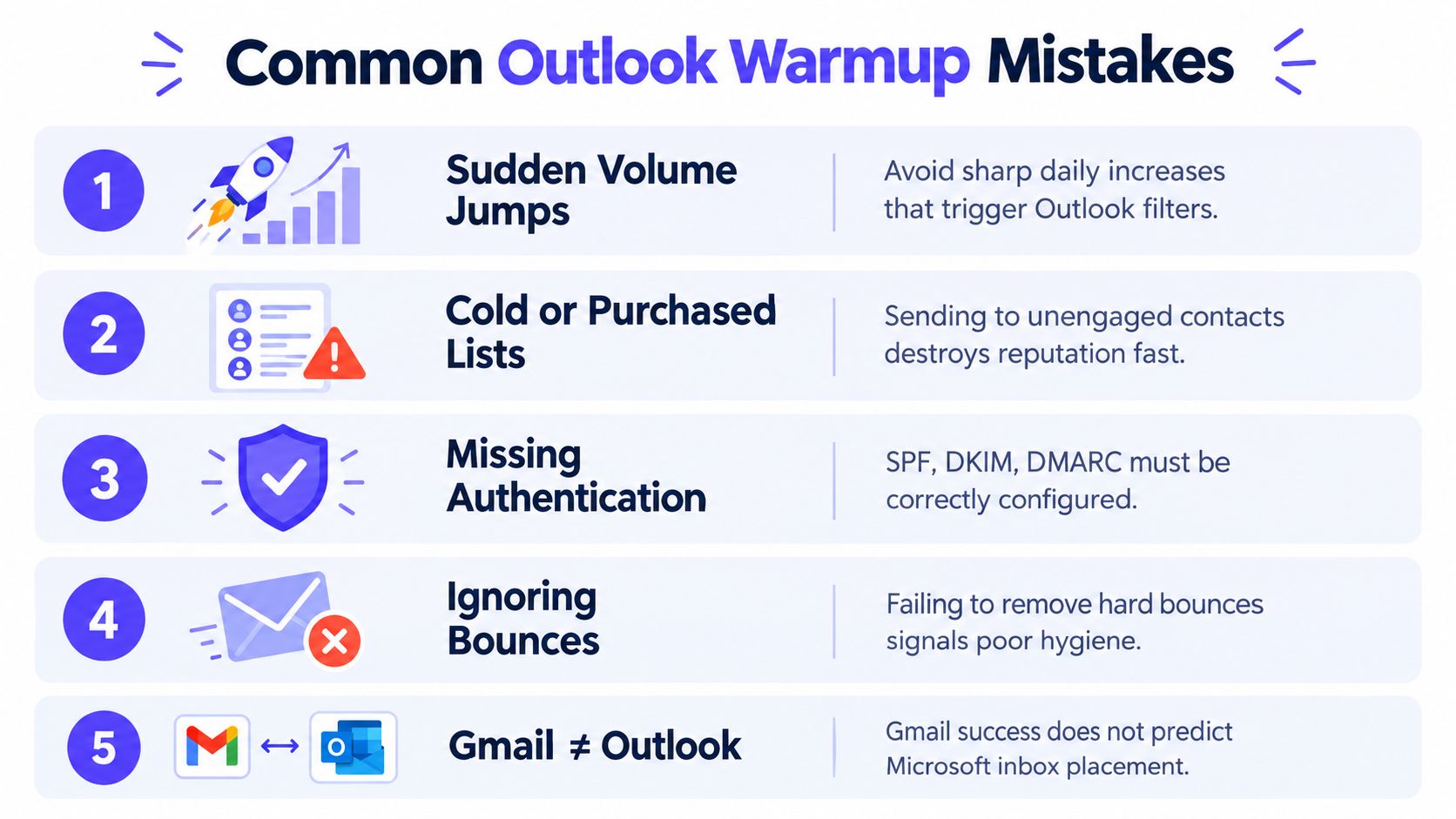
Sudden volume jumps
A team sends a small number of messages on Monday, then launches a full campaign on Tuesday. That pattern creates a sharp change in traffic before Microsoft has enough positive history to interpret the new volume.
Fix: Use small increases and hold the level when placement weakens. A fixed service ceiling doesn't make a sudden jump safe.
Cold or purchased lists
Purchased, scraped, rented, and stale lists produce weak engagement and more negative feedback. They also make it harder to distinguish a mailbox problem from an audience problem.
Fix: Start with recent engagers and permission-based contacts. Expand only when recipients respond positively.
Missing authentication
A mailbox can be technically active while the sending domain remains poorly authenticated. SPF, DKIM, and DMARC must be configured and aligned before scaling.
Fix: Verify authentication before the first warmup message, then recheck it when domains, providers, or sending systems change.
Ignoring bounces
Hard bounces indicate invalid recipients. Continuing to send to them damages list hygiene and can distort the reputation signals used during warmup.
Fix: Suppress hard bounces immediately and investigate recurring delivery failures before increasing volume.
Assuming Gmail predicts Outlook
Gmail and Microsoft don't share a single sender reputation. A clean Gmail result can coexist with junk placement at Outlook, particularly when Microsoft recipients show weak engagement or authentication is inconsistent.
Fix: Maintain separate Outlook.com and Microsoft 365 seed tests. Treat Microsoft placement as its own pass/fail signal.
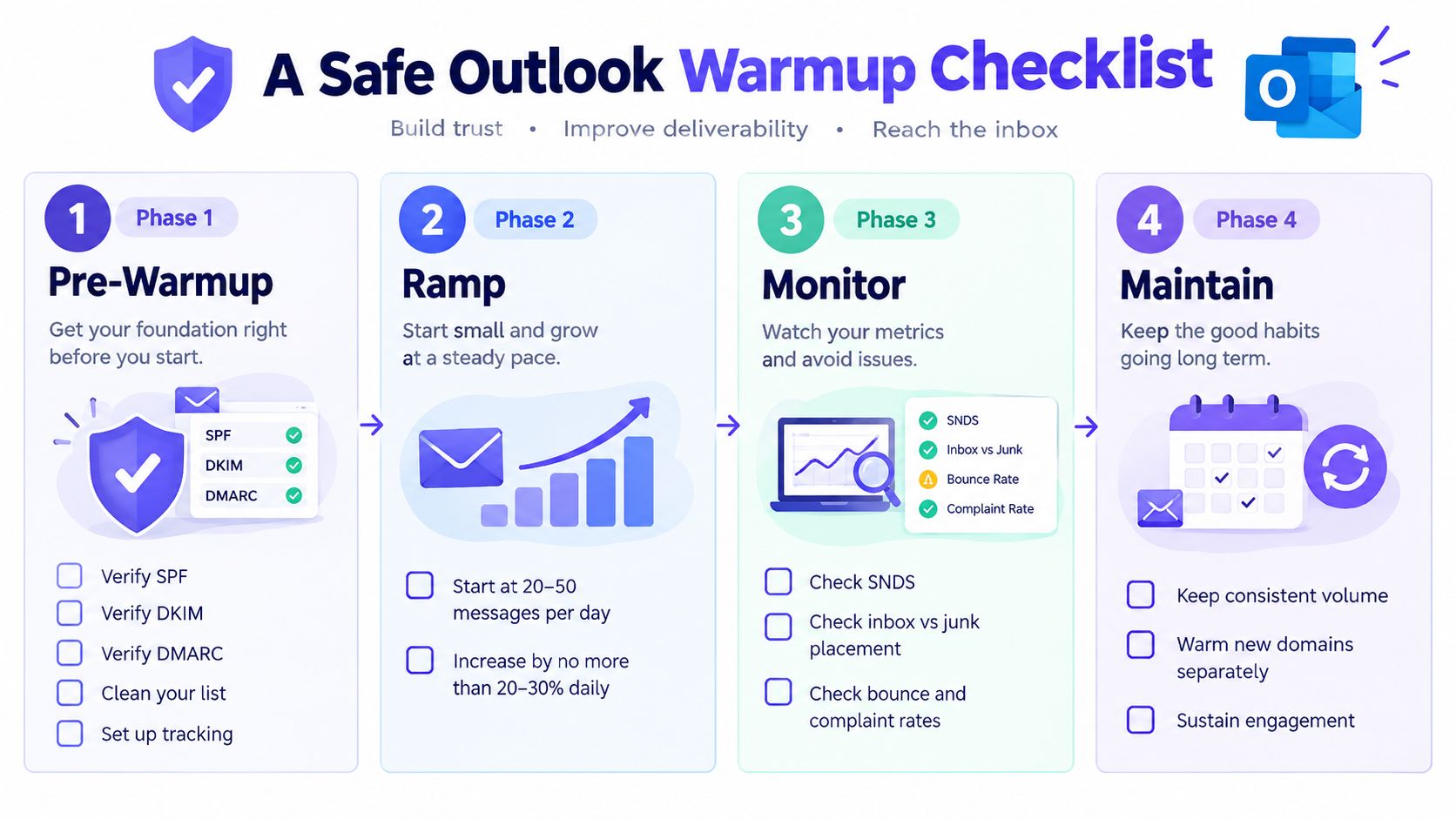
A Safe Outlook Warmup Checklist
A team can run the program manually, but the process needs clear stop conditions and ownership.
Pre-warmup
- Authentication: Verify SPF, DKIM, and DMARC alignment.
- Audience: Remove invalid, stale, role-based, and non-permission contacts.
- Testing: Prepare Outlook.com and Microsoft 365 seed addresses.
- Tracking: Record sends, replies, bounces, complaints, inbox placement, and junk placement.
Ramp
- Start conservatively: Use a low daily volume and prioritize recent engagers.
- Increase gradually: Don't make large jumps because Microsoft's ceiling is higher.
- Keep conversations real: Favor replies and active threads over broad, passive sending.
- Respect provider behavior: Check Outlook placement before adding a new audience segment.
Monitor
- Review SNDS: Watch available IP reputation, filtering, complaint, and trap signals.
- Inspect placement: Compare inbox and junk results at Outlook.com and Microsoft 365.
- Check headers: Use message-level authentication and filtering information during diagnosis.
- Compare providers: A Gmail result shouldn't replace Microsoft-specific evidence.
Pause
- Stop on deterioration: Pause expansion when bounces, complaints, filtering, or junk placement rise.
- Recheck identity: Confirm SPF, DKIM, DMARC, MX, and reverse DNS remain correct.
- Return to recent engagers: Reduce the audience before restarting a slower ramp.
- Document the cause: Record the volume change, segment, content, and provider result that preceded the problem.
Teams that need a managed approach can evaluate the best email warmup tools against practical requirements such as provider-level engagement, placement visibility, authentication support, bounce prevention, and access controls. Mailwarm is a premium email warmup and deliverability platform that uses 50,000+ aged real inboxes, provider-level warmup, inbox placement insights, spam score monitoring, authentication fix tools, bounce prevention, deliverability analytics, and expert calls included in every plan. It supports Microsoft-focused engagement without requiring IMAP access or permission to read a private inbox.
Mailwarm helps sales and marketing teams build Outlook and Microsoft 365 sender reputation through real inbox engagement, controlled provider-level warmup, and deliverability monitoring. Visit Mailwarm to review a safer operating approach for warming mailboxes before scaling campaigns.
Frequently Asked Questions
How many emails can be sent from Microsoft 365?
Microsoft documents a 10,000-recipient daily limit and a 30-messages-per-minute rate limit for Exchange Online business and enterprise plans in its service description. Other Microsoft 365 subscriber limits include 5,000 daily recipients, 500 recipients per message, and 1,000 daily non-relationship recipients, depending on the account and recipient category. Those figures are ceilings, not recommended warmup volumes.
Why do emails go to junk in Outlook but not Gmail?
Microsoft and Google evaluate sender reputation separately. A domain can perform well with Gmail while Outlook filters messages because of different authentication results, recipient engagement, content signals, IP reputation, or Microsoft-specific filtering.
What is SCL in Outlook?
SCL means Spam Confidence Level. Exchange Online assigns it as part of message filtering, using signals such as authentication, sender reputation, content, and recipient behavior. Teams shouldn't treat SCL as a universal mailbox score because it applies to message filtering and doesn't replace direct inbox placement tests.
How long does Outlook email warmup take?
Microsoft's published email marketing framework uses a six-week structured warmup horizon, beginning with recent engagers and expanding audience reach gradually. Independent Outlook guidance provides shorter daily-volume benchmarks, but teams targeting meaningful scale should use placement and engagement evidence rather than a calendar alone.
Does email warmup improve inbox placement?
Gradual warmup can improve the reputation signals associated with consistent, legitimate sending, but it can't guarantee inbox placement. Authentication, audience quality, content, complaint behavior, bounces, and provider-specific filtering still affect the result.
Is email warmup enough to fix deliverability?
No. Warmup doesn't repair broken SPF, DKIM, or DMARC, remove a poor-quality list, or make unwanted content acceptable. It should be combined with authentication checks, bounce prevention, complaint monitoring, placement testing, and controlled sending.
How does Mailwarm help with Outlook and Microsoft 365?
Mailwarm supports provider-level warmup, allowing teams to focus engagement on Microsoft inboxes rather than relying only on generic warmup traffic. Its platform combines real inbox engagement, inbox placement insights, spam score monitoring, authentication tools, bounce prevention, deliverability analytics, and expert guidance, without requiring IMAP access to a private inbox.