
An Outlook email stuck in the Outbox usually means one of three things: Outlook isn't able to complete the send, one message is blocking the queue, or something outside the app is interfering. The fastest way to fix outbox not sending Outlook issues is to start with basic connection checks, then inspect the stuck message, then move into account, add-in, and server diagnostics.
That order matters. Most failures are simple, but the stubborn ones usually come from a damaged Outlook setup, a conflicting add-in, or a deliverability problem that shows up as a sending problem.
Start with Quick Checks and Easy Fixes
When a message won't leave the Outbox, the first move is to avoid over-troubleshooting. Outlook depends on an active connection, valid credentials, and a healthy send state. If any of those are off, the app may keep retrying in the background.
Check the obvious first
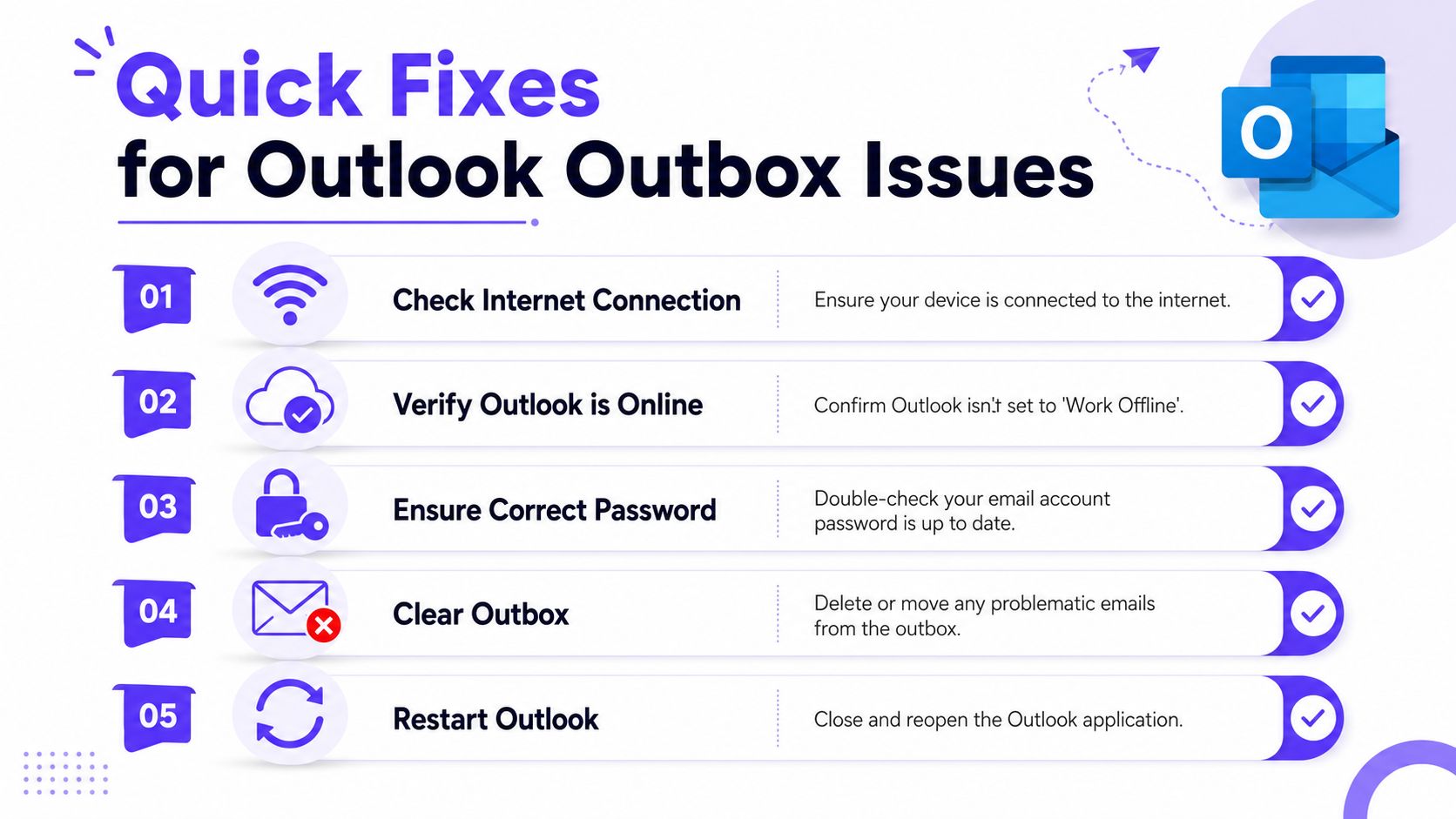
Use this short checklist in order:
- Confirm the internet connection: Open a browser and load a site that isn't already cached. If the connection is unstable, Outlook may hold mail in the Outbox until it can reconnect.
- Make sure Outlook isn't in Work Offline mode: In Outlook, look for the Send/Receive area and check whether Work Offline is enabled. If it is, turn it off and wait a moment for Outlook to reconnect.
- Verify the account password: If the mailbox password changed recently, Outlook may still be trying to use the old one. That often causes repeated send failures with no useful explanation.
- Restart Outlook completely: Close the app, wait a few seconds, and reopen it. A restart clears temporary send locks and forces a fresh server session.
- Look for one bad message: If every message behind one item is also stuck, a single problematic email is probably blocking the queue.
Practical rule: If Outlook receives mail but won't send it, the issue is often account authentication, one stuck message, or an outgoing server problem.
Clear the Outbox safely
A lot of users make this harder by repeatedly pressing Send. That only stacks retries.
A safer approach is:
- Open the Outbox folder.
- Double-click the stuck message.
- If it won't open cleanly, switch Outlook offline first, then reopen the draft.
- Copy the message body to a text file if the email is important.
- Move the message to Drafts or delete it.
- Send a short plain-text test email to the same account.
That test matters because it answers a very practical question. Is Outlook failing to send anything, or is it only failing on one specific message?
What works and what usually doesn't
A few actions help immediately. Others waste time.
| Action | Usually worth trying | Why |
|---|---|---|
| Restart Outlook | Yes | Resets the session and clears temporary send hangs |
| Send a plain test message | Yes | Separates mailbox issues from message-specific issues |
| Re-enter account password | Yes | Fixes silent authentication failures |
| Keep clicking Send/Receive | No | Repeats the same failure without changing the cause |
| Reinstall Outlook immediately | No | Too aggressive for a first pass |
If the plain test email sends, Outlook itself is probably fine. The next place to look is the message content, especially attachments.
Resolve a Stuck Message or Large Attachment
One bad email can block everything behind it. That's common when the message includes a file that the server won't accept, a damaged attachment, or formatting that Outlook can't process cleanly.
Large attachments are a frequent cause
A primary technical cause for Outlook emails remaining stuck in the Outbox is exceeding the attachment size limit, which typically caps at 20 MB to 25 MB, and Microsoft 365 and most enterprise SMTP servers reject messages with attachments larger than 20 MB, which can leave Outlook holding the message instead of sending it, as noted in SMTP2GO's explanation of emails stuck in the Outbox.
That's why the message often looks normal from the user side. Outlook may not show a clear warning right away. It just keeps the item pending.
For a practical overview of current provider thresholds, this guide to 2026 file emailing limits is useful because it gives quick context before anyone starts trimming files blindly.
How to free the queue without losing the email
Use this sequence:
- Switch Outlook offline first: That prevents Outlook from trying to send the message while it's being edited.
- Open the stuck email from the Outbox: If it opens, remove the attachment and save the message.
- Move it to Drafts if needed: Drafts is easier to work from than Outbox.
- Replace large files with links: Upload the file to OneDrive or another approved storage platform, then insert a link instead of the file itself.
- Resend after reconnecting Outlook: Turn online mode back on, then send the revised message.
A single oversized file can jam the whole queue. Fix the first blocked message, and the rest often send normally.
When the message itself is damaged
Sometimes the file size isn't the issue. The email may contain a corrupted attachment or malformed formatting copied in from another app.
In that case:
- Create a fresh message instead of editing the old one.
- Paste in the text only.
- Add recipients manually.
- Attach a cleaned or renamed file version.
- Test with no signature first.
For readers who also need to remove or recall drafts and sent items cleanly across providers, Mailwarm's guide on deleting email in Gmail and Outlook is a useful reference.
A short walkthrough can help if the Outbox keeps reusing the same problematic draft:
If the message is small, rebuilt, and still won't send, the problem usually sits in the account configuration rather than the email itself.
Verify Your Email Account and Server Settings
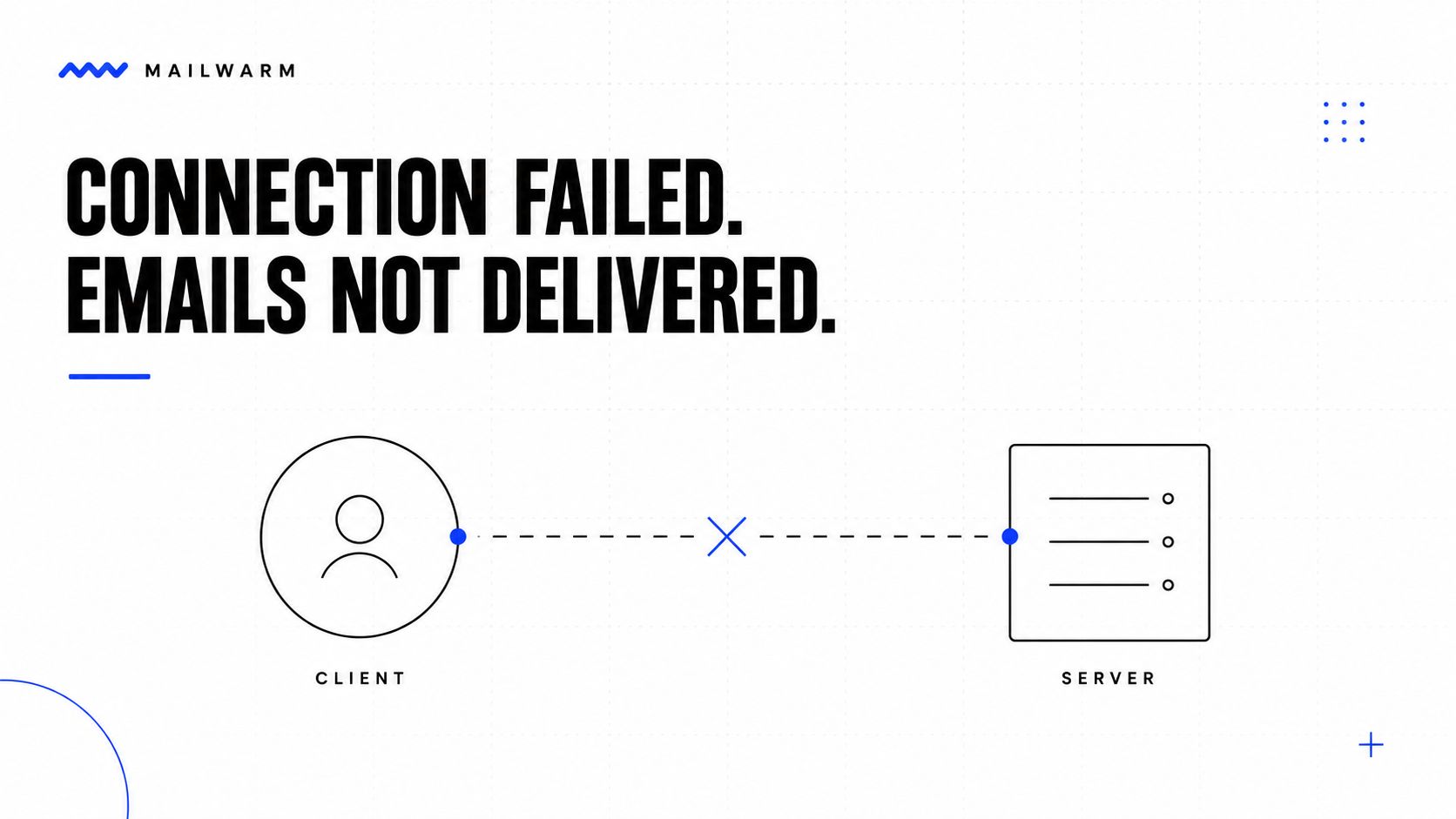
At this point, the focus shifts from the message to the mailbox connection. Outlook can look healthy on the surface while the outgoing server settings are wrong underneath.
What to check in Outlook
Open the account settings for the affected mailbox and review the outgoing mail settings carefully. The important pieces are:
- SMTP server name: This handles outgoing mail.
- Username: It should match the mailbox or provider requirement.
- Authentication setting: Many accounts require authentication for outgoing mail, not just incoming.
- Encryption method: If this is wrong, Outlook can connect partially but fail at send time.
- Port value: A mismatched port can stop only outbound mail.
A lot of users only check the incoming side because receiving still works. That's misleading. SMTP can fail while IMAP, POP, or Exchange sync continues to function.
A simple diagnostic table
| Symptom | Likely area to verify | Why it matters |
|---|---|---|
| Mail arrives but won't send | SMTP settings | Outgoing server may be wrong or blocked |
| Password prompts keep appearing | Account authentication | Outlook may be using expired credentials |
| One mailbox fails, another works | Account-specific config | Rules out a device-wide Outlook issue |
| Outlook on web sends fine, desktop doesn't | Desktop profile or local config | Server is reachable, local setup needs review |
If Outlook on the web works but the desktop app doesn't, the mailbox itself is usually fine. The problem is often local to the Outlook profile or app settings.
Don't ignore authentication alignment
Modern sending problems aren't always just app settings. A domain that lacks proper email authentication can create downstream trust issues, especially for business sending. For teams reviewing that layer, Mailwarm's guide to email authentication fundamentals is a good place to understand how SPF, DKIM, and DMARC affect sending trust.
If you want a second practical resource on sender trust and setup, this article on email deliverability best practices can also help frame why some sending issues look like Outlook problems when they are really domain or reputation issues.
That won't fix a mistyped SMTP setting on its own, but it helps separate a local Outlook fault from a domain-level sending reputation issue.
If the settings look correct and webmail sends normally, the next suspect is Outlook itself, especially add-ins and damaged profiles.
Repair Outlook and Address Software Conflicts
Addressing this point often resolves many persistent cases. Outlook may be installed correctly, connected correctly, and still fail because an add-in or local data file keeps interrupting the send process.
Test Outlook in Safe Mode
Safe Mode loads Outlook without third-party add-ins. That makes it one of the fastest diagnostic tools available.
Data from Microsoft's community discussions shows that when Outlook works in /safe mode but not normally, an add-in is the culprit in over 70% of cases, and users frequently report failures linked to CRM plugins, backup utilities, and calendar sharing tools, according to Microsoft's community discussion on Outlook send failures.
That pattern shows up often in sales and recruiting environments. Tools tied to Salesforce, HubSpot, archive systems, or meeting sync workflows can interfere with send events without throwing a clear error.
Disable add-ins methodically
Don't disable everything at random and hope for the best. Use a clean sequence:
- Launch Outlook in Safe Mode.
- Send a plain test email.
- If it sends, reopen Outlook normally.
- Disable non-Microsoft add-ins first.
- Reopen Outlook and test again.
- Re-enable add-ins one by one until the problem returns.
Some add-ins only break send behavior in combination with another tool. Backup utilities, PST archivers, and calendar sharing add-ons are common troublemakers.
The fastest path isn't guessing. It's isolate, test, re-enable, and catch the exact conflict.
Repair the app and profile
If Safe Mode doesn't change anything, look at Outlook's local data and profile health.
Try these in order:
- Run Office repair: Use the built-in repair option from Microsoft Office in system settings.
- Create a new Outlook profile: A fresh profile often clears bad cached settings or damaged send configuration.
- Rebuild local cache files: Corrupted OST or PST data can stop Outlook from syncing and sending properly.
- Test the account on another device: If the same mailbox works elsewhere, the problem is local to that machine.
| Repair option | When to use it | What it helps confirm |
|---|---|---|
| Safe Mode | Outlook works inconsistently | Whether add-ins are involved |
| Office repair | App behavior is unstable | Whether program files are damaged |
| New profile | Only one user profile fails | Whether account config is corrupted |
| Another device test | Local machine is suspect | Whether the mailbox itself is healthy |
For cases that involve a broader Microsoft 365 setup issue, it can help to get Microsoft 365 assistance from a support team that can review tenant, app, and desktop factors together.
If Outlook is clean, the profile is fresh, and sending still fails, the block may be coming from outside the app.
Check for External Blocks and Server-Side Issues
By this stage, it's time to think like a diagnostician instead of an end user. Outlook may be the visible symptom, but the actual block can sit in local security software, a firewall rule, or the provider itself.
Look beyond Outlook
Start with local controls:
- Temporarily disable antivirus email scanning: Some security suites intercept outgoing mail and hold it for inspection.
- Test with firewall restrictions reduced: A corporate firewall can block the outgoing connection path even when web browsing works.
- Check VPN behavior: A VPN can change routing or trigger provider security checks.
These tests should be temporary and controlled. The goal isn't to leave protections off. The goal is to see whether sending resumes when a filter is removed from the path.
Check the provider side
A few signs point to a server-side issue rather than a desktop one:
- Outlook on desktop fails, but other users report similar problems at the same time
- The mailbox shows account warnings or suspicious activity alerts
- Webmail is slow, inconsistent, or also unable to send
- Messages sit pending with no local error and then suddenly release later
If multiple users are affected at once, the odds shift away from the desktop app and toward the mail service, tenant policy, or a provider-side incident.
At that point, the right move is to review the provider status page, tenant alerts, and account security notifications. If local tests are clean, changing Outlook settings repeatedly usually won't help.
Prevent Future Issues with Good Deliverability Practices
Fixing a stuck Outbox solves the immediate problem. It doesn't solve the sending pattern that may have caused it.
For teams using Outlook for outreach, sales, recruiting, or campaign-based communication, outbox not sending Outlook problems can also show up when mailbox providers lose trust in the sender. The emails may appear blocked, delayed, or handled inconsistently because the sending behavior changed too quickly.
Warm up sending volume gradually
To prevent an Outlook outbox problem caused by warmup failure, sending should start at 3 to 5 emails per day and increase by about 20% daily, with a goal of reaching 50 emails per day after several weeks rather than rushing the process, as explained in Mailwarm's article on solving email warmup issues.
That gradual ramp matters because sudden spikes are exactly the kind of pattern mailbox providers distrust.
Treat authentication and reputation as part of troubleshooting
A healthy Outlook setup still depends on a trusted sending identity. That's why domain authentication and warmup belong in the same conversation as SMTP settings and add-ins.
For teams reviewing policy alignment, these DMARC implementation tips are a useful companion to a broader send-health review. For Outlook-specific warmup options, Mailwarm also has a practical guide to email warmup tools for Outlook and Microsoft 365.
Good deliverability work is preventive. It reduces the chance that a normal business send gets treated like suspicious traffic.
If email is part of a company's growth strategy, Mailwarm helps senders build reputation, monitor inbox placement, and improve deliverability through real inbox engagement, advanced warmup controls, and expert guidance. As a premium email warmup and deliverability platform, Mailwarm goes beyond basic warmup by combining a network of 50,000+ aged real inboxes, real engagement signals, spam score monitoring, inbox placement insights, provider-level warmup, authentication fix tools, bounce prevention, deliverability analytics, and expert deliverability calls included in every plan. Unlike basic warmup tools, Mailwarm doesn't require IMAP access or permission to read a user's private inbox.
FAQ
Why is Outlook not sending emails from the Outbox?
The most common reasons are a bad connection, Work Offline mode, a stuck message, wrong account settings, or add-in conflicts. In tougher cases, antivirus tools, firewalls, or provider-side issues can interrupt sending even when Outlook looks normal.
Can a large attachment keep Outlook emails stuck?
Yes. Large attachments are a common cause of stuck messages because the server may reject the email while Outlook keeps it pending in the Outbox. Replacing the file with a cloud link is often the cleanest fix.
How do users know if an add-in is causing the issue?
The easiest test is to open Outlook in Safe Mode and send a simple email. If it works there but fails in normal mode, an add-in is a likely cause and should be disabled one by one.
Does Outlook on the web working mean the desktop app is the problem?
Often, yes. If webmail sends normally, the mailbox and server are usually fine, which points toward a local Outlook profile, desktop setting, or software conflict.
What is email warmup?
Email warmup is the process of increasing sending activity gradually so mailbox providers see the sender as trustworthy. It's commonly used for new domains, new mailboxes, or accounts that need to rebuild sender reputation.
Does email warmup improve inbox placement?
It can help improve sender reputation and reduce spam risk when it's done carefully and paired with proper authentication and healthy sending practices. It isn't a shortcut, but it supports more stable inbox placement over time.
How does Mailwarm help improve sender reputation?
Mailwarm helps improve sender reputation and reduce spam risk through real inbox engagement and deliverability insights. It's built for teams that care about real inbox placement, not just automated warmup activity.
Why is Mailwarm more expensive than basic warmup tools?
Mailwarm costs more because it combines real inbox engagement, up to 100% replies to warmup emails depending on the plan, spam score monitoring, provider-level warmup, authentication tools, no IMAP access required, and expert deliverability calls included in every plan.