
A sales team can hit an email sending limit before anyone realizes there's a problem. An SDR launches a cold sequence to a large contact list, the first batch leaves normally, and later messages start returning errors, sitting in a queue, or arriving much later than planned.
Email sending limits are the boundaries mailbox providers place on how many messages or recipients an account can handle during a defined period. The published quota is only one part of the picture. A sender's reputation, authentication, bounce history, and sending pace can create a lower practical threshold long before the official ceiling is reached.
What Email Sending Limits Are and Why They Exist
An outbound sales sequence can appear healthy in the dashboard while the provider slows delivery. The first messages leave on schedule, then later messages queue, receive temporary errors, or arrive well after the planned interval. The team may still be below the published daily quota.
Email sending limits are boundaries mailbox providers set on messages, recipients, or sending activity within a defined period. The headline quota is only the visible road sign. Reputation, authentication, bounce history, account age, and sending pace can create a lower practical threshold, where throttling begins before the official ceiling.
The controls can apply at several layers:
- Per account: The provider limits total messages or recipients associated with one mailbox during a time window.
- Per message: The provider restricts the number of addresses in To, Cc, and Bcc.
- Per sending system: Rate controls can affect the server, authenticated connection, IP address, or domain behind the activity.
These layers explain why a campaign can remain below its daily allowance yet still slow down. The team might exceed the per-message cap, send successive messages too quickly, or trigger controls tied to the account's reputation.
Published quotas and practical thresholds
A published quota is the number stated in provider documentation. A reputation-driven threshold is the less visible point where delivery starts being delayed, rejected, or filtered because the sending pattern appears risky. The published quota answers, “What might this account technically send?” The practical threshold answers, “What can this sender send at its current level of trust?”
Providers use these controls for three practical reasons:
- Spam prevention: Limits make it harder for abusive senders to distribute unwanted mail at scale.
- Infrastructure protection: Mail systems must manage storage, processing, and delivery capacity.
- Abuse containment: Sudden bulk activity can signal a compromised account, automated abuse, or a poorly managed campaign.
SMTP was designed as a transport protocol, not a complete mass-mailing platform. RFC 1653 describes message size in octets transmitted after the server accepts DATA and notes a de facto minimum message-size limit of 64K bytes on the Internet. Modern mailbox controls developed around a protocol that does not define every rule for outbound sales activity.
Practical rule: The published quota shows what may be technically allowed. Reputation determines how much of that allowance the team can use safely.
Teams should therefore monitor the quota alongside recipient counts, sending intervals, account history, and the trust signals providers evaluate.
Provider Sending Limits Compared Across Major Mailboxes
A sales rep can send the same campaign from two mailbox types and receive very different answers from the providers. The reason is that “per day” may describe a rolling or sliding window rather than a reset at midnight. Google's guidance, for example, describes daily recipient protections that help protect accounts and systems in its Gmail sending-limit guidance.
The figures below are published quotas, the headline numbers in provider documentation. They show technical capacity, not a guaranteed volume for cold outreach. A mailbox may begin delaying or filtering messages well before its stated ceiling if its account history, recipient response, or sending pattern creates concern.
Email Sending Limits by Provider (2026)
| Provider | Daily Recipient Cap | Per-Message Recipient Cap | Rate Limit | Notes |
|---|---|---|---|---|
| Gmail consumer | 500 per rolling 24 hours | 500 external recipients in one message, with SMTP/IMAP submission limited to 100 recipients per message | Varies by account and method | Consumer Gmail has a lower allowance than Workspace |
| Google Workspace | 2,000 per user per day | 2,000 total recipients, with no more than 500 external recipients in one message | SMTP/IMAP submission limited to 100 recipients per message | Trial accounts are limited to 500 per day |
| Outlook.com free | 300 per 24 hours | 100 recipients per message | Provider controls vary | Free consumer accounts and Microsoft 365 business accounts have different limits |
| Microsoft 365, Exchange Online | 10,000 in a sliding 24-hour window | 500 recipients per message | 30 messages per minute through authenticated SMTP submission | The daily window slides rather than resetting at a fixed clock time |
| Yahoo Mail | About 500 per day | 100 recipients per message | Not specified in the verified data | The allowance is commonly cited for Yahoo Mail |
| SMTP relays | Varies by provider, account, and plan | Varies by provider and plan | Varies by provider and plan | SendGrid, Mailgun, and Postmark shouldn't be treated as having one shared limit |
The difference between products is large. An Outlook.com free account may allow 300 recipients per 24 hours, while Microsoft 365 Exchange Online permits 10,000 recipients in a sliding 24-hour window under its documented limits. Microsoft 365 documentation also lists a 500-recipient per-message cap and 30 authenticated SMTP messages per minute. These controls describe separate boundaries, so staying below the daily number does not make a burst automatically safe.
Google separates consumer Gmail from business accounts in the same way. Google Workspace allows up to 2,000 messages per user per day, while trial accounts are limited to 500 per day. Its rules also distinguish total recipients, external recipients, and SMTP or IMAP submission. The Google Workspace sending-limit documentation explains those account and submission-method differences.
Yahoo Mail is commonly cited at about 500 emails per day and 100 recipients per message in this comparison of email sending limits for Gmail, Outlook, and Yahoo. For outbound sales, that makes a personal mailbox a poor substitute for a system designed to manage higher-volume delivery.
SMTP relays follow a different model. SendGrid, Mailgun, and Postmark apply account, plan, infrastructure, approval, recipient, and rate rules that vary by service. Teams should check those terms and confirm the IP setup before choosing a relay. A relay can change the sending architecture, but it does not remove the need for authentication, list hygiene, controlled pacing, or reputation management. The SendGrid account warm-up guide provides relevant preparation guidance for teams using that infrastructure.
What Triggers Throttling Behind the Headline Numbers
A sales team can stay below a provider's published daily quota and still see messages delayed or rejected. Providers evaluate several signals at the same time, similar to how an underwriter assesses risk across multiple dimensions rather than using one figure alone.
The four controls that shape throughput
Per-recipient counting often causes the first misunderstanding. Addresses in To, Cc, and Bcc generally count separately, so one message sent to several people uses several recipient units. Tracking only the number of messages can therefore understate quota usage.
Message size adds a separate technical boundary. SMTP's historical design shows why payload size has long affected transmission, as described in RFC 1653. Large attachments, complex MIME structures, and oversized bodies can create submission or delivery problems even when the recipient count remains within the stated allowance.
Rate limits govern how quickly messages leave the account. A provider may permit a substantial daily total while still restricting short bursts. Sending many messages in quick succession can trigger temporary deferrals, leaving daily capacity unused.
A queue moving slowly does not necessarily mean the quota is exhausted.
Reputation restrictions create the least visible ceiling. High bounce activity, spam complaints, authentication failures, and abrupt changes in sending behavior can cause a provider to reduce effective throughput. Published quotas describe the outer boundary. Reputation, recipient quality, content, and pace determine how close a sender can safely operate to that boundary. The Microsoft 365 sending-limit reference illustrates how a short-term sending control can differ from a daily allowance.
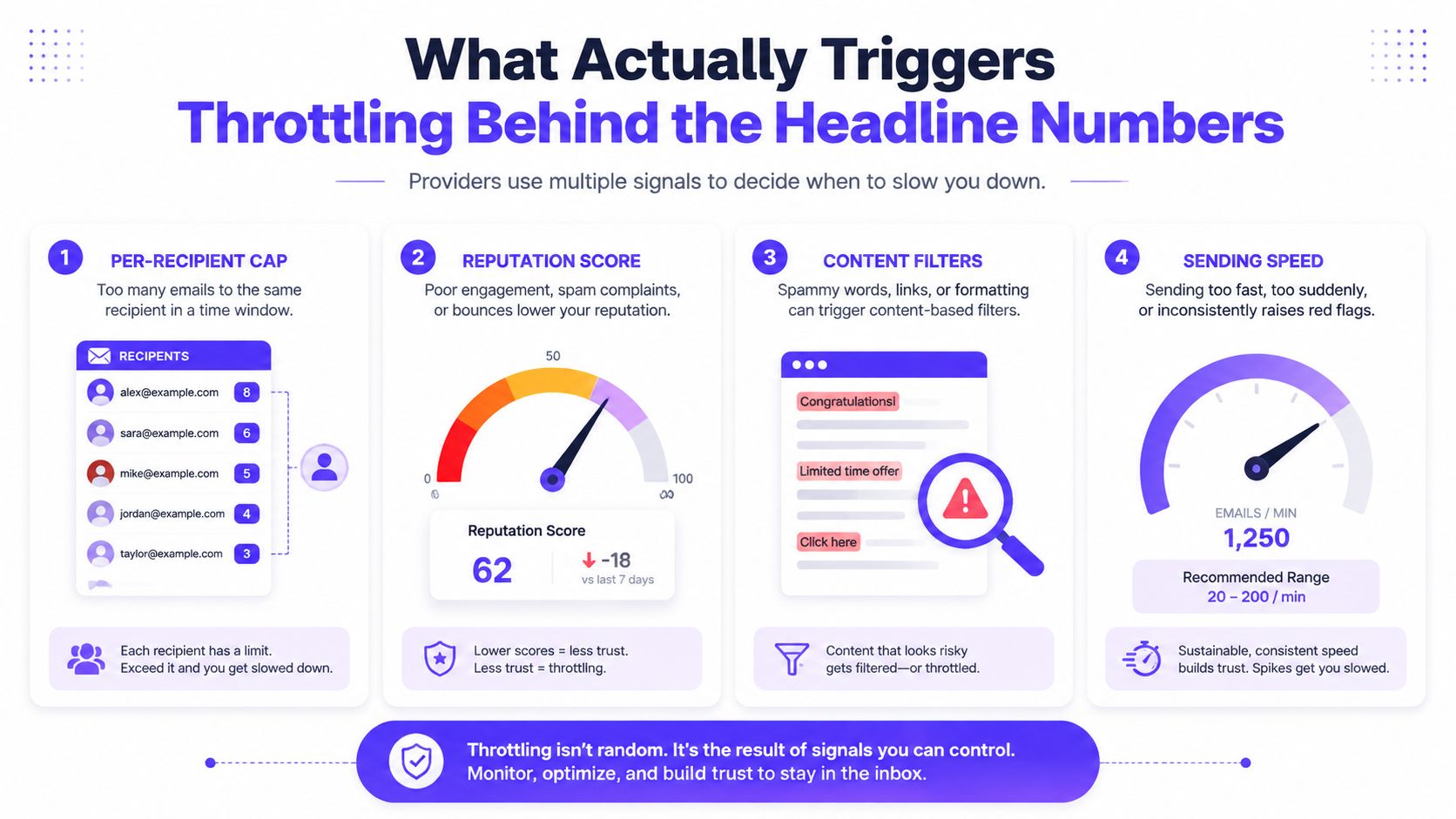
For outbound sales, this distinction changes campaign planning. Treat the headline quota as a maximum published by the provider, not as a target for immediate use. Start with controlled pacing, monitor bounces and complaints, and increase volume only when delivery signals remain stable. Organizational policies can impose a lower operating limit than the mailbox itself, so the account's stated quota is only one part of the decision.
How to Know You Have Hit a Sending Limit
A sales sequence can look active while delivery has already slowed. Messages may remain unsent, enter a queue, or receive a provider warning. A hard block is easier to recognize because the sending application reports an error or stops the message entirely.
SMTP responses help distinguish a quota problem from a reputation or policy control. A 421 response usually signals a temporary restriction. 4.7.0 often indicates temporary rate limiting or policy protection. 5.7.0 generally points to a permanent policy or authentication-style rejection, though the provider's full error text determines the precise meaning.
| Error Code | What It Means | Likely Cause |
|---|---|---|
| 421 | Temporary service or delivery restriction | Rate control, temporary provider pressure, or reputation-related deferral |
| 4.7.0 | Temporary policy or throttling response | Sending pace, account behavior, or provider protection |
| 5.7.0 | Permanent policy-style rejection | Authentication, policy, content, or reputation problem |
A deferred message in Gmail, Outlook, or another queue does not prove that the daily quota is exhausted. The provider may be slowing a burst, evaluating recipient quality, filtering content, or responding to a temporary delivery issue. Use this SMTP bounced-email interpretation guide to read the response instead of treating every failure as the same event.
A quick diagnostic flow
- Check the time window. Confirm whether the provider measures usage over a rolling 24-hour period or another interval.
- Count recipients, not only messages. Include recipients in To, Cc, and Bcc.
- Review the error class. Temporary 4xx responses usually call for a pacing or transient-restriction review. Permanent 5xx responses require a deeper policy or technical investigation.
- Inspect reputation signals. Google Postmaster Tools and Microsoft SNDS can show worsening sender signals before a hard block appears.
- Review campaign inputs. Rising bounces, complaints, or authentication failures may indicate declining sender trust rather than a simple quota issue.
The practical test is whether delivery resumes after pacing is reduced and the underlying signals improve. Published quotas mark the road's outer boundary. Temporary errors, queue delays, and worsening reputation signals show that the provider has set a lower operating speed.
Practical Strategies to Scale Without Breaking Deliverability
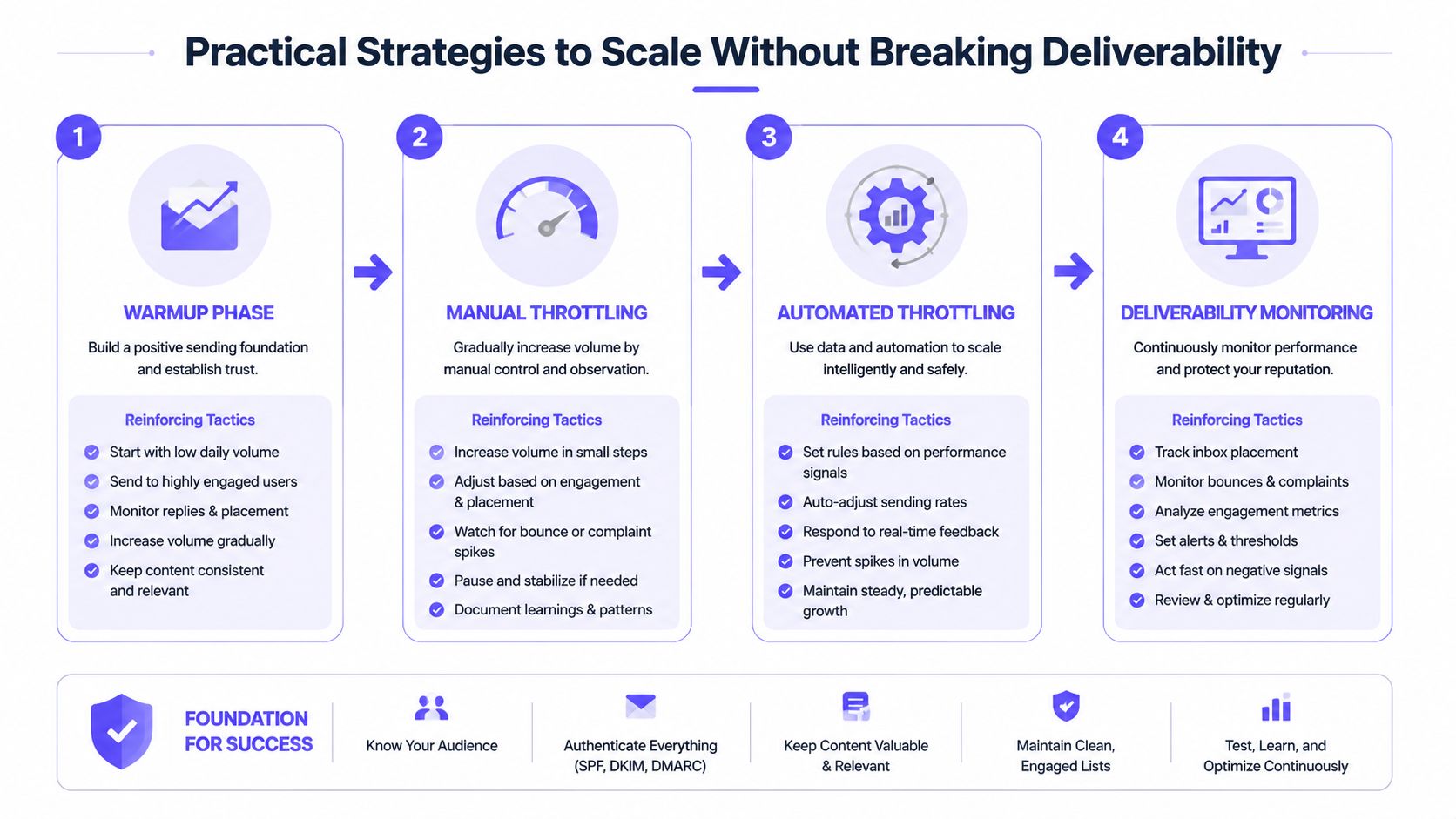
A sales team can have plenty of quota left and still send too quickly for its reputation. Scaling outbound email works like opening additional lanes on a road: traffic must be distributed, paced, and monitored before capacity increases. Manage sending pace, account distribution, infrastructure, reputation, and measurement as one system.
Build the operating sequence
Start with a conservative pace. A new or inactive mailbox should not jump straight to its published quota. Warm-up guidance for cold email places safer mailbox activity at about 50 to 100 emails per day, well below nominal Gmail and Microsoft 365 allowances. The headline quota is the outer boundary, not a promise that a mailbox can safely operate there.
Use throttling deliberately. Manual throttling spreads sends across the working day. Automated throttling can pause or slow a sequence as a mailbox approaches its rate or reputation threshold. The aim is to avoid the burst pattern that causes providers to reduce delivery speed.
Batch by audience and account. Segmenting a list supports more relevant messaging and makes volume easier to observe. Multiple authenticated accounts can distribute legitimate workload, but account rotation must not conceal abuse or evade provider enforcement.
Choose infrastructure carefully. Shared infrastructure may provide established sending context, while also exposing a sender to neighboring reputation problems. Dedicated IP infrastructure gives high-volume operators more control, but it also makes reputation management their responsibility.
Fix authentication before scaling. SPF, DKIM, and DMARC alignment clarify who is authorized to send. Authentication does not repair poor list quality, yet missing or misaligned authentication creates avoidable delivery friction.
Monitor before providers react
A useful monitoring routine separates bounce categories instead of combining every failure into one rate. Track complaints, replies, delivery delays, authentication status, and inbox placement by provider. These signals can show that the practical threshold is falling before a published quota is reached.
Mailwarm is a premium email warmup and deliverability platform that helps senders build reputation, monitor inbox placement, and improve deliverability through real inbox engagement, warmup controls, and expert guidance. Teams can review an email warmup tool as part of that process. Mailwarm's capabilities include 50,000+ aged real inboxes, opens, replies, threads, spam removal, important marking, spam score monitoring, provider-level warm-up, authentication fix tools, bounce prevention, and deliverability analytics. It does not require IMAP access or permission to read a user's private inbox, and expert deliverability calls are included in every plan.
Platform dashboards and provider tools can help identify whether a campaign is being deferred, filtered, or rejected. Keep a consistent record of these signals so operators can reduce pace before a provider imposes the reduction.
A warm-up system supports the sending strategy; it does not replace it. Authentication, clean lists, gradual pacing, and relevant content determine whether increased volume remains sustainable.
Best Practices and Troubleshooting for Outreach Teams
A cold outbound campaign can hit trouble before it reaches a provider's published quota. A team may see fewer replies, more deferrals, or inconsistent inbox placement because reputation has lowered the practical threshold. Treat the quota as a posted speed limit, and reputation signals as the road conditions that may require a slower pace.
A practical review rhythm
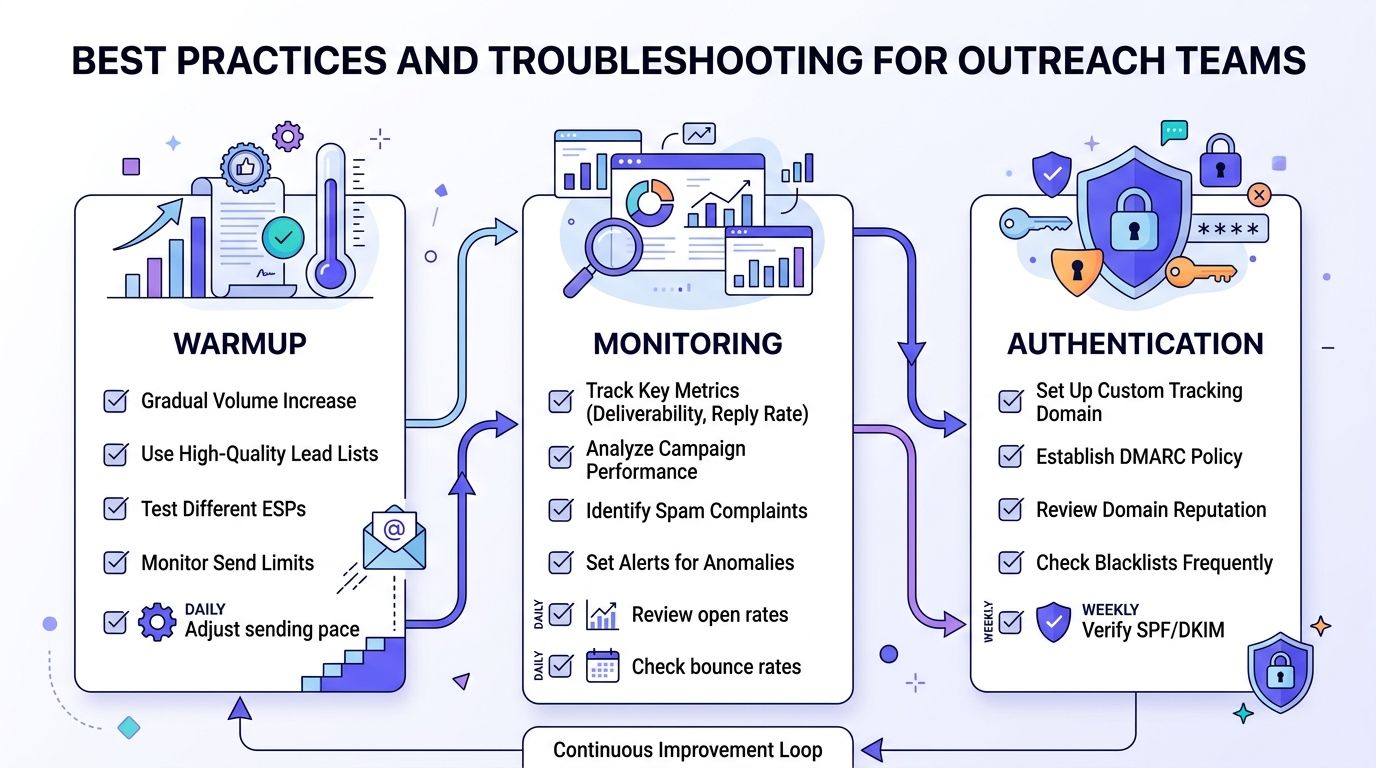
Each sending day, review bounce categories, deferred messages, replies, and account warnings. A reply decline does not prove that a quota was reached, so compare it with message acceptance and inbox placement.
Each week, verify authentication, inspect reputation dashboards, review list sources, and compare Gmail, Microsoft, Yahoo, and SMTP results. Rotate sender accounts only when the sending plan supports that distribution and every account remains properly authenticated.
During a campaign, increase volume gradually. Pause or reduce the sequence when complaints, bounces, or deferrals rise. Continuing at the same pace while those signals worsen can turn a temporary restriction into a wider reputation problem.
Troubleshooting sudden drops
- Check authentication: Verify SPF, DKIM, and DMARC alignment before changing copy or increasing volume.
- Review list hygiene: Remove invalid, stale, and risky addresses from future sends.
- Compare provider signals: Separate Gmail, Microsoft, Yahoo, and SMTP outcomes instead of relying on one combined dashboard.
- Check reputation: Review Google Postmaster Tools, Microsoft SNDS, spam scores, and blacklist status.
- Pause intelligently: Stop the affected sequence when complaints, bounces, or deferrals rise sharply.
- Adjust content: Test whether links, attachments, formatting, or unusual MIME complexity are contributing to filtering.
Outlook teams can also find spam solutions for Outlook when recipient-side filtering looks like a sender quota problem.
Warm-up works best as part of a controlled operating plan. It can create relevant engagement signals, but it does not replace monitoring, authentication, list quality, or consistent behavior after the campaign starts.
FAQ and Final Takeaways on Email Sending Limits
Do email sending limits reset at midnight?
Not always. Gmail and Microsoft 365 may apply rolling or sliding windows, so the relevant question is often how many recipients or messages were sent during the preceding period, not whether the clock has reached a new calendar day. Teams should check the rule for the exact account type and sending method.
What happens when a provider blocks messages?
The provider may defer messages, return a temporary SMTP error, reject them permanently, or place them in a sending queue. The response depends on whether the problem is a quota, rate control, authentication issue, content filter, or reputation restriction.
Are sending limits the same as spam complaints?
No. A sending limit controls how much activity a provider accepts or processes. Spam complaints are reputation signals that can reduce the amount a provider is willing to accept, even when the published quota hasn't been reached.
Does a dedicated IP remove email sending limits?
No. A dedicated IP can give a sender more control over its infrastructure reputation, but providers still apply rate, recipient, message-size, and policy controls. The sender remains responsible for authentication, list quality, pacing, and engagement.
How long does warm-up take?
There isn't one safe timeline for every mailbox, domain, provider, or campaign. A sender should increase activity gradually and use bounce, complaint, reputation, and inbox-placement signals to decide when additional volume is appropriate.
The central lesson is straightforward: published quotas are the floor, while reputation is the ceiling. Outreach teams should pace sends, authenticate every sending identity, monitor provider-specific outcomes, and treat warm-up as an ongoing operating habit rather than a one-time setup task.
Mailwarm helps teams manage the gap between headline quotas and real reputation-driven thresholds with real inbox engagement, provider-level warmup, spam score monitoring, inbox placement insights, authentication tools, and expert deliverability calls. Visit Mailwarm to evaluate a more complete approach before scaling a cold outbound campaign.