
550 5.7.350 means the receiving server refused the message as suspected spam, and Exchange Online returned that refusal to the sender. In Microsoft 365, it most often appears because a forwarding rule or outbound connector sent the mail on to another provider.
A campaign or a routine reply can look fine in the sending tenant. Then the non-delivery report arrives. The address exists, DNS checks pass, and the same message delivered elsewhere. That mismatch is the clue. The failure may have happened one hop later, after Microsoft handed the message to a remote server.
What the 550 5.7.350 Bounce Means
550 5.7.350 is a permanent rejection. The receiving server refused the message as suspected spam, and Microsoft 365 returned that refusal in a non-delivery report, or NDR. Resending the same message unchanged won't fix it.
A typical report looks like this:
Delivery has failed to these recipients or groups:
user@recipientdomain.com
Remote server returned an error.
550 5.7.350 Remote server returned message detected as spam
The remote server name and the text after the code matter more than the number alone. That text names the system that made the spam decision.
What Each Part Signals
The structure follows enhanced SMTP status reporting standardized through IETF RFC 3463 delivery status reporting. The first digit, 5, marks a permanent failure. Repeating the same attempt without changing the conditions isn't expected to succeed.
| Part | What it signals | What it means for you |
|---|---|---|
| 550 | Permanent failure class, refused rather than deferred | Retrying the same message won't succeed |
| 5.7 | Security or policy refusal | Check spam filtering, reputation, or policy, not routing |
| 350 | Provider-specific detail, not a fixed universal meaning | Read the full text and remote server name |
The 350 extension doesn't name one cause by itself. Microsoft and other providers use provider-specific detail values, so the same code can accompany different rejection wording.
Evidence to Save First
Don't change DNS, content, and volume at the same time. Save the evidence first.
- Full NDR: Keep the complete report, including any inner SMTP response.
- Remote server: Note which host returned the refusal.
- Recipient domain and timestamp: Record both for message tracing.
- Scope: Check whether one recipient or several domains were affected.
Practical rule: Diagnose from the remote server and explanatory text, not from 350 alone.
How 5.7.350 Differs From 5.7.509 and 5.7.515
These three codes sit in the same 5.7 policy family. They point to different fixes.
| Code | What it signals | Usual cause | First check |
|---|---|---|---|
| 550 5.7.350 | Remote server flagged suspected spam | Forwarding, connectors, content, reputation, recipient policy | Forward path and original headers |
| 550 5.7.509 | Sending domain failed DMARC under a reject policy | Authentication doesn't align with the From domain | SPF and DKIM alignment |
| 550 5.7.515 | Domain doesn't meet Microsoft minimum authentication requirements | SPF, DKIM, or DMARC missing or incomplete | Publish and validate all three records |
550 5.7.350 is the odd one out. The other two are access denials tied to authentication policy on the sender's domain. A 5.7.350 comes from the receiving side's spam decision, relayed back by Exchange Online, so the sender's SPF, DKIM, and DMARC can all pass while the rejection still fires. The fix lives in the mail path, the content, or the reputation, not in a DNS record.
For 5.7.509, alignment is the fix, so senders should test authentication fixes before resending. For 5.7.515, publish the missing record. For 5.7.350, check where the message went before blaming the domain.
Treating every 5.7 code as a DNS problem wastes days. Match the fix to the code and the NDR text.
Why Forwarding and Relays Trigger It
Most guides start with the sender's DNS records. That's often the wrong place. The original records can pass, and the failure happens at the next hop.
The Forwarding Chain
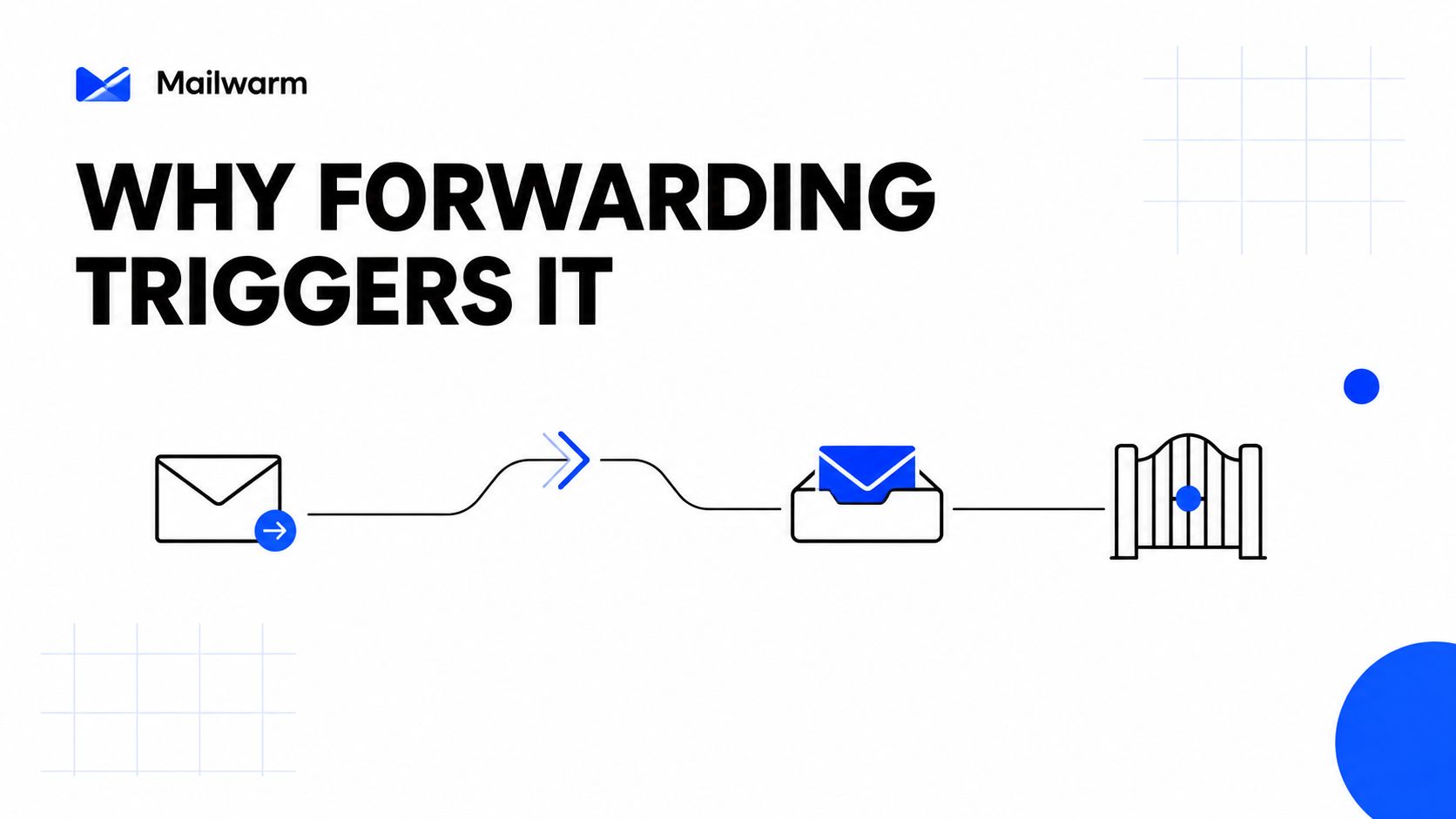
A message leaves a tenant as a legitimate send. An Outlook rule or connector then forwards it to a personal Gmail account or a ticketing tool. At that next hop, SPF checks the forwarder's IP, not the original sender's, so SPF fails.
If the original message had no aligned DKIM signature, nothing survives the forward. DMARC then fails at the next server, and that server rejects the mail as spam. Exchange Online relays that rejection back as 550 5.7.350.
A documented Microsoft example shows Exchange relaying a Gmail rejection that called the message suspicious because of the very low reputation of the sending domain. The code alone didn't explain that. The inner text did.
Senders should analyze the headers to see what the original message carried, and use an SPF checker to confirm the actual sending service is authorized. Related relay failures are covered in SMTP relay troubleshooting with Mailwarm.
| Trigger | Why the receiving server objects | Typical sign |
|---|---|---|
| Auto-forwarding externally | SPF fails at the next hop, nothing survives without aligned DKIM | Remote server is a consumer mailbox or ticketing host |
| Outbound connector | Mail leaves through a smart host the recipient doesn't trust | Connector covers the recipient domain |
| Low domain reputation | Recipient sees the domain as high risk | NDR text mentions reputation or suspicious sending |
| Misaligned authentication | Filters can't confirm authorization | Authentication-Results shows fail or none |
| Spammy content or links | Body or attachments match spam patterns | Delivers to some providers, bounces at one |
| Recipient gateway policy | Receiving organization blocks by its own rule | Only one organization rejects |
Message size should also be ruled out when the forward path and headers look clean. Checks come before fixes.
How to Find the Rule or Connector Behind It
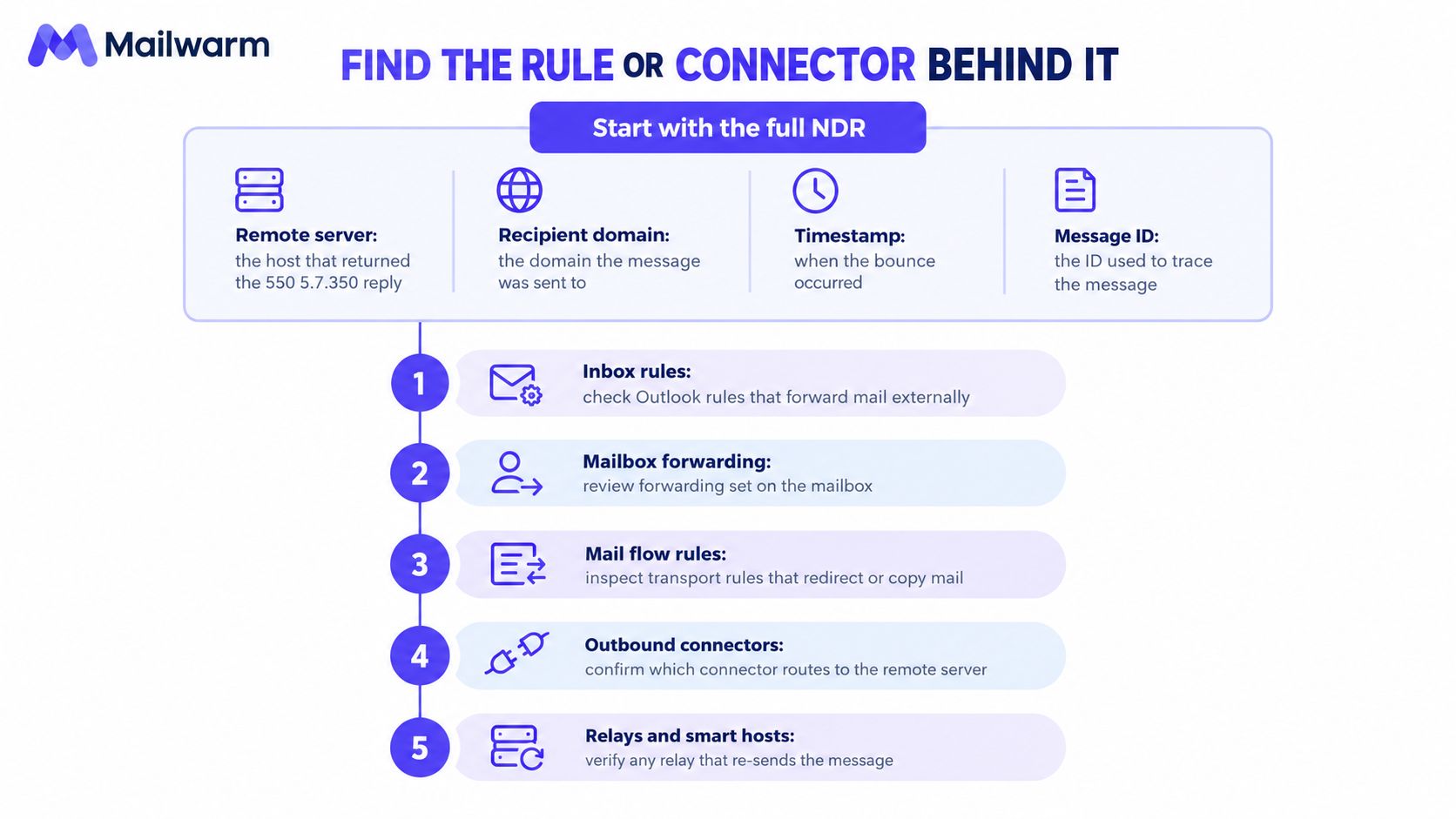
A clean SPF result inside your tenant means little once the NDR names Gmail, Yahoo, or a ticketing host as the remote server. Start with the full NDR. Note the remote server, recipient domain, timestamp, and message ID. Microsoft's Exchange Online guidance stresses obtaining the exact NDR and status code from the non-delivery report before escalating.
Step 1 Check Mailbox Forwarding
Connect with Connect-ExchangeOnline, then run Get-Mailbox -Identity user@yourdomain.com | Format-List ForwardingAddress,ForwardingSmtpAddress,DeliverToMailboxAndForward. Any value here copies mail outside the tenant on every message.
That setting is tenant-visible and easy to miss during staff changes. A mailbox set up years ago can still forward every inbound message to an address nobody monitors.
Step 2 Check Inbox Rules
Run Get-InboxRule -Mailbox user@yourdomain.com | Format-Table Name,Enabled,ForwardTo,ForwardAsAttachmentTo,RedirectTo. Users often create these rules in Outlook without IT knowing.
Look for enabled rules first. A disabled rule explains nothing. An enabled rule forwarding to a personal address explains a Gmail remote server in the NDR.
Step 3 Check Tenant Paths
Run Get-TransportRule | Format-Table Name,State,Mode and Get-OutboundConnector | Format-List Name,Enabled,SmartHosts,RecipientDomains. A connector through a third party changes which server the recipient sees.
Check whether the connector covers the affected recipient domain. If it doesn't, the connector probably isn't the path for this bounce.
Step 4 Read the Original Headers
Find the Authentication-Results line. A healthy result reads spf=pass, dkim=pass header.d=yourdomain.com, and dmarc=pass header.from=yourdomain.com. Microsoft 365 records authentication outcomes in that header, as noted in Microsoft guidance on authentication checks.
Pay attention to the domain after header.d=. A valid signature from a different domain doesn't give aligned DKIM for the From domain.
Step 5 Decide the Scope
- One recipient domain rejects: Prioritize that organization's gateway or policy.
- Several domains reject: Check content, reputation, and the forwarding path.
- One mailbox triggers it: Check that mailbox's rules before tenant-wide settings.
Resending the same message won't clear a permanent policy decision. The receiving system isn't asking for a retry.
If the forward path looks clean and bounces continue, Mailwarm deliverability experts can review headers. On-demand deliverability calls are available on the Scale plan.
How to Fix Forwarding Without Breaking Authentication
Apply fixes in order. Remove the trigger first, then protect any mail that still has to be relayed.
Turn Off External Auto-Forwarding
A forward that only copies mail to a personal or ticketing address is the usual trigger. Turn it off. Replace it with a redirect or alias where the recipient still needs mail from a tenant address.
Redirects and aliases keep delivery inside known paths. The message never resends from a server the next hop didn't expect, which is where most 5.7.350 rejections start.
Sign With Aligned DKIM
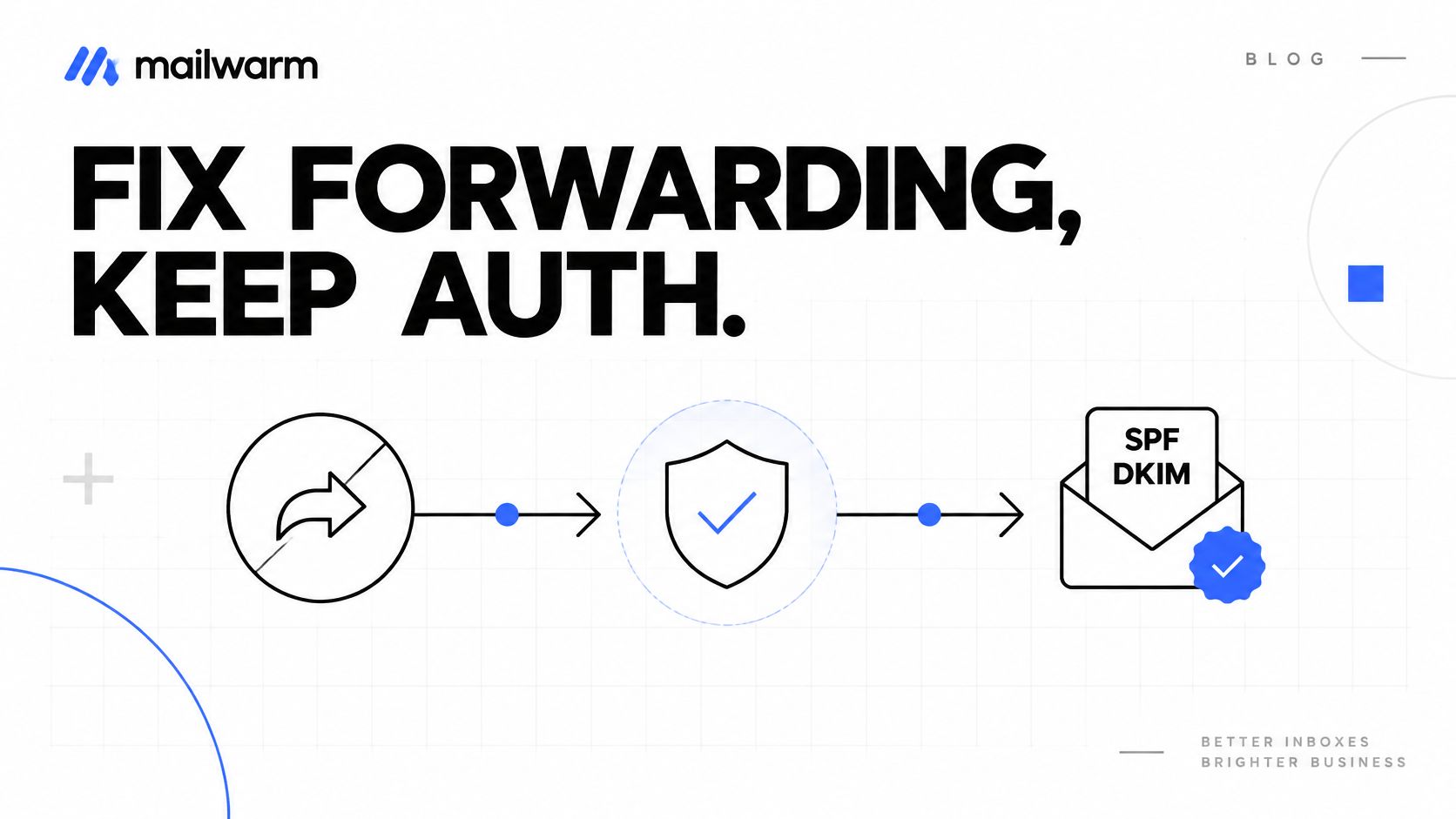
SPF will still fail at a forward. Chasing SPF for forwarded mail is the wrong goal. Aligned DKIM survives because the signature travels with the message.
Check signing with Get-DkimSigningConfig, then enable it with Set-DkimSigningConfig -Identity yourdomain.com -Enabled $true. Read a test message header after enabling and confirm the signature passes. Guidance to improve authentication for forwarded outreach emails covers the alignment detail.
Keep DMARC in view while you test. A policy of p=none only monitors and enforces nothing, so it can't stop a spam-flagged forward. Mailwarm recommends fixing SPF, DKIM and DMARC first, starting warmup before the first campaign, ramping slowly, and keeping a maintenance level running after.
Ask the Receiving Admin to Allow-List
A partner gateway that rejects the sender outright won't be fixed by any DNS record on your side. Ask the receiving admin to allow-list your domain or sending IP, and send them the NDR and timestamp so they can trace the block in their own logs.
| Fix | Use it when | Check after the change |
|---|---|---|
| Turn off external auto-forwarding | Forward only copies mail externally | No ForwardingSmtpAddress, no external inbox rule |
| Use redirects or aliases | Recipient must still get tenant mail | Alias delivers, From domain unchanged |
| Sign with DKIM on the domain | Any forwarded or relayed message | Signature passes in the header |
| Ask receiving admin to allow-list | Partner gateway rejects the sender | Admin confirms sender or domain is allowed |
| Remove spam signals | Content matches filter patterns | Plain test to a consenting mailbox delivers |
Change one thing at a time. Re-read the headers after each change, or the result can't be interpreted.
Questions About the 5.7.350 Bounce Answered
Will the Bounce Clear on Its Own?
Only if the cause disappears. Turning off an external forward or correcting a connector can clear it. Waiting alone doesn't change the receiving side's decision.
A temporary filter incident at the recipient can also end without sender action. That can't be assumed from the code. The NDR text and repeat tests show whether anything changed.
Does It Mean the Domain Is Blacklisted?
Not by itself. Forwarding and recipient filters cause most cases that reach a deliverability team. A blacklist checker is still a quick way to rule out a listing.
If no listing appears, stop chasing delisting forms. Return to the forward path, headers, and the named remote server.
Should the Address Be Removed From the List?
Treat it as a hard bounce for that recipient until the cause is known. First confirm whether one organization or many are rejecting. A single gateway block differs from a broad reputation problem.
Removing one address doesn't fix a forwarding rule. It also doesn't fix a connector that will trigger the same rejection for the next recipient at that provider.
Does Mailwarm Need Access to the Inbox to Help?
No. Mailwarm does not require IMAP access. Header, DNS, and deliverability checks can run without mailbox-level access.
That matters for shared and executive mailboxes. Diagnosis needs the NDR and the message headers, which you can export and share without handing over mailbox credentials.
Confirm the Forward Path Before You Send Again
A clean SPF result can still end in 550 5.7.350 when a forwarding rule hands the message to the next hop. Check that path first. The original domain may pass authentication while the relayed copy arrives with a different return path, a rewritten recipient, or headers the receiving gateway does not trust.
Before you send again, confirm three things. No external forward or connector relays the mail. DKIM signs with the sending domain. The headers show DKIM and DMARC aligned to the From domain.
Then send one plain test message, no links or attachments, to a consenting mailbox at the affected provider. Compare the new NDR with the original bounce. If one provider accepts and another rejects, go back to scope: the gateway named in the NDR is the suspect.
For ongoing sending, start with 10 to 20 emails per day per mailbox and increase by roughly 10 to 20 percent every few days. Mailwarm runs that ramp automatically, does not require IMAP access, and includes deliverability experts in every plan.
Keep the maintenance warmup running after the incident clears. The bounce is resolved only when the forward path and authentication both pass for 550 5.7.350. Visit Mailwarm to check the setup before the next campaign sends.