

No fixed number of emails makes a sender spam. A new mailbox should start at 10 to 20 emails a day including warmup, and an established mailbox with clean history can typically carry more, with cold sends in the per-mailbox range shown in the table below.
There is no single numeric answer to how many emails can you send before considered spam, because filters score the sender, not the send button. Most advice names a daily cap and moves on. That advice fails on both ends. A three-week-old domain that pushes a cold list up to the cap gets flagged, while an established sender treats the same figure as a false ceiling. Reputation and engagement decide filtering, so use the ranges that follow as starting points and watch for the warning signs that mean pause.
Safe Daily Sending Volumes by Mailbox Type
Google's own documentation settles the framing. There is no universal number of emails that automatically makes a sender spam, and the company evaluates volume next to complaints, authentication, engagement, bounce behavior and reputation, according to Google's bulk sender guidance.
Google defines a bulk sender as one sending close to 5,000 or more messages to personal Gmail accounts within 24 hours. Since February 1, 2024, that group has to meet extra requirements for authentication, simplified unsubscribe and complaint-rate controls. Crossing 5,000 doesn't label the mail as spam. It places the sender in a more closely regulated category. Sending 4,900 doesn't buy inbox placement either.
The ranges that hold up in practice
The table below is a starting schedule, not a target to beat.
| Sending situation | Daily volume | Cold emails per day | Ramp rule |
|---|---|---|---|
| New mailbox, first week | 10 to 20 emails a day including warmup | Under 50 per mailbox per day | Hold steady, then add 5 to 10 a day each week |
| New mailbox, first month | Rising by 5 to 10 a day each week | Under 50 per mailbox per day | Stop the ramp if any warning sign appears |
| Established mailbox, clean history | Your normal daily volume | 30 to 50 per mailbox per day | Add mailboxes and domains instead of raising one inbox |
A new mailbox starts at the low end because it has no sending history. An established mailbox with clean history can carry more, but the ceiling still applies per mailbox. The daily cold email sending limits guide covers the outreach side in more detail.
Practical rule: To send more, add mailboxes and domains. Pushing one inbox harder turns a manageable campaign into a reputation problem.
Why the same count gets different treatment
Gmail can impose delivery limits based on volume, feedback, domain and IP address. Two senders with identical daily counts can receive different treatment because the history behind the domain and IP address is different.
That's why a safe range has to be tied to the mailbox, not copied from a competitor. A sender with two years of consistent engagement can carry volume that would sink a domain registered last month.
Provider Limits and What Counts as Bulk Sending
Providers assign bulk status from sending volume, complaint history and authentication, and each one draws the line differently. A published recipient cap is a ceiling, not a quota. The table separates volume limits from complaint ceilings because they fail in different ways.
| Provider | Published cap or threshold | Complaint or spam-rate ceiling |
|---|---|---|
| Gmail | Near 5,000 messages in 24 hours to personal Gmail accounts | Below 0.1%, never reach 0.3% |
| Yahoo | No published volume threshold | 0.3%, calculated on inbox deliveries |
| Outlook.com | 5,000 daily recipients, 500 per message, 1,000 daily non-relationship recipients | No published complaint ceiling; capacity limits only |
Google Workspace and Microsoft 365 also enforce account-level recipient and capacity caps on top of these consumer rules. Those caps do not loosen complaint limits or make a cold list safer.
What each provider actually enforces
For Gmail, the practical boundary sits near 5,000 messages in 24 hours to personal Gmail accounts, while bulk senders need spam rates below 0.1% and must never reach 0.3%. The sending thresholds for SDR outreach teams guide walks through the full Gmail rule set.
Yahoo takes a different route. It publishes no volume threshold and calculates its 0.3% spam-rate ceiling on messages delivered to the inbox, per Yahoo sender best practices. On 10,000 sent messages with 8,000 inbox deliveries, 24 complaints reaches that ceiling. Use inbox deliveries as the denominator when estimating complaint headroom.
Outlook.com makes the capacity line easier to see. Microsoft documents 5,000 daily recipients, 500 recipients per message and 1,000 daily non-relationship recipients for Microsoft 365 subscribers using Outlook.com, according to Microsoft's Outlook.com sending limits.
The last number controls cold outreach because a new prospect has no established relationship with the sender. A mailbox can have capacity for thousands of messages and still hit a much lower ceiling for new contacts.
Throttling shows up as a code
When a sender passes a provider's comfort level, the first symptom is often a deferral. Gmail can return replies such as:
421-4.7.0 Try again later, closing connection. (MAIL_FROM)
550-5.7.1 Our system has detected that this message is likely unsolicited mail.
Those replies name the failure more clearly than an open-rate drop. A 421 is a temporary deferral, so retrying at the same volume usually produces the same response. A 550 rejects the message, and the response text often points to reputation or content.
Published caps mark the outer boundary of acceptable volume. Staying below them does not make weak authentication, irrelevant content, or increased complaints safe.
What Filters Judge Besides Volume
A low-volume sender can land in spam while a higher-volume sender reaches the inbox. The count is rarely the reason. The difference is usually the history behind the domain, the authentication records and the way recipients respond.
The diagram below shows the gap between an established domain with DMARC and a new domain without it.
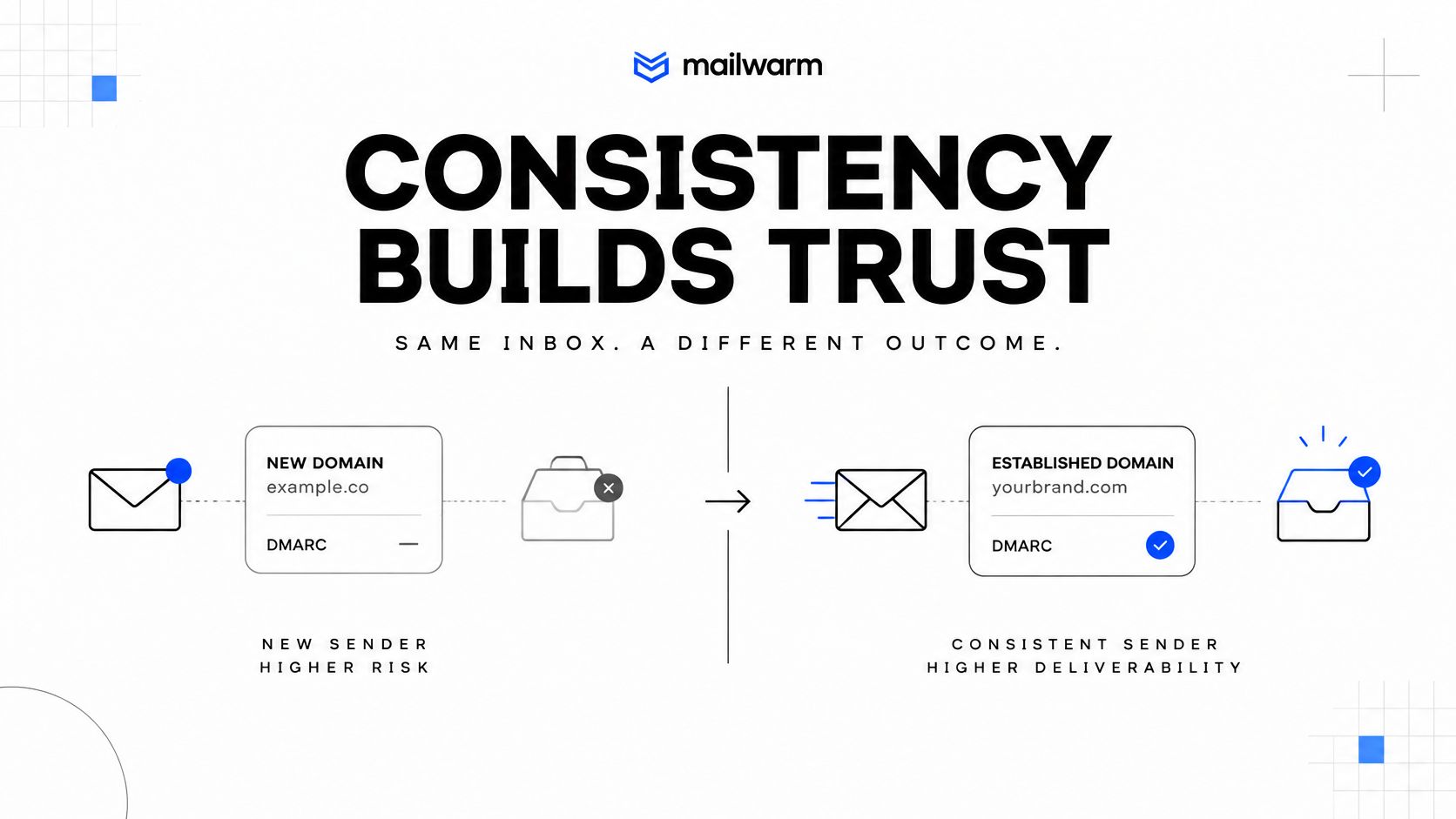
Say two teams send 800 cold emails on the same Monday. One uses a three-week-old domain, no DMARC record and a list from a data vendor. The other uses a two-year-old domain with aligned SPF, DKIM and DMARC, and recipients who opened and replied in the previous month. The first team gets throttled or filtered. The second reaches the inbox at the same volume.
The records that carry the reputation
A DMARC record is the public statement of what a domain does with mail that fails authentication. A minimal record starts in monitor mode:
v=DMARC1; p=none; rua=mailto:dmarc@yourdomain.com
p=none only asks for reports. It doesn't tell receivers to reject failing mail. Move the policy to quarantine or reject once the reports are clean, or the domain keeps sending without the protection the record implies.
SPF works the same way. A domain without an SPF record gives receivers no authorized-sender list to check against, so every message arrives with a question mark attached. Filters don't block for that alone, but they stop giving the domain the benefit of the doubt once volume or complaints rise. Authentication is a baseline, not a differentiator. Everyone at the inbox table already has it.
Domain and IP blocklists sit one layer below. A sending IP listed on a DNS blocklist can drag placement down for every campaign on that IP, no matter how clean the content is. Shared-IP senders can inherit a listing they did nothing to earn, which is why the check belongs in the routine rather than only in incident response.
Engagement is the third leg. Replies, opens and messages rescued from the spam folder build reputation over weeks. Complaints and deletes-without-reading tear it down in days. A sender with strong recent engagement survives a volume spike that would bury a sender with flat engagement.
The checks that predict placement
Before a ramp, run an SPF, DKIM and DMARC check on the sending domain, then check the sending IP and domain against the major DNS blocklists. A practical first pass is to check IP and authentication before content, because a content problem on an unauthenticated domain is much harder to diagnose.
Check your DMARC record tool shows whether the policy is p=none, quarantine or reject. A short walkthrough of how authentication and reputation interact is below.
How to Ramp Volume Without Triggering Filters
A ramp works because it gives mailbox providers a pattern to trust. Each step up in volume is a small test: send, measure, then hold or advance. The sequence below can start this week on a new or established mailbox.
The six steps in order:
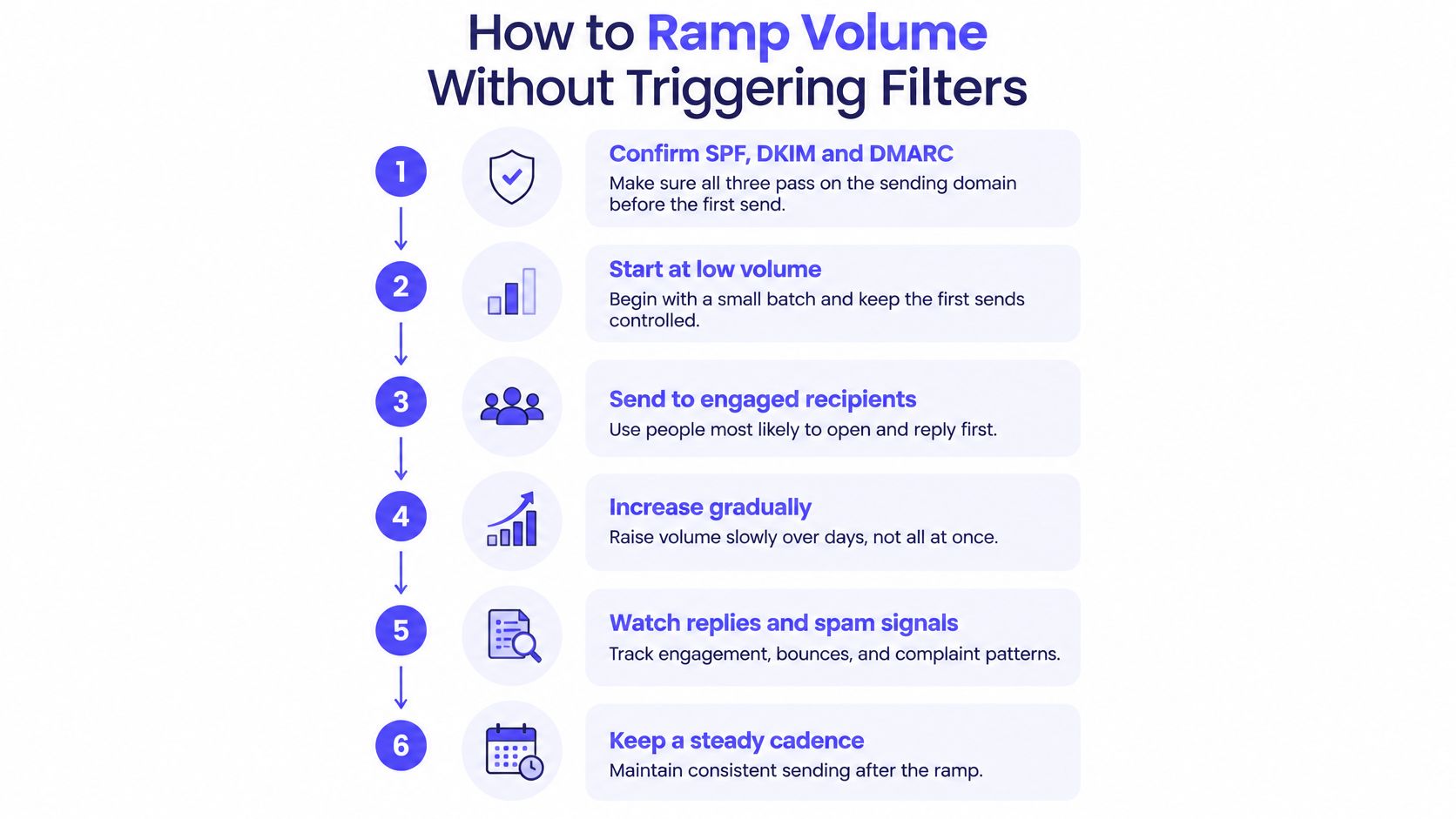
The six-step ramp
- Confirm SPF, DKIM and DMARC pass on the sending domain before the first send. A missing or misaligned record gives filters a reason to defer, and no amount of volume control fixes it.
- Start at 10 to 20 emails a day per mailbox, warmup included. That volume is low enough to measure complaints and bounces without burning the domain.
- Increase by roughly 10 to 20 percent every few days, and keep cold sends under 50 per mailbox per day for the first month. A gradual step gives the provider time to see a stable pattern instead of a spike.
- Check complaint and bounce rates after each step, and hold the ramp if either climbs. A ramp that ignores the signals is just a slower spike.
- Never double volume after a good week. A sudden jump looks like a new, unknown sender, even when the content and the list are identical.
- Log each day's volume and complaint rate in one sheet. The record shows which change caused a placement shift and gives a clean baseline after a pause.
A sender starting from zero warms up the domain before the first cold send. Mailwarm's warmup schedule is a concrete version of this: 20 emails a day in week 1, then 55, 110, 160 and 200 a day through week 5, with replies and engagement handled automatically rather than left to a manual calendar.
A ramp is a sequence of tests. The sender who treats it as a calendar is the one who doubles after a good week.
One sender in the Mailwarm network cut spam placement from 44.5% to 10.9% in 5 weeks. It is a single strong case, not an average, and the spam rate alone does not prove which part of the ramp did the work.
Warning Signs That Mean You Should Pause Sending
The complaint rate is the fastest signal because it moves before open rates and revenue do. Gmail's benchmark is below 0.1%, and 0.3% is the edge where delivery mitigations can disappear for bulk senders, according to Gmail's sender guidelines.
The math is simple and unforgiving. 0.1% means 1 complaint per 1,000 delivered messages, and 0.3% means 3 per 1,000. A 10,000-message send becomes deliverability-critical at 10 complaints and reaches enforcement risk at 30.
| Signal | Threshold | Action |
|---|---|---|
| Complaint rate | Above 0.1% | Pause the ramp, cut volume and suppress recipients who do not want the mail |
| Complaint rate | 0.3% or higher | Stop sending to that list, since Gmail can remove delivery mitigations for bulk senders |
| Hard bounce rate | Above 2% | Pause and clean the list before the next send |
| Reply rate on a list that used to reply | Falls below that list's previous average | Pause that list, then check targeting, content and sending pattern |
| Spam folder results in a placement test | Higher than the previous test | Reduce volume, fix the cause, retest before ramping again |
Why the pause should come early
The relationship is not linear. Once complaints rise, providers may throttle or move mail to spam, which lowers engagement and weakens reputation further. The next send then starts from a worse position. That's why the pause belongs at 0.1%, not after the spam folder fills.
Gmail also recommends watching server responses, spam rate and domain reputation as volume grows. Those three checks catch a different problem than a bounce report: they show whether the provider still trusts the sending pattern.
Pause first: A sender at 0.12% complaints is one bad batch away from 0.3%, and the second threshold is where Gmail can remove delivery mitigations for bulk senders.
How to recover in four moves
- Lower volume to the last level that passed. Don't negotiate with a 0.3% complaint rate by sending more.
- Fix the cause, whether that is the list, the content or the DNS. A new subject line doesn't repair a missing DMARC record.
- Retest placement. Send a small batch to the same provider and check inbox versus spam before restoring volume.
- Ramp again slowly from the level that passed. The second ramp should be slower than the first, because the domain has less room for error.
How to Pick a Warmup Platform for Your Ramp
A warmup tool covers one part of the problem: the reputation of the mailbox. It does not replace list quality, DNS or content. The useful test is whether the platform can run a controlled ramp and prove placement.
The checklist below summarizes the criteria that matter most.
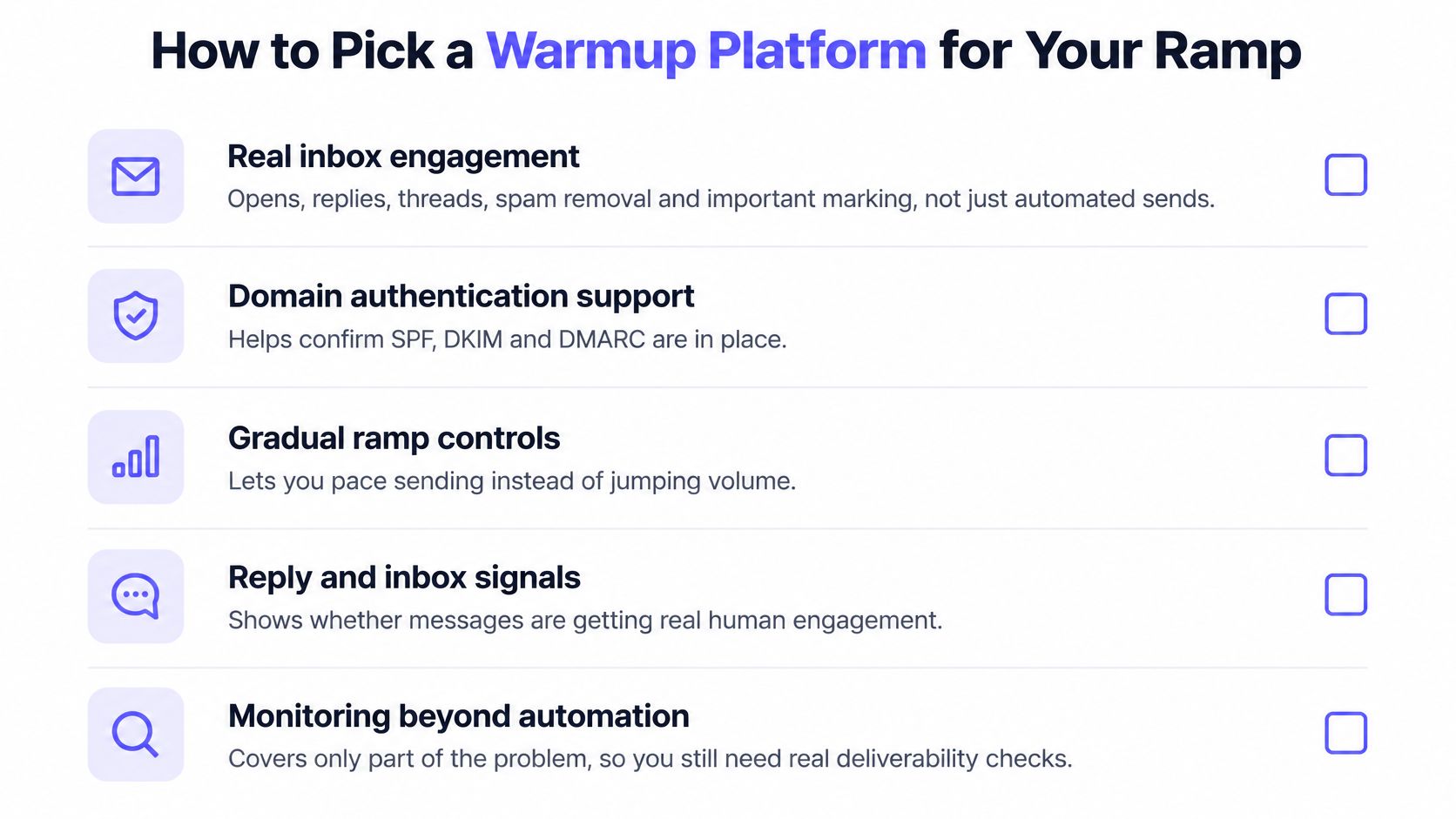
The checklist
- Real inbox engagement: Opens, replies, threads, spam removal and important marking. Automated sends alone do not create human signals.
- Provider-level control: Gmail, Outlook, Microsoft 365, Yahoo and SMTP. Reputation is judged per provider, so warmup should happen where the mail goes.
- Gradual ramp controls: Starts low, around 10 to 20 emails a day per mailbox, and grows in small steps. A fixed high volume is a spike with a schedule.
- Spam score monitoring and placement insights: A dashboard that only counts warmup emails does not show whether real campaigns reach the inbox.
- Authentication checks and bounce prevention: SPF, DKIM, DMARC and list checks catch the failures that volume cannot fix.
- No IMAP access: Required for teams that handle client mail or private inboxes.
- Expert guidance: DNS, content and volume problems often show up together, and a call shortens the loop.
Where Mailwarm fits
Mailwarm is a premium email warmup service and deliverability platform. Its network includes 50,000+ aged real inboxes, and those accounts open, reply, mark as important and rescue mail from spam. Depending on the plan, replies to warmup emails can reach 100%.
The platform also monitors spam scores and inbox placement, checks authentication and prevents bounces. It does not require IMAP access or permission to read a private inbox.
Teams comparing options can use this list of best email warmup tools 2026 as a starting point. Basic tools may suit teams that only want cheap automated sends. They will not show whether a real campaign reaches the inbox.
Frequently Asked Questions About Sending Volume
Before the next send, confirm SPF, DKIM and DMARC, set the ramp, and write down the pause thresholds.
What is email warmup?
Email warmup sends low-risk volume between real mailboxes so a sender builds a track record of opens, replies and spam removal. The point is to give filters a history before a cold campaign arrives. Warmup is not a substitute for permission or a clean list.
How long does email warmup take?
Expect roughly 2 to 4 weeks depending on domain age, sending volume and engagement quality. Early signs show up sooner: fewer messages landing in spam within the first days or weeks of activity. Stronger inbox placement and a stable sender reputation build over continuous warmup, and reputation has to be maintained, not just built. A new domain usually needs the full ramp; an established domain can start at a higher baseline.
Is email warmup enough to fix deliverability?
No. It works best alongside DNS setup, list hygiene and a steady sending pattern. If SPF, DKIM or DMARC is missing, warmup cannot repair the identity gap. Content and targeting still decide whether recipients reply.
Does Mailwarm need access to my inbox?
No. Mailwarm does not require IMAP access or permission to read a private inbox. Warmup activity runs through the network, so private mail stays private.
The safe number is a range that moves with reputation. Start low, add volume in small steps, and stop when the complaint or bounce line is crossed. That is the practical answer to how many emails can you send before considered spam, and it changes with the sender.
Mailwarm pairs warmup with spam score monitoring, inbox placement insights and expert guidance calls that every plan includes. If email is part of your growth strategy, visit Mailwarm to build sender reputation, monitor inbox placement, and reduce spam risk with expert-guided warmup.