
A 22 MB pitch deck leaves your outbox at roughly 29 MB and can bounce on a server that never showed you its limit.
An email size limitation is the largest complete message a mailbox provider or receiving server will accept. That total counts the body, the headers, and every attachment after encoding. Encoding pads the file the way extra wrapping pads a parcel, so a 25 MB cap comfortably fits only about 18 MB of actual file.
Most consumer providers set the ceiling at 20 MB or 25 MB, while some business configurations, such as a default Exchange mailbox, close at 10 MB. Gmail publishes 25 MB for standard sending. Outlook.com draws the line at 20 MB.
The sender's published number is only one gate on the path. The smallest limit on the route decides whether the message arrives.
Email Size Limits by Provider at a Glance
An email size limitation is the largest whole message, body and attachments included, that a mailbox provider or server will accept. Not the file size on your desktop, and not the number in the marketing copy.
| Provider | Published total limit | Realistic attachment ceiling | Notes |
|---|---|---|---|
| Gmail (standard and Workspace Business) | 25 MB | about 18 MB | Sending cap; oversized files can be swapped for Google Drive links |
| Outlook.com | 20 MB | about 15 MB | Attachment and the rest of the email share one cap |
| iCloud | 20 MB | about 15 MB | Same 20 MB total as Outlook.com |
| Yahoo | 25 MB | about 18 MB | Covers the complete message |
| Proton Mail | 25 MB | about 18 MB | Encrypted attachments count too |
| AOL | 25 MB | about 18 MB | Same 25 MB cap as Gmail and Yahoo |
| Exchange business account (default) | 10 MB | about 7.5 MB | Administrators can change the default |
| Exchange Online (sending) | 35 MB | about 26 MB | Administrators can configure limits from 1 MB to 150 MB |
What the published number actually counts
Microsoft Support states a 20 MB total email-size limit for internet accounts such as Outlook.com or Gmail, and a 10 MB default for Exchange business accounts. The same documentation is explicit that the figure covers the attachment and the rest of the email together, so usable capacity sits below the headline number, and a message with several attachments has to fit inside one combined cap rather than one cap per file (Microsoft Support).
Microsoft's own guidance on large files puts approximately 20 MB on Outlook and iCloud and 25 MB on Gmail, Yahoo, Proton Mail and AOL, then estimates that a 25 MB allowance carries an actual file of roughly 18 MB, about 72% of the nominal limit (Microsoft 365 guidance on sending large files). That ratio is where the third column comes from.
Why business accounts behave differently
Exchange Online defaults to 35 MB for sending and 36 MB for receiving, and administrators can set mailbox limits anywhere from 1 MB to 150 MB, so a tenant's real ceiling can sit far above or far below any consumer figure (Microsoft Learn on Exchange Online message size limits). A two-person agency on Microsoft 365 and a 40,000-seat enterprise run the same product with different rules.
Carry this forward: the smallest limit on the route decides whether the message arrives. Not yours, not the biggest number you've seen on a chart.
How Encoding Shrinks the Attachment Budget
Attachments leave your disk as binary and travel as plain text. Base64 turns every three bytes of a file into four characters, and RFC 1341 documents the result as consistently about 33 percent larger than the unencoded data (RFC 1341). A 15 MB file becomes roughly 20 MB on the wire before a single header or MIME boundary is added.
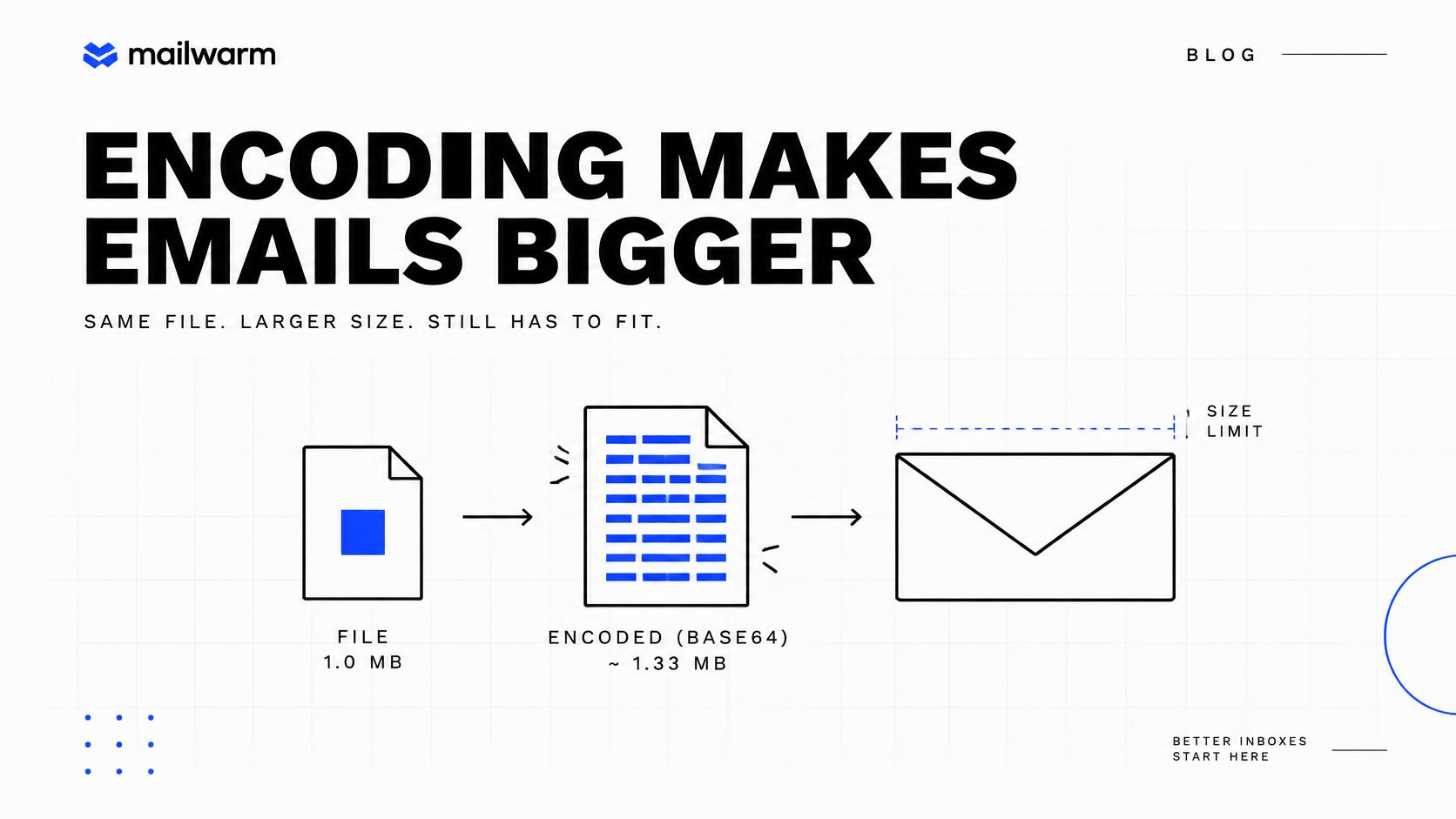
The diagram above shows where the weight lands: the same content, measured before and after transport encoding.
The encoding sum in four steps
Run this before every campaign that carries documents, and the answer you get is the number the receiving server checks.
- Total every attachment. Two 9 MB files are an 18 MB payload, not two separate 9 MB sends.
- Multiply by 1.33. That 18 MB payload becomes roughly 24 MB.
- Add body and header weight. A plain-text note costs almost nothing. An HTML email with two inline logos and a signature image can add a megabyte or more.
- Compare with the lowest cap on the route. If the recipient is on Outlook.com, you're comparing against 20 MB, not 25 MB.
Reading file sizes against a 25 MB cap
| Original file size | Size after Base64 encoding | Fits a 25 MB cap? |
|---|---|---|
| 10 MB | about 13.3 MB | Yes, with room for body and headers |
| 15 MB | about 20 MB | Yes, with a moderate margin |
| 18 MB | about 24 MB | Only just, body text can push it over |
| 20 MB | about 27 MB | No |
| 25 MB | about 33.3 MB | No |
A 15 MB deck with two inline logos and a short cover note lands near 20 MB. That clears a 25 MB Gmail ceiling with room to spare and exceeds a 20 MB Outlook.com ceiling outright. One send, two outcomes, and the file never changed.
Planning budget: keep binary attachments at or below 18 MB on a 25 MB route and at or below 15 MB on a 20 MB route. Round down, never up.
Why the Same File Fails on One Route and Not Another
The common assumption is that their own provider's cap is the cap. It isn't.
Take a 16 MB proposal. Encode it and you're carrying about 21.3 MB. Send it to a colleague on Gmail and it arrives, because 21.3 MB sits under the 25 MB ceiling. Send the identical file to a client on Outlook.com and it bounces, because 21.3 MB sits over the 20 MB ceiling. Nothing about the file changed, only the destination.
Microsoft's guidance is blunt about this. It notes that Outlook and iCloud carry 20 MB limits while Gmail, Yahoo, ProtonMail and AOL carry 25 MB limits, and that the lower limit between the sending and receiving systems controls delivery (Microsoft on the best way to send large files). The recipient's server can reject a message your provider happily accepted.
An admin setting that overrides the chart
Enterprise limits are configuration, not destiny. A Microsoft 365 administrator can raise a mailbox cap well above the consumer default, and can just as easily lower it. So a message that sails between two people inside one organization can bounce the moment it leaves, and a supplier with strict inbound filtering can reject files your own tenant permits.
Test the routes you actually send to
A single test tells you about a single provider. Build the picture instead.
- List three recipient domains that receive most of your outbound mail.
- Send one representative file to a live address on each of those providers.
- Record the outcome for each route, including any bounce text.
- Adopt the smallest accepted size as the working limit for the entire list.
Transport matters as much as the file here. A message pushed through an API and one relayed over SMTP can meet different ceilings, and Gmail API versus SMTP sending limits is worth reading before you blame the attachment.
Protocol Rules Behind Line and Message Size
Two different standards set two different boundaries, and mixing them up sends people hunting for the wrong fix.
RFC 5321 requires every SMTP server to support at least 64 KB for a complete message, headers and body included, while allowing servers to impose higher limits. It also defines a separate 1,000-octet maximum for each transmitted text line, counting the carriage return and line feed (RFC 5321). That floor explains why provider caps vary so widely: the standard only guarantees a minimum.
RFC 5322, published by the IETF in October 2008, caps each line at 998 characters excluding the line ending and recommends 78 characters for display compatibility (RFC 5322). Those are structural rules, not attachment quotas. An email can carry fifty lines and still comply, but one uninterrupted line of 3,000 characters will break it.
Read the bounce before you touch the file
The reply text tells you which rule you broke, and the two fixes are not interchangeable. A 552 response with enhanced status code 5.3.4 means the receiving server rejected the message for size, and the reply usually names that server's own limit. A line-length rejection points at something else entirely: a long tracking URL, machine-generated headers, or unencoded HTML.
Diagnostic habit: if the bounce mentions size, check the encoded total. If it mentions line length, check the HTML and the links. Resizing the attachment fixes exactly one of those.
Each hop from your mail client to the first relay to the final mailbox server runs through a mail transfer agent with its own policy, and the role of email transfer agents explains where in that chain a rejection can be issued.
Ways to Send Files Larger Than the Limit
Four methods cover almost every situation, and each one asks something different of the person receiving it.
| Method | Best for | Recipient needs | Main trade-off |
|---|---|---|---|
| Direct attachment | Files under the realistic ceiling for the route | Nothing extra | Counts against the full message cap |
| Cloud share link (Google Drive, OneDrive, Dropbox) | Files of any size | Access to the linked file | Permissions and expiry need checking |
| Compressed PDF or exported images | Decks and scanned documents | Nothing extra | Image quality drops at heavy compression |
| Split into several emails | Files too big for a link | Reassembles the parts | Slow, and one missing part breaks the file |
Gmail will sometimes do the work for you. It can replace an attachment that exceeds the applicable limit with a Google Drive link automatically, which keeps the message moving but changes permissions, tracking and the recipient's experience (Google Workspace Admin Help). For a one-off to a colleague that's fine. For a contract sent to a client's legal team, check what went out.
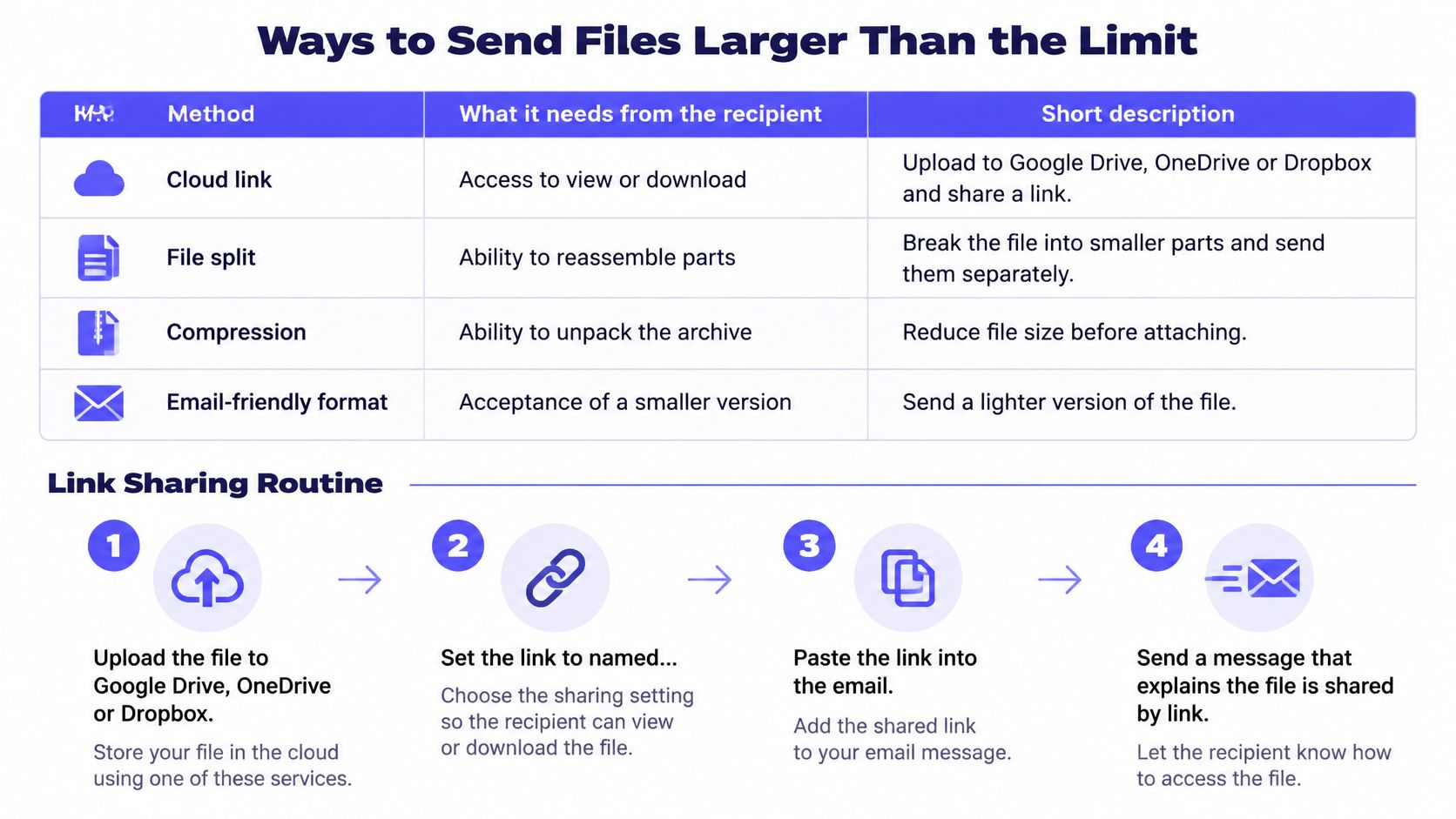
The link routine that survives an audit
- Upload to Google Drive, OneDrive or Dropbox, in a folder you control rather than a personal root.
- Restrict access to named recipients, not anyone with the link.
- Paste the link into the email alongside the file name and its size, so the reader knows what's coming.
- State when the link expires, or set no expiry for documents you resend regularly.
- Confirm one external address can open it before the campaign goes out.
Compression first, splitting last
Re-exporting a PDF at screen quality or resizing images to 1,920 pixels wide often pulls a 30 MB deck under 6 MB, and charts still read at that resolution. Check the small print in a table before you send it. Video is the worst offender, and this walkthrough on how to resize MP4 videos with FFmpeg gives the exact settings for cutting a file down without wrecking the audio.
File type carries risk beyond size. ZIP archives and unusual formats get flagged even when they're tiny, and knowing which attachment types that trigger spam filters is worth ten minutes before a launch.
Splitting a file across three emails should be your last resort, because the recipient has to reassemble it and one missing part makes the whole thing useless.
The opinion, with its reason: above the realistic ceiling, send a link. A link can be revoked, its access is visible, and a failure produces a message you can act on. A bounced attachment leaves the recipient with no file and no explanation, and they rarely tell you.
Check Your Attachment Size Before You Send
Check the encoded total against the lowest cap on the route before you press send, not after the bounce report lands.
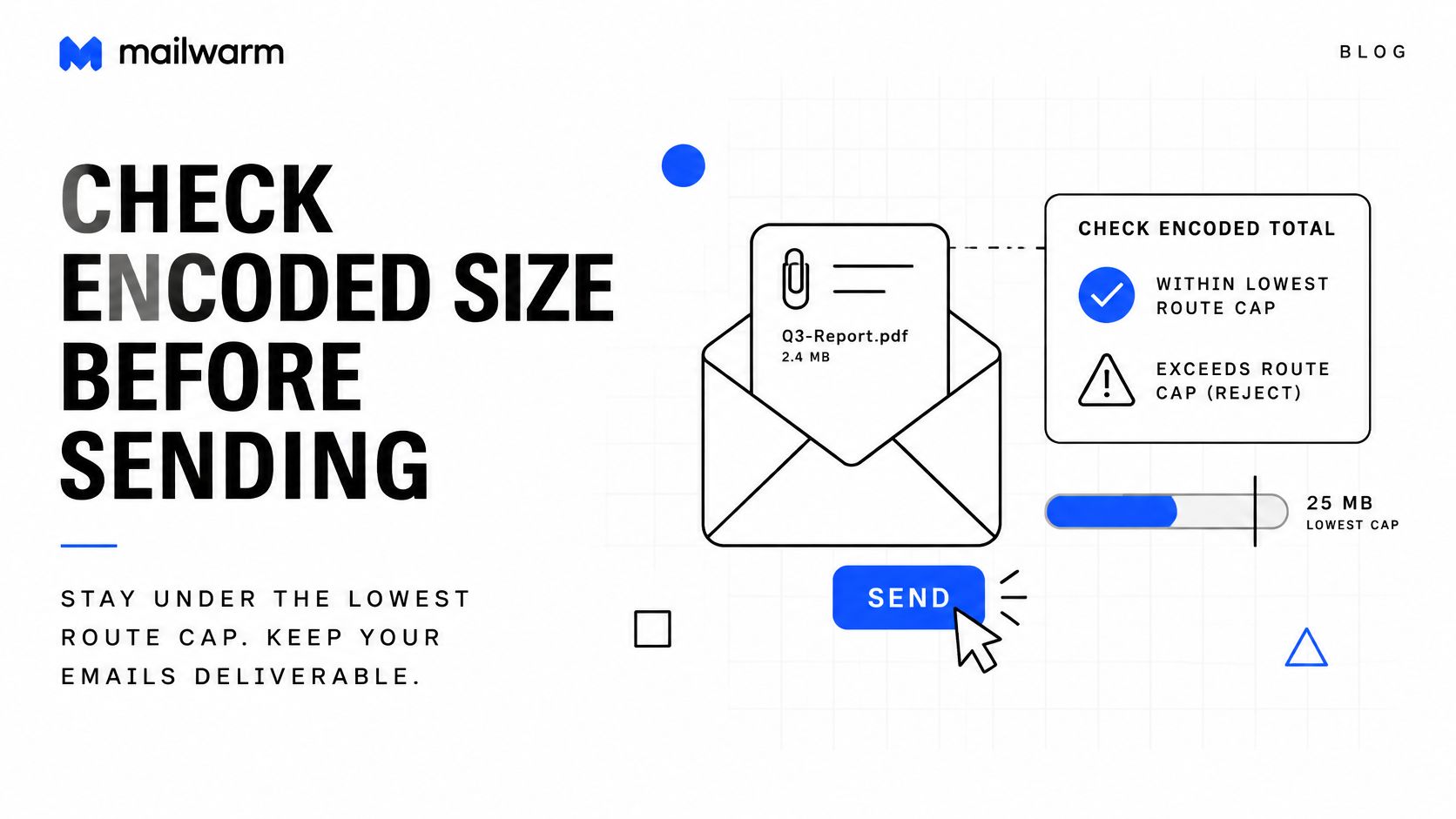
- Name the providers your recipients use, and note the smallest published cap among them.
- Calculate the encoded total using the 1.33 multiplier.
- Compare against the practical ceiling, roughly 75% of that cap.
- Move anything above it into a cloud link with named-recipient access.
- Send one test to the hardest route on your list before the full campaign.
Store that checklist inside your outreach template so every campaign runs the same five moves without a fresh calculation.
If test messages still miss the inbox for reasons that have nothing to do with size, test your email deliverability to see where the route fails, and keep warmup running so sender reputation doesn't drift while you fix it. Mailwarm helps senders build reputation, monitor inbox placement and improve deliverability through real inbox engagement, advanced warmup controls and expert guidance.
Attachment bounces are rarely about the file being too big. They're about the encoded message meeting a limit nobody put on the chart, on a route you didn't test. Mailwarm is a premium email warmup and deliverability platform that pairs a network of 50,000+ aged real inboxes with spam score monitoring, inbox placement insights and expert deliverability calls on every plan, so the next oversized send doesn't cost you a domain's reputation. Visit Mailwarm to see how provider-level warmup and route-aware deliverability analytics fit your sending setup.