

Open rates have dropped, replies have disappeared, and Gmail or Outlook is suddenly treating a familiar campaign like unwanted mail. The first reaction is usually to run a Sender Score check and look for a single number that explains the problem.
Sender Score is a long-running reputation metric that scores a sending IP on a 0 to 100 scale, typically using a rolling 30-day average as a proxy for how mailbox providers may view the sender's trustworthiness. It's useful, but it isn't an inbox placement guarantee. A proper check also covers authentication, complaints, bounces, engagement, blocklists, and provider-specific placement.
What a Sender Score Check Actually Tells You
Sender Score turns complex reputation signals into a number that's easier to monitor. The score focuses primarily on the reputation of a sending IP, so it can help identify whether the infrastructure behind a campaign has developed a trust problem. The metric is commonly compared with a credit score because it gives teams a simple reference point for a much broader pattern of sending behavior. (Mailjet explains how Sender Score works)
A score check is most useful when it answers a practical question: has the sending infrastructure become riskier over time? A falling score can point to rising complaints, poor list hygiene, authentication problems, or inconsistent sending patterns. It gives a starting signal for investigation, not a final verdict on where every message will land.
The number also needs context. A sender can have a healthy-looking IP reputation while Gmail filters messages into spam, or while Outlook treats one stream differently from another. Sender Score doesn't measure every provider's inbox decisions, and it doesn't directly show whether a message reached the inbox, spam folder, promotions area, or another filtered location.
Practical rule: Use Sender Score to find reputation risk, then use provider tools and placement tests to find where that risk appears.
A useful check starts with the sending infrastructure rather than the email copy:
- Identify the sending IP: Confirm which server or provider sends each message stream.
- Record the score and trend: A current score matters, but movement over the rolling window gives more useful context.
- Separate sending streams: Transactional, marketing, outreach, and support traffic may use different infrastructure.
- Compare mailbox providers: Gmail, Outlook, and Yahoo may show different delivery outcomes for the same campaign.
- Check supporting signals: Authentication, complaints, bounces, unsubscribes, engagement, and blocklists explain what the score alone cannot.
The key distinction is simple. Sender Score helps assess reputation risk at the IP level. It doesn't promise inbox placement, and it shouldn't be used as the only deliverability measurement.
IP Reputation vs Domain Reputation
Sender reputation has two related layers. IP reputation follows the server address used to send mail, while domain reputation follows the sending domain. A mailbox provider may evaluate both when deciding whether to deliver, filter, throttle, or block a message. (Salesforge breaks down IP and domain reputation)
This distinction becomes important when a company uses several email service providers, shared IP pools, or separate subdomains. One provider may handle newsletters, another may send sales outreach, and a third may deliver account notifications. If one stream sends to an old list or generates complaints, its IP can create a problem that a broad domain-level view doesn't reveal.
A domain lookup may also show several sending IPs with different volumes and scores. That means there isn't always one score that represents the whole email program. The relevant question is which IP, domain, and provider handled the message that failed to reach the inbox?
How to read the score range
Scores below 70 are widely treated as a warning sign, while scores at 90 or above are generally considered good. Those benchmarks are useful for prioritization, but they aren't guarantees. A score above 90 can coexist with poor Gmail placement if authentication, engagement, content, or Gmail-specific reputation has deteriorated.
The practical interpretation looks like this:
- Below 70: Investigate before increasing volume. Look for complaints, hard bounces, authentication failures, and blocklist issues.
- 70 to 89: Treat the program as workable but exposed. Find the signal that is holding the score back and monitor each sending stream.
- 90 or above: Infrastructure reputation appears healthy at that measurement point, but provider-level placement still requires separate validation.
Teams that send through shared infrastructure should be especially cautious. The score can reflect the behavior of other senders on the same IP, while a domain score can blend multiple streams. A reliable review therefore maps every important message type to its IP, domain, provider, and audience.
For a deeper explanation of how these layers interact, see Mailwarm sender reputation tips. The objective isn't to chase a high number in isolation. It's to find the specific sending path that creates risk for the messages that matter most.
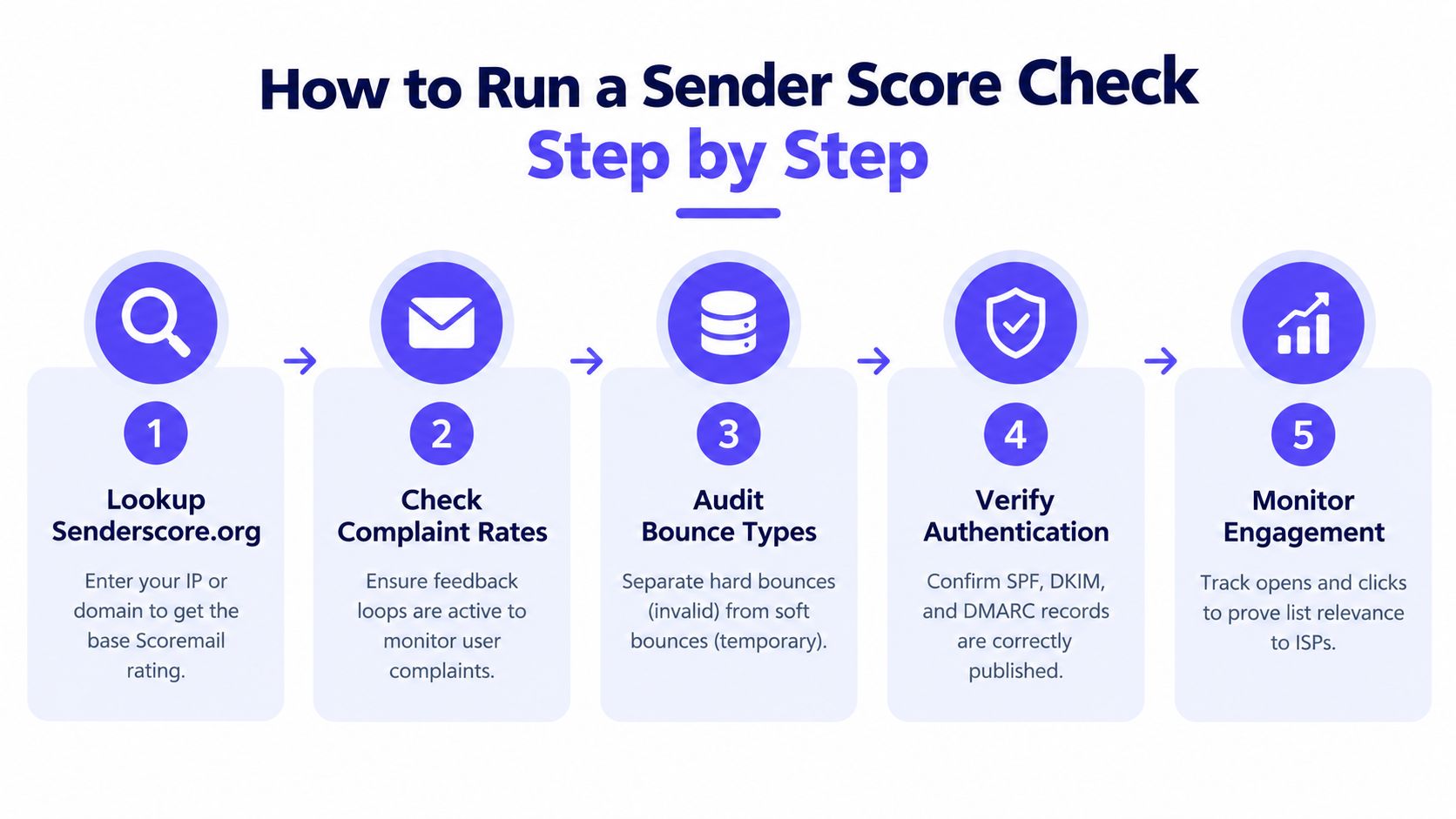
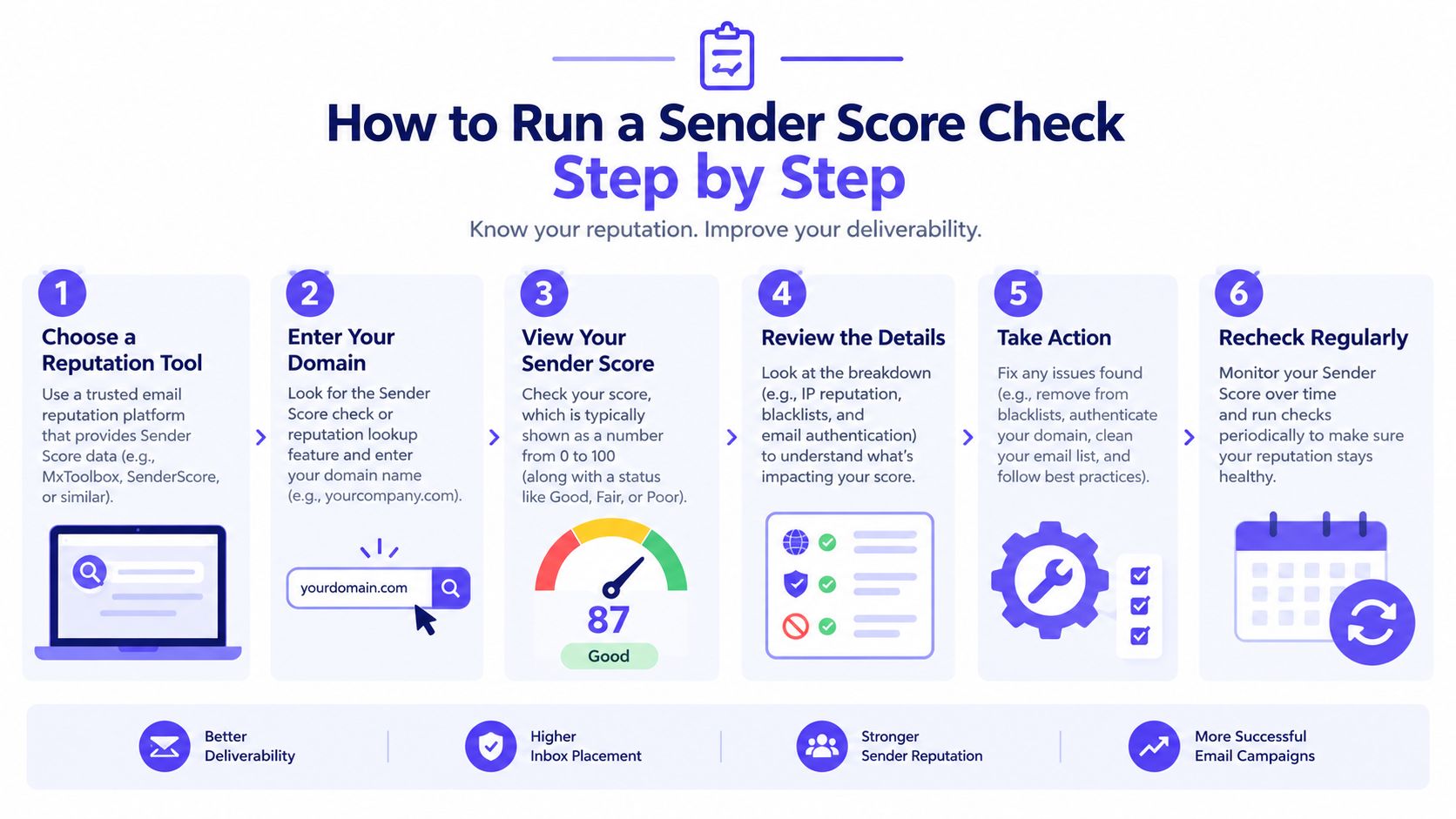
How to Run a Sender Score Check Step by Step
A Sender Score can look healthy while Gmail or Outlook filters your messages. Run the check as a diagnostic sequence across each sending IP, domain, and mailbox provider. A single lookup shows only part of the delivery picture.
Map every sending path
Start by listing the systems that send mail for the organization: marketing platforms, sales tools, transactional providers, support systems, and shared or dedicated infrastructure. Record the IP, domain, subdomain, message type, and primary audience for each stream. A domain can use several IPs, so checking only the most visible platform may leave a failing stream hidden.
Query each relevant IP and domain with Sender Score's assessment tool. Record the current result and any available trend information. Treat the result as an external reputation reference, not as a verdict on Gmail, Outlook, Yahoo, or another provider.
Confirm authentication before changing campaigns
Check SPF, DKIM, and DMARC alignment for every sending domain and subdomain. Review the actual message path and the visible From domain, because authentication can pass while alignment fails. Correct those issues before changing subject lines, templates, audience rules, or volume. Filtering can persist even when content and list quality appear stable if authentication is unreliable.
Then review provider-specific sources. Google Postmaster Tools, Microsoft SNDS, and Yahoo Sender Hub can show different views of IP and domain reputation, authentication, and delivery errors. Mailgun outlines the role of these provider tools. Compare the same stream across providers rather than averaging the findings into one program-wide score.
Measure inbox placement
A delivered message may still enter spam. Test inbox and spam placement by provider, domain, campaign type, and sending stream. Delivery and open rates can hide a provider-specific filtering problem, especially when Gmail performance falls while the Sender Score remains unchanged.
Run supporting checks alongside placement tests:
- Review complaints: Connect negative feedback to particular campaigns, audiences, and providers.
- Separate bounce types: Suppress hard bounces promptly. Investigate soft bounces for temporary delivery conditions.
- Check unsubscribes: A sudden rise can indicate poor targeting, high frequency, or unclear expectations.
- Review blocklist status: Check the relevant domain and sending IPs separately.
- Inspect content risk: Run an email spam checker before assigning every problem to reputation.
- Correlate timing: Compare changes with list imports, launches, volume increases, and engagement declines.
Finish by matching each symptom to its likely cause. A decline after a list import points toward bounces or complaints. Gmail filtering with a stable external score calls for closer review of provider reputation, authentication alignment, engagement, and content.
Reading Your Results Against Healthy Benchmarks
A Sender Score is only one row in a larger deliverability report. Strong diagnosis compares infrastructure reputation with the signals mailbox providers use to judge whether recipients want the mail and whether the sender is technically trustworthy.
The following benchmarks provide practical warning points. They should be reviewed by stream and provider rather than averaged across the entire program.
| Signal | Warning Sign | Strong Sender |
|---|---|---|
| Spam complaints | Above 0.3%, treated as a serious risk | Under 0.1% |
| Hard bounces | Above 2%, indicating a list hygiene problem | Kept consistently low through suppression and validation |
| Inbox placement | Below 85%, a meaningful deliverability issue | 95% or higher |
| SPF, DKIM, and DMARC pass rates | Below about 95%, a warning sign | At or above the warning threshold across active streams |
These complaint, bounce, placement, and authentication benchmarks are summarized in independent sender reputation guidance. The numbers aren't a replacement for diagnosis. A complaint rate can look acceptable overall while one campaign creates a serious problem, and an authentication average can hide failures on a recently added subdomain.
Why a good score can still miss the inbox
A common support question is, “The Sender Score looks fine, so why are Gmail or Outlook messages still filtered?” The answer is that mailbox providers use their own data and scoring models. Sender Score can show a healthy IP-level snapshot while a provider sees weak engagement, poor domain reputation, inconsistent authentication, or negative behavior from a specific stream. (Salesforce discusses the need for provider-specific reputation checks)
The same message can also perform differently across providers. Gmail may have enough negative engagement data to filter a campaign, while another provider continues delivering it. Conversely, a shared IP may have a strong overall score while one audience segment receives poor placement because of its complaint or bounce profile.
Use the table as a triage tool
When a result falls outside the healthy range, the next action should match the signal:
- Complaint problem: Reduce irrelevant sends, improve targeting, and make unsubscribing obvious.
- Bounce problem: Suppress invalid addresses and stop mailing stale or unverified lists.
- Placement problem: Segment by provider and test inbox versus spam placement directly.
- Authentication problem: Fix alignment before changing volume or creative.
This approach prevents a common waste of time. Teams often rewrite copy when the underlying issue is a failed authentication path or a damaged sending stream.
Why Sender Scores Drop
A sender can show a healthy overall score while Gmail filters a campaign and Outlook delivers it to junk. That happens because reputation changes by IP, domain, sending stream, and mailbox provider. One score is a useful signal, but it cannot explain every placement failure. Overloop summarizes the main sender reputation signals, including complaints, bounces, engagement, authentication, and sending patterns.
An outbound team that imports an old prospect list can trigger hard bounces from invalid addresses. Recipients who do not recognize the sender may also complain. The score may decline after the campaign, but the root problem is list quality and a mismatch between audience expectations and sending behavior.
A new subdomain can create a different failure pattern. Sending the planned volume immediately gives mailbox providers little history to assess, even when the addresses are valid and the content is relevant. Compare that subdomain with established streams by IP and provider. A domain-level result can look acceptable while the new stream performs poorly.
Shared infrastructure adds another blind spot. One IP or campaign may attract complaints, while another remains stable. An aggregate result can hide the affected stream, especially when multiple IPs, subdomains, or providers are involved. Check each sending identity separately before changing every campaign.
Authentication failures can also cause filtering without any change to content or volume. If the visible From domain does not align with the authenticated sending path, providers have less confidence about who is responsible for the message.
Common diagnostic patterns
- Complaints rise after a campaign: Review targeting, consent, frequency, and whether recipients recognize the sender.
- Hard bounces rise after a list import: Pause that stream and suppress invalid addresses.
- Placement changes after a volume increase: Compare the new pattern with the stream's established history.
- Only one provider shows trouble: Examine that provider's engagement signals, domain reputation, and authentication results.
- Several streams share one domain: Compare every IP, subdomain, and provider rather than trusting one domain-level result.
Teams running Gmail outreach can review Gmail outreach segmentation tips when broad audience grouping contributes to complaints. Before restarting a damaged stream, check if your domain is blacklisted, then document whether the issue came from a listing, a specific IP, the domain, or provider-level filtering.
How to Improve Your Score and Inbox Placement
A healthy Sender Score can coexist with poor Gmail or Outlook placement. Treat the score as one diagnostic signal, then identify which IP, domain, sending stream, and provider is creating the problem. Recovery starts with the signal that is failing, not with a copy rewrite.
Use this order:
- Repair authentication: Confirm that SPF, DKIM, and DMARC pass and align for every active stream.
- Clean the list: Suppress hard bounces, remove invalid contacts, and separate disengaged recipients from active segments.
- Control volume: Resume gradually after a pause or incident. Keep each IP and domain within a consistent sending pattern.
- Restore engagement: Send relevant mail to recipients who expect it, make replies easy, and stop streams that generate complaints.
- Compare providers: Review Gmail, Outlook, Microsoft 365, Yahoo, and other important networks separately. A strong score on one view cannot confirm placement everywhere.
For structured warmup, Mailwarm provides provider-level warmup and inbox placement monitoring without IMAP access. Teams can use its smtp warmup process when a new or damaged sending stream needs controlled activity. (Mailwarm provides email warmup and deliverability tools)
Use provider dashboards, seed tests, complaint data, bounce reports, and authentication results alongside the score. Compare the same IP and domain across providers, because a filtering problem at Gmail may not appear in an aggregate reputation result. Review email deliverability best practices when documenting list controls, authentication checks, and engagement policies.
Recheck the score and placement on a consistent cadence. Record results by provider, IP, domain, and stream so a recovery trend does not hide a failing segment. A yearly lookup will miss changes early enough to protect an active growth channel.
FAQ and Next Steps
Why can a good Sender Score still lead to Gmail spam placement?
Sender Score reflects an external reputation view, mainly at the IP level. Gmail uses its own provider-level signals, including domain reputation, authentication, engagement, and Gmail-specific inbox behavior.
Which score matters when a team uses several ESPs or shared IPs?
Check reputation per IP, per domain, and per provider. One healthy stream can hide another stream that is generating complaints, bounces, or poor placement.
How long does reputation recovery take?
Recovery follows the rolling reputation window, so it usually requires weeks of consistent, clean sending rather than a change that appears in days. The underlying list, authentication, and volume problems must be fixed first.
How does Mailwarm help improve sender reputation?
Mailwarm uses real inbox engagement, provider-level warmup, spam score monitoring, and expert guidance. Depending on the plan, it can provide up to 100% replies to warmup emails, and it doesn't require IMAP access to a private inbox.
The most useful action is to run a multi-signal sender score check this week. Review authentication and list hygiene before changing copy or increasing volume, then compare inbox placement by provider and sending stream.
If email supports business growth, Mailwarm helps teams build sender reputation, monitor inbox placement, and reduce spam risk with expert-guided warmup.
Mailwarm combines real inbox engagement, provider-level warmup, authentication checks, spam score monitoring, and deliverability guidance for teams investigating reputation problems. Visit Mailwarm to review a more controlled way to protect sending reputation and improve inbox placement.