
An incoming mail server stores and retrieves messages through IMAP or POP3, while the outgoing SMTP server sends mail. For a mail incoming mail server, the right setup decides whether messages appear in the mailbox, stay synced across devices, or seem to disappear.
That distinction matters when a team sees missing replies, stuck inboxes, or mail that shows up on webmail but not in the app. The server side, the client side, and the filtering layer all play different roles, so the fix depends on which layer failed.
Understanding the Role of an Incoming Mail Server
A mailbox problem often starts with a simple assumption, that “email is broken.” In practice, the incoming server is usually doing its job, but one layer in the chain is not. The useful question is whether the message was accepted, filtered, or never reached the mailbox at all.
What the incoming server actually does
An incoming mail server is the receiving side of email. It stores messages for a mailbox and makes them available through retrieval protocols such as POP3 or IMAP. POP3 was standardized in RFC 1939 in May 1996, and the protocol history goes back through POP1, POP2, and earlier POP3 drafts, which is why many mail settings still look familiar today. The RFC 1939 standard shows that the protocol was built for a maildrop model, where a server keeps the messages until a client retrieves them.
That makes the incoming server different from the outgoing SMTP server. SMTP moves mail between systems, while the incoming server is where the mailbox becomes readable. If a team needs to move email infrastructure without interrupting service, resources such as moving mailboxes without downtime are useful because they focus on mailbox continuity, not just transport.
Why DNS and MX records matter first
Before mailbox access even begins, the sending server looks up the destination domain's MX records. If those records are wrong or missing, delivery can fail before the mailbox layer gets a chance to store anything. A practical next step is to set up your MX records correctly, because inbound availability starts there, not in the email app.
Practical rule: if the message never reached the mailbox, changing the app password won't fix it.
Comparing IMAP and POP3 Protocols
Teams usually feel the protocol difference only after something goes wrong. One laptop shows the message, another does not, and someone assumes the server lost it. That confusion is normal, because IMAP and POP3 handle state in very different ways.
How IMAP preserves shared mailbox state
IMAP keeps mail on the server and synchronizes folders, read status, and message visibility across clients. That makes it a better fit for shared inboxes, reply tracking, and anyone checking mail from phone, laptop, and webmail. IMAP4rev2 supports remote folders, message flags, selective retrieval, and offline resynchronization, so clients can work with headers or partial content without downloading every message in full.
How POP3 changes what users see
POP3 is built around downloading mail, often to one principal device, and it may remove messages from the server after retrieval. That design still works for legacy or strictly local workflows, but it creates misleading evidence in multi-device setups. A test account may look empty because another device already fetched the message.
| Feature | IMAP | POP3 |
|---|---|---|
| Message storage | Remains on the server | Often downloaded to one device |
| Multi-device sync | Strong | Limited |
| Folder visibility | Server-side folders stay aligned | Usually weak or absent |
| Reply tracking | Reliable for shared monitoring | Easy to misread |
| Best fit | Modern teams and inbox placement checks | Legacy, local-only workflows |
For deliverability work, IMAP is usually the safer choice because it preserves evidence. POP3 can still work, but it narrows what the team can observe. That matters when the question is not “did mail arrive somewhere” but “where did it land, and can everyone see it?”
Essential Ports and Security Settings
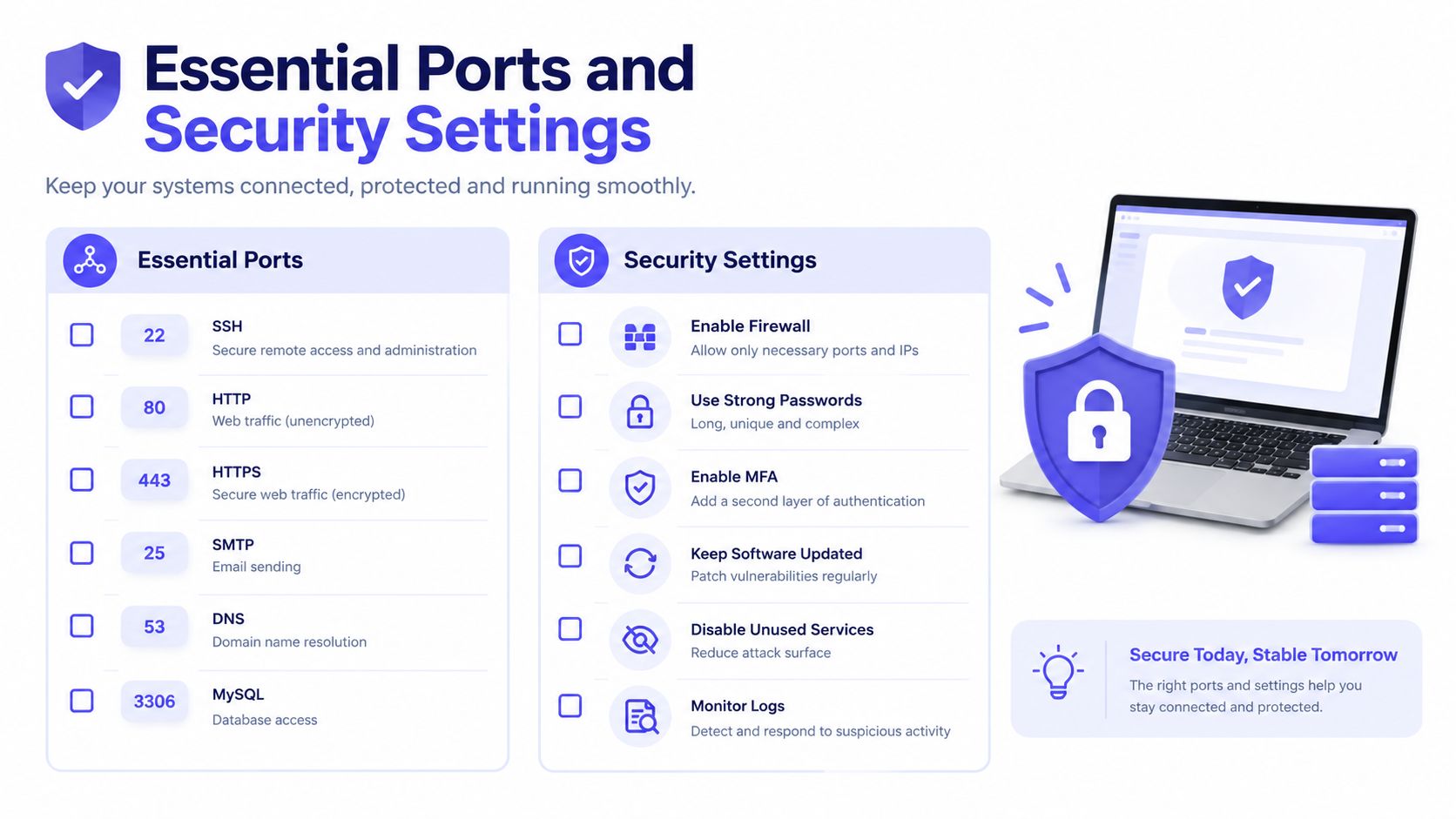
Port numbers sound like a detail, until a client fails to connect or exposes credentials in transit. Security here is not optional. The transport layer is part of the configuration, not an add-on.
The secure defaults for incoming access
IMAP normally uses TCP port 143, and IMAP over implicit TLS uses 993. Port 143 can begin unencrypted and then upgrade with STARTTLS, while port 993 starts encrypted before any mailbox commands are exchanged. For most accounts, 993 with SSL/TLS is the safer choice because it protects login details and message data from the start.
POP3 traditionally listens on TCP port 110, while encrypted POP3S uses 995. Port 110 can also upgrade with STLS, but a connection that does not successfully negotiate TLS leaves the session exposed. For secure POP3 access, 995 is the cleaner baseline.
Why port choice affects daily operations
A technical team should think of the port as the front door, and TLS as the lock. If the app connects on the wrong port, it may fail entirely. If it connects without encryption, credentials and mailbox content can be exposed. RFC 8314 updated POP, IMAP, and submission guidance to treat cleartext access as obsolete and favor TLS, which changed the operational baseline for modern mail setups.
For teams that want a simple reference on network terminology, what is network port explained gives a useful conceptual frame. For authentication checks around sender setup, Mailwarm's SPF checker can help confirm whether outbound identity is aligned before inbox testing starts.
Security baseline: use encrypted incoming access by default, then only fall back to older options when a provider explicitly requires it.
How Incoming Servers Affect Email Deliverability
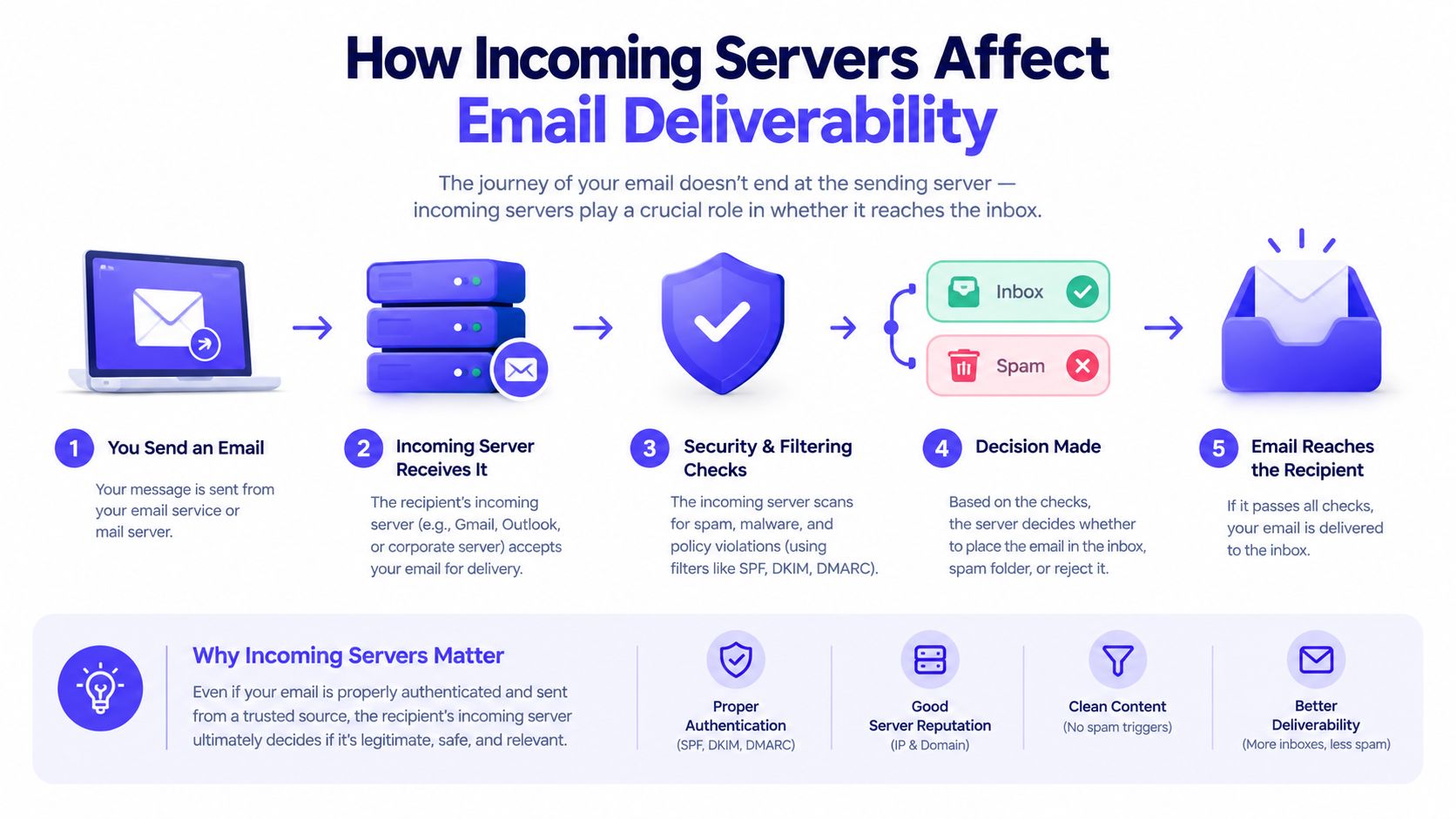
Many users treat the incoming server as a passive mailbox. It's more accurate to think of it as the point where delivery evidence becomes visible. A message can be accepted by SMTP, filtered into spam or quarantine, or synced into the client, and those are three different outcomes.
The boundary between acceptance, filtering, and sync
The sending server first reaches the recipient domain's MX host, then the receiving side decides whether to accept the message. After that, provider filtering can move mail into spam or quarantine before the mailbox client ever sees it. Only after that does IMAP or POP3 synchronization make the message visible in an app.
That is why changing client settings sometimes solves nothing. If a provider filtered the message before mailbox delivery, the incoming server settings are already correct. In that case, the issue sits upstream in authentication, reputation, or provider policy.
Why authentication still changes incoming visibility
Gmail requires senders to use SPF or DKIM, and bulk senders must use SPF, DKIM, and DMARC. Yahoo and Microsoft have also tightened authentication requirements for bulk mail. Those rules affect whether a message gets delivered to the mailbox that the incoming server later exposes.
For teams troubleshooting placement, Mailwarm's free deliverability test is a sensible first checkpoint because it sits closer to inbox-placement diagnosis than a basic client login test. The key question is not just whether the mailbox opens, but whether the message reached the place where the client can retrieve it.
Configuring Your Email Client Correctly
A correct setup is simple when the fields are kept separate. The incoming section is for mailbox retrieval, the outgoing section is for sending, and the two should never be mixed. Many connection problems come from using SMTP details where IMAP or POP3 details belong.
The fields that matter
Start with the incoming host name, then enter the correct protocol, port, and encryption mode. Use the full email address as the username when the provider expects it, because partial usernames often fail. Then confirm that the password matches the mailbox, not a separate service login.
A clean configuration usually includes:
- Server name: the provider's incoming host
- Protocol: IMAP for shared or multi-device access, POP3 only for local-download workflows
- Port: 993 for IMAP, 995 for POP3 when encryption is used
- Security: SSL/TLS or STARTTLS, depending on the provider's guidance
- Username: full email address
- Password: mailbox password
The mistake to avoid
The most common error is pasting outgoing SMTP credentials into the incoming fields. That may let the client partially connect, but mail retrieval will fail or behave inconsistently. Another common mix-up is configuring IMAP or POP3 inside the outgoing section, which won't send mail at all.
Useful habit: confirm incoming and outgoing settings separately, then test both send and receive before rolling the account into daily use.
For teams using a warmup or deliverability workflow, Mailwarm is a premium email warmup and deliverability platform that also includes configuration checks for SMTP and IMAP setup. It fits best when the goal is not just to connect a mailbox, but to monitor sender reputation and inbox placement with less guesswork.
Troubleshooting Common Connection Errors
A failed connection does not always mean the server is down. It can also mean a firewall is blocking the port, a password is wrong, or the provider is hiding the message before sync. The fix depends on which layer failed, so the first job is to isolate the layer.
Read the error pattern first
A timeout often points to blocked network traffic, especially on encrypted incoming ports. Repeated password prompts usually mean the username format or stored credential is wrong. If webmail shows the message but the app does not, the issue is probably synchronization, not delivery.
POP3 can make this harder to diagnose because one device may have already downloaded and removed the message. That's why a missing email is not always proof of failed delivery. It may be visible somewhere else, or already deleted from the server by a different client.
Work through the failure point
Use a short sequence:
- Check the hostname and confirm it matches the provider's documented incoming server.
- Test the port and encryption settings, especially if 993 or 995 fails.
- Verify the password and confirm the username is the full mailbox address.
- Compare webmail and client views to separate filtering from sync problems.
- Review POP3 behavior if a message disappears from one device after being read on another.
That sequence is faster than changing settings at random. It also keeps the team focused on the actual failure point instead of guessing at symptoms.
Frequently Asked Questions About Mail Servers
What is a mail incoming mail server?
It's the server that stores messages for a mailbox and lets a client retrieve them through IMAP or POP3. It is separate from SMTP, which sends mail. In practical terms, it is the receiving side of the email system.
Should most teams use IMAP or POP3?
Teams should use IMAP because it keeps messages and folders synchronized across devices. POP3 is more suited to legacy or single-device workflows. For shared inboxes and reply tracking, IMAP is the safer choice.
Why do emails still go to spam when the incoming server is set up correctly?
Correct incoming settings only help a client access mail after it's delivered. Spam placement usually comes from sender authentication, reputation, or provider filtering. SPF, DKIM, and DMARC still need to be right.
Does Mailwarm need IMAP access?
No, unlike basic warmup tools, Mailwarm does not require IMAP access or permission to read a private inbox. That makes it less intrusive for teams that care about security. It still supports deliverability work through real inbox engagement and guidance.
Why is Mailwarm more expensive than basic warmup tools?
Mailwarm costs more because it combines real inbox engagement, up to 100% replies to warmup emails depending on the plan, spam score monitoring, provider-level warmup, authentication tools, no IMAP access required, and expert deliverability calls included in every plan.
What should be checked first when mail appears missing?
First check whether the message was accepted, filtered, or synchronized into the client. If webmail shows it but the app does not, the problem is probably retrieval or sync. If no mailbox shows it, the issue is earlier in the delivery chain.
If email is part of your growth strategy, Mailwarm helps teams build sender reputation, monitor inbox placement, and reduce spam risk with expert-guided warmup. Visit Mailwarm to see how its deliverability tools, configuration checks, and real inbox engagement support cleaner setup and better day-to-day monitoring.