

If Gmail archived messages seem to have vanished, they usually haven't been deleted. Archiving in Gmail hides a thread from the Inbox, keeps it in All Mail, and leaves it searchable, so the fix is usually a search or label issue, not a lost-mail mystery.
That's why this trips up sales reps, founders, recruiters, and support teams. A message can look “gone” on the surface while still sitting in the mailbox, searchable, replyable, and recoverable from the right view.
What Archiving Does in Gmail
Gmail archiving is a visibility change, not a deletion event. When you archive a message, Gmail removes the Inbox label and keeps the conversation in All Mail, so the thread still appears in search and can be moved back to the Inbox later Google's Gmail archive help.
That label-based model explains most of the confusion people run into. There is no separate archive folder to hunt for, and archived mail is not thrown away unless someone deletes it. Google's support materials also show that archived messages can be restored to the Inbox at any time, which makes archive a filing action rather than a retention loss event Google's desktop archive help.
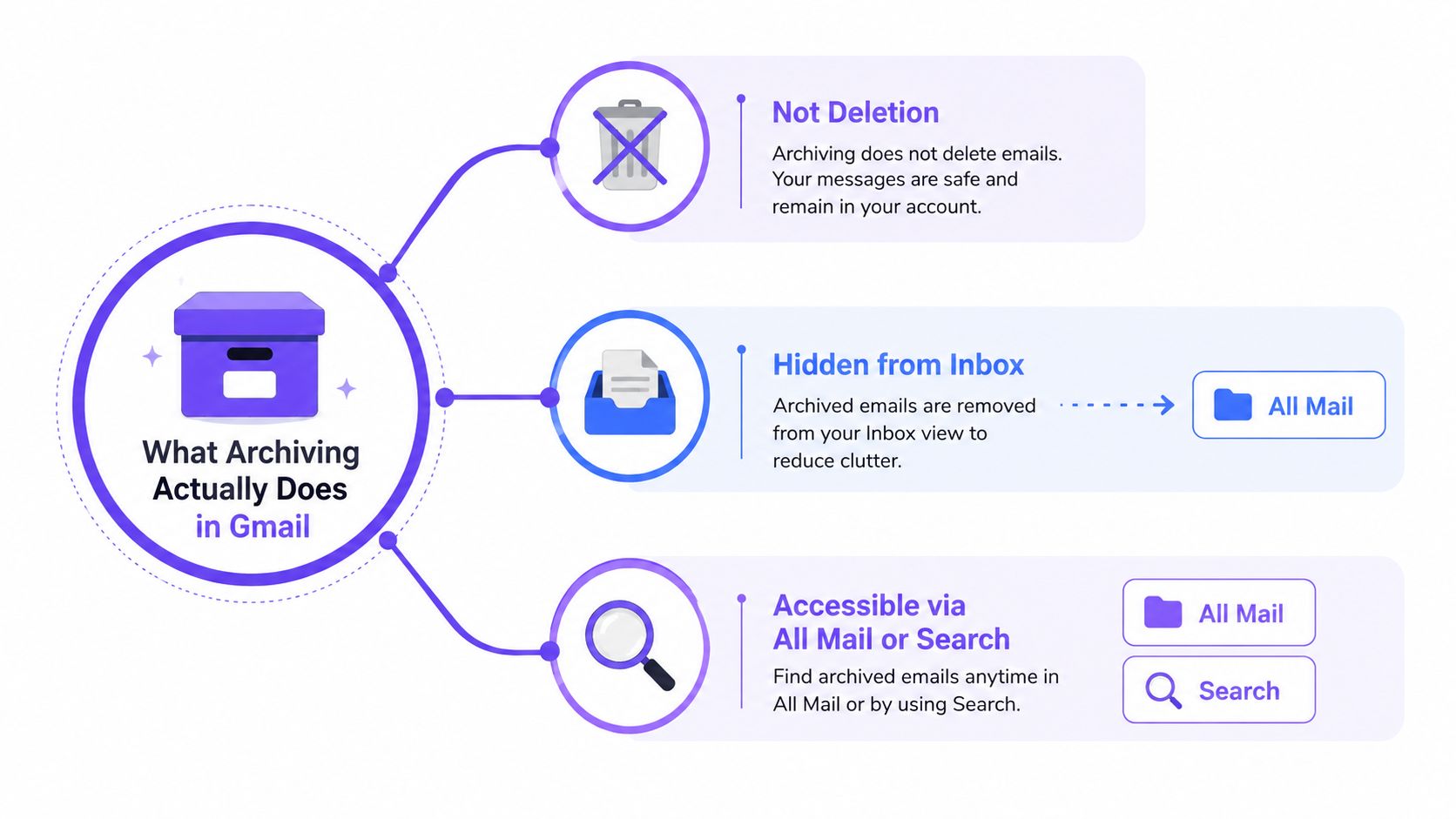
Practical rule: if a message is missing from Inbox but still exists in Gmail, start by checking All Mail or search before assuming it's gone.
Archived mail still counts toward Gmail storage, because it remains in the account rather than being removed. That matters for teams with large inboxes, because archiving cleans up the Inbox view without reducing mailbox size MailerToGo's Gmail archive notes.
The fastest mental model is simple. Inbox is a visibility state, All Mail is the master store, and Trash is the temporary stop before deletion. Archived threads can also come back into view if someone replies to them, because the conversation is still alive in Gmail's label system.
For readers comparing archive versus deletion across platforms, Mailwarm's guide on deleting email in Gmail and Outlook helps clarify the difference between hiding a message and removing it entirely.
Finding Archived Messages on Desktop
On desktop, the quickest path usually starts in the left sidebar. If All Mail isn't visible, click More to expand the system labels, then open All Mail and scan for the thread you need. Archived messages will appear without the Inbox label, which is the easiest visual cue that they were filed instead of deleted.
Search is often faster than scrolling, especially in busy accounts. Gmail's desktop search looks across the mailbox, so the better move is usually to search by sender, subject, or a unique word from the thread instead of opening every label one by one. For bulk cleanups, Gmail also supports select-all then archive, which lets teams clear a crowded Inbox without changing retention.
The desktop shortcut matters for people triaging a lot of mail. Select the message, then press E to archive it, a small habit that saves time for sales and support teams moving through long queues Google's desktop archive shortcut help.
If the goal is speed, use this order:
- Open All Mail if the thread is probably archived and you want to inspect it visually.
- Search first if you remember a sender, subject, or date clue.
- Archive in bulk when cleaning a long inbox, then come back through search if anything needs review.
A useful shortcut is to think in labels, not folders. Once that clicks, it becomes easier to know whether the message is hiding from view or missing. Archived mail is still in the account, so the browser can surface it as long as the search terms are specific enough.
A three-step visual guide is below.
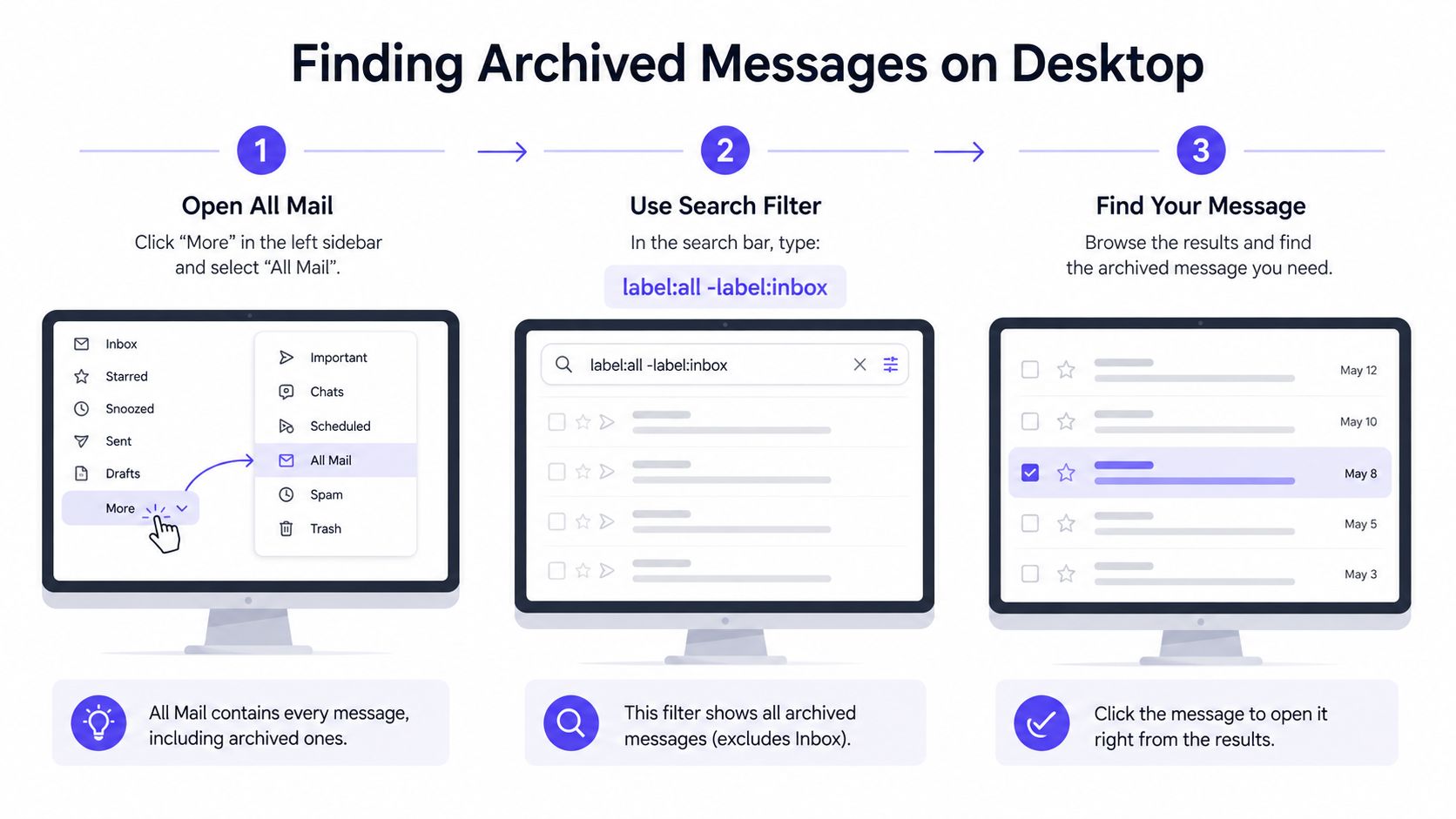
Before any large cleanup, a quick pass through All Mail is worth it. It's the fastest way to confirm whether a thread was archived, labeled, or just buried under a busy Inbox.
Finding Archived Messages on Mobile
Mobile is where a lot of accidental archiving happens. A swipe gesture can move a conversation out of the Inbox before the user even realizes what happened, so the Gmail app on Android and iOS deserves a different recovery habit than desktop.
The left-side menu is the starting point. Open the Gmail app, tap the menu icon, then look for All Mail. If the thread was archived, it should still be there, but it won't carry the Inbox label, which is why it can look like it disappeared at first glance.
Search also behaves more generously than people expect. The app can surface archived mail through the main search bar, so a sender name, subject fragment, or keyword is usually enough to recover the message without opening every label. That's especially useful while commuting or checking a work account between meetings.
If the wrong thread was archived by mistake, undo it immediately. Gmail's swipe action can be reversed quickly, and the mobile restore flow is straightforward, open the message, tap the menu, then choose Move to Inbox.
A few mobile habits help prevent the usual confusion:
- Check the account switcher first: Many “missing” messages are in another Gmail account on the same phone.
- Use the menu, not just search: Some archived conversations are easier to confirm in All Mail than in search results.
- Restore from the message view: The Move to Inbox action is the cleanest way to bring one thread back without changing anything else.
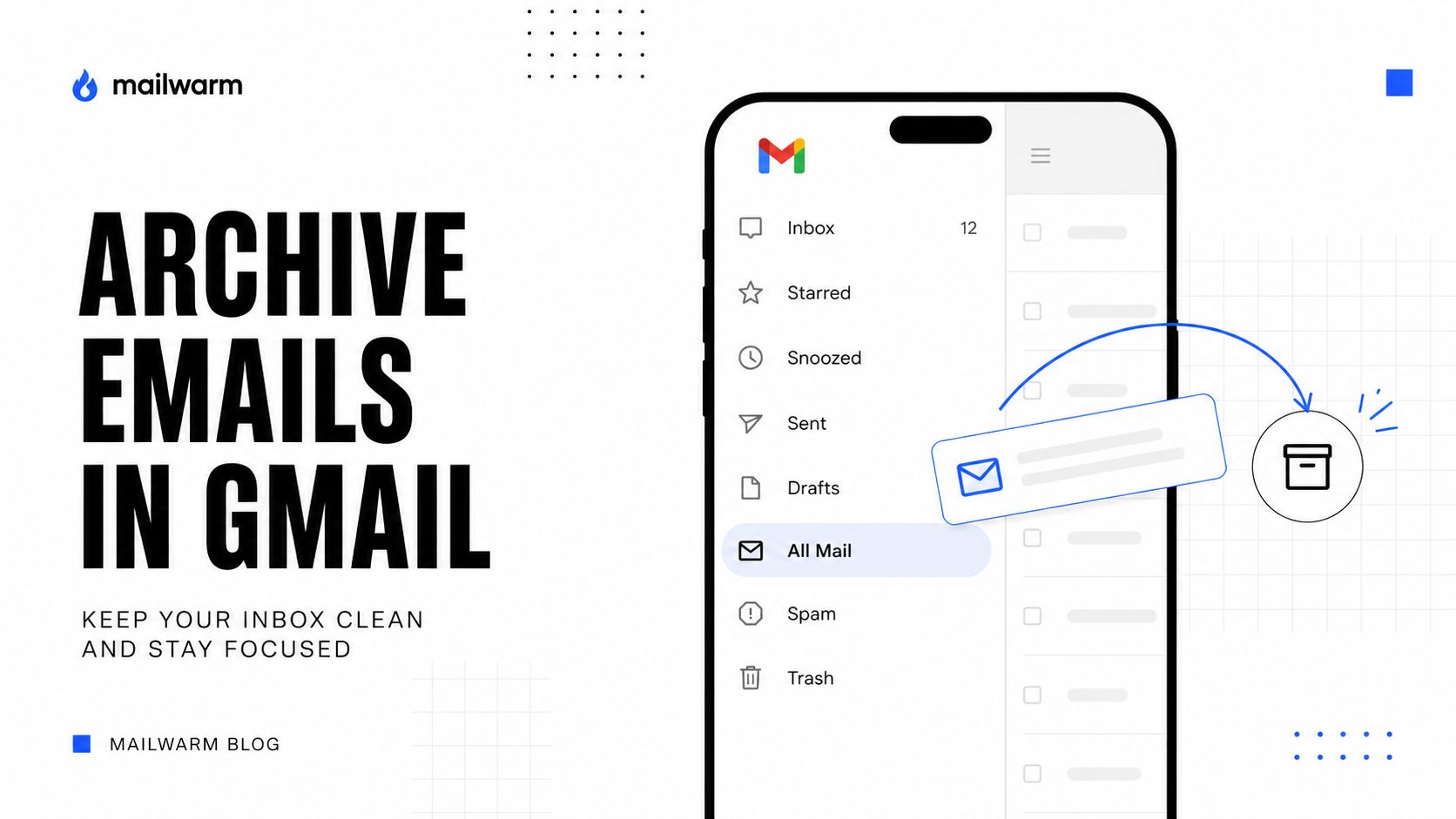
Archived mail on mobile usually isn't lost, it's just harder to notice because the app hides the Inbox label more aggressively than desktop views do.
The practical difference from desktop is simple. The app makes archiving fast, but that speed also makes accidental archives more common. When a work email seems to vanish on a phone, the fastest fix is usually menu, search, then restore.
Search Operators That Surface Only Archived Mail
The strongest way to isolate archived Gmail mail is to search for non-Inbox messages on purpose. Plain search is broad by default, so a power user needs operators that narrow the mailbox to archived-only threads instead of mixing inbox, sent, and labeled conversations together.
Start with in:archive if the goal is to see archived conversations directly. Pair it with sender, date, or attachment filters when the mailbox is large, because that turns a vague hunt into a precise audit. For example, in:archive from:alex@example.com after:2024/01/01 is a fast way to pull archived mail from one sender after a certain date.
Use NOT label:inbox when you want anything that is not currently visible in Inbox. That catches archived conversations across labels, which is useful when a thread was filed, tagged, or moved by a rule. A search like NOT label:inbox has:attachment can quickly surface archived documents that need follow-up.
Search operators for archived Gmail messages
| Operator | What it does | Example use |
|---|---|---|
in:archive | Shows archived messages | in:archive invoice |
NOT label:inbox | Excludes messages still in Inbox | NOT label:inbox from:client@example.com |
from: | Narrows by sender | in:archive from:partner@example.com |
after: / before: | Limits results by date | in:archive after:2024/03/01 before:2024/04/01 |
has:attachment | Finds messages with files attached | in:archive has:attachment contract |
label: | Filters by a Gmail label | in:archive label:project-x |
The value of these operators is precision. A team can find one archived thread, one archive-heavy category, or a full slice of past mail without dragging every message in the account into the results. That's the difference between poking around and running a useful audit.
Best practice: build searches around the question being asked, not around the folder you think the message lived in.
For archived-only review, the most useful pattern is usually a combination, not a single operator. Sender plus date is the fastest recovery path, while attachment plus label is better for document-heavy workflows like legal, recruiting, or account management.
Unarchiving Messages One by One or in Bulk
Once the message is found, putting it back in the Inbox is simple. Open the archived thread in All Mail or from search, then choose Move to Inbox. That removes the archive state and restores Inbox visibility, but it doesn't change the content, sender, or labels that already exist on the thread.
Bulk unarchiving works the same way. Select multiple archived messages from search results or from All Mail, then move them back together instead of restoring each one manually. That's useful when a weekly newsletter pile, project thread, or customer back-and-forth needs to re-enter active work.
A reply can also bring an archived conversation back automatically. Since Gmail keeps the thread intact rather than splitting it into a separate archive object, a response can surface it in Inbox again when the conversation becomes active.
The cleanest way to think about it is this:
- One message: open it and use Move to Inbox.
- Many messages: multi-select, then restore in bulk.
- Already active thread: reply behavior may bring it back without any manual step.

The part people get wrong is expecting unarchive to create a new copy. It doesn't. It changes the message's visibility in Gmail, which is why threads stay searchable and why the sender side doesn't notice a special “restore” event.
For teams that live inside shared inboxes, that distinction matters. A message can be restored for visibility while still keeping its original labels and history intact, which is far better than duplicating work across folders.
Troubleshooting Missing Archived Messages
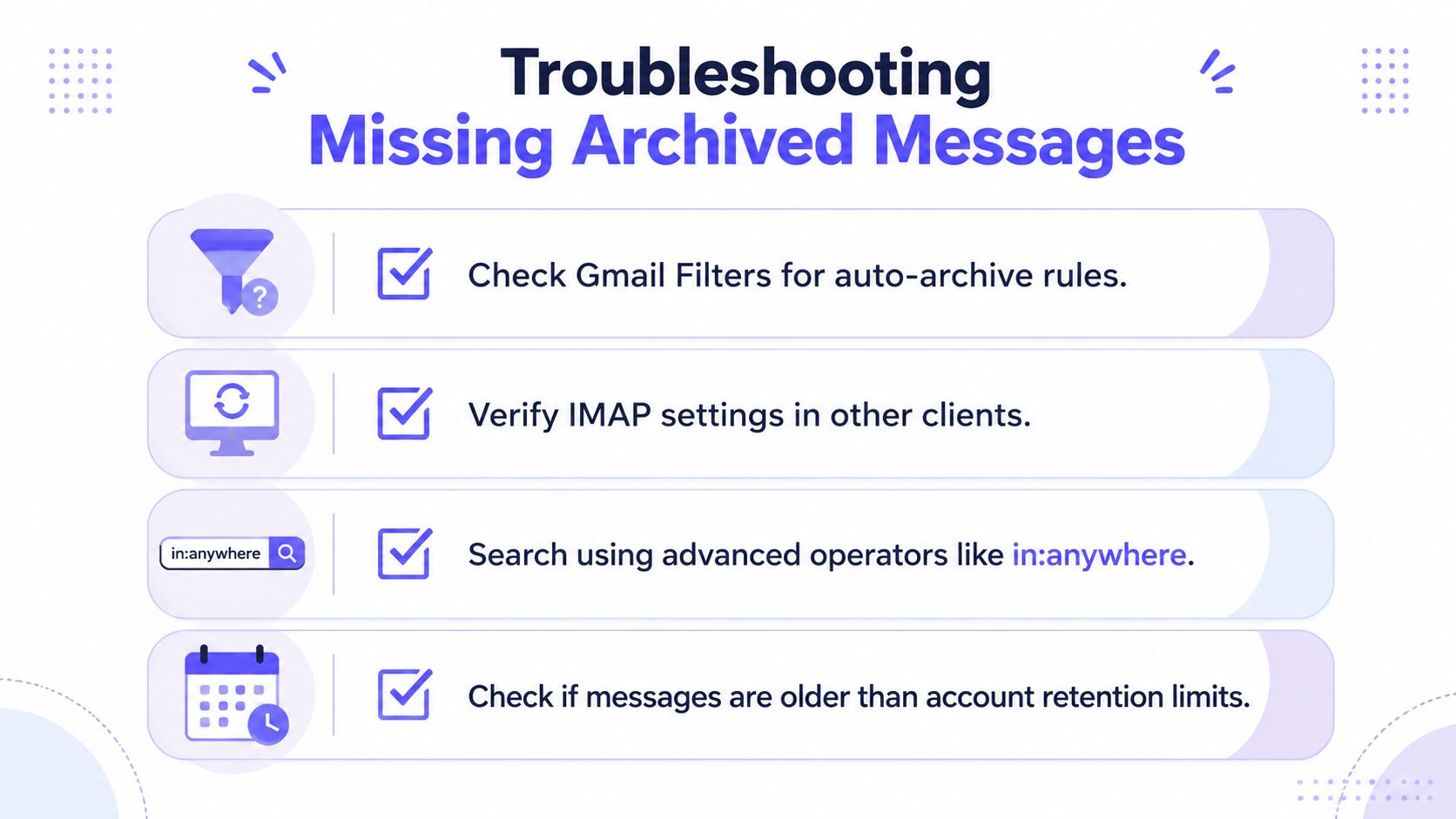
When archived mail looks missing, the first check should be rules. Gmail filters can auto-archive incoming messages, skip the Inbox, or label them in ways that make them harder to spot, so a thread may be where it should be and still not show up in the main view.
The next check is the client. Third-party mail apps can behave differently depending on IMAP or POP setup, and people often blame Gmail when the local app is the part hiding the thread. If Gmail is open in the browser but the phone or desktop client looks out of sync, the archived message may still exist in Gmail even though another app hasn't refreshed it properly.
Trash is a separate category, and the distinction matters. Archived messages stay in the mailbox, while deleted messages move to Trash and are permanently removed after about 30 days if they aren't restored Gmail archiving guide on deleted versus archived mail. That's a real difference between “hard to find” and “gone.”
A quick checklist helps when the panic search starts:
- Search All Mail first: If the thread is archived, it should still be there.
- Check filters and labels: A rule may have filed the message somewhere unexpected.
- Verify other clients: IMAP or POP sync issues can make mail look missing in one app.
- Look for Trash, not just Inbox: If it was deleted instead of archived, the recovery window is limited.
Archived mail can also be hidden by retention behavior in managed environments, especially when a Workspace admin has policies that affect message availability. That's why users in company accounts sometimes need to check both Gmail settings and admin-managed retention rules.
For senders dealing with odd Gmail behavior around automated mail, this Gmail rejection guide for noreply messages is a useful companion read, especially when filters and inbox placement start to blur together.
Best Practices to Stop Losing Archived Mail
The cleanest archive system is the one people can search later without guessing. Consistent labels, predictable subject lines, and a habit of checking All Mail before taking action all make archived mail easier to retrieve when a thread becomes important again.
Search bookmarks help too. Teams that repeatedly need the same slices of mail, such as archived invoices or customer threads, can keep searches ready instead of rebuilding them from scratch. That's faster than scrolling and less error-prone than relying on memory.
A few habits make archive less chaotic:
- Use labels consistently: Keep project or client labels stable so archived mail stays grouped.
- Prefer snooze for follow-up tasks: If a thread needs attention later, snooze is often better than archiving and hoping it gets noticed again.
- Treat undo-send as a safety net: Catch mistakes before they become archived clutter or accidental sends.
- Review auto-archive rules regularly: Filters that looked helpful at first can hide important mail over time.
For high-volume senders, archive behavior isn't just about organization. Gmail tightened bulk sender requirements in February 2024, and bulk senders delivering 5,000+ messages per day became subject to stricter Gmail requirements. Industry guidance around that change says nearly half of senders report struggling to stay out of spam, which is why archive rate can act as an early signal that inbox placement is weakening high-volume Gmail archive behavior guidance.
That's where archive starts to matter beyond inbox hygiene. If important mail is being archived, filtered, or ignored too often, the problem may be deliverability, reputation, or engagement, not just user organization.
For teams tuning their folders and labels, this Gmail promotion tab guide is a helpful companion to archive recovery because both problems often show up as “mail is missing.”
If email is part of your growth strategy, Mailwarm helps you build sender reputation, monitor inbox placement, and reduce spam risk with expert-guided warmup. Visit Mailwarm to see how a premium email warmup and deliverability platform can support cleaner inbox placement and fewer lost threads across Gmail and beyond.