
A lot of advice about GIFs in email starts from the wrong premise. It assumes motion is automatically better than a static image.
That isn't a safe assumption.
For teams that rely on email for revenue, recruiting, or pipeline, the right question isn't “How can a GIF make this email pop?” It's “Should this email use a GIF at all?” The answer depends on rendering, accessibility, user perception, and whether the animation adds real value instead of friction.
Quick answer
GIFs in email can work, but they're not a default best practice.
Use them when motion explains something faster than text or a static image. Avoid them when the message depends on animation, when trust matters more than novelty, or when the audience is likely to view the email in clients that only show a fallback frame.
What are GIFs in email
GIFs in email are animated image files displayed inside an email, usually through a standard image tag.
They aren't “running” like app code inside the inbox. They're typically fetched as externally hosted images when the recipient opens the message, so display depends on image loading behavior and client support.
Practical rule: Treat a GIF like an image with extra failure points, not like a guaranteed interactive experience.
Why this matters
Email is a hostile environment for anything decorative.
Different clients render the same message differently. Some recipients block images. Some mobile users won't wait for heavy visuals to load. Some business audiences read motion as noise, not clarity. And when a recipient deletes, ignores, or distrusts an email, that can feed back into sender reputation over time.
That's why discussion around GIFs should focus less on style and more on risk management.
How GIFs Work in Email and Which Clients Support Them
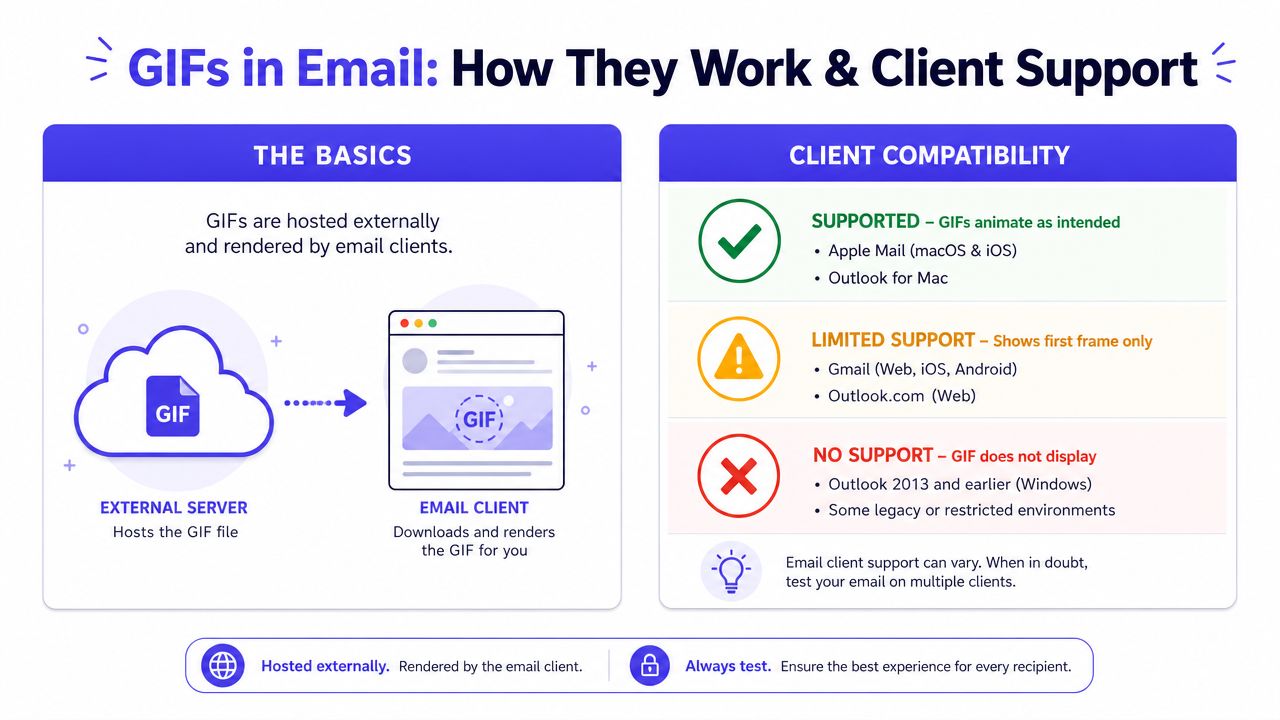
A GIF in email is just an image file. The email client requests that hosted file when the message opens, then decides whether to animate it, cache it, block it, or reduce it to a static frame.
That sounds simple, but the rendering rules are not consistent across inboxes. The technical question is not whether GIFs are allowed in email. It is whether the recipient's client shows the motion you designed, shows only frame one, or delays the image long enough that the message loses clarity.
The first frame rule
Frame one has to carry the message on its own.
Beefree's guidance on email GIFs points to the practical problem: clients like Outlook desktop 2007 to 2016, along with some older environments, may display only the first frame. That rendering inconsistency is the main technical constraint, not a direct deliverability penalty.
If the offer appears only later in the animation, some recipients will miss it. If the GIF is doing the explanatory work, a first-frame fallback turns your message into a disconnected still image.
This also affects inbox performance indirectly. A confusing fallback can lower engagement, and weak engagement is part of the broader set of signals senders should watch if they care about avoiding spam folder placement over time.
What to expect across clients
Support changes over time, so fixed compatibility charts age fast. The working pattern is still stable enough to design around.
| Client group | Practical expectation |
|---|---|
| Apple Mail | Usually renders animated GIFs reliably |
| Gmail | Usually supports animation, but image handling and caching still need testing |
| Yahoo Mail | Often renders animation, but load behavior can vary |
| Outlook desktop 2007 to 2016 | Often shows only the first frame |
| Mobile apps | Support varies by app, OS version, image settings, and network conditions |
The safest approach is conservative:
Make frame one complete: Put the product, headline, branding, and CTA visibility in the opening frame.
Treat animation as a bonus: The email should still communicate the core point without motion.
Avoid timing-dependent storytelling: Loops, delayed reveals, and frame-by-frame instructions break easily across clients.
Test real inboxes, not just previews: Check Gmail, Apple Mail, Outlook desktop, Outlook on Microsoft 365, Yahoo, and at least one mobile app before launch.
A good GIF improves an email that already works. It should never be the only way the email makes sense.
The Hidden Risks of Using GIFs in Your Emails
Most articles treat GIFs like a lightweight engagement trick. That misses the bigger issue.
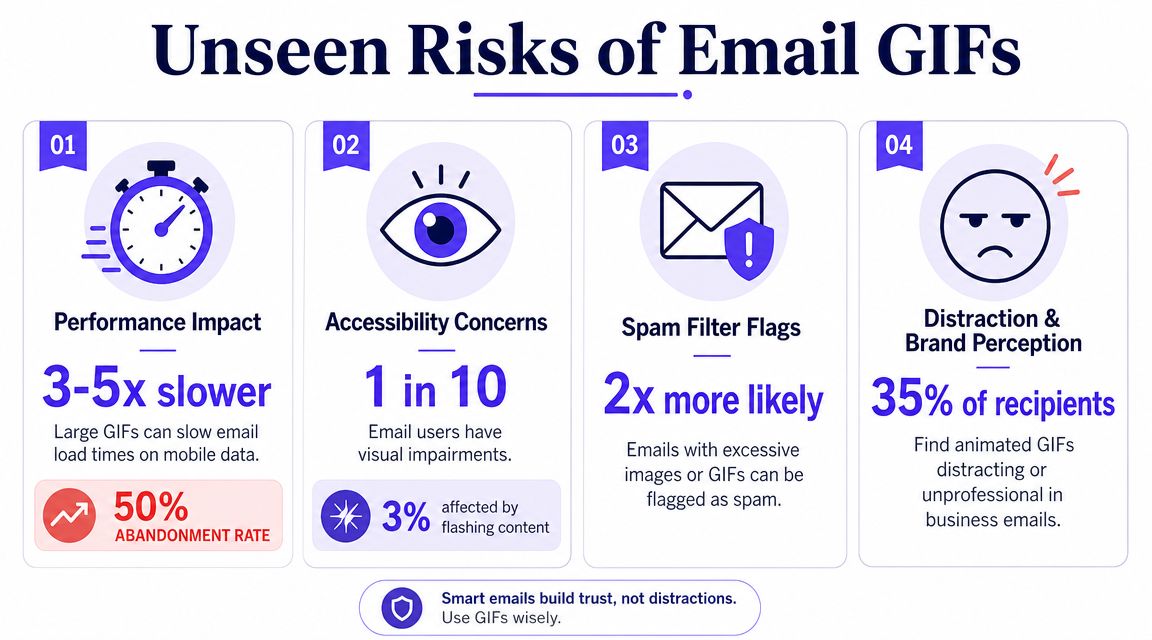
A moving image changes how people feel about the email. Sometimes that helps. Sometimes it makes the message look less credible, less useful, or more distracting than a static alternative. The strongest evidence on that point comes from Nielsen Norman Group's study on animated email, which found that animated emails increased negative user reactions by 40% and reduced positive reactions by 30% compared to static image emails.
That result should reset expectations. Animation doesn't automatically improve response. In some contexts, it does the opposite.
Where the risk shows up
The biggest problem isn't technical failure. It's mismatch.
A playful product demo in a consumer campaign can feel natural. The same visual style in outbound sales or recruiting can make the sender look less serious. In trust-sensitive email, novelty often loses to clarity.
Common failure modes include:
Brand tone drift: The motion feels off-brand or too casual for the audience.
Attention theft: The GIF pulls focus away from the actual offer or message.
Mobile friction: A heavier image can delay the experience for recipients on slower connections.
Accessibility issues: Motion can create discomfort or confusion for some users.
Spam-adjacent design cues: Overdesigned, image-heavy email can look less trustworthy.
There's a useful distinction here. A GIF doesn't usually hurt deliverability because it's a GIF. The risk is indirect. If the email loads poorly, looks gimmicky, or gets ignored, those negative outcomes can feed broader deliverability problems.
Teams already struggling with inbox placement should be even more conservative. A stronger first move is improving baseline setup, list quality, and message trust. This guide on how to avoid landing in spam is a better starting point than adding motion to weak email fundamentals.
When GIFs are most likely to backfire
Some use cases have very little margin for decorative risk:
Cold outreach
Founder emails
Recruiter outreach
Partnership or investor communication
Account-based sales emails
If the recipient is judging credibility in a few seconds, motion has to earn its place.
In those cases, a static image often performs a harder job better. It loads faster, communicates instantly, and doesn't ask the reader to interpret tone.
Best Practices for Safe and Effective GIF Usage
If a GIF survives the “should this exist?” test, execution matters more than creativity.
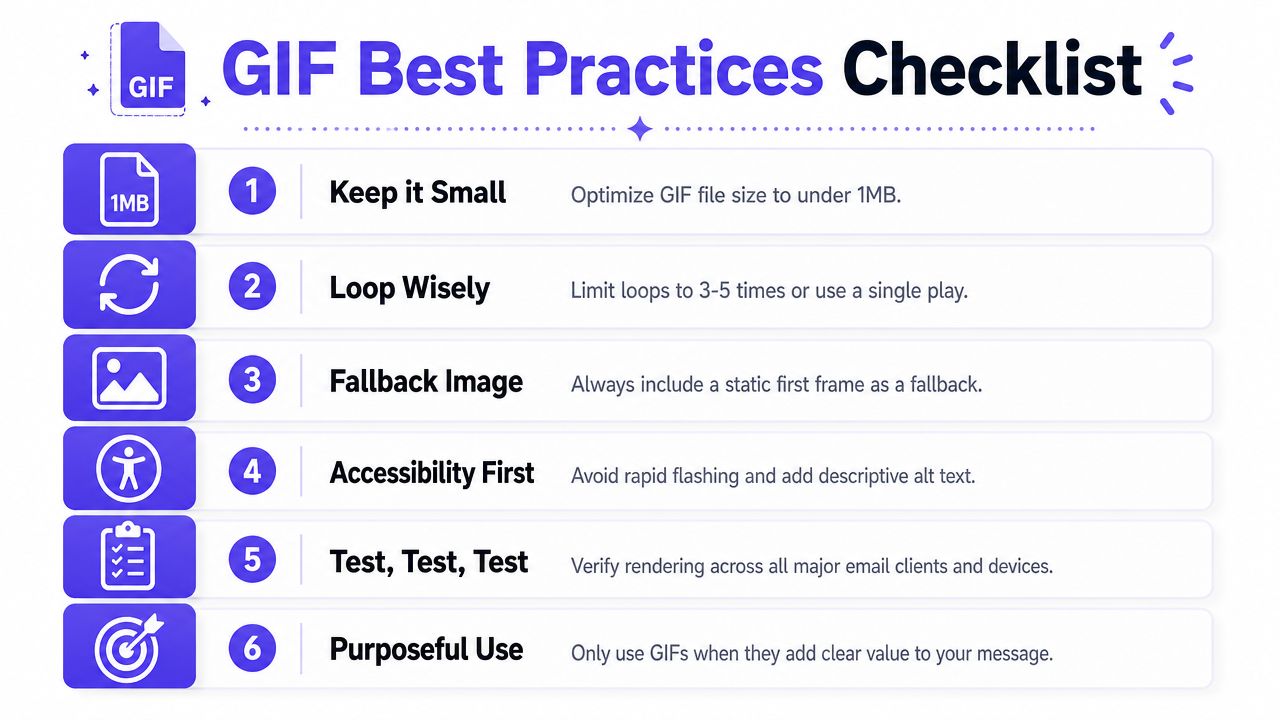
The safest approach is to treat animation as a constrained format. Keep it brief. Keep it light. Keep the core message visible without motion. According to A11y.email's accessibility guidance for animated GIFs, experts advise keeping GIFs under a few megabytes, limiting animation to about 5 seconds, and reducing size through tactics like deleting duplicate frames, lowering the color table, and applying 20% to 40% lossy compression.
A practical checklist
A useful workflow usually looks like this:
Start with the message: Decide what the GIF must communicate that a static image can't.
Build frame one as the fallback: Assume some recipients will only see that frame.
Trim the sequence hard: Most email GIFs improve when unnecessary motion gets cut.
Reduce file weight: Remove duplicate frames, lower colors, and compress before export.
Write alt text: If images don't display, the email still needs context.
Test contrast and legibility: Small text inside a GIF often becomes unreadable fast.
What usually works
Short, functional motion tends to perform best in email design reviews:
Product micro-demos
Before-and-after sequences
Simple UI walkthroughs
One visual idea, not a montage
Subtle movement in one area of the image
What usually fails is easy to spot too:
Long loops with multiple messages
Fast animation with text overlays
Hero banners where everything moves
Motion that delays the main CTA
Humor that depends on the loop to make sense
A helpful production tip is to start from a very short source clip rather than trying to animate a large design from scratch. Tools that create GIFs from video clips can make that process easier, especially when the goal is to isolate one product action instead of exporting a heavy, full-scene animation.
For teams that need a visual walkthrough, this video gives a practical look at the process:
Accessibility and restraint
Accessibility isn't optional here. Motion should never carry the only version of the message, and it shouldn't create discomfort.
Use this quick review before sending:
Is the animation brief enough to understand quickly?
Can the recipient understand the email from the first frame alone?
Does the alt text describe the purpose, not just the object?
Is the GIF decorative, or does it help comprehension?
Good email GIFs feel almost boring in production. That's usually a sign they'll work.
How to Embed GIFs and Test Them Properly
Getting a GIF into an email is easy. Deciding whether it survives the inbox experience is the part that affects ROI.
Email clients treat a GIF like a standard external image file, so the usual method is a hosted asset referenced in an HTML image tag. That means creative quality is only half the job. Load speed, first-frame clarity, and client behavior determine whether the GIF helps comprehension or just adds weight.
A basic embed example
A typical implementation looks like this:
<img src="https://your-cdn.com/product-demo.gif" alt="Short demo of the product workflow" width="600" style="display:block; max-width:100%; height:auto;">
The code is straightforward. The expensive mistake is assuming the preview reflects the actual inbox.
What to test before sending
One seed send to a Gmail account does not tell you much. Test the message in the environments that change user perception and rendering behavior.
Use this checklist:
Verify the first frame: Open the email in Outlook and confirm the first frame communicates the message without motion.
Check image blocking: Make sure the alt text and nearby copy still explain the offer.
Review mobile rendering: Confirm the GIF scales cleanly and does not push the CTA below the fold.
Watch load behavior: If the animation appears late on mobile data or weak Wi-Fi, it is too heavy for the value it adds.
Confirm CTA timing: Recipients should understand the action before the loop finishes.
Check dark mode contrast: Colors and text can lose clarity against dark backgrounds.
Test click behavior: If the GIF links somewhere, verify tracking and destination behavior across clients.
This is also the right point to run free email deliverability tools. Heavy image emails can still send cleanly, but only if the surrounding setup is sound.
Testing should include business risk, not just rendering risk. If a campaign already sits close to the margin on engagement, adding motion may lower clarity more than it improves attention. That trade-off shows up faster in cold outreach and low-trust sends, which is why Reachly's cold email expertise is relevant here. Deliverability problems often start with small creative choices that reduce response quality.
A safer testing mindset
The right question is not "does the GIF work?" The right question is "does the email work better with it?"
I test GIF emails like a recipient with limited patience, images off, and no context from the design file. If the message is still clear, the CTA is obvious, and the asset loads fast enough to feel intentional, the GIF has a case. If not, a static image usually delivers more value with less risk.
How Mailwarm Helps You Send With Confidence
Rich media adds uncertainty. A GIF might render well in one inbox and fall flat in another. It might look polished to one segment and distracting to another. That's why teams that depend on email growth need more than creative intuition. They need visibility into sender health and inbox placement.
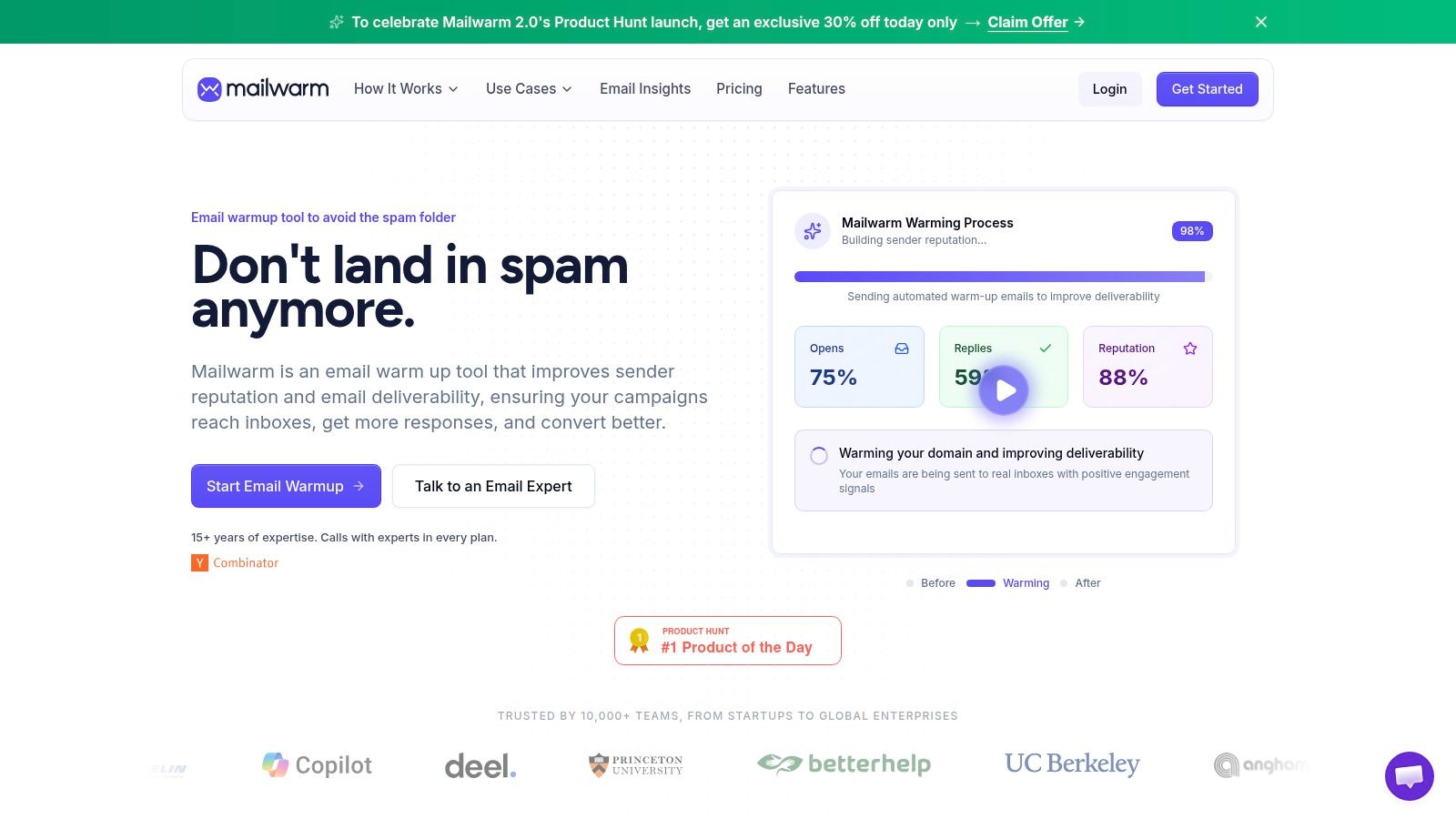
Mailwarm is a premium email warm-up and deliverability platform built for teams that care about real inbox placement, not just automated warmup activity. It helps senders build reputation with 50,000+ aged real inboxes, real engagement signals, provider-level warmup, spam score monitoring, inbox placement insights, authentication fix tools, and deliverability analytics.
That matters when email design choices create downstream risk. If a campaign starts generating weaker engagement or inconsistent inbox placement, Mailwarm gives teams a way to monitor the environment instead of guessing. Unlike basic warmup tools, Mailwarm doesn't require IMAP access or permission to read a user's private inbox.
Why this matters beyond warmup
Mailwarm goes beyond basic warmup by combining warmup automation with real reply activity, spam removal, important marking, custom content warmup, bounce prevention, and expert guidance. Depending on the plan, Mailwarm can generate up to 100% replies to warmup emails. Every plan also includes expert deliverability calls.
For teams running outbound, the bigger goal isn't just sending more. It's protecting reputation while scaling responsibly. There's also useful context in Reachly's cold email expertise, especially for teams thinking about how content choices affect outreach performance.
Teams that want a more complete setup can review the Mailwarm email warmup tool, which is built to improve sender reputation, support inbox placement, and reduce spam risk with expert-guided deliverability workflows.
Better creative decisions start with better deliverability visibility.
Conclusion When to Use GIFs and When to Avoid Them
GIFs in email are a tactical tool, not a default upgrade.
Use them when motion explains a product action, shows a quick workflow, or adds meaning that a static image can't deliver as clearly. Keep them short, lightweight, accessible, and understandable from the first frame alone.
Avoid them in high-trust communication, especially cold outreach, recruiting, or formal business email where tone and clarity matter more than visual novelty. Avoid them whenever the core message depends on animation or the asset is too heavy to justify the trade-off.
The practical rule is simple. If the GIF improves comprehension, keep it. If it mainly adds decoration, skip it.
Clear communication usually beats movement. In email, that's still the safer bet.
FAQ About GIFs in Email
| Question | Answer |
|---|---|
| What are GIFs in email? | GIFs in email are animated image files displayed inside an email, usually loaded as hosted images when the recipient opens the message. |
| Do all email clients support animated GIFs? | No. Some major clients, especially certain Outlook environments and older platforms, may show only the first frame instead of the full animation. |
| Can GIFs hurt email performance? | Yes, indirectly. They can create slower loading, weaker accessibility, and poorer user perception if used without restraint. |
| Are GIFs bad for deliverability? | There isn't strong evidence that GIFs create a direct deliverability penalty by themselves. The bigger issue is rendering, load time, and negative recipient response. |
| How large should a GIF in email be? | Best practice is to keep it small enough to load quickly. Expert guidance recommends keeping GIFs under a few megabytes and optimizing aggressively. |
| How long should an email GIF be? | Keep it brief. Accessibility guidance recommends limiting animation to about 5 seconds. |
| What should the first frame include? | The first frame should stand alone with the core message, since some clients may only display that static frame. |
| Should sales teams use GIFs in cold email? | Usually with caution. In trust-heavy outreach, a static image or plain-text approach is often safer unless the GIF clearly improves understanding. |
If email is part of the growth strategy, Mailwarm helps teams build sender reputation, monitor inbox placement, and reduce spam risk with real inbox engagement, advanced warmup controls, and expert deliverability guidance.