
550 5.1.1 means the recipient address does not exist at the receiving server. It's a hard bounce, so the address should be removed or corrected and the same message shouldn't be retried.
That single line matters because teams often treat the bounce as a delivery glitch. It isn't. 550 5.1.1 is a list quality signal, and repeated attempts turn one bad address into a reputation problem.
What 550 5.1.1 Means and What to Do Now
The receiving server accepted the connection, looked for the mailbox, and couldn't find it. Gmail words the failure plainly.
550-5.1.1 The email account that you tried to reach does not exist
Microsoft 365 uses directory language for the same outcome.
550 5.1.1 RESOLVER.ADR.RecipNotFound; Recipient not found by SMTP address lookup
RFC 5321 defines 550 as "Requested action not taken: mailbox unavailable," including a mailbox that isn't found. The enhanced code narrows it further. The first 5 means permanent failure, the second 1 points to addressing, and the final 1 means an unknown destination mailbox.
How providers word the same failure
| Provider | Bounce text | What it means |
|---|---|---|
| Gmail | 550-5.1.1 The email account that you tried to reach does not exist | Recipient account does not exist |
| Microsoft 365 or Exchange Online | 550 5.1.1 RESOLVER.ADR.RecipNotFound; Recipient not found by SMTP address lookup | Address not found in the directory or routing |
| Generic mail server | 550 5.1.1 User unknown | Mailbox missing, deleted or never created |
This isn't a content verdict and it isn't a spam filter score. Running copy through an email tester can help check other delivery risks, but it won't create a mailbox that doesn't exist.
Three actions cover the immediate response.
- Fix a clear typo: Correct the local part or domain, then verify before resending.
- Remove a gone mailbox: Suppress the address so later campaigns don't hit it again.
- Stop automatic retries: A permanent failure won't clear by sending the identical message again.
Why It Matters More Than One Lost Email
A single 550 5.1.1 user unknown bounce usually says little about a sending domain. Repeated failures point to a list that is not being maintained, and can add to other negative signals such as complaints, weak engagement, or authentication problems.
Treat the bounce rate as a list-quality check. A hard-bounce rate near 2 percent can serve as a rough internal warning line, not a universal standard. If a campaign reaches it, review the addresses and their source before sending again.
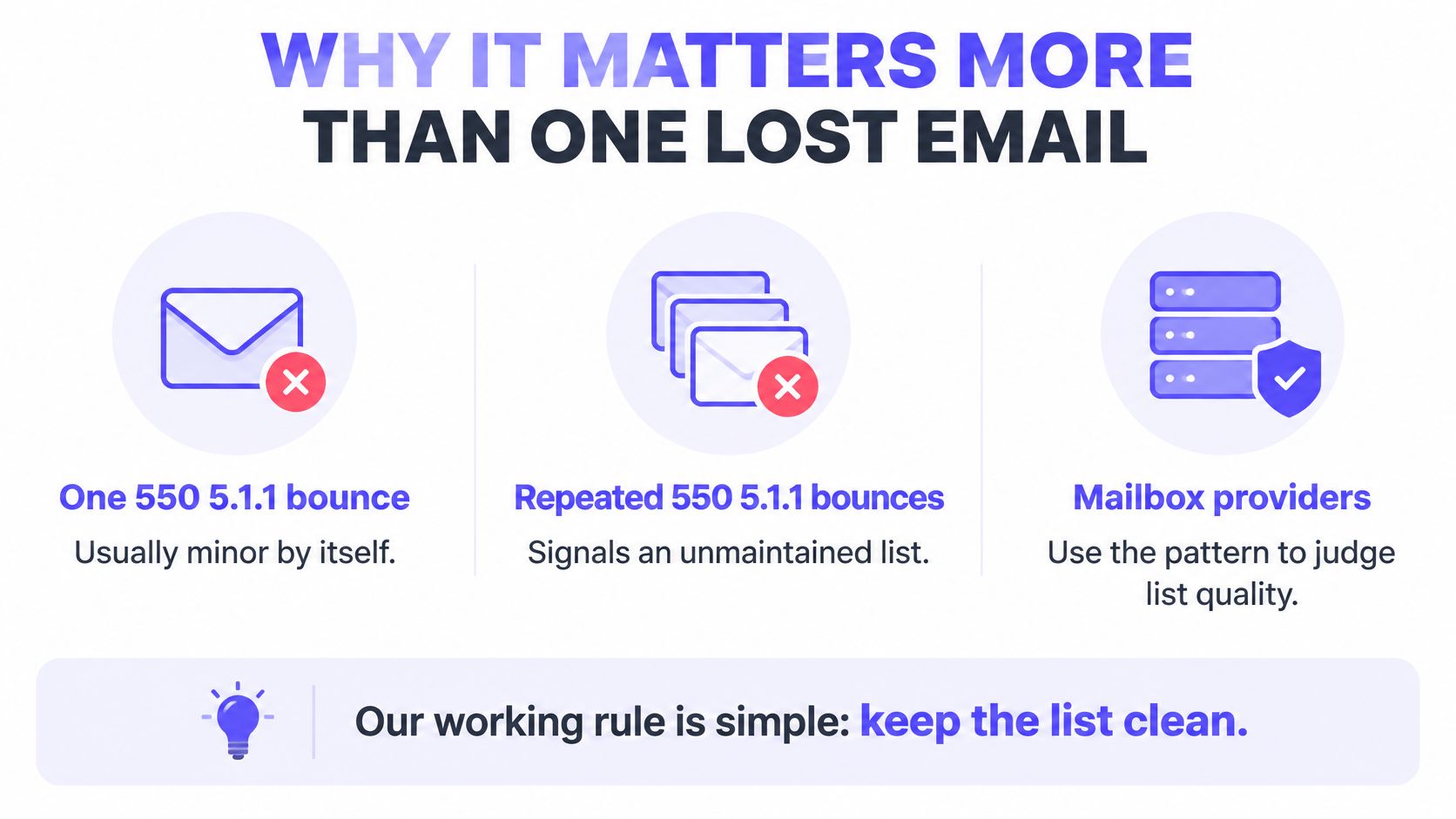
Retries waste sending capacity and repeat a failure that cannot be fixed by resending. They also show receiving systems that the sender is continuing to mail addresses after permanent errors.
One dead address is a data error. Hundreds of dead addresses, mailed again, look like careless sending.
Bounce problems can appear alongside other poor sending conditions. A bounce pattern alone does not establish why a domain has a reputation problem, but it can add to concerns about list quality and reduce confidence in later campaigns.
Rewriting copy or changing subject lines will not make an invalid mailbox valid. Remove the address and investigate how it entered the list.
Causes of 550 5.1.1 Bounces
For cold outreach teams, unverified lists cause the largest share. The address was never valid, so no sender side setting can rescue it. Typos and departures matter, but guessed enrichment data usually explains clusters.
Google's Gmail SMTP documentation describes the response as "The email account that you tried to reach does not exist" and recommends checking for typos or unnecessary spaces. That's the core distinction. It's a destination validity failure, while codes such as 5.7.1 generally point to policy or security refusals.
Matching the pattern to the cause
| Cause | How to spot it | Fix |
|---|---|---|
| Typo in the address | One bad contact, recipient domain works | Correct the address and verify it |
| Person left the company | Mailbox gone, domain works, earlier replies exist | Remove the contact and find the new owner |
| Enrichment tool guessed the format | Many bounces from one data source, names follow one pattern | Pause the source and verify its records |
| Old list reused | Bounces cluster in old imports | Verify the whole list before sending |
| Domain migration | Bounces only from one mail system or internal senders | Check the old tenant (see migration section) |
A single typo is cheap to fix. A departed employee is also clear once the domain still receives mail for other people and older threads exist. The contact should be removed and replaced through a current source, not guessed again.
Clustered failures deserve a harder response. If one enrichment batch produces repeated 550 5.1.1 bounces with the same first.last pattern, the whole batch is suspect. Pausing that source and checking records through Mailwarm's email checking tool costs less than mailing the rest and learning from bounces.
Old imports fail for a simpler reason. People change jobs, aliases get deleted, and domains retire mailboxes. Reusing a list without fresh verification imports all that decay at once.
How to Diagnose an Invalid Recipient or Broken Routing
Diagnosis starts with one question. Is the mailbox invalid, or did routing send the message to a system that can't resolve it? Those two answers lead to opposite actions, so guessing wastes time.
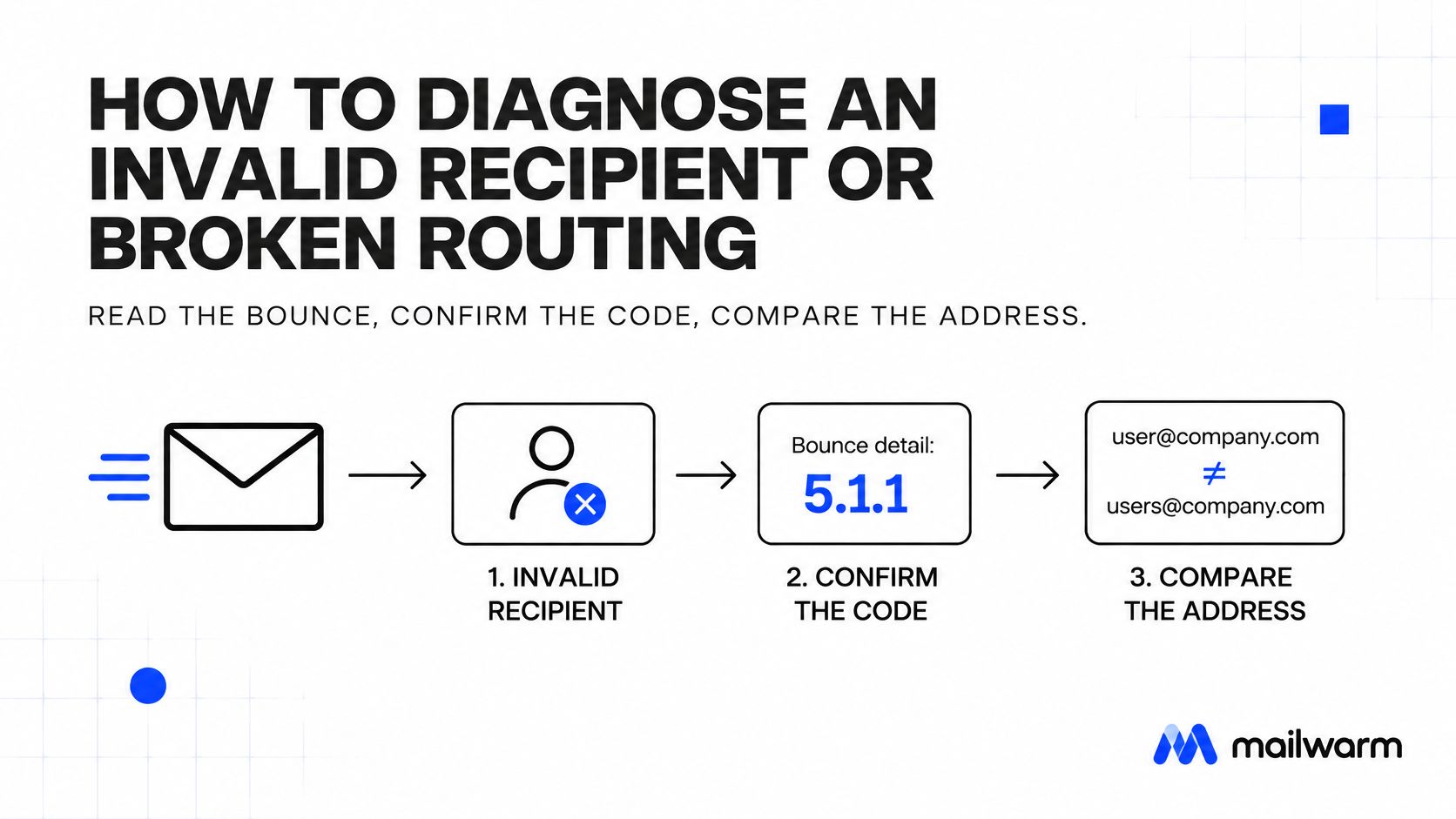
A five step diagnostic sequence
- Read the full bounce text: Confirm the code is 5.1.1, not a policy code such as 5.7.1 hiding behind a generic 550.
- Compare the address: Match the rejected address against the recipient's confirmed address, including dots, hyphens, and spelling.
- Check domain routing: Use an MX lookup to find mail servers for a domain and confirm the active provider matches expectations.
- Verify the mailbox: Run the full address through a verification check before any resend.
- Act on the result: Remove an invalid mailbox on a healthy domain, or fix routing when the domain points to the wrong service.
Microsoft's Exchange Online troubleshooting guidance identifies stale, ambiguous, or incorrectly configured MX records as a cause of 550 5.1.1 responses even when the recipient domain appears valid. It also points administrators toward mail flow rules, forwarding targets, and service health.
| Result | Action |
|---|---|
| Full text shows 5.7.1 or a policy reason | Not an addressing failure, check policy and sender rules |
| MX points to the wrong provider | Fix routing, then retry the message |
| MX is correct and the mailbox is reported invalid | Remove the contact |
| Address matches the confirmed one and the domain looks fine | Check autocomplete, aliases and forwarding rules |
Sender side DNS rarely causes this code. Editing SPF first is overrated for 550 5.1.1, because valid authentication doesn't create a missing recipient mailbox. Start with the bounce text, the address, and recipient routing.
Autocomplete deserves attention for one off sends. Outlook can retain a stale internal entry even after a mailbox moves or gets recreated. Deleting the cached entry and typing the confirmed address in full removes that false lead quickly.
The Migration Trap After a Domain Moves to Google Workspace
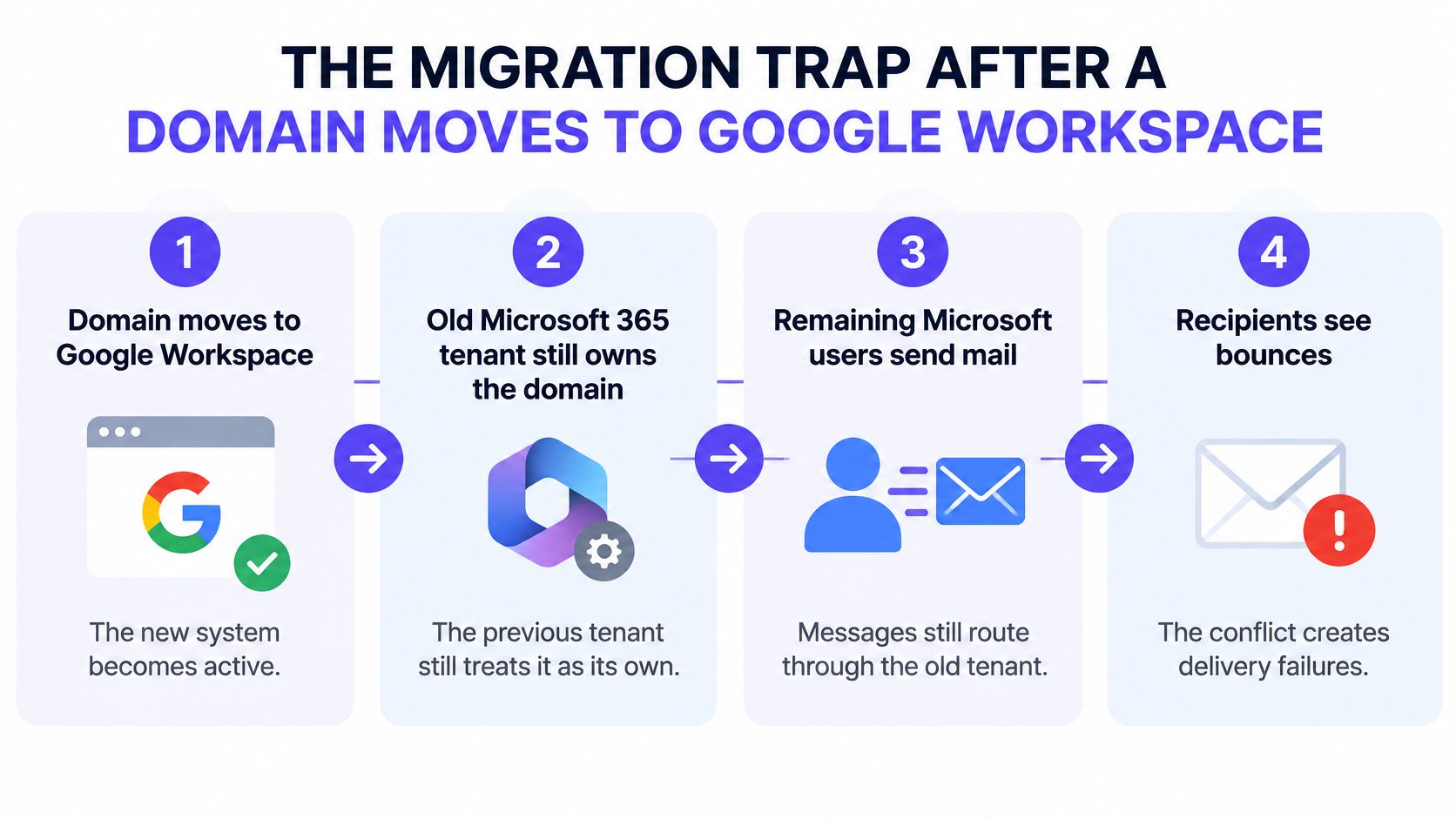
The trap looks like this. A company moves its domain to Google Workspace, but the old Microsoft 365 tenant still lists that domain as an accepted domain. Remaining Microsoft users send to correct addresses, yet messages bounce as recipient not found.
The old tenant tries to resolve the address internally because it still believes it owns the domain. The mailbox now lives in Google Workspace, so the Microsoft directory lookup fails. External senders often reach the same people without trouble, which makes the internal pattern the key clue.
Gmail's SMTP error guidance defines the code as an account that does not exist, but Microsoft documents wider causes, including deleted or moved mailboxes, stale Outlook Auto-Complete data, forwarding rules, domain configuration problems, and outdated or ambiguous MX records. The full context decides the fix.
Steps that resolve the tenant conflict
- Confirm the pattern: Check that bounces come from Microsoft 365 senders writing to migrated domain addresses.
- Inspect accepted domains: Open the old tenant settings and confirm whether the migrated domain is still listed.
- Remove or relay: Remove the domain from the old tenant, or set it to internal relay if mail must still pass through during transition.
- Confirm public routing: Check that the domain's MX records point to Google Workspace.
- Send a live test: Send from an account in the old tenant and confirm arrival in the Google mailbox.
Misleading part: The bounce says the recipient doesn't exist, but the mailbox is fine in the new system. The old tenant is answering for a domain it no longer hosts.
Teams lose hours checking spelling because the wording points at the address. In migration cases, spelling is rarely the issue. Tenant ownership and routing explain why correct people appear unknown to one sending system only.
The 550 #5.1.0 Address Rejected Variant
550 #5.1.0 Address rejected means the same thing in practice. The receiving system rejected the recipient address or couldn't recognize it. The label differs, but the sender action doesn't.
The enhanced code 5.1.0 is a generic address status, so wording matters more than the final digit. Microsoft and Outlook.com often use the #5.1.0 form with "Address rejected." Other servers may return only that short line with no extra detail.
| Provider | Check first |
|---|---|
| Outlook.com or Microsoft | Confirm the address and MX records |
| Gmail | Read the full bounce text for 5.1.1 wording |
| Other mail servers | Confirm the mailbox still exists |
Gmail usually makes the meaning explicit through the 550-5.1.1 the email account that you tried to reach does not exist wording. A shorter 5.1.0 response gives less evidence, so verification and domain routing checks carry more weight.
The fix is identical. Verify the address, remove it if the mailbox no longer exists, and don't retry unchanged. If the domain should be valid, MX and tenant routing deserve inspection before list removal becomes final.
How to Prevent Hard Bounces From Invalid Addresses
List quality depends on routine maintenance, not a last-minute DNS change. Addresses go stale as people change roles or companies retire mailboxes, so checking a list only when it is first added leaves old records unchecked.
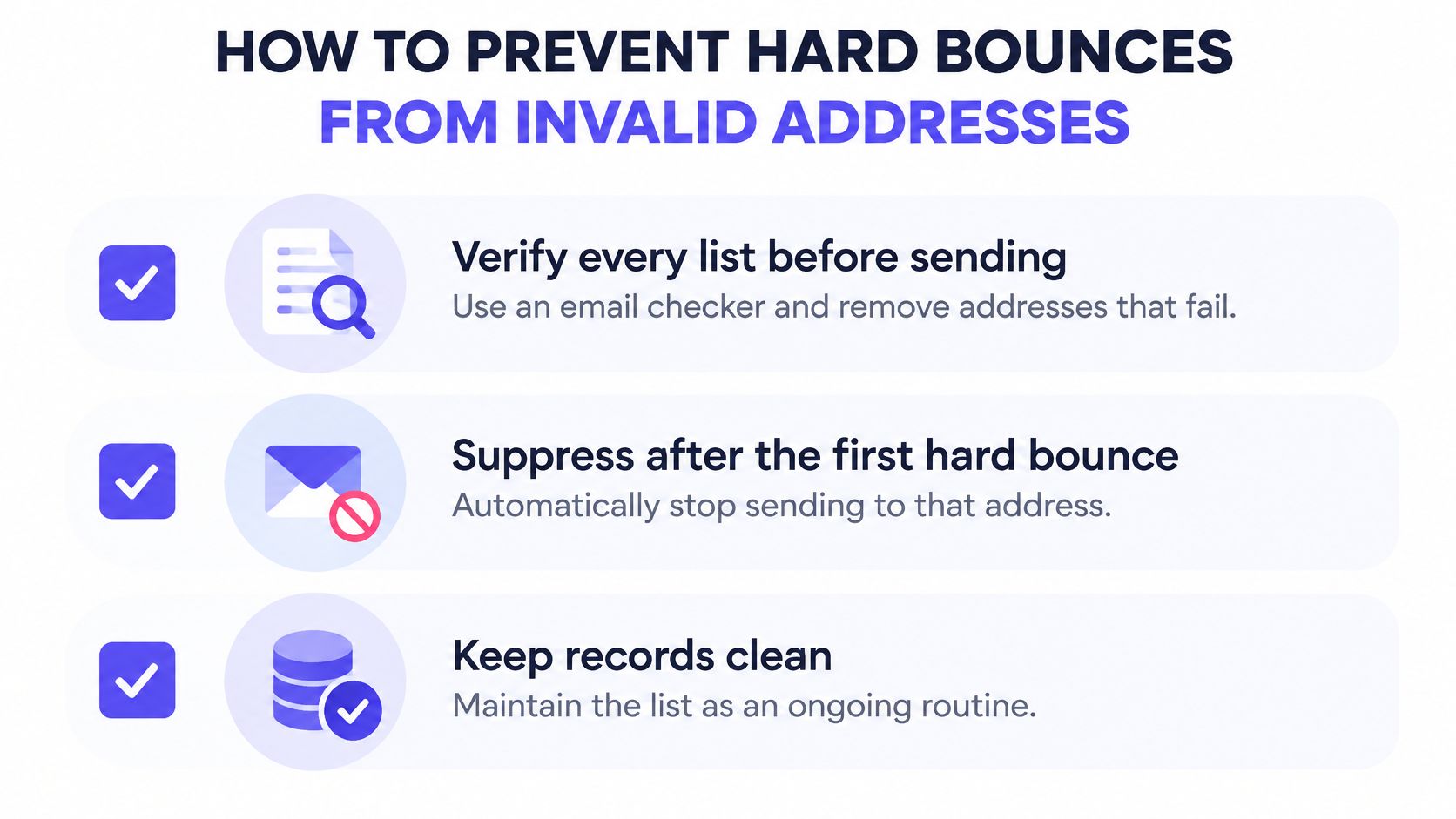
The prevention checklist
- Verify every list before sending: Remove invalid results before launch, including fresh enrichment exports that look clean.
- Suppress after the first hard bounce: Block the address from future campaigns without waiting for manual review.
- Track bounce rate by source: Keep purchased data, enrichment tools, form captures, and CRM exports separate so a weak source cannot hide in blended results.
- Pause a list at 2 percent: Check the source before sending more volume.
- Reverify old lists: Run a fresh check on reused segments, even if they performed well last year.
Separate source tracking helps identify which supplier or import introduced invalid addresses. A healthy in-house list can mask a poor-performing source when campaign results are combined.
Permission-based capture and maintained records matter more than raw list size. The email marketing guidance from Gym Membership Tips is an off-topic resource for this point, so focus on clear consent and keeping records current. Outbound teams can apply the same discipline through careful sourcing and regular checks.
Use list hygiene for outbound sales teams to support that process. A sender-side DNS change rarely fixes a 550 5.1.1 bounce because the code points to a recipient address or mailbox that the receiving system cannot recognize.
Warmup supports sender reputation while the list is cleaned. Mailwarm offers expert deliverability calls on every plan, but warmup cannot repair an invalid address or revive a retired mailbox.
Before the next send, verify the list and suppress every address that hard-bounced.
Frequently Asked Questions About 550 5.1.1
Can an address be readded after a 550 5.1.1 bounce?
Only after you confirm the mailbox is active again. The receiving server reported that the destination does not exist, so adding the address back without confirmation is likely to produce another hard bounce.
Is 550 5.1.1 the same as a spam block?
No. 550 5.1.1 indicates an addressing failure. A 5.7.1 response is more often associated with a policy or security refusal. Read the full bounce text before changing content or sender settings.
How many hard bounces are too many?
Keep hard bounces under 2 percent of sends. If the rate rises above that, pause the source and verify the list before sending again. Repeatedly retrying invalid addresses does not fix the cause.
Can email warmup fix a 550 5.1.1 bounce?
No. Warmup can support sender reputation, but it cannot make a nonexistent mailbox valid. Clean the list to address the bounce, then focus reputation work on messages sent to valid recipients.
Does Mailwarm need access to a private inbox?
No. Mailwarm does not require IMAP access or permission to read a private inbox. Every plan includes expert deliverability calls, which can help distinguish list-quality issues from reputation problems.
Clean invalid addresses before starting reputation work. Warmup cannot rescue mail sent to nonexistent mailboxes. Mailwarm helps senders build reputation, monitor inbox placement, and improve deliverability through real inbox engagement, warmup controls, and expert guidance. Teams that rely on email for growth can use Mailwarm's premium warmup and deliverability platform to protect cleaned lists.