
“The following addresses had permanent fatal errors” isn't proof of a bad email list. It means delivery failed permanently for the attempted transaction, but the cause could be a missing mailbox, an access restriction, or a sender policy rejection, all possibilities covered by the SMTP specification.
The fix starts with the SMTP diagnostic line, not the bounce subject. Deleting contacts helps with nonexistent recipients; it does nothing to repair failed authentication or a blocked sending IP.
What the Error Means and Where to Look First
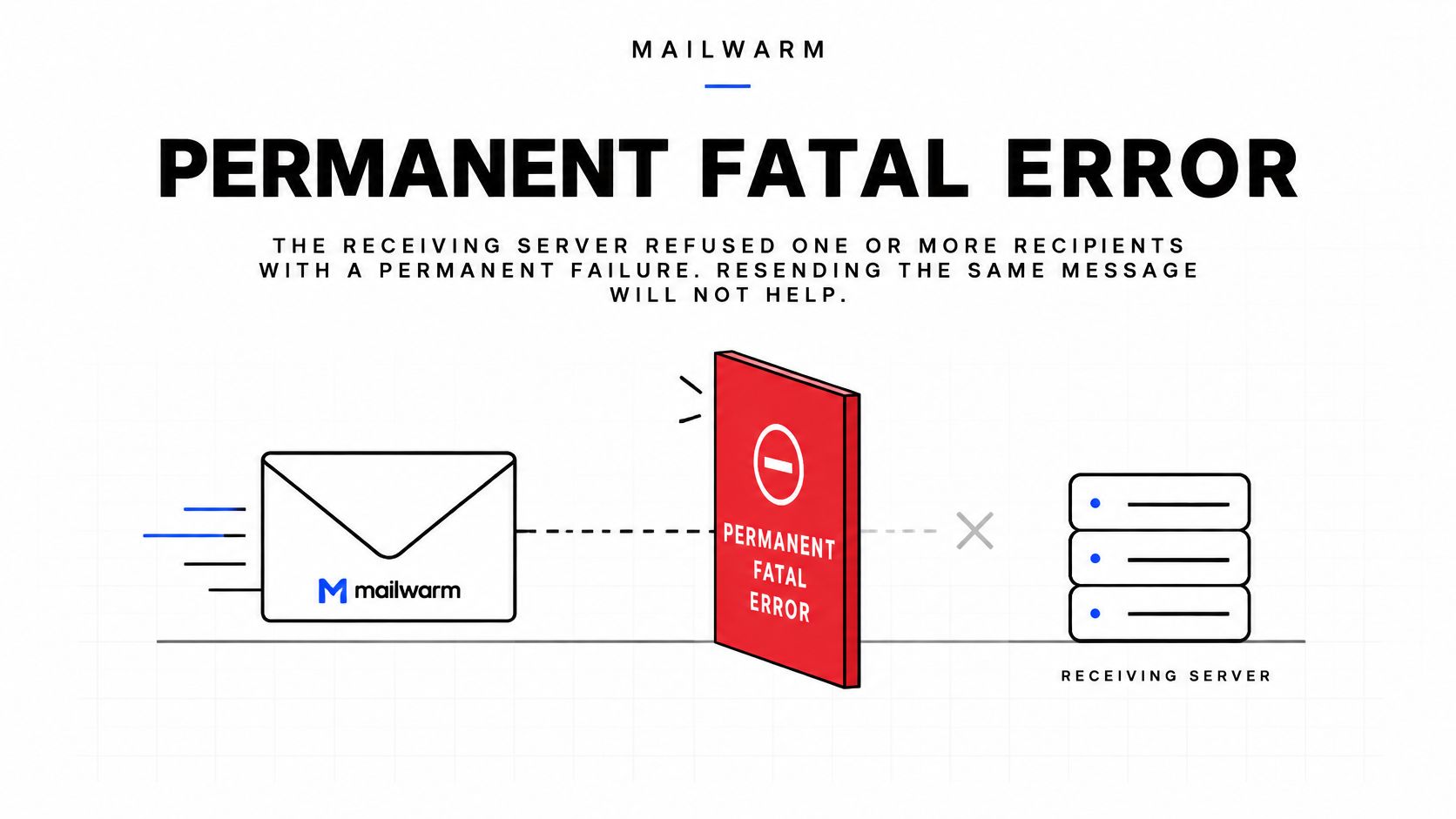
This header is a mail system's summary of failed delivery. The receiving server refused the message or recipient, and resending the same message unchanged generally won't resolve the underlying problem.
The useful evidence sits below the header. A simplified, illustrative bounce might look like this:
From: jane@example.com
Final-Recipient: rfc822; sam@example.org
Action: failed
Status: 5.1.1
Remote-MTA: dns; mx.example.org
Diagnostic-Code: smtp; 550 5.1.1 User unknown
Diagnostic-Code contains the response that explains the rejection. Remote-MTA identifies the remote mail server, although some bounce formats put additional diagnostic text alongside it.
Here, 550 5.1.1 and User unknown point to the recipient address. A policy rejection would require a different fix, even if the subject line were identical.
Understand what permanent actually means
The Enhanced Mail System Status Codes standard defines three response classes:
- 2 means success. The requested delivery action completed.
- 4 means a temporary failure. Controlled retries may succeed after the condition clears.
- 5 means a permanent failure. The address, message, or sending conditions need to change before another attempt.
Permanent describes the failed request, not necessarily an address that will never receive email again.
For related header wording, consult the 550 permanent failure for one or more recipients guide. If a VeloCMS newsletter stalls before a usable bounce appears, find help for stalled newsletter sends to separate application-side sending problems from receiving-server rejection.
First move: Copy the complete diagnostic line, including the words after the code. A subject line alone isn't enough evidence to remove a contact.
SMTP Codes Behind the Permanent Failure Message
| Code | Meaning | Usual cause |
|---|---|---|
550 5.1.1 | Recipient address does not exist | Typos, people who left the company, old or imported lists |
550 5.7.1 | Rejected by policy or as spam | Blocklisted IP, failed DMARC, content flagged as spam |
554 5.7.1 | Transaction failed under a security or policy rule | Blocklist, content filtering, or another receiving-server restriction |
550 5.7.515 | Sender fails required authentication | Missing, failing, or misaligned authentication on high-volume mail to Outlook.com |
550 5.4.1 | Recipient address rejected by access policy | Microsoft 365 tenant restricting external senders, potentially to an allowlist |
552 5.2.2 | Mailbox full | Recipient has exceeded the mailbox storage quota |
552 5.3.4 | Message too large | Message or attachments exceed the receiving system's size limit |
The first row is the address-cleaning path. Typos and stale contacts are straightforward problems, but the other rows show why treating every permanent failure as an invalid recipient wastes usable contacts.
550 is especially easy to misread. It indicates mailbox unavailability broadly, not just a mailbox that doesn't exist. An access restriction or policy refusal can produce the same basic reply.
Read the enhanced code and its wording together
A response such as 550 5.7.1 remains broad. The Postbox Services SMTP error guide describes policy, authentication, relay, and spam-filter explanations that require reading the human-readable diagnostic.
For 552, distinguish storage from message size. A full mailbox requires the recipient to free space or the administrator to adjust the quota; an oversized message requires a smaller attachment or another approved delivery method. Neither calls for changing SPF.
Likewise, 550 5.4.1 doesn't prove an allowlist restriction by itself. The access-denied wording and the recipient administrator's findings must support that diagnosis.
Working rule:
5.1.xusually points toward addressing;5.7.xpoints toward security or policy. The full text decides whether the next action belongs to the sender or the recipient administrator.
These categories are a starting point, not permission to ignore provider-specific explanations. Some address-status codes concern sender addressing rather than an unknown recipient.
How to Decide and Act
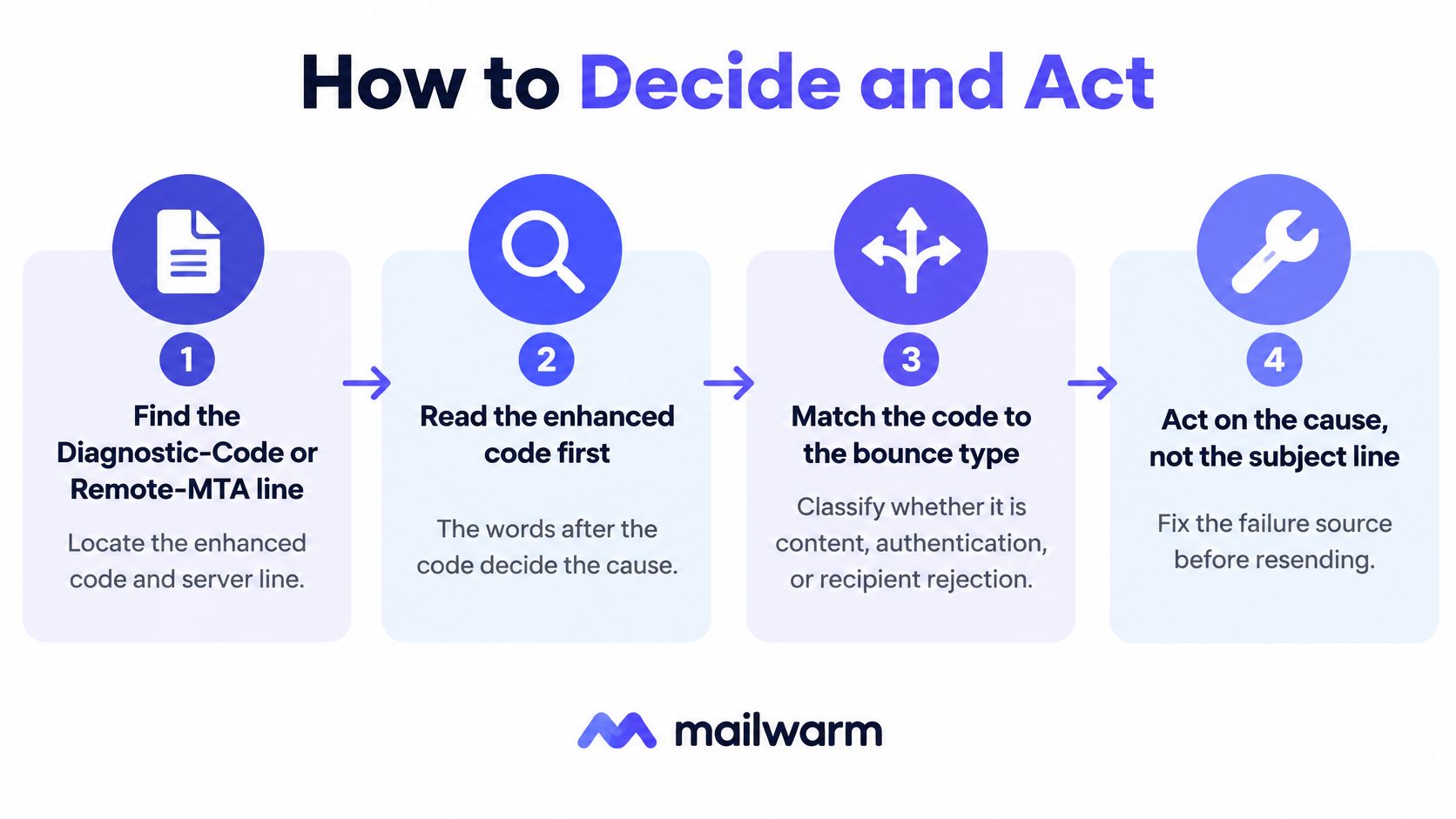
The enhanced code and the words after it decide the action. Scope helps confirm the diagnosis, but it shouldn't override an explicit response from the receiving server.
Diagnose each bounce before changing the list
- Locate the evidence. Open the full delivery-status notification and find Diagnostic-Code, Status, and Remote-MTA. Preserve the original rather than copying only the subject.
- Read the enhanced status. Separate address-related responses from policy, mailbox, and message-size failures.
- Read the explanation.
User unknownordoes not existsupports an invalid-recipient diagnosis.Blocked,policy,Spamhaus, orreputationsupports investigating a sender restriction. - Check the scope. An isolated unknown-user response points toward one contact. Similar policy failures across a provider suggest a shared sending problem; failures confined to one corporate domain may reflect that organization's rules.
- Compare the batch. Keep the raw diagnostic for each recipient. A campaign can contain both invalid addresses and sender blocks, so assigning one explanation to every bounce is risky.
Choose the action that matches the evidence
| Bounce signal | Action | Example |
|---|---|---|
5.1.0, 5.1.1, or 5.1.10 confirming an invalid recipient | Remove the address from active sends and suppress it | 550 5.1.1 user unknown |
5.7.x citing SPF, DKIM, DMARC, or alignment | Fix authentication before resending | 550 5.7.515 from Outlook.com |
5.7.x citing a blocklist or Spamhaus | Check the listing, resolve its cause, request delisting, and lower volume | 550 5.7.1 blocklist rejection |
5.4.1 from one domain only, while other domains deliver | Contact the recipient's mail administrator | Tenant accepting allowlisted senders only |
An unspecified 5.1.0 deserves particular care. Suppression is appropriate when the accompanying text confirms an unusable recipient, not merely because a broad category appeared.
Consider a campaign that receives policy rejections only from one corporate domain. Its operator checks authentication, then sends that company's administrator the diagnostic, timestamp, sending domain, and sending IP.
If the administrator confirms an external-sender restriction, an allowlist request is more useful than another unchanged send. That request should explain the legitimate business relationship and identify the expected recipient.
Contacting an administrator doesn't replace fixing the sender's own records. An administrator can reasonably reject an exception request when the message still fails authentication or comes from an unresolved compromised system.
How to Fix Authentication, Blocklist and Reputation Causes
A 5.7.x response names its own cause in the transcript, so read that code before touching anything else. Authentication defects, blocklist entries, and content filtering all produce permanent failures under the same header, and each one calls for a different check.
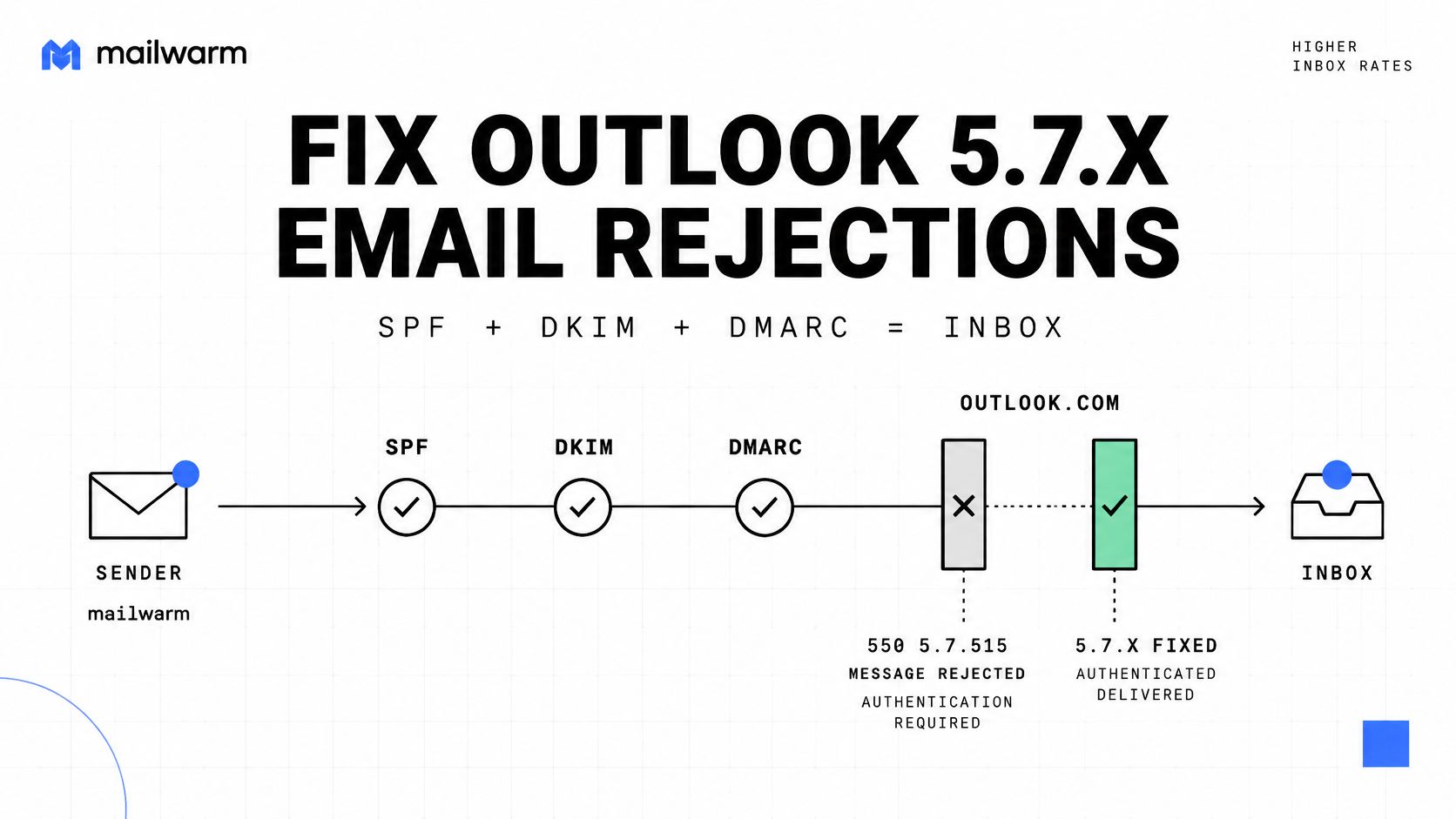
The authentication path is summarized below.
Repair authentication before testing again
Microsoft's Outlook consumer sender requirements require domains sending more than 5,000 messages per day to Outlook.com and related consumer mailboxes to pass SPF and DKIM, and publish DMARC with at least p=none aligned through SPF or DKIM; Microsoft documents 550 5.7.515 for insufficient authentication.
Check the actual sending service, not just whether a DNS record exists:
- SPF authorization: Confirm that the service transmitting the campaign is authorized for the envelope-sender domain.
- DKIM signing: Confirm signing is enabled and that the selector used by outgoing messages resolves correctly.
- DMARC alignment: Check that a passing SPF or DKIM identity aligns with the visible From domain.
- Observed results: Inspect Authentication-Results on a newly delivered test message. Published records alone don't prove a message passed.
A monitoring policy is a starting point, not a completed anti-spoofing rollout. Moving to p=quarantine or p=reject before auditing every legitimate source can turn your own transactional mail into the next permanent failure. Inventory each sending service first: marketing platforms, CRMs, billing systems, and any tool that sends on your behalf.
The accompanying video provides additional context for reviewing the sending setup.
Resolve the reason for a blocklist entry
Start an email blacklist check using the identity named in the bounce, whether that is your sending IP or your domain. Confirm the listing directly with the list operator before acting on it, because a bounce text can cite a list your IP is not on, and each operator runs its own lookup tool and remediation process.
Then investigate what caused the listing before requesting removal. Compromised forms, stolen credentials, unauthorized sending, and questionable list imports all produce the abuse patterns that trigger entries. A delisting request submitted while the source is still active gets the domain relisted, often faster than the first time.
A useful hypothetical case is a team that assumes a campaign failed because of bad contacts. Its transcript instead shows 550 5.7.1 blocklist rejections connected to abuse through a compromised form. Repairing the form, requesting delisting, and restarting at reduced volume addresses the cause; deleting contacts doesn't.
For filtering without an explicit listing, use the 550 5.7.1 spam rejection guide. Review message formatting, links, attachments, and sending behavior rather than repeatedly swapping words. Sudden volume spikes and identical content sent to disengaged recipients are common triggers when no list entry exists.
Mailwarm's authentication fix tools and deliverability experts can review these records. Its recommended sequence is to fix SPF, DKIM, and DMARC first, start warmup before the first campaign, increase volume gradually, and retain maintenance activity afterward. That order matters: resuming full volume immediately after a delisting or a DNS fix recreates the conditions that caused the rejection.
Remove Invalid Addresses and Stop Repeat Failures
Confirmed permanent recipient failures should leave the active list immediately. Suppression matters more than deletion because a deleted contact can return through a CRM sync or another import.
A 15-month study of 298 million messages found 12.93% failed on the first delivery attempt, with approximately one-third of those failures succeeding after retrying. That distinction supports classifying failures before deciding which messages belong in a retry queue.
Make bounce handling a routine
- Export the evidence: Retain the first response class, enhanced code, provider explanation, and eventual outcome.
- Separate failure types: Track transient deferrals, permanent recipient failures, and permanent policy failures independently.
- Suppress invalid contacts: Pause their sequences and prevent reactivation through imports.
- Retry temporary deferrals: Use controlled backoff rather than immediate repeated attempts.
- Review each send: Compare bounce categories after sending, not just the combined failure rate.
For automated outreach, Molted Email explains how to manage suppression lists for AI senders. The operational priority is consistent suppression across every system that can initiate another message.
Keep validation separate from authorization
Use an address-validation check to verify an email address before returning uncertain contacts to an active list. A successful validity check doesn't establish that the recipient provider will authorize messages from the sender.
Consider an old event list imported into a CRM. If departed employees produce a burst of 5.1.1 responses, suppressing those contacts stops further attempts to those nonexistent mailboxes.
That same cleanup won't resolve policy rejections against otherwise valid recipients.
Don't delete valid contacts merely to make a policy-error report look cleaner. Preserve the rejection evidence and repair the sending problem.
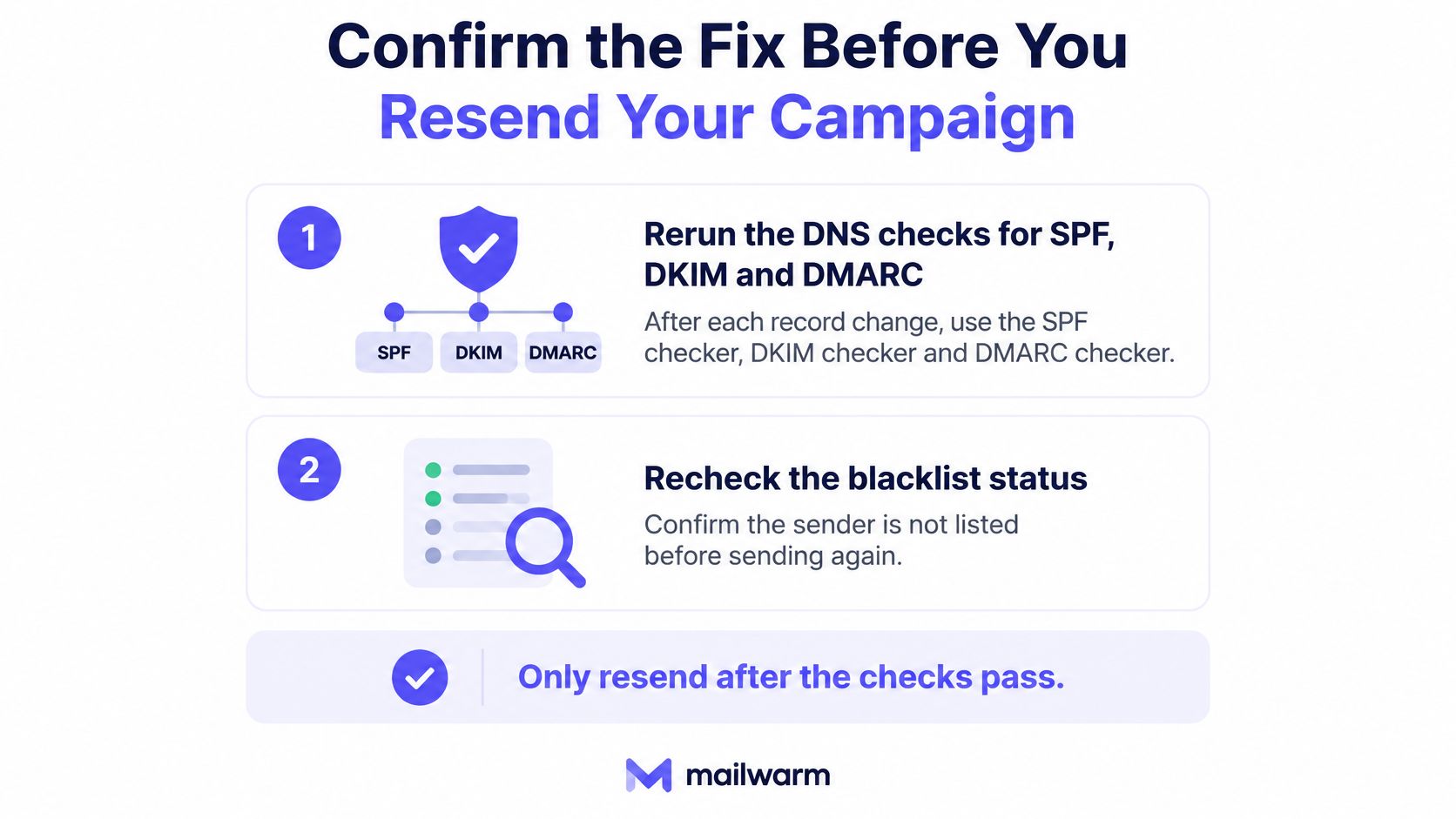
Confirm the Fix Before You Resend Your Campaign
Validation should test the repaired path, not just confirm that someone edited a setting.
- Rerun DNS checks for SPF, DKIM, and DMARC after each change, using the corresponding record checkers.
- Recheck listing status after delisting. Confirm the affected sending identity no longer appears on the relevant list.
- Send controlled tests to inboxes under the team's control. Inspect authentication results, placement, and any new bounce.
- Restart with a small segment appropriate to the sender's history. Watch the returned diagnostics before expanding.
- Stop on recurring policy failures. Investigate the fresh response instead of assuming the previous repair worked.
- Increase volume gradually only while results remain stable.
Before restarting, run a quick deliverability test to review the sending setup and placement signals.
Frequently asked questions
Does a permanent fatal error mean the address is invalid?
No. An unknown-recipient diagnostic supports that conclusion, but authentication and policy failures can reject valid recipients.
Should a permanently rejected message be resent?
Not unchanged. Correct the diagnosed cause first, then test the repaired delivery path.
Why can a verified address still bounce?
Address validity and sender authorization are separate checks. A provider can reject a real mailbox's incoming message because of authentication, content, or policy.
Can warmup fix every permanent failure?
No. Warmup can support reputation building, but it can't create a missing mailbox, authorize an unapproved sender, or replace blocklist remediation.
When “the following addresses had permanent fatal errors” appears, read the diagnostic, classify the failure, and repair the responsible side. Suppress confirmed invalid recipients, preserve valid contacts affected by sender blocks, and validate the repair before increasing volume.
Mailwarm is a premium email warmup and deliverability platform that helps senders build reputation, monitor inbox placement, and reduce spam risk through real inbox engagement, advanced warmup controls, and expert guidance. Its free deliverability audit reviews the sending setup and identifies the top 3 fixes to improve inbox placement. Visit Mailwarm with the complete bounce diagnostic to start with the failure that needs fixing.