
If important emails keep landing in Junk, your Outlook settings probably need a tune-up.
This is more than a minor inbox annoyance. A single misclassified message can hide a client reply, invoice, interview request, support ticket, or sales opportunity. For teams that rely on email every day, poor junk filtering creates real costs in lost time, missed revenue, and avoidable risk.
The good news is that Outlook gives you useful control over how messages are filtered. With the right setup, you can cut down on spam without losing the emails that actually matter.
In this guide, you’ll learn how to adjust Outlook’s spam filters, manage Safe Senders and Blocked Senders, correct filtering mistakes, and improve the chances that your own emails reach other people’s inboxes.
Quick Answer: How to Change Outlook Spam Settings
- Outlook Desktop: Go to Home > Junk > Junk E-mail Options.
- Outlook.com or Outlook on the web: Select the Settings gear icon (⚙️) > Mail > Junk email.
- Adjust the filter level, review your Safe Senders and Blocked Senders lists, and mark valid emails as Not Junk when Outlook gets it wrong.
What Are Outlook Spam Settings?
Outlook spam settings are the built-in controls that decide how incoming mail is filtered, flagged, allowed, or blocked. These controls include junk email protection levels, trusted sender lists, blocked sender lists, and user feedback such as marking messages as junk or not junk.
In simple terms, they help Outlook answer one question for every incoming email: should this message go to the inbox, the Junk folder, or be blocked?
Why Your Outlook Spam Settings Matter
For founders, sales teams, marketers, recruiters, and support staff, Outlook’s junk filter does far more than tidy up an inbox. It acts as a gatekeeper for the conversations that keep the business moving.
If the filter is too aggressive, valid emails get hidden. If it is too loose, spam, phishing, and low-value messages slip through. Either way, your team pays for it in lost time and missed opportunities.
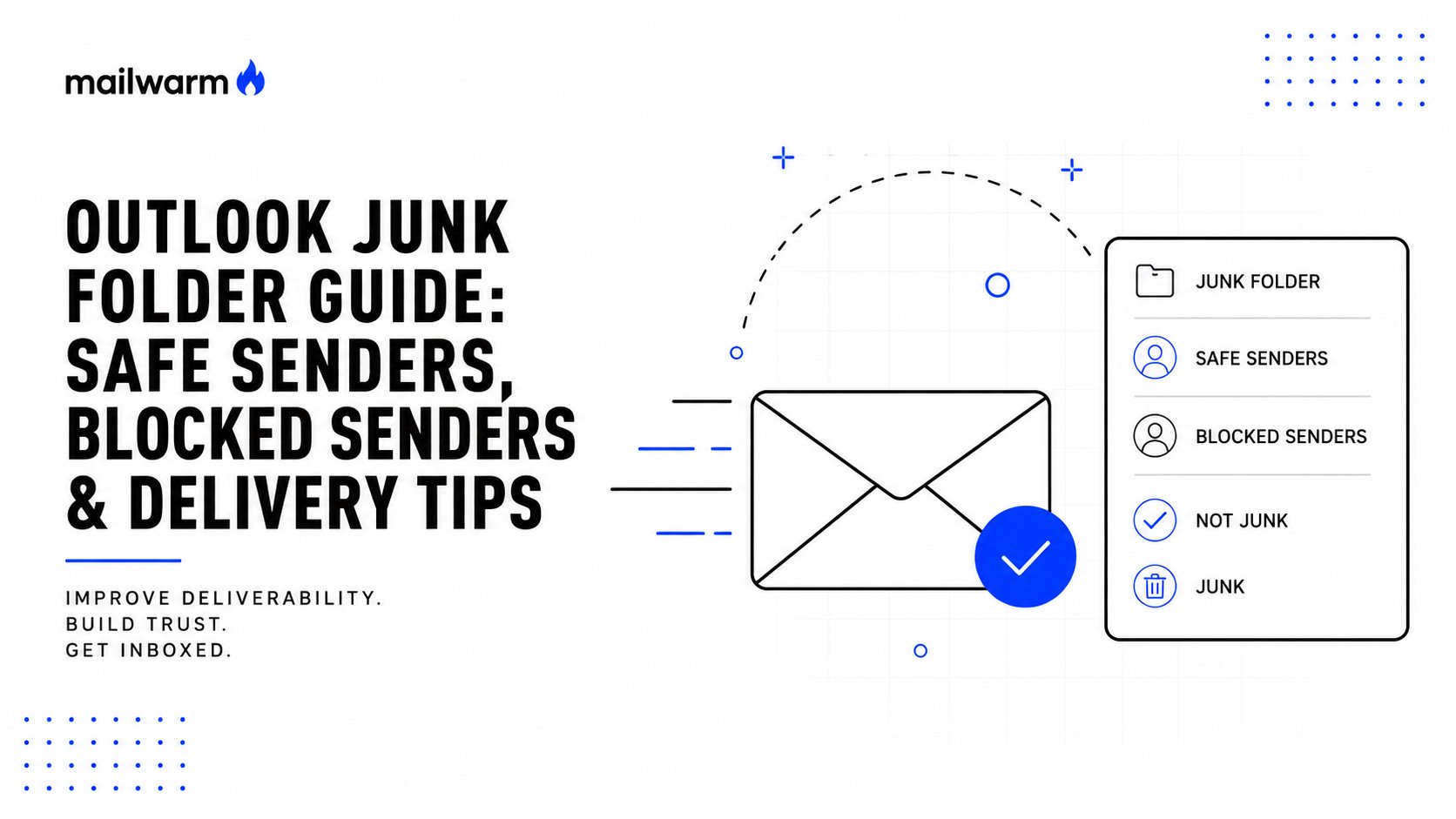
The Real Cost of Poor Spam Filter Management
A neglected junk mail setup can create problems that are easy to miss until they become expensive.
- Missed revenue: A qualified lead replies, Outlook flags the message, and your team never responds.
- Lower productivity: Employees waste time checking Junk folders, recovering messages, or sorting through spam that should have been filtered earlier.
- More security risk: Weak filtering increases exposure to phishing attempts, malware, and impersonation emails. As seen in the world of Houston small business cyber defense, these risks are very real.
Your Outlook spam settings are not separate from business operations. They directly affect how quickly your team can act, how safely they can work, and how often legitimate messages get through. Every major mailbox provider uses layered filtering rules to score incoming email. You can learn more about how Microsoft evaluates incoming mail in our guide on Spam Confidence Level.
Understanding Outlook's Protection Levels
Not every Outlook mailbox is configured the same way. Some users leave the default settings in place. Others, especially people in finance, healthcare, legal, or security-conscious organizations, use stricter filtering.
That matters because your inbox experience, and your outbound deliverability, can change dramatically depending on the protection level in use.
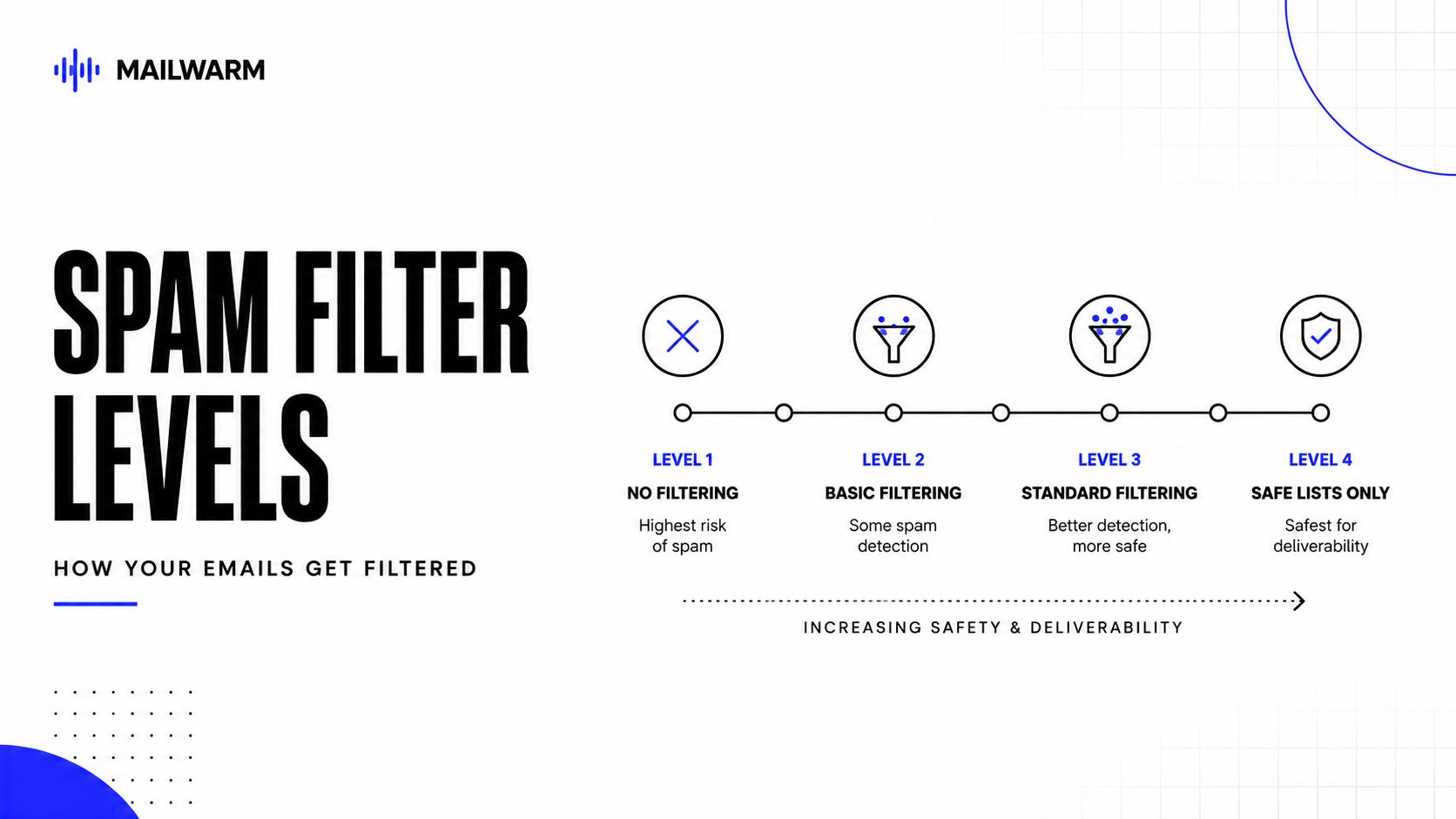
A recipient using High protection, or even Safe Lists Only, may never see your message unless your domain is properly authenticated and trusted. That is one reason email deliverability is not only about writing a good message. It is also about reputation, authentication, and user trust.
The Junk folder is a blind spot for many professionals. Even though Microsoft tells users to review it, most busy people do not check it often. If a legitimate sales, support, or recruiting email lands there, it may as well not have been sent.
For senders, this means a recipient’s Outlook spam settings can influence campaign results, reply rates, and pipeline generation. If your sending domain is weak, your message may be filtered before the person has any chance to engage. A good starting point is learning how email blacklists can affect your sender reputation.
How to Configure Your Spam Settings in Outlook
If important messages are going missing, it is worth spending a few minutes inside Outlook’s junk mail controls. These settings are available in both the desktop app and the web version, and they give you direct control over how Outlook treats incoming messages.
Outlook lets you manage three core things:
- the overall junk filter level
- the senders and domains you always trust
- the senders and domains you never want to hear from
This is especially useful in business environments where users receive a mix of customer emails, newsletters, automated notifications, and cold outreach. If you want a technical overview of filter strictness, this in-depth setup guide offers additional background.
Choose the Right Outlook Spam Protection Level
Your protection level controls how aggressively Outlook filters email. The stricter the setting, the less junk reaches your inbox. The tradeoff is a higher chance that valid emails get caught too.
Here is a practical breakdown of the available options.
| Setting Level | What It Does | Best For |
|---|---|---|
| No Automatic Filtering | Turns off automatic junk filtering. Mail from blocked senders is still sent to Junk. | Rarely a good choice. It leaves users more exposed to spam and phishing. |
| Low | Catches the most obvious junk mail. | Users who want a balanced setup and receive manageable amounts of spam. |
| High | Filters more aggressively and may move some legitimate emails to Junk. | Users with heavy spam volume who are willing to review the Junk folder regularly. |
| Safe Lists Only | Delivers only email from approved safe senders and safe recipients. | High-security environments or tightly controlled inboxes. |
For most people, Low is the best starting point. If spam becomes overwhelming, move to High, but make a habit of checking Junk so important messages do not sit there unnoticed.
Manage Safe Senders and Blocked Senders
Your sender lists give you more control than the protection level alone.
- Safe Senders tell Outlook which people or domains you trust. Messages from these senders are far less likely to be filtered as junk. This is where you should add clients, vendors, internal tools, recruiting platforms, and any contact you never want to miss.
- Blocked Senders tell Outlook which addresses or domains should be treated as unwanted. Messages from these senders are sent to Junk automatically.
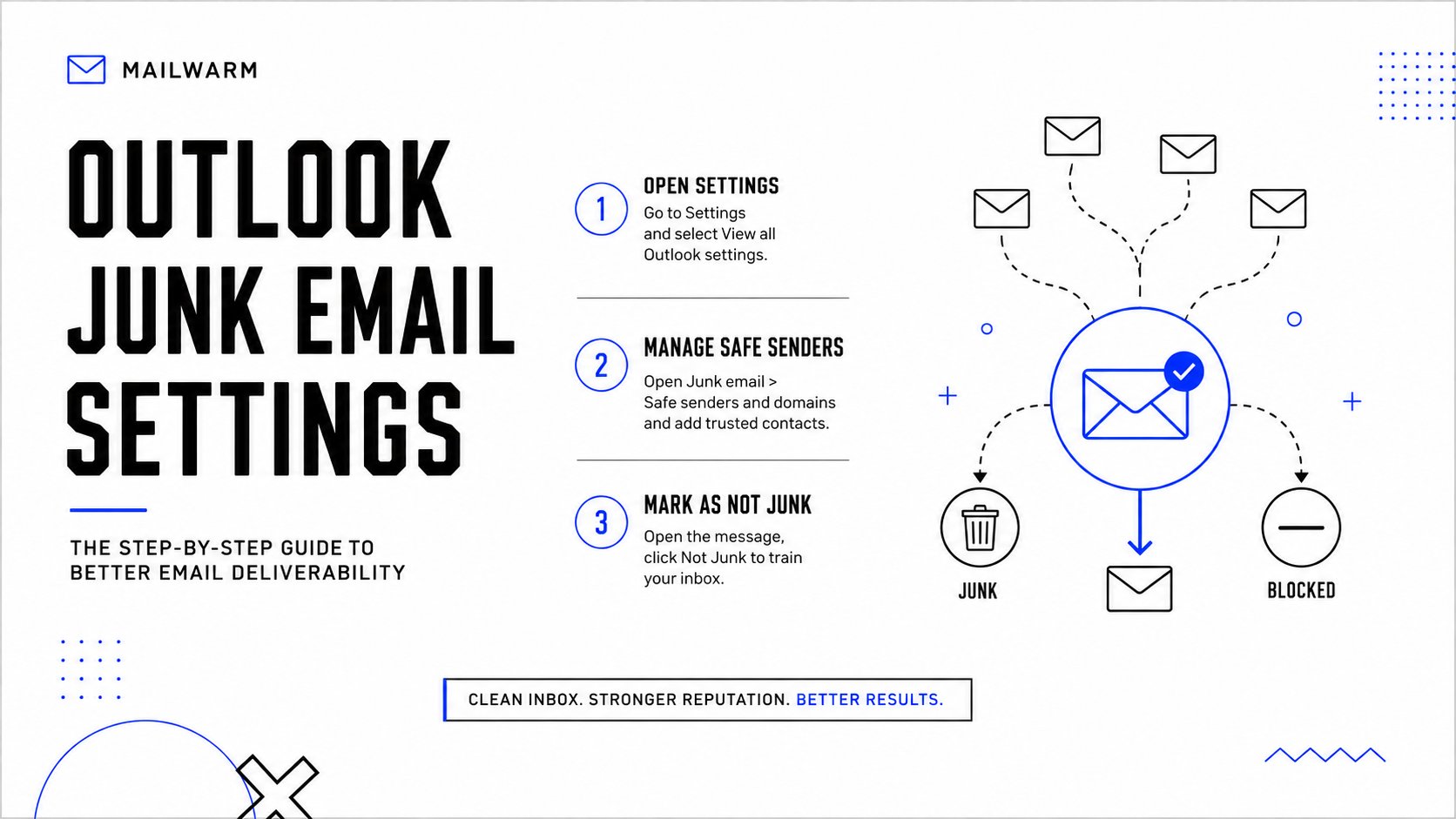
A quick way to allow a sender is to right-click one of their emails and choose Junk > Never Block Sender.
A quick way to block a persistent nuisance is to right-click the message and choose the block option from the same Junk menu.
Practical tip: add trusted domains when it makes sense, not just individual addresses. If one company sends messages from support@company.com, billing@company.com, and news@company.com, adding company.com to Safe Senders is often more reliable.
Managing blocked senders also matters when you are trying to reduce inbox noise from repeat spam sources. If you want more context on blacklist management, see how CleanMyList helps manage email blacklists.
Train Outlook With "Not Junk"
When Outlook makes a mistake, how you correct it matters.
If you simply drag a message out of the Junk folder, you fix the problem once. If you mark it as Not Junk, you do more than move it. You also give Outlook feedback that this message should not have been filtered.
That feedback helps the system adapt over time. It is one of the easiest ways to improve your personal filtering accuracy, especially if you frequently receive mail from new prospects, platforms, or partners.
Best Practices to Keep Your Emails Out of Spam
So far, we have focused on protecting your own inbox. But if your business sends email, there is another side to this problem. You also need to make sure your messages do not get trapped by someone else’s Outlook spam settings.
The basic principle is simple. Outlook is more likely to trust senders who behave like real, reputable senders.
That means focusing on the foundations of deliverability:
- Set up authentication correctly: Publish and validate your SPF, DKIM, and DMARC records so Microsoft can verify that your messages are legitimate.
- Keep your lists clean: Remove invalid, outdated, and inactive email addresses regularly. Bad lists create bounces, complaints, and reputation damage.
- Write normal, trustworthy emails: Avoid deceptive subject lines, overhyped claims, random capitalization, and suspicious link patterns.
This infographic shows the basic steps many recipients take when managing their own Outlook filtering. Knowing what happens on their side helps you understand why some emails get through and others do not.
Build a Strong Sender Reputation
Reputation is one of the strongest signals mailbox providers use when deciding where your messages belong.
If recipients open your emails, reply, move them out of Junk, or add you to Safe Senders, those actions support future inbox placement. If they ignore, delete, or report your messages, that can work against you.
Microsoft actively encourages users to report junk and phishing attempts because user feedback improves filter quality. For sales and marketing teams, this means engagement quality matters just as much as technical setup. If you want to learn more, you can discover more about how Microsoft is tackling spam in Outlook directly from the source.
The takeaway is simple. You cannot rely on volume alone. Better inbox placement comes from combining clean infrastructure, relevant targeting, healthy sending habits, and positive engagement over time.
How Mailwarm Helps Protect Your Outlook Deliverability
Adjusting your own Outlook spam settings helps you control what reaches your inbox. But if your team sends outbound email, that only solves half the problem. The other half is making Microsoft trust your sending reputation.
That is where a deliverability platform can help.
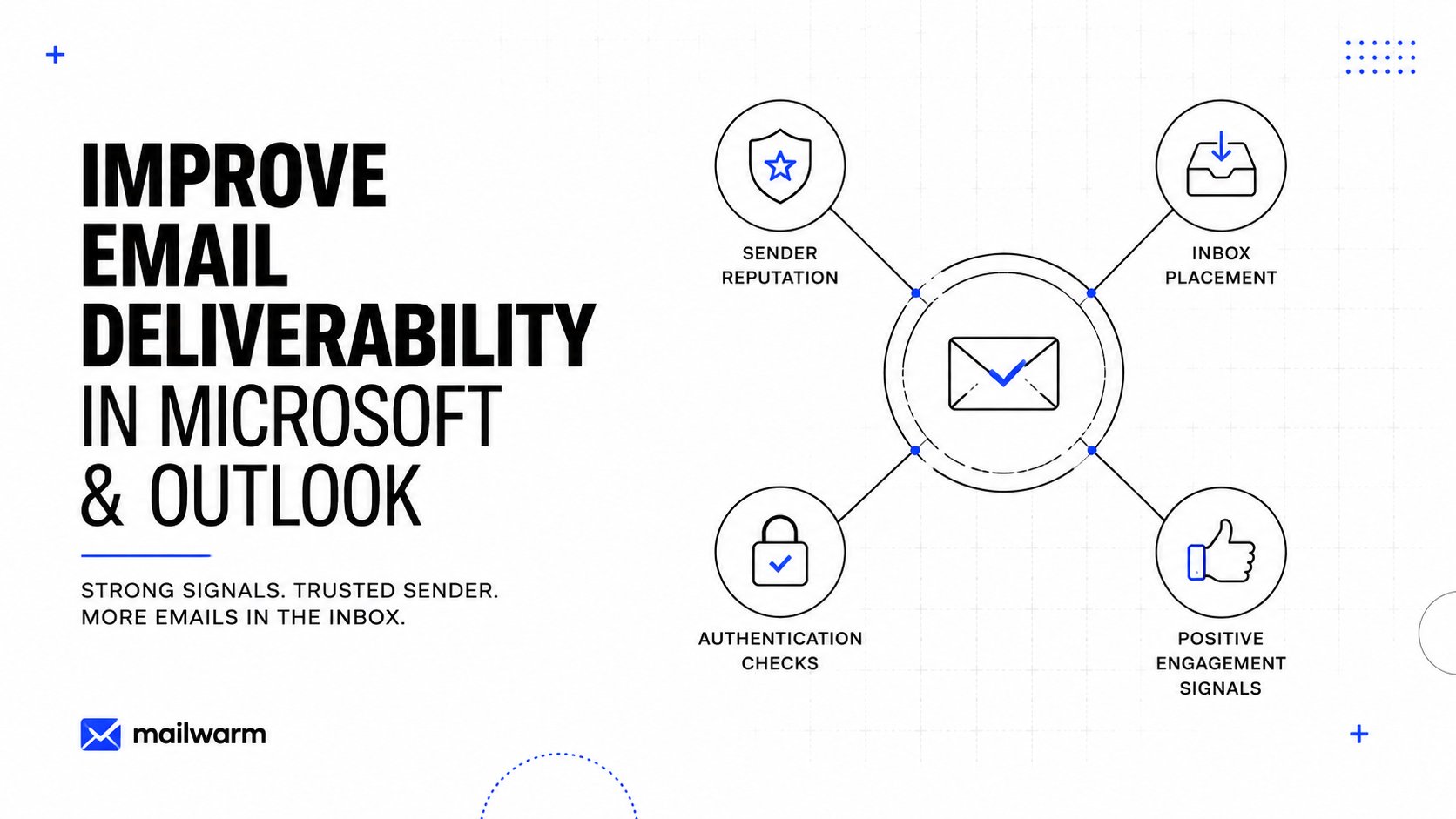
Mailwarm is an email warm-up and deliverability platform designed to improve inbox placement and strengthen sender reputation. It helps generate positive engagement signals from a network of more than 50,000 real, aged inboxes.
Go Beyond Basic Warmup
Mailwarm combines several deliverability-focused capabilities in one platform:
- Engagement signals: opens, threaded replies, and other trust-building interactions that mailbox providers use when evaluating senders.
- Provider-level targeting: the ability to focus warmup efforts on Outlook and Microsoft 365 inboxes when that is where your audience lives.
- Expert support: deliverability guidance to help diagnose inboxing issues and improve sending practices.
Unlike basic warmup tools, Mailwarm does not require IMAP access or permission to read your private inbox. For teams that depend on outbound email, that makes it easier to improve reputation without giving up unnecessary access.
If you want to see how this works in practice, take a closer look at our approach to email warmup with Microsoft.
Conclusion
Managing your Outlook spam settings is one of the simplest ways to protect your inbox from both missed opportunities and unnecessary risk. By choosing the right filter level, maintaining your Safe and Blocked Senders lists, and using the Not Junk action consistently, you can make Outlook work far better for you.
If your business also sends email, remember that inbox control is only one side of the equation. The other side is sender reputation. Strong authentication, clean lists, and consistent engagement are what help your emails avoid other people’s junk folders.
If email is part of your growth strategy, Mailwarm helps you improve sender reputation, monitor inbox placement, and reduce spam risk with expert-guided warmup.
FAQ
How do I stop emails from going to junk in Outlook?
Add the sender’s address or domain to your Safe Senders List. Also review your Junk folder regularly and mark legitimate messages as Not Junk so Outlook learns from the correction.
Where do I find the spam settings in Outlook?
In the Outlook desktop app, go to Home > Junk > Junk E-mail Options. In Outlook on the web, select Settings (⚙️) > Mail > Junk email.
What is the difference between Blocked Senders and Safe Senders?
Blocked Senders are addresses or domains you do not want in your inbox. Their messages are sent to Junk. Safe Senders are trusted contacts whose messages should bypass aggressive filtering.
Why are my sent emails going to spam?
The most common causes are poor sender reputation, missing authentication records such as SPF, DKIM, and DMARC, low-quality email lists, or spam-like content patterns.
Does reporting an email as junk do anything?
Yes. Reporting junk gives Microsoft feedback that helps improve filtering. It can strengthen future detection for similar unwanted messages.
How does Mailwarm help with Outlook deliverability?
Mailwarm helps strengthen your sender reputation with Microsoft by generating positive engagement signals from real inboxes, including opens, replies, and other trust-building actions.
Why is Mailwarm more expensive than basic email warmup tools?
Mailwarm includes more than automated warmup. Depending on the plan, it combines real inbox engagement, high reply coverage, spam score monitoring, provider-level targeting, authentication support, no IMAP access requirement, and expert deliverability calls.