

Mailing lists in Outlook are called contact groups or Microsoft 365 Groups, and they let you send a single email to dozens or hundreds of recipients at once instead of adding each person individually. A distribution list created in a mailbox store or PST has no fixed member count, but practical sizes are often 50 to 70 contacts, about 25 when entries contain extensive data, or roughly 125 to 130 when contact records are minimal, according to Microsoft's documented guidance.
Someone preparing an internal announcement can easily spend ten minutes adding 50 people to the CC field, checking for duplicates, and wondering whether a former employee is still included. Mailing lists in Outlook solve that repetitive task, but only when the list has a clear purpose, current ownership, and the right structure for the conversation.
What Mailing Lists in Outlook Actually Are
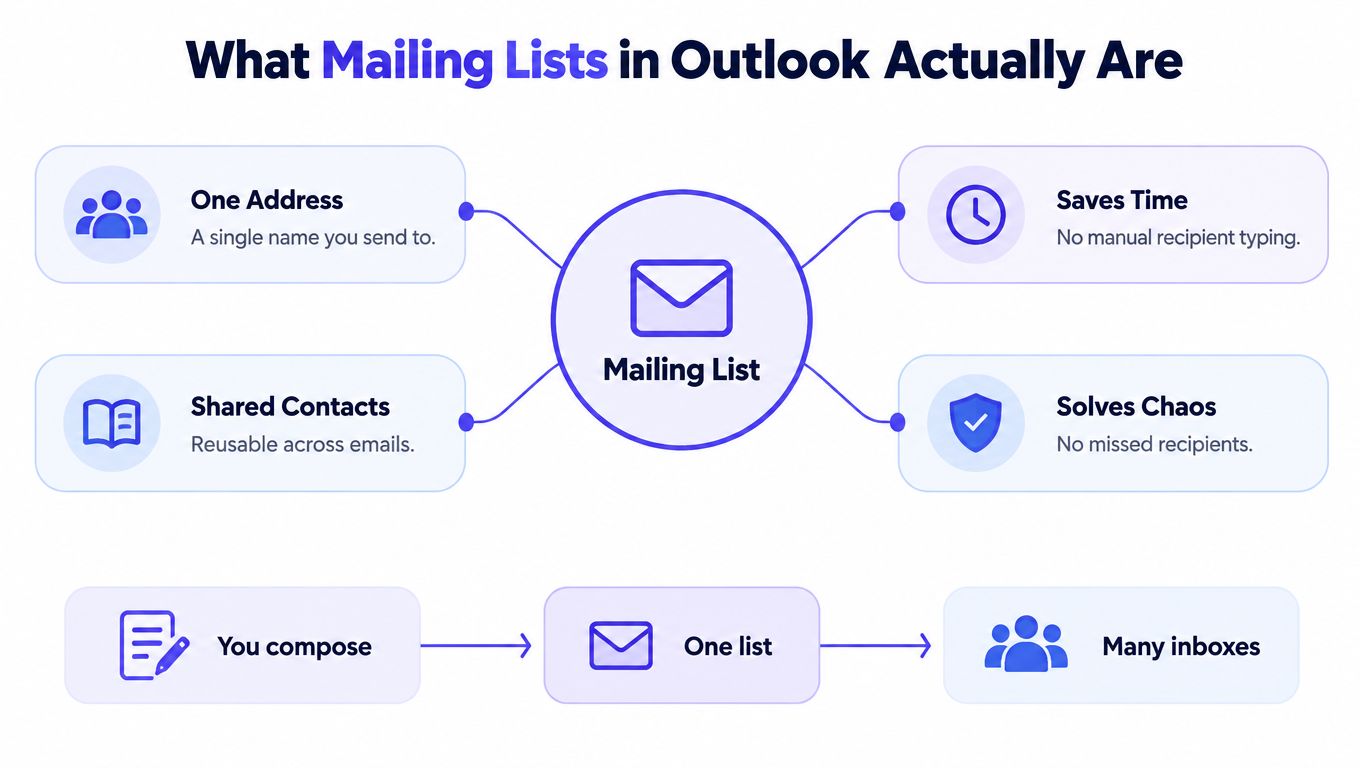
In Outlook, a mailing list is a saved collection of email addresses. Microsoft calls a user-managed list a contact list or contact group, while an organization-managed list may be called a distribution group. The basic function is the same, send one message to a named list instead of entering every address separately, as Microsoft explains in its comparison of contact lists and Microsoft 365 Groups.
The list acts as a reusable address. A sales manager might save a group for account executives, a recruiter might maintain a list for interview panel members, and an agency might create separate groups for each client team. The sender selects the group in the To, Cc, or Bcc field, and Outlook resolves that name into its members.
Where to find a list
The location depends on the Outlook version:
- Classic Outlook desktop: Open People or Contacts, then look for contact groups.
- New Outlook or Outlook on the web: Open the People app and select contact lists.
- Microsoft 365 environment: Open Groups when the team needs a shared workspace rather than a saved recipient list.
A contact group is primarily a sending shortcut. It doesn't automatically create a shared inbox, preserve a team conversation, or provide a collaboration archive. That distinction matters because many teams create a contact group when they really need a managed group space.
Practical rule: Use a contact group for repeated recipient selection. Use a Microsoft 365 Group when the conversation itself needs to remain available to the team.
The simplest operational benefit is consistency. A named group reduces manual typing, makes recurring communication easier, and gives the owner one place to update membership. It doesn't remove the need for review, however. An outdated list can still route confidential information incorrectly or send unnecessary messages to people who no longer need them.
How to Create a Contact Group in Outlook Desktop, Web, and Mobile
The creation path changes across Outlook interfaces, and Microsoft updates labels over time. The names below match the common paths, but an organization's administrator may limit who can create or manage certain groups.
Classic Outlook desktop
- Open the People or Contacts view.
- Select New Contact Group.
- Enter a descriptive name, such as
Marketing EMEAorInterview Panel. - Select Add Members.
- Choose From Outlook Contacts, From Address Book, or New E-mail Contact.
- Add the required addresses.
- Select Save & Close.
A useful name describes both the audience and the purpose. Customers is vague. Renewal customers, EMEA gives the next user enough context to avoid an accidental send.
Outlook on the web or New Outlook
- Open the People app.
- Select New Contact, then New Contact List.
- Enter the list name.
- Add email addresses or select saved contacts.
- Choose Create.
Cloud-based contact lists are available through the same Microsoft account across supported devices, which makes them more practical for distributed teams than lists stored only in one desktop profile.

Microsoft 365 Groups
For a collaborative group, open Outlook and select Groups, then choose the option to create a group if the organization allows it. Set the group name, email address, privacy setting, and members. Microsoft documents that Groups can be public or private, with public groups available for organization members to read and respond to, while private groups restrict participation to members through Outlook's group guidance.
Mobile Outlook is generally better for using existing groups than for building complex contact structures. If the mobile app doesn't expose the creation control, creating the list in Outlook on the web usually provides a clearer setup path, after which the list can be used from the phone.
Before sending the first message, test the group with a small internal note or verify the resolved recipients carefully. The owner should also record the list's purpose and review process somewhere accessible to the team.
Contact Groups vs Microsoft 365 Groups, Which One You Need
A contact group is a saved set of addresses. A Microsoft 365 Group is a shared team object with a group email address, shared inbox, and collaboration history. Microsoft makes this distinction in its overview of Groups in Outlook.
| Need | Contact group | Microsoft 365 Group |
|---|---|---|
| Send one announcement | Suitable | Suitable, with collaboration features |
| Maintain a shared conversation | Not designed for it | Suitable |
| Search earlier group messages | Limited to individual mailboxes | Shared inbox is searchable |
| Share files and team resources | Not included | Available through the group workspace |
| Control organizational visibility | Basic list behavior | Public or private group settings |
A contact group works well for a department announcement, a recurring meeting invitation, or a small internal audience that doesn't need to reply in a shared space. The sender owns the address collection, and the list remains a lightweight tool.
A Microsoft 365 Group fits an ongoing project, cross-functional team, or community where members need to find earlier decisions. Microsoft states that messages since the group began are stored in the group folder, and new members can view the full message history after joining, as described in its documentation on Groups and distribution lists.
That history changes the operating model. A contact group distributes a message. A Microsoft 365 Group preserves a conversation that people can search and revisit.
Outlook Mailing List Limits and When to Segment Your List
A large Outlook list isn't automatically an effective list. Microsoft notes that a distribution list stored in a mailbox or PST doesn't have a fixed member count. Its practical capacity depends on the total file size and the amount of information stored in each contact record, with typical sizes of 50 to 70 contacts, about 25 for data-heavy entries, and approximately 125 to 130 for minimal records, according to Microsoft's technical guidance.
Those figures describe storage constraints, not a deliverability recommendation. A list can remain technically usable while becoming operationally risky. Members may have different roles, consent contexts, geographic needs, or levels of interest, and one broad message can create unnecessary complaints or irrelevant replies.
Why segmentation protects sending quality
Segmentation gives each audience a narrower reason to receive the message. Useful groups might include:
- Role-based lists: Sales managers, recruiters, finance reviewers, or support leads.
- Lifecycle lists: Prospects, active customers, renewal contacts, or former customers.
- Geographic lists: Regions where language, timing, or legal requirements differ.
- Engagement lists: Recipients who recently interacted with a team or campaign.
Microsoft advises users not to expand distribution lists before sending because expansion can make messages harder to read and may route them into the wrong folders, as noted in its distribution group guidance. Sending to the list itself keeps the recipient structure intact and makes the reply behavior easier to manage.
A segmented structure also makes list hygiene practical. Owners can remove stale addresses, identify duplicate memberships, and investigate unusual bounce or complaint patterns without searching through one oversized group.
For teams sending externally, recipient thresholds and platform behavior deserve a separate review. Microsoft explains that a distribution list counts as one recipient in Microsoft 365 for recipient-limit purposes in its guidance on large meetings and recipient limits. That technical convenience doesn't make a broad list appropriate for every campaign. Teams should still match the audience, message, and sending method.
The Mailwarm cold email limits guide can help teams document sending constraints before they combine Outlook lists with outbound campaigns.
How to Send Email to a Mailing List and Avoid Common Mistakes
The safest workflow is simple:
- Compose the message and confirm its audience.
- Select the saved contact group from the address field.
- Keep the group collapsed rather than expanding every member.
- Choose the correct reply target, either the list or an individual recipient.
- Review the subject, attachments, and resolved group name before sending.
The most common mistake is expanding a distribution list manually. Microsoft warns that expansion makes messages harder to read and can push messages into inappropriate folders. It also creates confusing reply behavior because recipients see a long address set instead of a clear group identity.
External senders and list governance
Microsoft notes that, by default, only people inside the organization can send to distribution groups in the organization's address book. External senders are blocked unless an administrator changes the configuration, as described in its distribution group support documentation.
That setting should be deliberate. Opening a group to outside senders can increase unwanted traffic, so administrators should define ownership and moderation rules before changing delivery permissions.
Good governance includes:
- Descriptive naming: Include audience, purpose, or region in the name.
- Named ownership: Assign a person or team responsible for updates.
- Regular review: Check membership for role changes, duplicates, and stale contacts.
- Reply discipline: Tell recipients whether replies belong to the group or the sender.
- Audience checks: Confirm that external addresses and sensitive recipients are appropriate.
For outreach or promotional sending, teams should also verify whether messages are landing in spam. A practical resource on how to check if emails are going to spam can help diagnose placement issues, while a spam trigger words checker can identify content risks before a campaign is sent.
A mailing list doesn't replace permission, relevant content, or responsible volume. It only simplifies recipient management. Senders still need to remove invalid addresses, avoid irrelevant blasts, and monitor the health of the sending mailbox.
Quick Decision Guide, Which Outlook Mailing List Approach Fits Your Team
The right choice depends on whether the team needs a reusable address, a collaborative workspace, or a deliverability layer around professional outreach.
| Feature | Contact Groups | Microsoft 365 Groups | Mailwarm Integration |
|---|---|---|---|
| Primary purpose | Reusable recipient list | Shared team communication | Reputation and deliverability management |
| Best fit | Small recurring audiences | Ongoing projects and communities | Teams sending important outbound email |
| Shared inbox | No | Yes | Provides inbox placement insights, not a replacement inbox |
| Message history | Usually remains in individual mailboxes | Searchable group history | Deliverability analytics help monitor sending health |
| External recipients | Possible, depending on configuration | Depends on organization policy | Supports B2B and B2C warmup workflows |
| Membership work | Manual owner updates | Managed group membership | Helps protect sender reputation around sending activity |
| Deliverability controls | Basic Outlook behavior | Microsoft 365 administration | Spam score monitoring, provider-level warmup, bounce prevention, and authentication fix tools |
A practical selection path
Choose a contact group when the team needs to send recurring internal messages and doesn't need shared history. Keep the group narrow, name it clearly, and assign an owner.
Choose a Microsoft 365 Group when members need a searchable shared inbox, conversation continuity, or a collaborative workspace. Public groups allow broader organizational participation, while private groups limit access to members.
Consider a dedicated deliverability platform when Outlook supports the workflow but sender reputation, inbox placement, or outbound volume becomes business-critical. Mailwarm helps senders build reputation, monitor inbox placement, and improve deliverability through real inbox engagement, advanced warmup controls, and expert guidance. Its platform uses 50,000+ aged real inboxes, offers provider-level warmup, spam score monitoring, authentication fix tools, bounce prevention, and expert deliverability calls included in every plan, without requiring IMAP access to a private inbox. Teams comparing providers can also review Mailwarm's guide to the best email warmup tools.
The practical recommendation is to keep Outlook lists focused, move collaboration into Microsoft 365 Groups, and add deliverability monitoring when email directly supports sales, recruitment, marketing, or customer growth.
Mailwarm helps teams protect sender reputation around Outlook and Microsoft 365 sending through real inbox engagement, provider-level warmup, spam score monitoring, and inbox placement insights. Visit Mailwarm to review the platform and decide whether expert-guided deliverability support fits the team's mailing workflow.
Frequently asked questions
What is a mailing list in Outlook?
A mailing list in Outlook is a saved collection of email addresses used to send one message to multiple recipients. Outlook may call it a contact list, contact group, or distribution group depending on the version and organizational setup.
What is the difference between a contact group and a Microsoft 365 Group?
A contact group is mainly a reusable address list. A Microsoft 365 Group includes a shared email address, searchable shared inbox, membership controls, and collaboration resources.
How many contacts can an Outlook mailing list contain?
There isn't one fixed limit for lists stored in a mailbox or PST. Microsoft documents practical sizes of 50 to 70 contacts, about 25 when contact entries contain extensive data, and roughly 125 to 130 when records are minimal.
Should a distribution list be expanded before sending?
No. Microsoft advises sending to the list itself because expanding it can make messages harder to read and may send them into the wrong folders. The sender should use the appropriate reply target for follow-up.
Can people outside the organization email a distribution group?
By default, external senders are blocked from sending to distribution groups in the organization's address book. An administrator must change the configuration if outside senders should be allowed.
Does a Microsoft 365 Group preserve earlier messages?
Yes. Microsoft states that group messages are stored in the group folder, and new members can view the group's message history after joining. That makes a Microsoft 365 Group more suitable than a simple contact group for ongoing team work.