
Outlook junk mail usually doesn't stop because one setting was changed once. How to prevent junk email in Outlook is really a mix of filter settings, sender lists, user feedback, and reducing how widely an address is exposed.
That's why the inbox gets cleaner only when the mailbox owner treats junk prevention as an ongoing habit, not a one-time cleanup. Microsoft's own guidance leans the same way, with built-in junk controls, safe and blocked lists, and a filter that improves when users mark mail correctly.
Why Outlook Junk Prevention Is a Layered Habit
Outlook users often start with the same frustration, a mailbox that was fine last month and is now packed with junk. The menu suggests a neat fix, but spam doesn't respect a single checkbox. It arrives through rotated sender addresses, reused domains, and old exposure points that keep feeding the inbox.
Microsoft's built-in controls work best when they're treated as layers. In Settings > Mail > Junk email, Outlook and Outlook on the web let users add Blocked senders and domains or whitelist trusted mail through Safe senders and domains. Microsoft also notes that junk in Outlook.com is automatically deleted after 30 days, so missed filtering can mean lost mail, not just an annoying folder full of noise. The practical takeaway is simple, a stronger filter matters because cleanup is not free. Microsoft support on junk email controls
Choose the right filter mode for the mailbox
Microsoft documents Standard, Strict, and, in newer guidance, Exclusive handling for Outlook.com and Outlook on the web. Standard is the middle ground, Strict pushes more mail into Junk unless it's trusted, and Exclusive is the harshest because mail from people outside contacts or safe lists can be routed to Junk. Microsoft also says changes may take a few hours to propagate, so it's normal if the mailbox doesn't feel different right away. Microsoft guidance on Standard and Strict handling Microsoft guidance on Exclusive filtering
| Outlook.com Junk Filter Modes Compared | What it does | Best for |
|---|---|---|
| Standard | Uses Microsoft's normal junk handling and catches obvious junk while leaving more borderline mail in the inbox | Personal inboxes and mixed-use mailboxes |
| Strict | Routes anything not trusted more aggressively to Junk | High-noise inboxes and users who can tolerate more review |
| Exclusive | Routes mail from unknown or untrusted senders to Junk unless they're in contacts or on safe lists | Very high-risk inboxes with careful list maintenance |
Practical rule: the stricter the mode, the more important it becomes to maintain safe senders carefully. Otherwise, legitimate mail gets treated like spam.
The best habit after that is boring but effective, mark legitimate mail as Not junk instead of just deleting it. Microsoft's service-side filter learns from that signal, which is far more useful than automatically emptying the folder. For users who also send email from the same domain, that feedback loop matters even more because the inbox is teaching Microsoft what should be trusted.
Building Safe Senders and Blocked Senders Lists That Actually Work
Most Outlook users know these lists exist. Very few maintain them with enough discipline to matter. The common mistake is blocking one address after another while the spam source keeps rotating local parts under the same domain.
The better move is to block the full domain when the source is recurring and clearly hostile. Microsoft's own guidance says blocked addresses or domains go straight to Junk, while safe senders and recipients are protected from being misclassified. Microsoft also notes that adding a sender or domain to Safe Senders and Domains means mail from that source is never treated as junk regardless of message content, which is exactly why this list needs regular review. Microsoft Postmaster guidance Microsoft junk mail filtering guidance
Keep the lists narrow and intentional
A bloated blocked list can hide mail that should have stayed visible. It is safer to block obvious bad actors by domain and then review the list periodically for false positives. The same principle applies to Safe Senders, where overconfidence is risky because a too-broad allowlist can weaken the effect of Strict filtering.
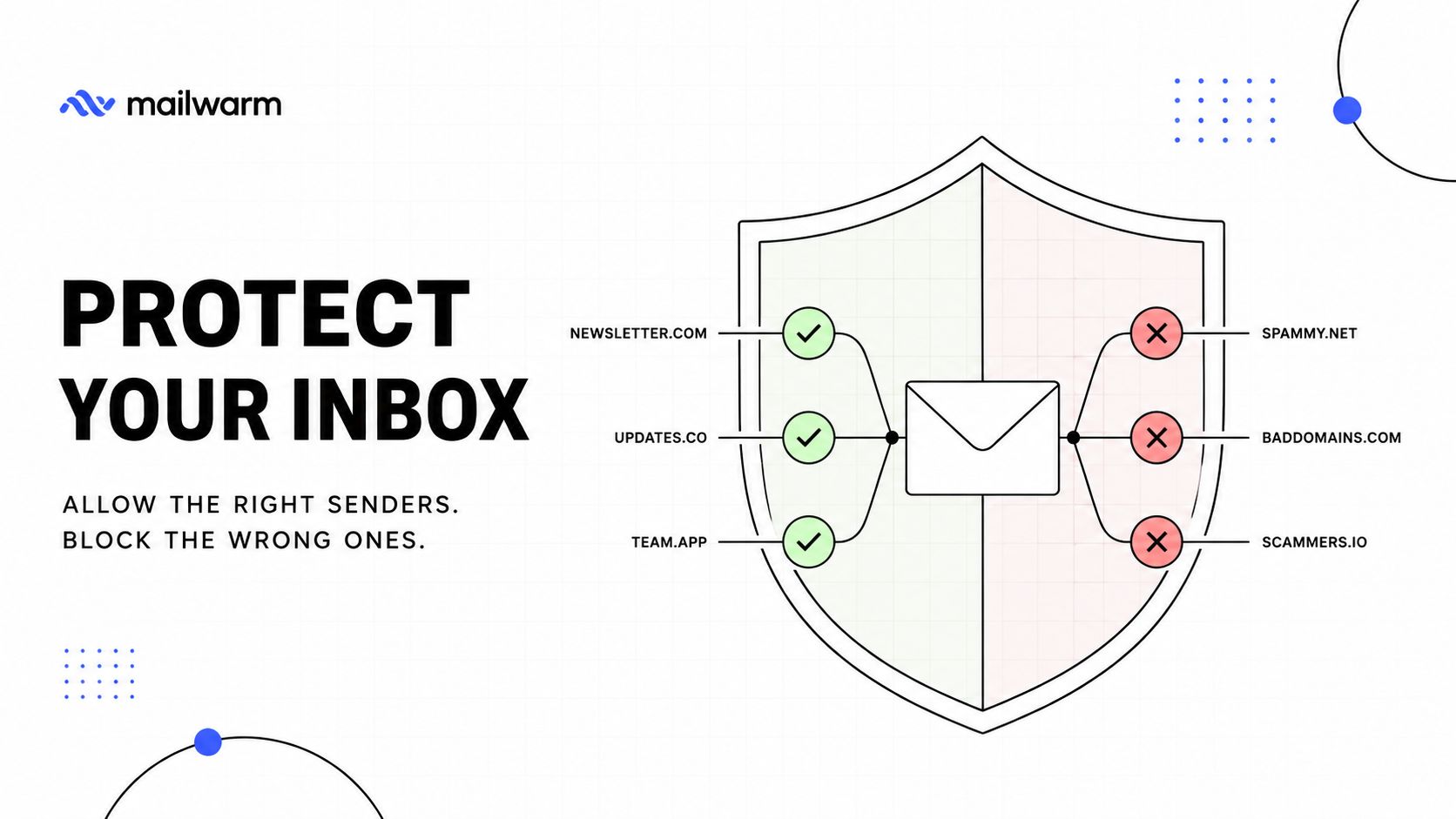
A practical rhythm works better than one-time cleanup:
- Block the domain, not just the sender: If the spam keeps coming from similar addresses, blocking one mailbox is usually too weak.
- Allow only trusted senders and recipients: Put true business contacts and important notification sources in Safe Senders.
- Review false positives regularly: If legitimate mail starts drifting into Junk, adjust the allowlist before it becomes a pattern.
- Avoid broad trust shortcuts: A too-large safe list can make Strict filtering less useful.
For users who live in Outlook all day, it also helps to streamline the surrounding workflow. streamline Outlook workflows can be useful when the goal is to spend less time triaging the same junk patterns over and over.
The quiet win here is consistency. Outlook handles the filtering, but the user decides which senders are worth protecting and which domains deserve a permanent block.
Outlook Desktop and Mobile Controls You Should Not Skip
The web app gets most of the attention, but the desktop client still has controls worth using. Microsoft Q&A guidance shows Outlook desktop can use a Low/High junk filter level, and that can matter for users whose inboxes get hammered with borderline mail. If the mailbox is unusually noisy, a higher filter level makes sense, but only if Safe Senders is already maintained.
Use desktop tools to reduce repeat cleanup
Focused Inbox is useful when it's treated as a sorting aid, not a spam solution. It separates more important mail from the rest, which reduces noise, but it doesn't replace junk filtering. Sweep can also help when the mailbox receives repetitive clutter from a sender that is not outright malicious, because it clears recurring bulk mail faster than manual filing.
A mail rule can help with obvious junk patterns too, especially subject lines that repeat the same sales pitch or spammy character sets. That said, rules are a blunt tool. They work best for stable patterns, not for rotating campaigns that constantly change sender details.
If a message is genuinely misclassified, use Not junk. Deleting it teaches nothing, while the recovery action feeds Outlook's filter.
The mobile app is more useful for reporting than for deep configuration. Report junk and report phishing actions help Microsoft's broader detection systems, and that matters because junk prevention is partly collective. One user's report can improve the service for others who are seeing the same sender behavior.
For a practical walkthrough of the web and desktop junk controls, this Outlook spam filters guide is a useful companion when the goal is to compare what the app shows versus what changes filter behavior.
Training the Filter and Reducing Junk at the Source
The fastest way to make Outlook better is to stop being passive about misclassified mail. Every time a legit message lands in Junk, the user should choose It's not junk or Not junk instead of just moving on. Microsoft says that action moves the message back to the Inbox and helps train the filter, and it also tells the service whether the sender belongs on the safe side of the line. Microsoft guidance on Not junk actions
Report what slips through
A mailbox that receives junk but never reports it stays noisy longer than it should. Marking spam as junk and suspicious mail as phishing gives Microsoft more reliable signals than deleting the message. Microsoft's Q&A guidance also emphasizes that service-side filtering should stay enabled, because the training happens centrally rather than only on one device. Microsoft guidance on service-side filtering and junk training
The source of the junk matters too. Microsoft's own support material points users toward behavioral hygiene, including limiting where an email address is posted, reviewing privacy policies, avoiding suspicious replies or read-receipt requests, and reporting junk or phishing so the filter improves over time. That is the part many how-to guides skip, even though exposure is often what feeds the problem in the first place. Microsoft guidance on exposure and reporting
For senders, this also ties into deliverability discipline. A mailbox that keeps collecting junk from the same kinds of outbound patterns is often reacting to sender reputation, list quality, and engagement signals, not only to content. spam words list is useful context for teams that send outreach and want to avoid language that trips filters before the message even gets a fair chance.
The practical rule is plain. Reduce address exposure, report what gets through, and keep the filter trained with the right button. That combination matters more than constantly rewriting the same rule set.
When Unsubscribe Works and When It Makes Things Worse
A clean mailbox can still get flooded by one bad click. A common case is a message that looks like marketing mail, but the sender is pretending to be a brand or service the user never engaged with. In that scenario, unsubscribe can confirm that the address is live, which is exactly what the sender wants.
When the sender is legitimate, subscribed, and recognizable, unsubscribe is the right move. When the sender is unknown, the domain looks suspicious, or the message asks for urgency, payment, or login action, Outlook's junk and phishing tools are safer. For phishing awareness in a broader sense, AI phishing threats explained is a useful reminder that the unsubscribe link is often part of the trap rather than the exit.
A simple decision rule
If the mailbox owner never subscribed, never opened the brand before, and doesn't recognize the domain, the right move is to mark it as junk and report phishing. If the sender is a real vendor or newsletter that became annoying, unsubscribe is fine, as long as the link points to the brand's normal domain and not a strange redirect.
That distinction matters because many attackers rely on habit. Users are trained to clean up newsletters, so they click unsubscribe without checking whether the message deserves that trust. The safer habit is to verify the sender before giving any link control over the inbox.
The broader lesson is that junk volume falls when the mailbox owner stops feeding the wrong signals. Not every unwanted message should be treated the same way, and the wrong response can make the next wave worse.
Third-Party Filters and the Sender-Side Reputation Fix
Built-in Outlook controls handle a lot of junk, but they do not cover every mailbox. Third-party filters add another layer for family inboxes, shared business mailboxes, or small teams that need tighter screening at the front door. The tradeoff is straightforward, extra cost, extra setup, and more data handling all come with that choice.
For some users, the bigger problem sits on the sending side. If outreach keeps landing in other people's Junk folders, the fix is sender reputation, authentication, and inbox placement, not stricter filtering on the receiving side. That is where a deliverability platform like Mailwarm fits. It is a premium email warmup and deliverability platform built to improve sender reputation through real inbox engagement, spam score monitoring, provider-level warmup, and expert guidance, without requiring IMAP access to a private inbox. For a practical reference on the receiving side, how to avoid spam folder is useful context.
Compare the two sides of the problem
Third-party inbox filtering helps when a mailbox is under constant pressure from incoming spam. Sender-side deliverability work helps when outbound mail keeps landing in Junk, especially for founders, sales teams, agencies, recruiters, and marketers running outreach at scale.
Here is how to approach the tradeoff:
- Inbox protection: Start with Outlook's built-in junk controls, then add a third-party filter only if the mailbox still needs more shielding.
- Sender reputation: If your campaigns are the ones getting buried, focus on warmup, engagement, authentication, and list quality.
- Privacy and control: Basic warmup tools often center on automated activity alone. Mailwarm also includes real engagement signals, inbox placement insights, bounce prevention, authentication fix tools, and expert deliverability calls in every plan.
- Operational fit: Teams that care about actual inbox placement usually need more than automated mail exchange, they need reputation management that matches how mailbox providers evaluate senders.
The price gap between a basic tool and a premium platform usually reflects support and signal quality, not just software access. For teams that send serious volume, that difference decides whether messages reach the inbox or disappear into junk. The same pattern shows up on the receiving side too, as InsecureWeb breach analysis shows how exposed email data can keep feeding junk and phishing problems long after the original breach.
Putting It All Together and Frequently Asked Questions
Outlook junk prevention works when the user treats it like ongoing maintenance. The core habits are simple, keep the right filter mode enabled, maintain Safe Senders and Blocked Senders carefully, mark false positives as Not junk, and report the messages that should never have arrived.
The second layer is behavioral. Reduce where the address is exposed, avoid trusting suspicious unsubscribe links, and don't confuse cleanup with training. If the user also sends email, sender reputation needs the same attention as inbox hygiene, because the same ecosystem that filters junk can also bury outbound campaigns. InsecureWeb breach analysis is a sobering reminder that exposed email data often keeps creating new junk and phishing problems long after the original breach.
FAQ
Why do legitimate emails keep going to Junk in Outlook?
Most of the time, the sender is not on the Safe Senders list, the filter mode is too strict for the mailbox, or Outlook has seen too many mixed signals. Mark the message as Not junk, add the sender or domain to Safe Senders, and review whether the mailbox is using a stricter mode than it needs.
Does Outlook learn when mail is marked Not junk?
Yes, Microsoft says that using Not junk helps train the filter in Outlook.com and Outlook on the web. The message moves back to the Inbox, and the service gets a signal that the sender should be treated more carefully.
Is it better to delete junk mail or leave it in the Junk folder?
Neither option trains the filter as well as reporting or marking the message correctly. If the message is clearly junk, use the junk action. If it was misclassified, use Not junk so Outlook learns from the correction.
Should a user unsubscribe from every unwanted email?
No. Unsubscribe is fine for legitimate marketing mail from a recognized sender, but it can confirm an address is active when the message is suspicious. Unknown senders, strange domains, and urgent messages should be marked as junk or phishing instead.
How does Mailwarm fit into Outlook deliverability problems?
Mailwarm helps senders build reputation, monitor inbox placement, and improve deliverability through real inbox engagement, advanced warmup controls, and expert guidance. It's useful when the problem is not just receiving junk, but sending mail that keeps landing in other people's Junk folders.
If email is part of your growth strategy, Mailwarm helps build sender reputation, monitor inbox placement, and reduce spam risk with expert-guided warmup. It's built for teams that care about real inbox placement, not just automated warmup activity, and it can support the same deliverability discipline that keeps Outlook mail out of Junk. Visit Mailwarm to see how its premium warmup and deliverability tools fit into a cleaner sending strategy.