
Your Monday campaign hit the list at 9am. By lunch, three prospects had replied and none of them came from the sequence, because they'd found the message in spam instead.
An authentication problem is a gap between what your domain says about a message and what the receiving server can verify. SPF, DKIM and DMARC are the three checks that decide it, and knowing how to fix an authentication problem starts with reading which one failed, not with rewriting every record you own. A sender can pass two of the three checks and still lose the inbox.
The stakes are bigger than one campaign. The FBI Internet Crime Complaint Center recorded 305,033 business email compromise incidents and $55,499,915,582 in exposed losses between October 2013 and December 2023 (IC3). Spoofing a From address is the cheap version of that fraud, and authentication is the control that makes it expensive.
Find Which Check Is Failing Before You Edit DNS
Send a real message through the stream that's failing, one copy to a Gmail address and one to an Outlook address. Open each message and choose Show original in Gmail or View source in Outlook. Search the raw text for the Authentication-Results line. Which check failed is written there, and the DKIM-Signature block under it carries the rest of the evidence.
The line looks like this:
Authentication-Results: mx.google.com;
dkim=pass header.i=@example.com;
spf=fail smtp.mailfrom=bounce.example.com;
dmarc=fail (p=NONE) header.from=example.com
Each result names the domain it checked. That domain matters later, when you compare it against the From address.
| Result | Passes when | Typical failure | Where to find it |
|---|---|---|---|
| SPF | The sending server IP or host is listed in the domain's SPF record | A sending service missing from the record, or more than one SPF record on the root domain | Authentication-Results header, spf=pass or spf=fail, plus the smtp.mailfrom domain |
| DKIM | The signature validates against the public key at selector._domainkey | Key missing at the selector, body changed after signing, or key rotated without updating DNS | dkim=pass or dkim=fail, plus the s= and d= values in DKIM-Signature |
| DMARC | At least one of SPF or DKIM passes and aligns with the From domain | No DMARC record, or both authenticated domains differ from the From domain | dmarc=pass or dmarc=fail, plus the header.from domain it was tested against |
Read the values in the order the receiver wrote them
Start with whichever result reads fail. If spf=fail, the receiving server couldn't match the connecting host to your record, and the smtp.mailfrom value tells you which domain it checked. If dkim=fail, the signature didn't validate against the key published at the selector in the DKIM-Signature header. If both pass and dmarc=fail, the authenticated domains didn't align with the From address. That last case needs an alignment repair rather than a record edit.
Say a 40-person software company sends invoices from an office mail server and pipeline mail from a CRM. The SPF record lists only the mail server. Every CRM message arrives with spf=fail and the header points at the CRM's bounce domain, while the invoice stream passes. Nothing in the record is malformed. The record never named the CRM.
A record can also break by accretion. RFC 7208 caps SPF at 10 DNS lookups, and each include:, a, mx and exists mechanism counts, so a record that grew one vendor at a time can return a permerror with every real sender correctly listed.
Three checks to run before you touch anything:
- Read the DKIM-Signature header. Note s= (the selector) and d= (the signing domain). The public key lives at s._domainkey.d in DNS, and both values must match what you published.
- Compare the Return-Path domain with the From domain. A mismatch is the most common reason DMARC fails on mail that authenticated cleanly.
- Note the single failing result. A repair that changes three records at once can't tell you which change worked.
Change one thing at a time. If you edit SPF, DKIM and DMARC in the same window, you lose the ability to tell which edit fixed the stream and which one broke a different one.
Fix the header first, and treat the domain as an identity. A From address anyone can forge is a credential nobody checked. Sender authentication verifies who sent a message; account controls verify who logged in. Both rest on the same principle, and the discussion of how MFA protects small business accounts covers the login side of it.
Volume decides how hard the receiving side pushes back. Google and Yahoo require SPF, DKIM and DMARC from bulk senders sending at least 5,000 messages per day, and Microsoft began stricter enforcement for comparable-volume senders in May 2025 (DMARC Report). Below that threshold a failed check still costs you the inbox, it just arrives as quiet filtering instead of a named rejection. A refusal that names authentication needs a header fix. A message that's accepted and then filtered needs reputation work.
How to Fix SPF Errors Step by Step
SPF fails most often because the record is missing a sender, not because it's malformed. The check asks one question: is the server that connected to the receiving mailbox authorized by the domain in the Return-Path? A record can be perfectly formatted and still answer no.
Repair runs in a fixed sequence, and the order saves you from guessing.
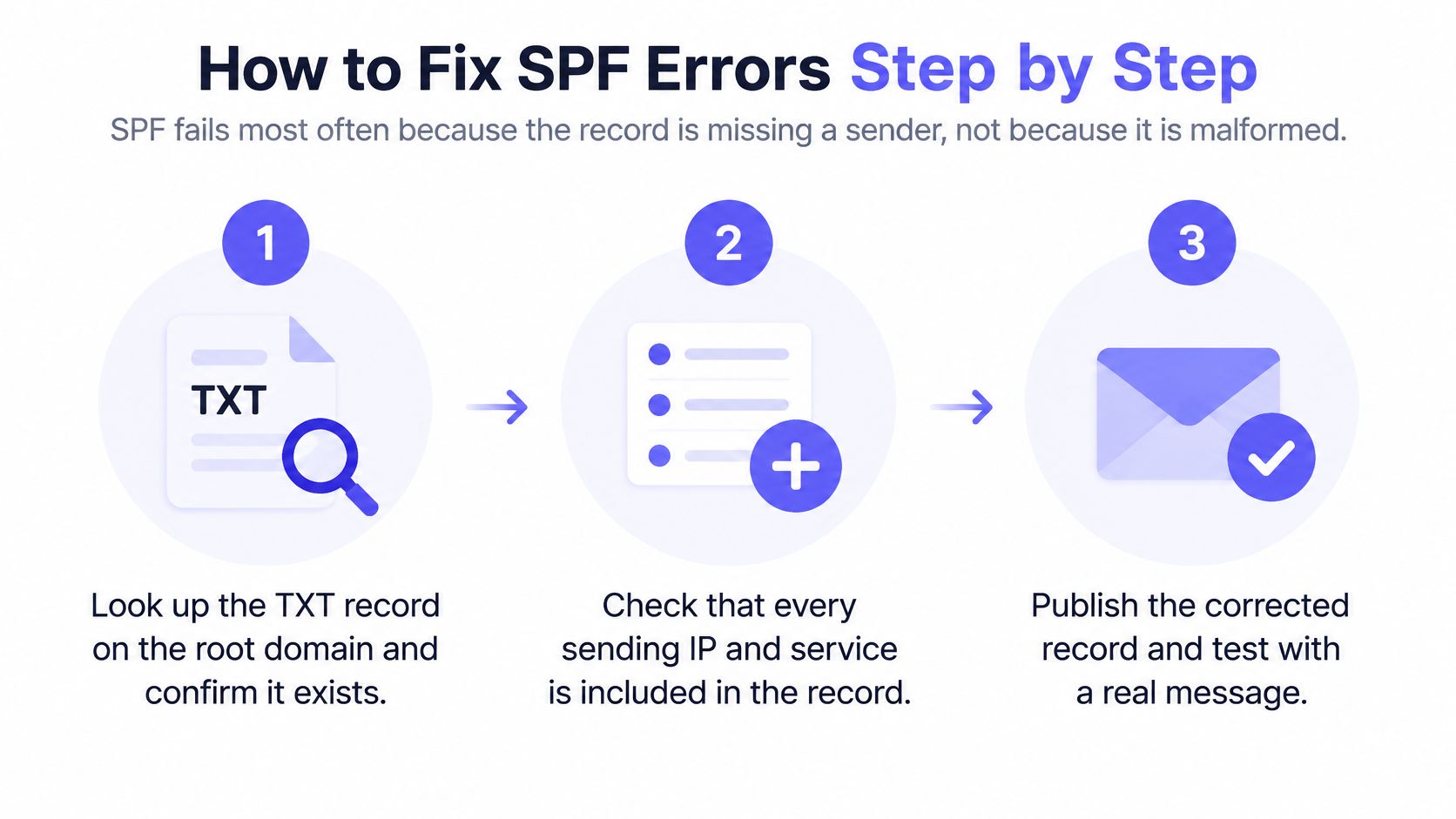
- Look up the TXT record on the root domain. Confirm it starts with v=spf1 and that there's exactly one. Two SPF records on the same name return a permerror, and some receivers treat the whole domain as unauthenticated rather than pick one.
- List every service that sends for the domain. Google Workspace, Microsoft 365, the CRM, the helpdesk, the transactional platform, the outreach tool, anything sending warmup mail on your behalf. Write the list before you open the DNS editor, because the missing sender is almost always one nobody remembers.
- Add each service's include: mechanism. A working record looks like v=spf1 include:_spf.google.com include:spf.protection.outlook.com ~all, with the vendor hosts taken from each provider's own documentation rather than from a blog post.
- Merge duplicates into one record. Two v=spf1 records on the same hostname is the single fastest way to fail every message from the domain.
- Count the lookups and keep the total under 10. Every include:, a, mx and exists mechanism counts, and nested includes count toward the total. Trim by replacing a nested include with the vendor's published IP ranges where they offer that option.
- Choose the trailing qualifier. Softfail (~all) still delivers the message but flags it as suspicious. Hardfail (-all) tells receivers to reject. Run ~all while you migrate, then tighten to -all once headers show pass on every stream.
- Test each stream separately. Send one message from the CRM, one from the helpdesk, one from the newsletter, and confirm spf=pass on all three. A pass on the invoice stream tells you nothing about the others.
Microsoft's guidance for high-volume Outlook senders is the practical baseline: domains sending more than 5,000 emails per day must comply with SPF, DKIM and DMARC, with SPF passing and accurately identifying authorized sending hosts or IP addresses (Microsoft Threat Protection blog).
Habits that keep the record clean
- Never publish +all. It authorizes every server on the internet to send as your domain and defeats the entire check.
- Remove services you stopped paying for. A dead vendor's include: stays in the record for years and keeps a stale path authorized.
- Recheck after every tool purchase. New sending tools need SPF, DKIM and DMARC before their first send, not after the first complaint.
After the change propagates, run an SPF record lookup and confirm spf=pass on a fresh test message from each stream.
How to Fix DKIM Signing and Key Errors
DKIM fails when the public key in DNS doesn't match the private key that signed the message, or when the body changed after signing. Both produce the same dkim=fail, and the repair is different, so the selector lookup comes first.
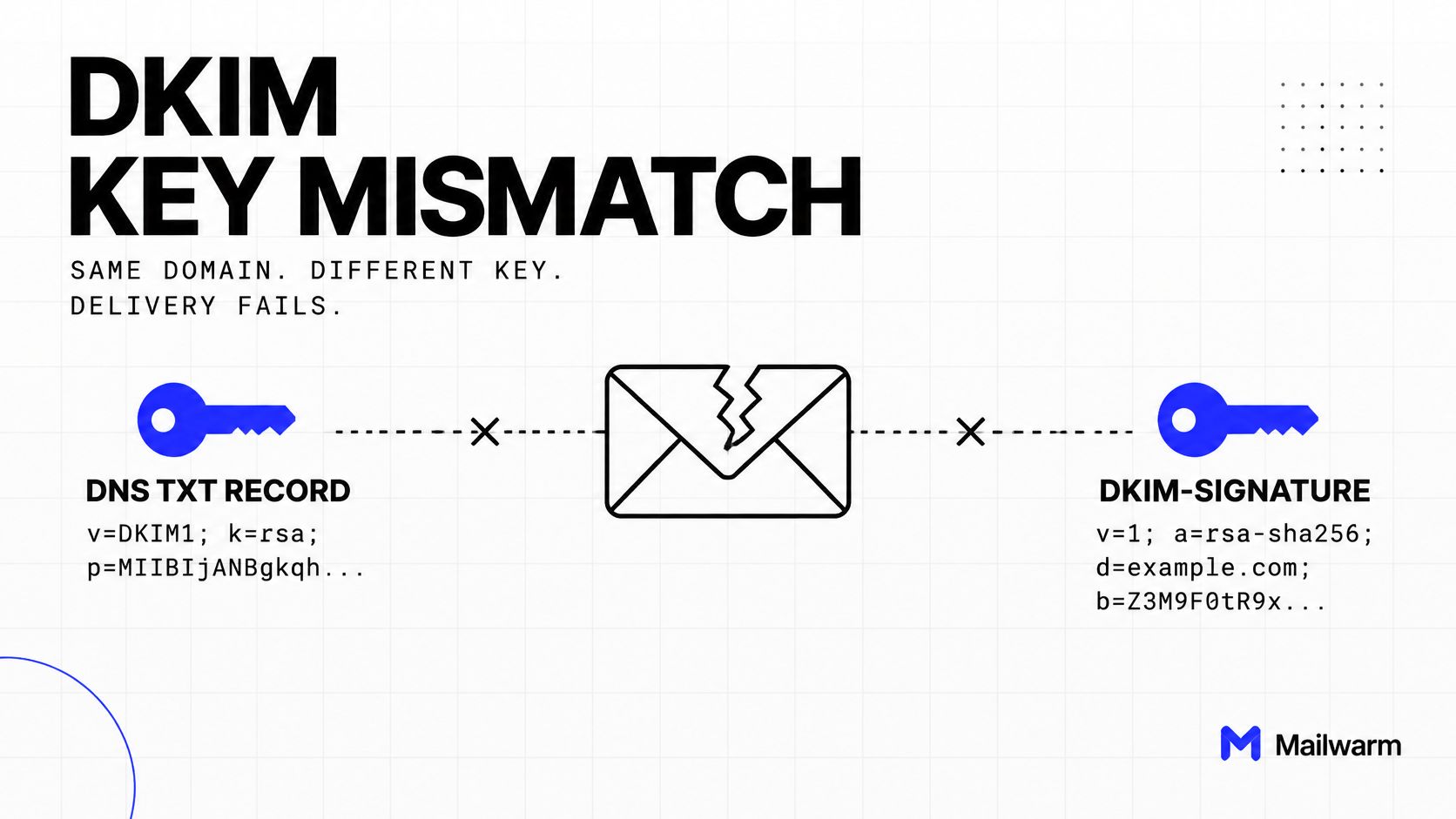
- Read the DKIM-Signature header. The s= tag is the selector, and the d= tag is the signing domain. Those two strings determine where the public key should live.
- Query the TXT record at selector._domainkey.yourdomain. It should return a record beginning v=DKIM1 with a p= value holding the public key. No record at that selector means every message fails, however healthy the sending platform looks.
- Publish exactly what the platform gives you. Copy the host and value from the provider's documentation. One mistyped character inside the p= value causes failure that looks identical to having no key at all.
- Check the key length. Google's sender guidelines describe a key of at least 1,024 bits as part of the baseline configuration, and 2,048 bits is the safer choice wherever the platform supports it (Gmail sender guidelines).
- Look for changes after signing. If a test sent from the platform's own tool passes but the same message fails in the recipient's header, something edited the body in flight: a gateway appending a footer, a link rewriter, or a forwarding rule. Disable it for that stream and retest.
- Rotate in the safe order. See below, because teams can cause outages at this stage.
A CRM signing with s=crm2026 while DNS only holds s=crm is the classic version of this failure. Every message returns dkim=fail, the platform dashboard says signing is enabled, and nothing improves until the new selector is published.
The rotation order that avoids downtime
Publish the new selector first, with its key. Switch the platform to sign with it second. Keep both records live for about a week of clean headers, then delete the old one. Reversing that order fails every message between the switch and the DNS update, and the old selector record is the only thing holding the stream up.
Use the DKIM checker to verify your DKIM signature after each change rather than waiting for a campaign to prove it.
Why DMARC Fails When SPF and DKIM Pass
A message can pass SPF, pass DKIM and still fail DMARC. That's the part most troubleshooting guides skip. DMARC doesn't re-run the other checks, it asks whether a passing domain matches the one visible in the From header.
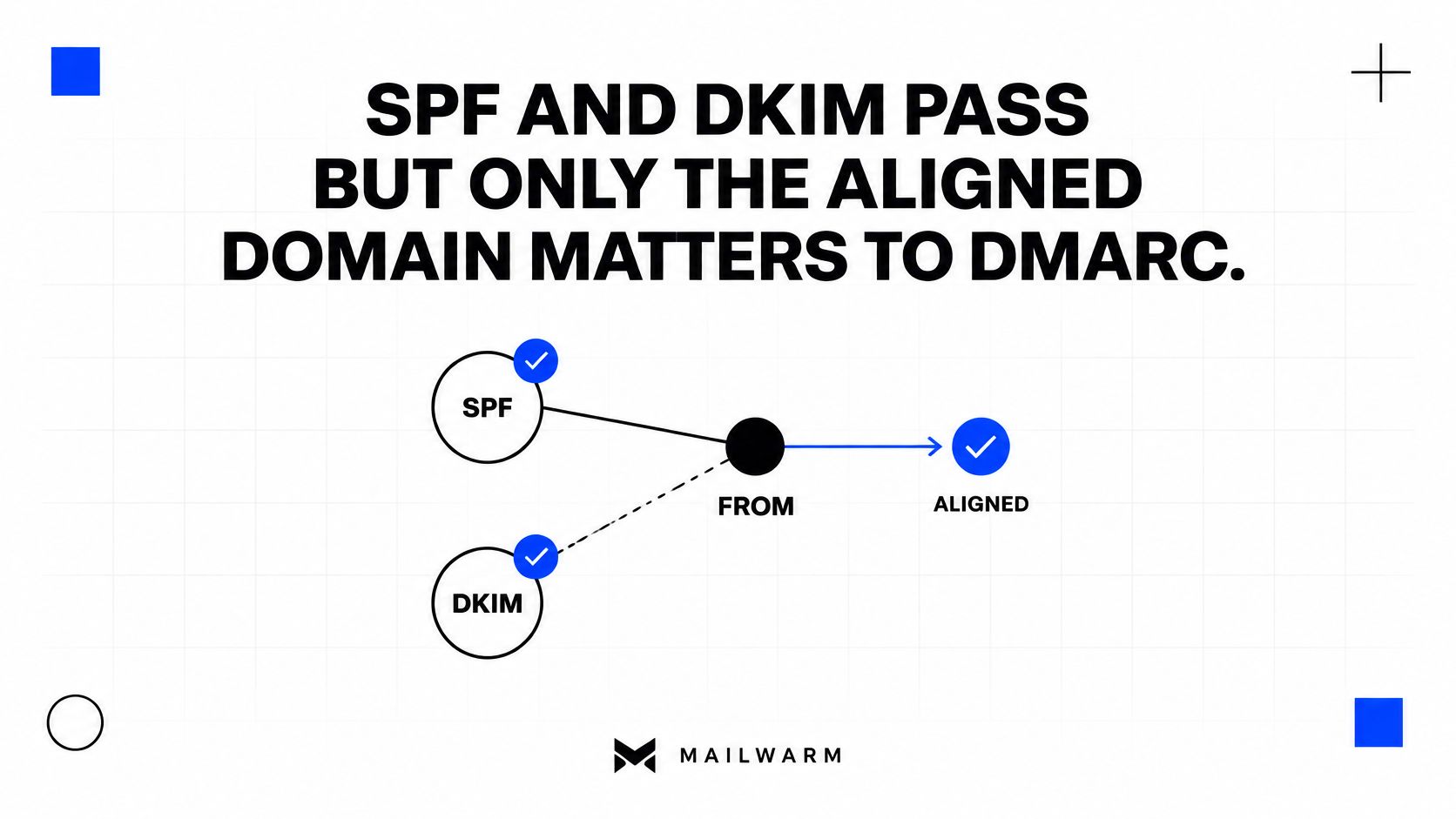
Under RFC 7489, a message passes DMARC when at least one authenticated identifier aligns with the From domain, and one is enough. Alignment comes in two modes. Strict requires an exact domain match. Relaxed allows a subdomain of the same organizational domain. For DKIM the identifier is the d= value, for SPF it's the domain used to complete the check.
| Return-Path domain | DKIM d= domain | From domain | DMARC result |
|---|---|---|---|
| brand.com | brand.com | brand.com | Pass, SPF and DKIM both aligned |
| vendor.net | brand.com | brand.com | Pass, DKIM aligned |
| vendor.net | vendor.net | brand.com | Fail, neither aligned |
| brand.com | vendor.net | brand.com | Pass, SPF aligned |
The third row is the one that confuses people. Mail goes out from sales@brand.com through a third-party platform. Both SPF and DKIM return pass, and DMARC still fails, because the Return-Path points at vendor.net and the signature carries d=vendor.net. Nothing is broken. The authenticated identity isn't the identity the recipient sees.
A single aligned path passes DMARC. Two unaligned passing checks are worth nothing.
That distinction matters for teams running several senders at once. Sales and marketing often push mail through a CRM, an outreach tool, an SMTP relay and a support desk, each with its own signing domain, so the domain that passes on Monday can fail on Tuesday without a single record changing.
Here's the diagnostic order, and it takes minutes rather than a DNS session:
The diagnostic order that ends the guesswork
- Identify the envelope-from domain. That's the Return-Path value in the header, not the From address.
- Identify the DKIM d= domain. Read it from the signature block on the same message.
- Compare both against the From domain. Whichever one aligns is the path you already have. Whichever one doesn't is the path to fix.
Align one reliable path rather than editing every record. For most platforms the cleanest route is DKIM: set a custom sending domain to a subdomain of your brand and turn on custom DKIM signing. That single setting converts a failing stream to an aligned pass, because the signature now carries d=mail.yourbrand.com instead of the vendor's domain. A custom return-path setting does the same job for SPF alignment without touching the From address.
How to Move DMARC From Monitoring to Enforcement
Publishing a record is where many enforcement projects stall. The domain has DMARC in place, reports arrive every day, and the policy still reads p=none while spoofed mail keeps landing. A published record and an enforced one are different projects, and the path between them is a staged policy change.
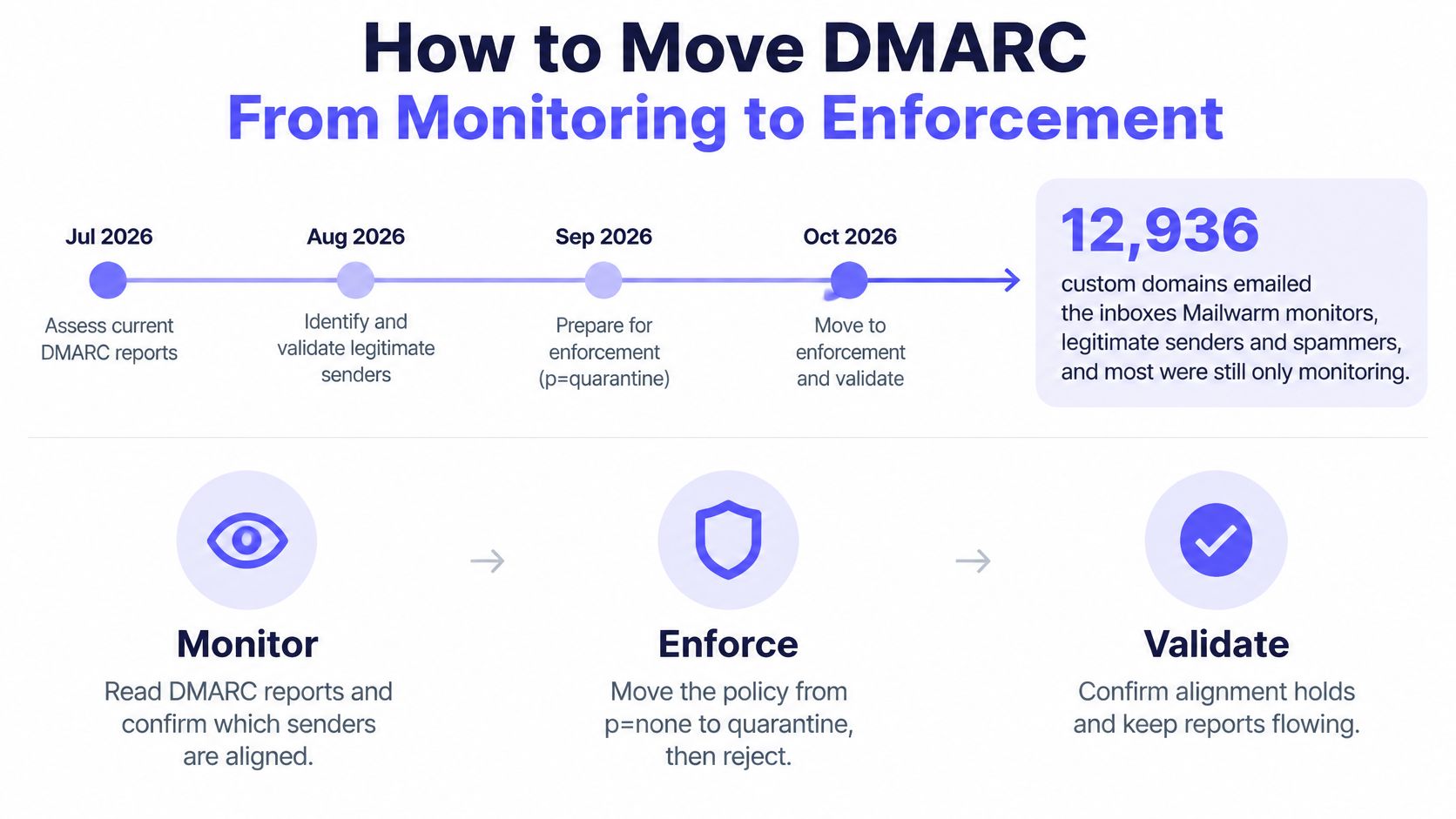
- Publish p=none with an rua= address. Point reports at a mailbox someone reads or a parsing tool if you'd rather not read XML by hand.
- List every source in the reports. The aggregate data names each sending IP and domain. The helpdesk you replaced two years ago still turns up sending.
- Fix alignment for each source. Set custom DKIM domains, correct Return-Path values, and confirm dmarc=pass per stream before changing policy.
- Move to p=quarantine with pct=10. Ten percent of failing mail goes to spam, which caps the damage if an unknown legitimate sender is still out there. Raise pct as the failure reports thin out.
- Move to p=reject when quarantine runs clean at 100%. At that point the only failing mail left should be spoofed or unknown, and reject is the correct answer for both.
Each step is reversible until the last one. That is the point of the staging.
| Stage | Policy tag | What it does to failing mail | Move on when |
|---|---|---|---|
| Monitor | p=none | Delivers the mail and sends reports | Every legitimate sender appears aligned in the reports |
| Partial quarantine | p=quarantine with pct=10 | Sends the chosen share of failing mail to spam | Failures fall to near zero, then raise pct step by step |
| Full quarantine | p=quarantine with pct=100 | Sends all failing mail to spam | No legitimate mail appears in the failure reports |
| Reject | p=reject | Refuses failing mail at the server | Ongoing reports show only spoofed or unknown sources |
Gmail adds a harder requirement on top. Senders delivering more than 5,000 messages per day to personal Gmail accounts must publish a DMARC record, run SPF and DKIM, and align at least one of them with the organizational domain in the From header. A missing record, or one without a policy, can trigger rate limiting including the 4.7.31 response (Gmail bulk sender guidelines). Checking the published policy belongs in every authentication fix, alongside the SPF and DKIM records.
Monitoring collects evidence. Enforcement blocks mail. Reports only tell you who is sending as you. The policy tag is what stops a spoofed message from arriving.
Run a DMARC lookup before each policy change so you're editing the record that's live, not the one in your notes.
Confirm the Fix Before Your Next Campaign
Send one test to a Gmail inbox and one to an Outlook inbox, then open the original headers on both. Confirm spf=pass, dkim=pass and dmarc=pass, and check that three values line up with your brand: the Return-Path domain, the DKIM d= domain and the From domain. A pass on a Gmail test tells you a lot, but Outlook runs its own authentication path, so send both.
Run the same message through test your email deliverability to see placement before you push a full campaign through the stream. Fixing the header proves the mail is authenticated. It doesn't prove the inbox will take it.
Two checks to repeat after launch
- Read aggregate reports weekly for the first month. Look for any sending source that fails alignment, including tools purchased after the fix went in.
- Add each new tool before its first send. New sending platforms need SPF and DKIM entries on day one. Teams in regulated fields carry a second obligation here, and compliance-friendly email marketing for RIAs treats authentication records as part of the supervisory file, not as an optional technical detail.
The order that holds up over time is short. Fix SPF, DKIM and DMARC first, start warmup before the first campaign, ramp volume slowly, and keep a maintenance level running afterward. Mailwarm's authentication fix tools and expert deliverability calls exist for exactly this stage, and no IMAP access is required, so nobody reads your private inbox while the DNS work gets done.
Corrected records stop the spoofing and clear the rejection, but reputation is a separate asset that takes real inbox activity to rebuild. Mailwarm is a premium email warmup and deliverability platform that pairs warmup automation with spam score monitoring, inbox placement insights and authentication fix tools, which gives a freshly fixed domain somewhere to build trust. Setup takes about 2 minutes, and every plan includes deliverability calls for the next time a header line refuses to cooperate. Visit Mailwarm to put the setup in front of someone who reads headers for a living.