
Most major email services cap attachments at about 20 MB to 25 MB per message, but the actual file a sender can attach is often smaller once encoding overhead is included. A useful rule of thumb is that a 25 MB email limit may support only about 18 MB of actual file content.
That difference explains why a file that looks safely below the advertised limit can still bounce, convert into a cloud link, or fail somewhere between the sender and recipient. The practical question isn't only how big of a file can be emailed. It's when email stops being the reliable way to move that file.
The Real Answer on Email Attachment Limits
For most consumer mailboxes, the visible ceiling sits around 20 MB to 25 MB per message. Microsoft documents a 20 MB limit for internet email accounts such as Outlook.com or Gmail in one of its support resources, while Gmail's own guidance uses 25 MB as its attachment limit. The limit applies to the complete message, not just the file selected in the attachment picker. (Microsoft's attachment size guidance)
That distinction matters because an email contains more than a file. The message body, headers, signature, inline images, MIME structure, and encoding all occupy part of the available envelope. A file that appears to fit can push the complete message beyond the receiving provider's threshold.
The number also depends on the account and delivery path:
- Personal Gmail uses a 25 MB message limit and can replace an oversized attachment with a Google Drive link. (Gmail's attachment help)
- Outlook.com allows 25 MB for attached files, while Outlook desktop commonly applies a lower limit for internet email accounts and Exchange configurations.
- Yahoo Mail uses a 25 MB ceiling, while several other consumer providers use similar limits.
- Business and enterprise accounts can have different administrator-controlled settings, including higher thresholds in selected Microsoft and Google environments.
Practical rule: Treat 20 MB to 25 MB as the maximum message envelope, not as the safe size of one file.
The safest answer for routine business sending is therefore conservative. Small documents can travel directly, but anything near the provider's ceiling should usually become a controlled cloud link. That approach avoids SMTP rejection, reduces upload failures, and gives the recipient a clearer way to access the content.
Why Attachment Caps Are Lower Than They Look
Email attachments are converted before they travel. A mail client wraps the file in a MIME multipart message, then commonly uses Base64 encoding so binary content can pass through systems designed around text-based email transfer.
Base64 encoding adds roughly 33% overhead. Headers, boundaries, content descriptions, the message body, signatures, and inline images add more. As a result, a 25 MB file on disk can become a message larger than the provider accepts. The practical capacity often falls to about 18 MB of file content under a 25 MB envelope, as Microsoft explains in its attachment-size guidance.
Several smaller details can add further weight:
- MIME multipart formatting separates the text body, HTML version, inline content, and attachment into distinct parts.
- Quoted-printable or alternative encodings can increase the payload for some message elements.
- Nested MIME trees appear when a message contains HTML, embedded images, signatures, and multiple files.
- Relay and security systems may inspect, scan, rewrite, or reject a large binary payload before final delivery.
SMTP itself doesn't define one universal attachment ceiling. RFC 5321, the core SMTP specification, defines message transfer behavior but leaves practical size enforcement to mail systems and server settings. Mailbox providers and receiving gateways set limits to control storage, bandwidth, processing time, and delivery reliability.
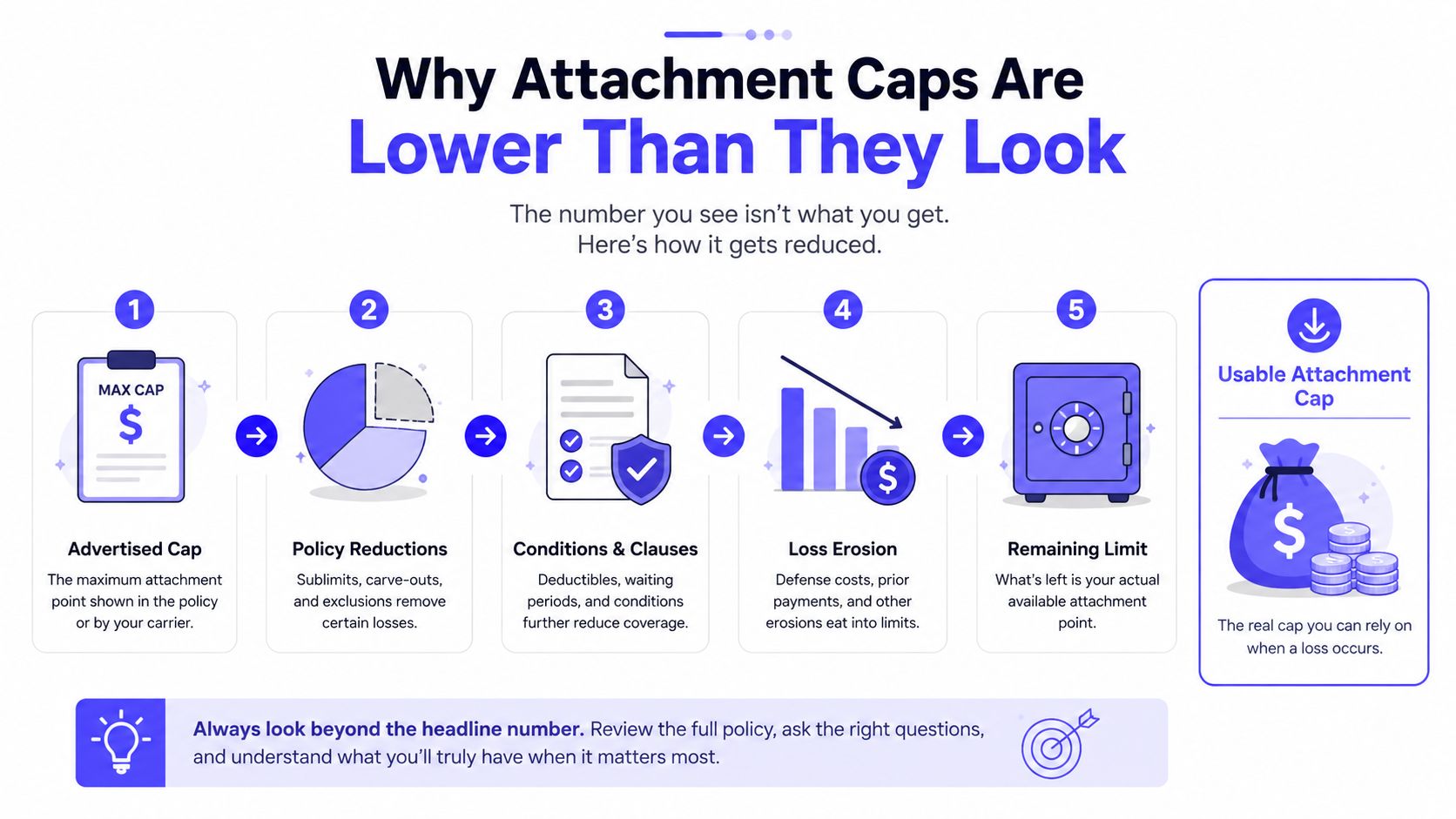
The final result is an envelope problem. The receiving system evaluates the encoded message, not the raw file size shown in Finder or File Explorer. That's why a file that looks “under the cap” can still fail, and why cloud links are often more dependable than squeezing one more megabyte into an attachment.
Attachment Limits by Major Email Provider
Provider policies vary by mailbox type, client, and administrator settings. The following table shows the practical shape of the market rather than one universal answer.
Email Attachment Limits by Provider in 2026
| Provider | Advertised Limit | Effective File Size | Cloud Link Option |
|---|---|---|---|
| Gmail personal | 25 MB per message | Often about 18 MB of actual file content after encoding and message overhead | Google Drive link replacement |
| Outlook.com | 25 MB for attached files | Lower in practice when the full message envelope is considered | OneDrive and other cloud-link workflows |
| Outlook desktop with internet email | Commonly 20 MB | Below the visible ceiling once message overhead is included | OneDrive or another file-sharing link |
| Yahoo Mail | 25 MB | Lower than the envelope limit for encoded attachments | Dropbox integration and share links |
| iCloud Mail | 20 MB | Lower for the raw file because the message includes overhead | Mail Drop, with links for files up to 5 GB |
| ProtonMail | 25 MB on supported plans | Lower after encoding and message overhead | Cloud storage or a secure sharing link |
| Google Workspace Enterprise Plus | Up to 50 MB in Google's 2026 rollout for some accounts | Depends on account policy and message construction | Google Drive |
| Microsoft 365 and Exchange Online | Can reach up to 150 MB in some configurations | Depends on tenant, client, and receiving-system settings | OneDrive or SharePoint |
The effective file size column is deliberately cautious. A 25 MB envelope doesn't guarantee a 25 MB raw attachment, and a business administrator may apply a lower send or receive policy. Microsoft documents Outlook and iCloud at 20 MB in one comparison, while Gmail, Yahoo, ProtonMail, and AOL appear at 25 MB. (Microsoft's large-file comparison)
Provider behavior also differs. Gmail can replace an oversized file with a Google Drive link. Outlook can route large-file sharing through OneDrive, and iCloud Mail can use Mail Drop rather than forcing the entire payload through ordinary email transport. Some systems reject the message instead of delivering a partial attachment, so senders shouldn't assume that a successful upload means successful delivery.
For a broader explanation of provider limits, account types, and sending policies, the Mailwarm's 2026 sending limits guide gives teams a useful reference point.
How to Send Files Larger Than the Cap
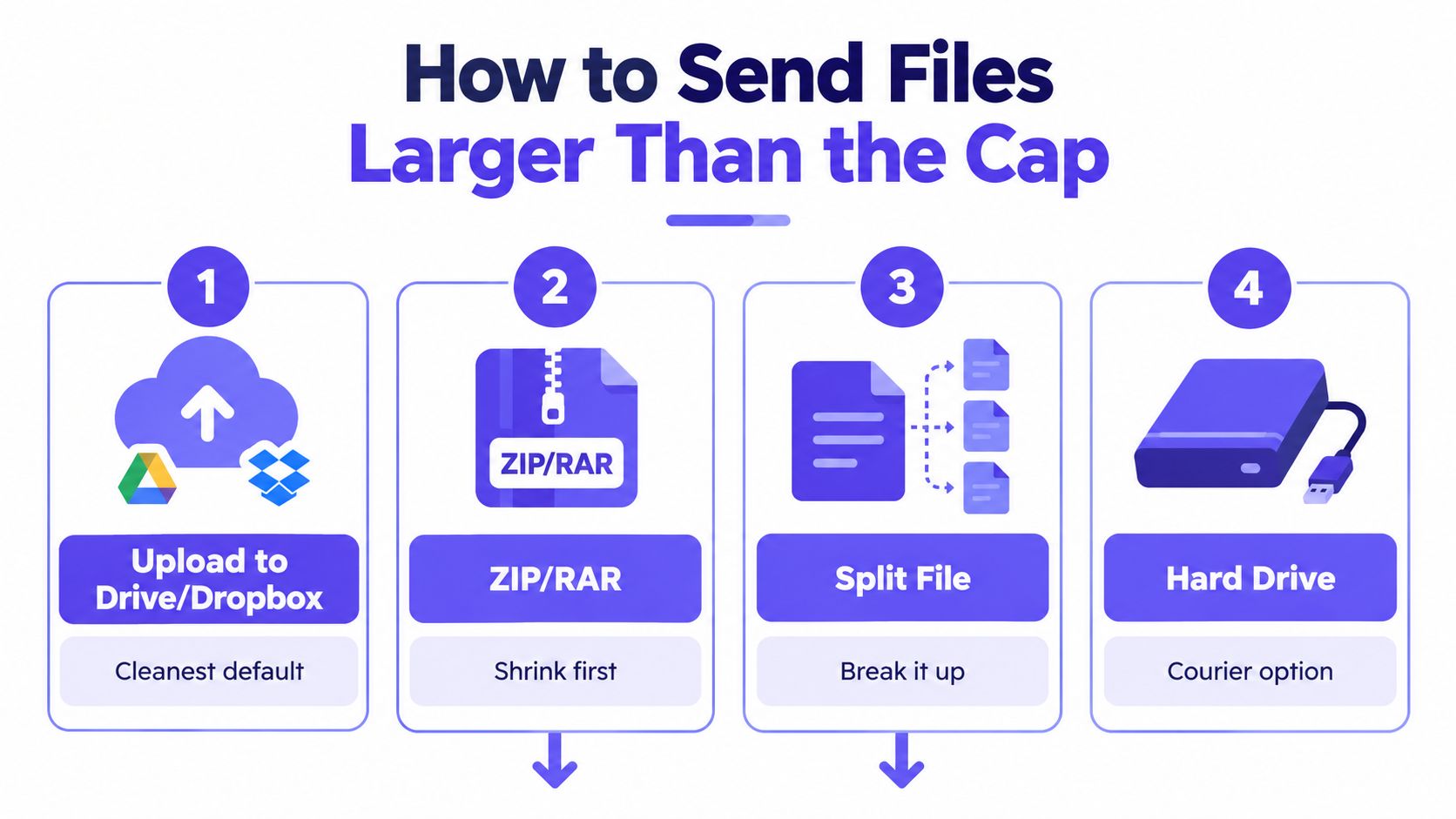
A large file needs a different transport, not a more aggressive attempt to force it through SMTP. Four options cover most business situations.
1. Use a cloud link as the default
Upload the file to Google Drive, OneDrive, Dropbox, or iCloud Drive. The sender can then place a permission-controlled link in the message instead of attaching the file.
Access should be set deliberately. Public access may be suitable for a non-sensitive brochure, while client material should use named-recipient permissions, download controls, or an expiry setting where available.
2. Use the provider's native handoff
Gmail can move an oversized attachment into Google Drive and insert a link. Outlook can use OneDrive, and iCloud Mail can use Mail Drop for files up to 5 GB. These handoffs reduce the chance that the full binary payload will be rejected by an intermediate gateway.
The recipient experience still matters. The recipient may need permission to view the file, a compatible account, or an additional download step. The email should explain what the link contains and what access action is required.
3. Compress only when compression can help
ZIP and 7-Zip can reduce the size of documents, spreadsheets, and some collections of images. Already-compressed formats such as MP4 video, JPEG images, and disk images often shrink little.
A compressed archive can also create friction. Mobile recipients may struggle to extract it, and password-protected archives can receive additional security scrutiny. Compression is useful when it produces a meaningful reduction, not as an automatic ritual.
4. Split or transfer the file
7-Zip volumes can divide an archive into separate parts, but the recipient must download every part and reconstruct the original. That process creates more opportunities for missing files, confusion, and out-of-order delivery.
For files in the multi-gigabyte range, dedicated transfer services or enterprise file-transfer platforms are more suitable. Features such as resumable uploads, checksums, expiry controls, and access tracking matter more than attachment compatibility. Teams handling Microsoft collaboration workflows can also benefit from Master Outlook and SharePoint for SMBs, especially when files need ongoing access rather than a one-time attachment.
How Large Attachments Affect Sender Reputation
Attachment size becomes a deliverability issue when a message passes through systems with different rules. A sender's mailbox may accept a large upload, while the recipient's corporate gateway rejects the completed message. That creates a bounce or rejection even though the sending interface appeared to work.
Large payloads can also make a message look unusual to content inspection systems. MIME structure, encoded binary content, attachment type, and link behavior all contribute to the overall risk picture. An oversized attachment isn't automatically spam, but it gives filters more content to scan and more reasons to apply a cautious verdict.
Recipient behavior matters as well. Large messages can take longer to load, occupy more storage, and feel less convenient on mobile devices. A recipient who can't preview the content may delete the message, postpone opening it, or ignore it. Lower engagement can weaken the sender's broader campaign signals over time.
Teams sending outreach or client files should therefore measure more than the attachment's raw size:
- Bounce patterns: Repeated rejections can reveal a recipient-domain limit.
- Message construction: Multiple attachments, inline images, and complex HTML increase the envelope.
- Recipient interaction: A link with clear context may produce a better experience than an unexplained binary file.
- Content risk: File types, link destinations, and message wording should be reviewed together.
The link and file type spam risks deserve attention before a campaign sends large files at scale. A cloud link doesn't remove all risk, but it usually separates the email conversation from the heavy file transfer.
Choosing the Right Method for Any File Size
The right method depends on three variables: the file, the recipient's environment, and the sensitivity of the content. A small file sent to a known contact can travel directly. A larger file sent to a corporate domain should use a link even when the sender's provider appears to allow it.
Choosing a File-Sending Method by Size and Use Case
| File Size | Default Method | Best for Sensitive Content |
|---|---|---|
| Under 10 MB | Direct attachment | Encrypted attachment or protected cloud share |
| 10 MB to 25 MB | Cloud link by default | Named-recipient permissions and encrypted storage |
| 25 MB to 2 GB | Dedicated transfer service or cloud storage | Password-protected, expiring, access-controlled link |
| Above 2 GB | Enterprise file-transfer platform | End-to-end encryption, checksums, audit logs, and resumable transfer |
The first range is usually simple, but direct delivery still depends on the recipient's provider. The middle range is the gray zone. A message may pass through Gmail or Outlook while failing at a corporate gateway, so a link gives the recipient more control over when and how the file is downloaded.
Files above the ordinary attachment range should use a service designed for transfer. Expiring links, download notifications, password protection, and access revocation are more useful than a large attachment allowance. Regulated or confidential material calls for stronger controls, such as end-to-end encryption or zero-knowledge storage, rather than a plain public URL.
A short decision checklist helps:
- Check the recipient. Corporate gateways and security policies may be stricter than the sender's mailbox.
- Check the file. Video, archives, and design assets often gain little from compression.
- Check sensitivity. Confidential documents need controlled access and an expiry policy.
- Check continuity. A client folder may work better than repeatedly sending new file copies.
Teams choosing storage for recurring transfers can also review these small business cloud backup tips before selecting a platform.
Smart Habits for Sending Big Files by Email
A bigger attachment isn't automatically a better delivery. It can slow the recipient's connection, trigger a gateway rejection, expose more data than necessary, and make a business message harder to process.
A reliable workflow starts before the email is written:
- Ask first: Confirm that the recipient expects a large file and can receive the chosen link or transfer method.
- Right-size the payload: Remove duplicate pages, unused assets, hidden document metadata, and unnecessary file versions.
- Set access carefully: Use named recipients, limited permissions, and expiration controls for sensitive material.
- Test the route: Send a test to a non-personal address or a controlled mailbox, then inspect the delivery result.
- Watch the response: Review bounce messages and recipient access problems before repeating the workflow across a list.
- Protect the content: Use an end-to-end encrypted transfer method instead of relying on raw email for confidential files.
A password-protected ZIP isn't a universal security solution. Some gateways flag encrypted archives because they can't inspect the contents, while a properly configured secure file-sharing link can offer clearer permissions and revocation.
For teams that operate their own mail infrastructure, a separate warm up an SMTP server process can support a healthier sending foundation. Large-file handling should still remain conservative, because reputation protection starts with messages that recipients can receive and use.
Frequently asked questions
How big of a file can be emailed safely?
Most major services cap the complete message at about 20 MB to 25 MB, but the practical raw file size is lower because of MIME and Base64 overhead. A 25 MB envelope often supports about 18 MB of actual file content.
Does Gmail send files larger than its attachment limit?
Gmail can replace an oversized attachment with a Google Drive link instead of sending the file through ordinary email transport. The recipient still needs the required permission to open or download the file.
Can Outlook send larger attachments?
Some Microsoft environments support larger attachments through administrator and tenant settings, with Outlook and Exchange Online reaching up to 150 MB in selected configurations. The receiving provider may still reject the message, so a OneDrive or SharePoint link is often more reliable.
Is a cloud link better than a large attachment?
A cloud link keeps the email small and lets the sender control access separately from message delivery. It also reduces the chance that an intermediate gateway will reject the complete message.
Does email warmup improve inbox placement for large-file sending?
Warmup can support sender reputation, but it can't override recipient attachment limits or security policies. File size, message construction, authentication, bounce behavior, and recipient engagement all need separate attention.
How does Mailwarm help with sender reputation?
Mailwarm is a premium email warmup and deliverability platform that uses real inbox engagement, provider-level warmup, spam score monitoring, inbox placement insights, authentication fix tools, bounce prevention, and deliverability analytics. It doesn't require IMAP access or permission to read a user's private inbox, and expert deliverability calls are included in every plan.
The safest habit is simple: right-size first, link when uncertain, label the content clearly, and protect sensitive files outside raw email transport.
Mailwarm helps teams build sender reputation, monitor inbox placement, and reduce spam risk through real inbox engagement, advanced warmup controls, and expert guidance. Teams that rely on email for outreach or client communication can visit Mailwarm to review a deliverability-focused approach that treats message reliability as part of the sending strategy.