
How Gmail’s “Undo Send” Feature Actually Unsends an Email
Gmail does not recall an email after it has been delivered. Instead, it uses a brief delay before sending your message, giving you a short window to cancel the delivery if you catch a mistake in time.
Think of “Undo Send” as a temporary hold, not a true recall. When you hit Undo within the allowed period, Gmail stops the email from being sent and moves it back into your Drafts.
The default period to cancel is just a few seconds, but you can choose between 5, 10, 20, or 30 seconds. Once this period ends, the message is sent from Google’s servers and cannot be retrieved from the recipient’s inbox.
Undo Send is available in Gmail on the web and on the Gmail mobile app. However, please note that other email apps, even those using Gmail accounts, may not support this feature.
Step-by-Step Process to Unsend an Email in Gmail on Desktop
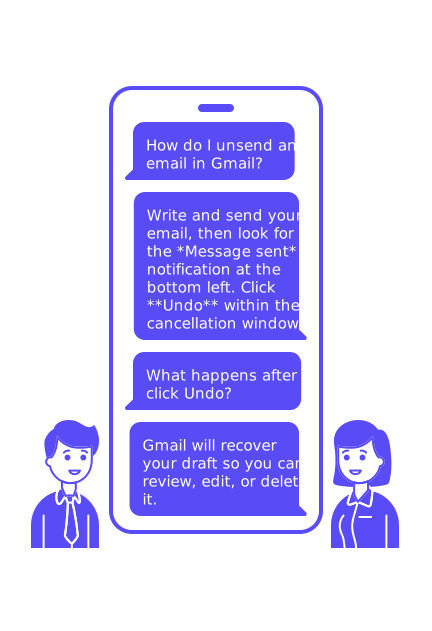
- Write and send your email as usual by clicking Send.
- Look for the notification at the bottom left that says Message sent.
- Click Undo within the cancellation window.
- Gmail will recover your draft so you can review, edit, or delete it as needed.
If you do not click Undo in time, Gmail will send the message after the timer runs out. Pay close attention to the notification, especially if you use keyboard shortcuts when sending emails.
Step-by-Step Process to Unsend an Email in the Gmail Mobile Apps
- Tap Send within the Gmail app for Android or iOS.
- Look for the bottom banner that says Sent and offers an Undo button.
- Tap Undo before the cancellation window expires.
- Your email will return to Drafts and open for further editing.
The same timing applies to both web and mobile. If you miss the Undo banner, your email will be sent and cannot be retracted.
How to Change the Gmail “Send Cancellation Period” for a Longer Unsend Window
- Open Gmail on your browser.
- Click the gear icon and select See all settings.
- Look for the Undo Send option in the General tab.
- Select your preferred Send cancellation period: 5, 10, 20, or 30 seconds.
- Scroll down and click Save Changes.
If you often notice mistakes immediately after sending, choose 30 seconds for the most flexibility. Keep in mind that this will delay the delivery of every message by your selected interval.
What Gmail “Undo Send” Can and Cannot Fix When You Email
Undo Send Helps Correct Quick Mistakes
- Add a missing attachment before the email leaves your outbox.
- Change an incorrect recipient or a flawed subject line.
- Adjust tone or remove confidential details added impulsively.
Undo Send Cannot Retract or Modify an Email After Delivery
- Once an email has been delivered, Undo Send cannot retract or modify it.
- It cannot fix an email that has already bounced.
- It cannot undo any potential harm to your sender reputation.
If your email has already been delivered, compose a new email to issue corrections, providing a clear and transparent follow-up.
Troubleshooting When Gmail “Undo Send” Does Not Appear or Fails
- Barely any time to undo: Your cancellation window may be set to 5 seconds. Consider increasing it in your Gmail settings.
- Using a different email client: Most third-party email apps do not display the Undo option. Use the official Gmail app or web client for this feature.
- Multiple open tabs: If you are working from several browser tabs, you may not see the Undo notification unless you’re in the active tab. Always send emails from the tab you’re currently using.
- Network problems or offline status: Outbox behavior can be unpredictable without a stable connection. Wait until you have a strong connection before relying on Undo Send.
- Keyboard shortcuts: Rapidly navigating Gmail with shortcuts may cause you to miss the Undo notification. Pause briefly after sending.
For scheduled emails, go to the Scheduled label. You can cancel any scheduled email before its delivery time arrives.
Practical Safeguards to Avoid Needing to Unsend Emails in Gmail
- Add recipients last: Write your message fully before entering email addresses.
- Use a pre-send checklist: Double-check recipients, attachments, links, and overall tone.
- Set safe defaults: Only enable Reply all if your workflow truly requires it.
- Turn on mobile confirmations: On Android, activate Confirm before sending in Gmail’s settings menu.
- Take advantage of Scheduled Send: Use scheduling to give yourself a review buffer. You can cancel a scheduled email from the Scheduled label if needed.
- Protect sensitive messages: Consider using Confidential mode to add controls like message expiration.
Refining your process reduces the need for last-second cancellations, letting you send emails more confidently and with fewer emergencies.
Why Gmail “Undo Send” Does Not Solve Deliverability or Sender Reputation
Undo Send is only useful for stopping a single message before it leaves your outbox. It does not influence inbox placement or prevent your mail from being marked as spam. Nor does it bypass modern email authentication checks or bounce rules.
If your campaigns are landing in spam or Promotions folders, examine inbox placement patterns. For insights on improving deliverability, visit our guide to inbox placement rates for cold emails, including benchmarks and best practices.
A bounce refers to when a message doesn’t reach its intended recipient. However, Undo Send can't retract emails identified as bounced; it’s designed to stop emails before they've left the outbox. For more details on bounces and delivery rules, see why emails get bounced in 2026 under new delivery rules.
Building a good sender reputation for new or unused domains requires a pattern of consistent, positive interactions. This involves “warming up” your sending, which goes beyond the Undo Send feature. To learn about sending at higher volumes and inbox placement, check our email warmup schedule for reaching up to 1,000 emails per day.
Mailwarm offers automated interactions with a live inbox network, including opens, replies, spam removals, and movement to the primary tab. These actions help to establish and maintain your sender reputation over time.
When You Can’t Unsend in Gmail: Respectful Damage Control
- Send a brief correction with a clear subject, such as
Correction: updated document
. - Offer a one-time apology, state the fix, and keep your message professional.
- Bold the corrected information or include the right document as an attachment.
- Request that your recipient disregard the earlier message if needed.
- Review your process to reduce future errors.
Most recipients value quick, transparent corrections. Respond promptly and clearly to sustain trust.
Ready to stop hastily attempting to recall sent emails and start sending with confidence? Set a longer Gmail cancellation period today, and consider running a steady warm-up with Mailwarm to strengthen your domain’s reputation before your next campaign.
FAQ
Can Gmail’s 'Undo Send' feature retrieve an email after it’s delivered?
No, Gmail’s 'Undo Send' doesn't recall emails post-delivery. It merely delays sending to allow a brief retraction window, making it crucial to act swiftly if you spot an error.
How can I increase the time window to unsend an email in Gmail?
You can adjust the cancellation period to 5, 10, 20, or 30 seconds in Gmail settings. This trade-off delays all outgoing emails, demanding you balance convenience with urgency.
Does 'Undo Send' work in all email clients using Gmail accounts?
No, 'Undo Send' is exclusive to the Gmail web and mobile apps. Other email clients typically don't support this feature, so use Gmail directly to utilize it.
What safeguard measures should I implement to avoid needing to unsend emails?
Add recipients last, utilize a pre-send checklist, and consider batch scheduling. Ensuring these practices helps minimize last-moment panic and enhances email reliability.
Why doesn't Gmail's 'Undo Send' solve deliverability issues?
'Undo Send' only intercepts emails before sending. For deliverability, focus on factors like domain reputation and avoid spamming; Mailwarm's warm-up service can help maintain and boost your sender credibility.
What should I do if I can't unsend an email and an error is present?
Quickly send a follow-up email with corrections in a clear, professional manner. Proactiveness and transparency in communication help preserve trust even after errors.
What impact does the 'Undo Send' delay have on sending emails?
Each email you send will experience a brief delay equivalent to your selected unsend window. While this provides a chance for retraction, it requires mindful scheduling for time-sensitive communications.