

v=spf1 include:spf.protection.outlook.com -all is the baseline Office 365 SPF record, and Microsoft says only one SPF record should exist per domain or subdomain. If there's more than one, SPF can return a permerror, even when the rest of the setup looks clean.
That's the part many teams miss. They paste the Microsoft include, feel done, and then wonder why legitimate mail still lands in spam, why forwarding breaks authentication, or why a third-party sender suddenly stops passing SPF.
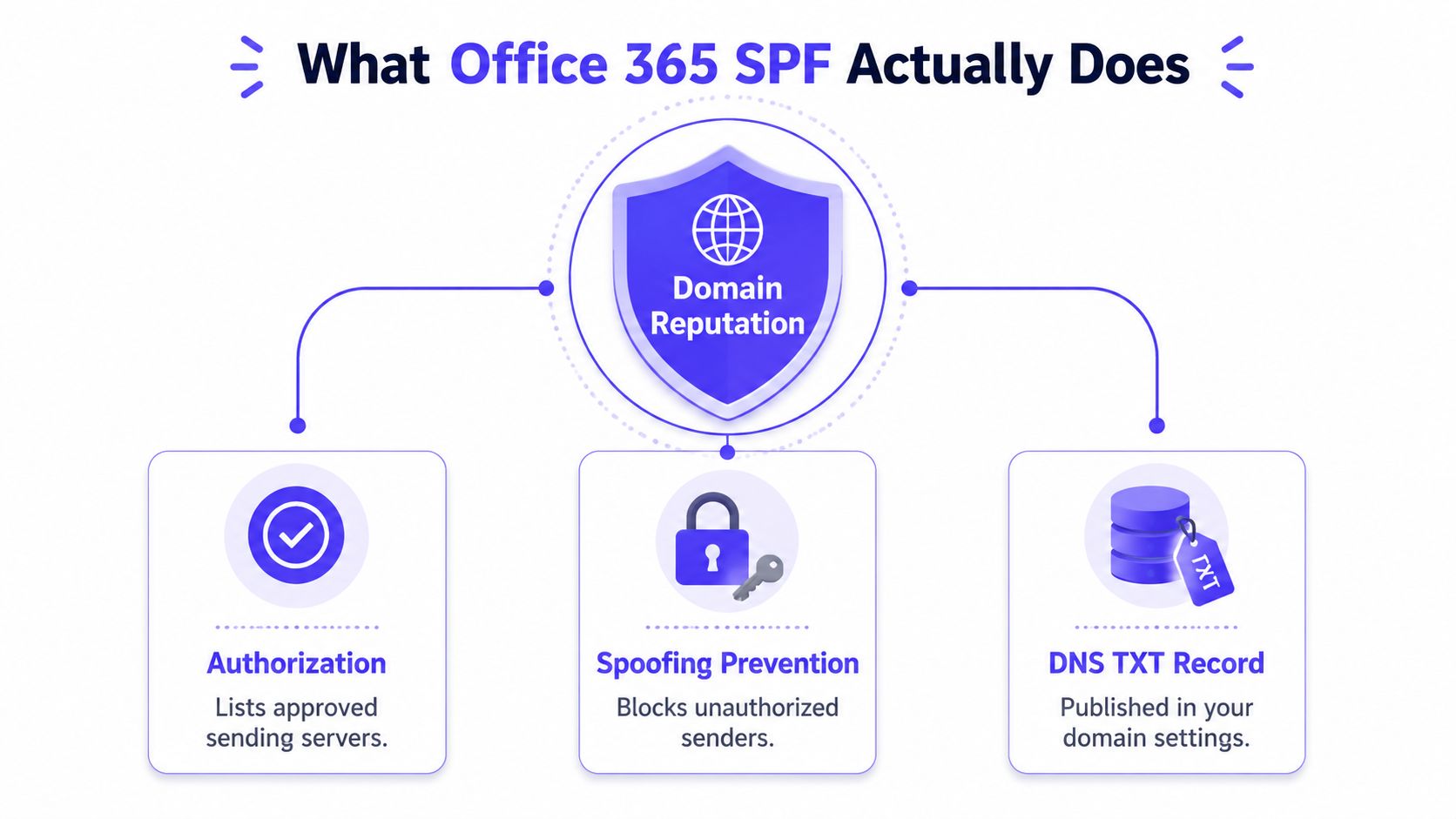
What Office 365 SPF Actually Does for Your Domain
Office 365 SPF is a DNS TXT record that tells receiving mail servers which hosts are allowed to send email for a domain. Microsoft 365 uses it to validate the envelope sender, not the visible From address, so it's a source check, not a content check. Microsoft's guidance is clear that SPF is about authentication and spoofing prevention, not a promise of inbox placement.
That distinction matters in real tenant work. A clean SPF pass means the sending source matched what the domain owner published, nothing more. It doesn't prove the message is well-liked by the mailbox provider, and it doesn't fix weak reputation, poor content, or missing alignment with other authentication layers.
The three things SPF really tells you
- Authorization: The sender is listed in DNS as approved.
- Spoofing resistance: Unauthorized servers have a harder time pretending to be the domain.
- Operational visibility: DNS records reveal whether the domain owner has documented its sending stack.
A single-domain Microsoft 365 tenant, a hybrid tenant, and a multi-sender setup all behave differently. A pure cloud tenant usually starts simple. Once on-premises routing, CRM mail, or marketing platforms enter the picture, the SPF record stops being a copy-paste task and becomes an inventory exercise.
Practical rule: If a sender can't be named, it usually can't be trusted to pass SPF cleanly.
For a broader view of how Microsoft 365 fits into a multi-provider authentication stack, the channel playbook for SaaS is a useful adjacent read. It helps teams think about sending infrastructure as part of growth, not just as DNS plumbing.
Creating the Baseline SPF Record for Microsoft 365
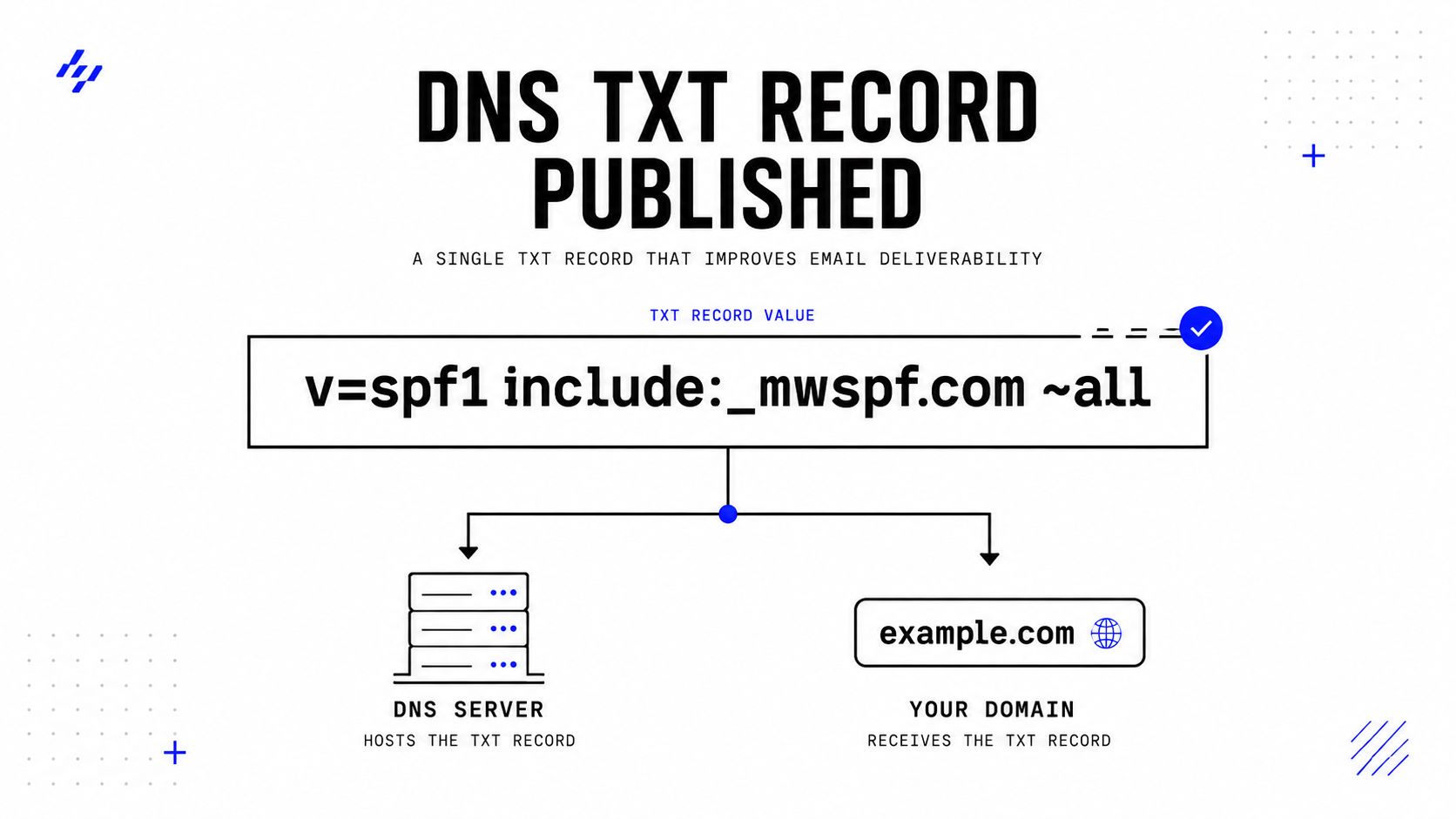
The clean starting point for a pure Microsoft 365 tenant is straightforward. Publish one TXT record with v=spf1 include:spf.protection.outlook.com -all. Microsoft also recommends a TTL of 3,600 seconds, or 1 hour, which helps reduce DNS timeout risk during propagation and lookup checks (Microsoft SPF guidance).
The hard part is not the syntax. The hard part is making sure there isn't already another SPF record hiding in the zone. Microsoft warns that multiple SPF records trigger a permerror, and that error is enough to break authentication even when the visible record looks right (Microsoft SPF guidance).
Publish it without creating a second record
Use your DNS host, whether that's GoDaddy, Cloudflare, Namecheap, or Microsoft-managed DNS, and edit the existing TXT record if one already exists. Don't add a new one unless the domain has no SPF record at all. If the zone already contains a record for another sender, merge the Microsoft include into that same line rather than stacking another TXT entry.
A softfail version, using ~all, is sometimes seen in older setups, but the cleaner baseline for a Microsoft 365 tenant is the hardfail form. Hardfail says unauthorized senders should be rejected, which is what the team wants once they've listed every real sender. If the tenant isn't ready for that yet, the record still needs to be one coherent SPF policy, not a pile of separate TXT values.
For a compact reference on Microsoft and Google handling together, the internal note at Mailwarm's SPF strategies guide is helpful when a domain sends through more than one ecosystem.
A record can look valid in a DNS console and still fail SPF if the zone contains a duplicate. That's the failure mode that wastes the most time in Microsoft 365 troubleshooting.
When the record is saved, the DNS zone should show one SPF policy, one domain, and one clear authorization path for Microsoft 365. That's the baseline. Everything else in the tenant builds on that exact foundation.
Adding Third-Party Senders to the Same SPF Record
Most Microsoft 365 tenants don't send from Microsoft 365 alone. Marketing platforms, CRMs, ticketing systems, recruitment tools, and gateways often send mail too. Those sources must be folded into the same SPF record, because SPF only works when all authorized senders are documented in one place.
The mechanism matters. include is the most common option for SaaS senders, while ip4 and ip6 are used for direct server ranges. mx and exists are less common in day-to-day Office 365 work, but they still count against the record's lookup budget.
A quick decision table for common sender types
| Sender type | SPF mechanism | When it fits |
|---|---|---|
| Microsoft 365 | include | Core cloud tenant mail |
| Marketing or ESP platform | include | Services that publish their own SPF host |
| On-premises server | ip4 or ip6 | Fixed outbound IP ranges |
| Gateway or relay | ip4, ip6, or include | Security or routing middle layer |
| Shared infrastructure | Depends on provider docs | Only if the sender publishes a valid mechanism |
The 10-lookup limit is the constraint that causes the most pain. Every include, a, mx, ptr, or exists can consume lookups, and once the chain exceeds the limit, SPF fails. That's why a record that appears tidy can still collapse when a third-party sender adds its own nested mechanisms.
Operational rule: Add senders only when they actually send mail for the domain, and delete stale entries fast. Old tools are a common source of hidden SPF debt.
Flattening can look tempting because it reduces nested lookups, but it also creates maintenance work. When a provider changes its outbound ranges, the flattened record goes stale. In practice, flattening is safest only when the sending stack is stable and tightly controlled. If vendors rotate often, keeping the provider's own include mechanism is usually easier to maintain.
Inventory discipline matters more than DNS tricks. List every system that sends mail as the domain, confirm whether it signs or relays directly, and keep the SPF record limited to real, active sources. That approach prevents most lookup failures before they start.
Verifying Your SPF Record in Five Minutes
Publishing the record is only half the job. The faster check is to confirm that DNS returns one SPF TXT value, that the record parses cleanly, and that an actual message produces spf=pass in the receiving header. The fastest teams verify all three, not just one.

Three checks that catch most mistakes
- MXToolbox lookup. Run a domain search and inspect the TXT response. This is the quickest way to spot duplicate records or obvious syntax mistakes.
- NSLookup or dig. A direct DNS query shows what public resolvers see, which is useful when a control panel has already cached the wrong value.
- Test email header review. Send a message from Microsoft 365 to a Gmail inbox and inspect the Authentication-Results header for SPF status.
The header check is the most meaningful one because it shows how a mailbox provider handled the message. A record can exist, parse, and still fail if the sender chain is wrong or if the message leaves through an unexpected route.
The common reading mistake is confusing a softfail with a true pass. Softfail means the domain is signaling caution, not full authorization. For clean Microsoft 365 deployment work, the receiving result needs to match the policy intent, not just look technically non-broken.
For a practical checker that pairs well with manual testing, use Mailwarm's SPF checker alongside your DNS verification flow. It's especially useful when the question is whether the published record matches the sending stack, not just whether the TXT entry exists.
Fixing the SPF Errors That Break Microsoft 365 Delivery
The same five failures show up again and again in Microsoft 365 tenant work. They're predictable, and they're fixable if the diagnosis starts with the record structure instead of the inbox symptom. A lot of teams chase mailbox filters when the issue is buried in DNS.
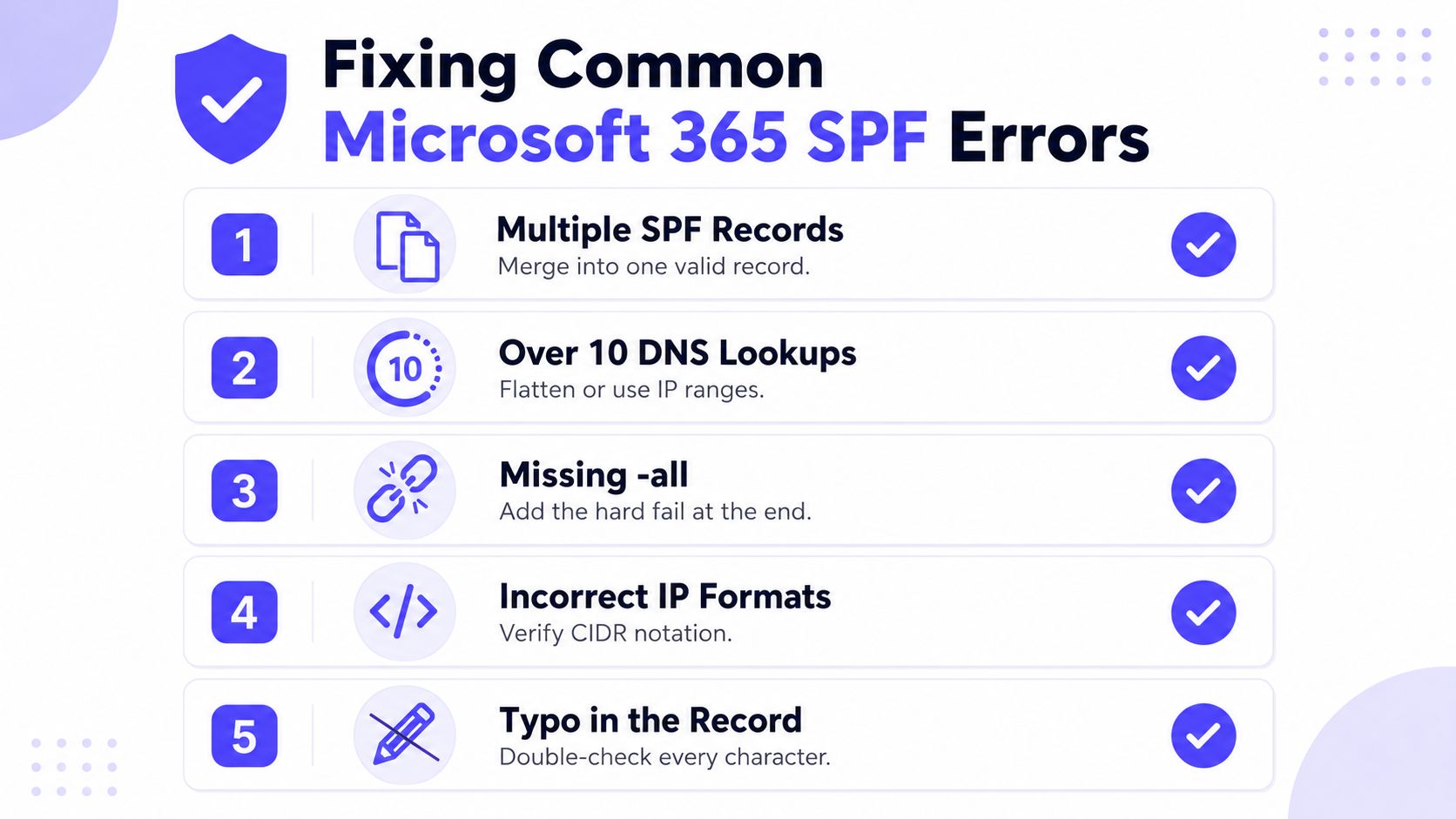
The failures that keep repeating
- Multiple SPF Records. The zone has more than one SPF TXT entry, so merge them into a single record.
- Too Many DNS Lookups. The record expands past the lookup limit, so reduce nested mechanisms or simplify the sender stack.
- Softfail Confusion. The policy looks permissive, which can let unwanted mail through or make the policy weaker than intended.
- Missing Third-Party Senders. A platform sends legitimate mail but was never added to the SPF list.
- Hybrid Routing Breaks. On-premises connectors send through IP ranges or relays that aren't published in DNS.
Multiple records are the most embarrassing failure, because the record often looks fine to a human skimming the zone file. Too many lookups are the most frustrating, because the error appears only after one sender adds another layer of includes. Missing third-party senders usually shows up when campaigns or product mail suddenly stop authenticating.
Hybrid Exchange routing deserves its own caution. Mail can originate from inside the organization and still fail if it exits through a server or gateway that the SPF record never named. That's why SPF debugging in Microsoft 365 often starts with outbound path mapping, not with the visible From address.
If a legitimate message fails SPF, the first question should be “what actually sent it,” not “what does the From line say.”
The clean fix is almost always structural. Merge records, remove stale senders, document on-premises egress, and validate every sender path before the next campaign goes out. SPF is unforgiving in that way. It doesn't care what the mailbox owner intended, only what DNS says.
SPF, DKIM, DMARC, and Why Warmup Still Matters
SPF is one layer of authentication, not the whole system. DKIM proves the message wasn't altered in transit, and DMARC ties SPF and DKIM back to the visible From domain so mailbox providers can enforce policy with more confidence. Microsoft 365 tenants that stop at SPF often end up with partial protection and weak alignment.
What the stack needs to do together
- SPF confirms the sending source is authorized.
- DKIM confirms the message content wasn't tampered with.
- DMARC tells receivers how to handle failures and how to report them.
A domain can pass SPF and still struggle in the inbox if sender reputation is cold. That's where warmup and engagement come in. Microsoft 365 authentication gets the mail admitted to the trust conversation, but mailbox providers still look at sending behavior, complaint risk, and engagement before they place a message where people read it.
For teams that want more than basic warmup, Mailwarm's Microsoft warmup overview fits naturally here. Mailwarm is a premium email warm-up and deliverability platform that helps senders build reputation, monitor inbox placement, and improve deliverability through real inbox engagement, advanced warmup controls, and expert guidance. It does that without requiring IMAP access or permission to read a private inbox.
The next move is simple. Confirm DKIM is enabled in the Microsoft 365 admin center, publish a starting DMARC policy, and keep the sending cadence controlled enough to build trust instead of triggering scrutiny. Authentication keeps the domain honest. Warmup helps the domain earn attention.
If email is part of your growth strategy, Mailwarm helps you build sender reputation, monitor inbox placement, and reduce spam risk with expert-guided warmup. It pairs real inbox engagement with deliverability controls that fit Microsoft 365 senders who need more than a basic warmup loop. Visit Mailwarm to see how it supports cleaner authentication habits and stronger inbox placement over time.