

Archived emails in Gmail can feel like they've vanished, especially when a reply, invoice, or old outreach thread suddenly matters again. The fast answer is that archived mail lives in All Mail, and you can also pull it up with in:archive in Gmail search. Once that clicks, finding, unarchiving, and troubleshooting archived messages becomes a simple workflow instead of a guessing game.
Gmail handles archiving differently from most email clients. It removes the Inbox label, but the message still stays searchable and recoverable, which is exactly why power users rely on search more than folder browsing.
What Happens When You Archive an Email in Gmail
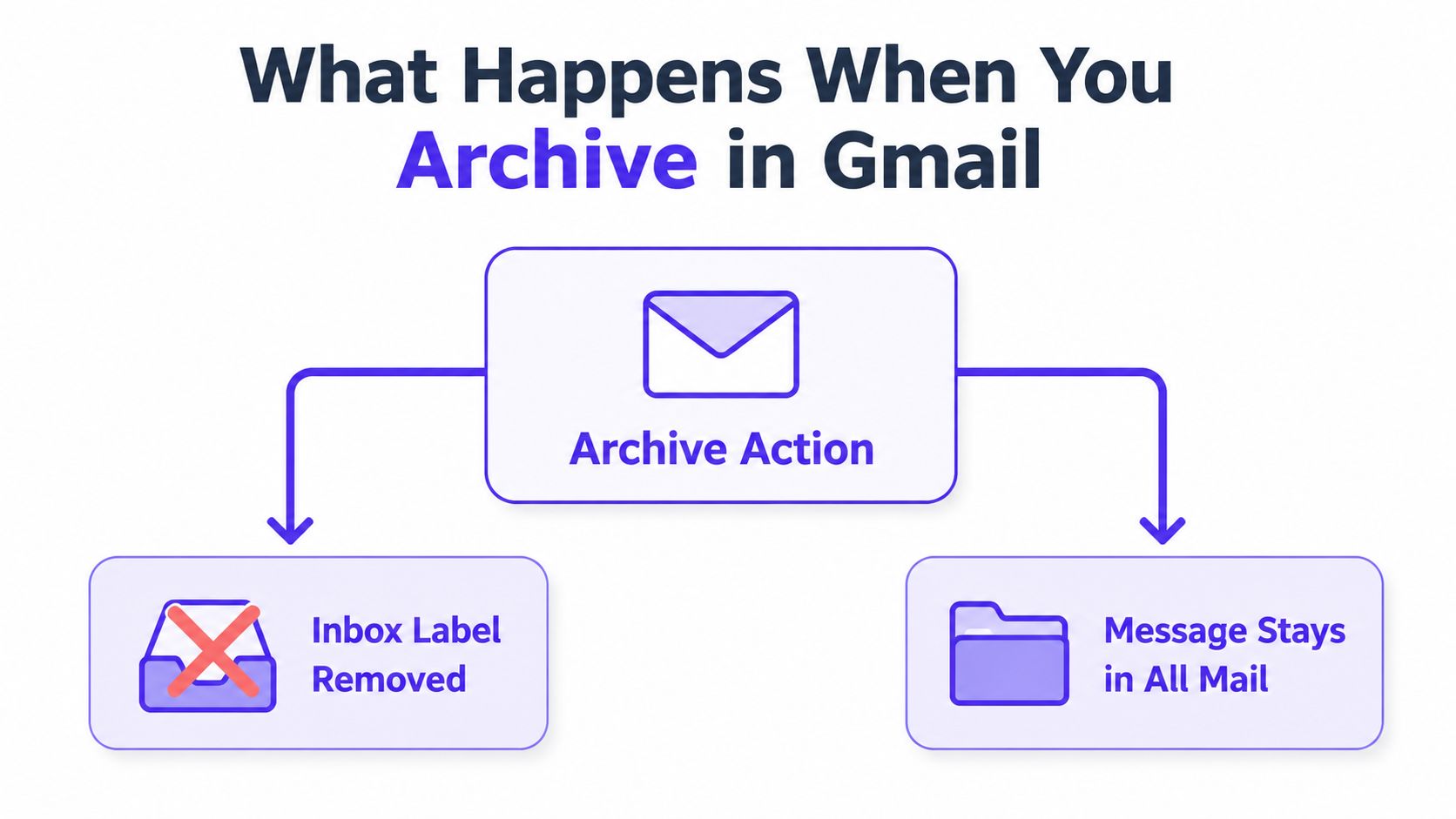
When you archive an email in Gmail, you're not moving it into a separate archive folder. You're removing the Inbox label, and the message stays in All Mail. Google's help page says archived messages live there, and it also gives the direct search shortcut in:archive for finding them quickly (Google Help on archived mail).
Why that matters in daily use
That structure changes how Gmail should be used. A thread can be archived, stay threaded, stay searchable, and still be brought back with Move to Inbox whenever it needs attention again (Google Help on archived mail retrieval). For sales teams, recruiters, and founders, that means old conversations don't disappear into a dead folder.
Practical rule: archive things you want to keep, delete only what you truly do not need.
This is also why many users think archived mail is “missing.” It's not missing, it's just no longer sitting in the Inbox view. In Gmail, the Inbox is a filtered view, not the full mailbox, so archived items remain part of the account and can still be found by sender, subject, keyword, or date.
That makes archiving useful for keeping the inbox clean without losing history. It also means you should expect archived mail to behave like any other Gmail content, not like a separate store that needs special recovery.
Finding Archived Emails on Desktop Gmail
On desktop, the standard path is simple. Open Gmail, expand More in the left sidebar, then click All Mail. Archived messages sit there alongside everything else, and they won't show the Inbox label next to the thread name (Zapier's Gmail archive guide).
If the mailbox is busy, scrolling isn't the right move. Search is faster. Gmail's own help directs users to All Mail and also supports in:archive for isolating archived messages, which is usually the cleanest way to jump straight to the thread you want (Google Help on archived mail).
The exact recovery loop
- Open All Mail from the left sidebar.
- Search or scan for the message.
- Open the thread.
- Click Move to Inbox if you want it visible again.
That last step matters because it restores the Inbox label without changing the rest of the conversation history (Google Help on archived mail recovery). If the thread was part of an ongoing conversation, Gmail's threading usually keeps everything together, which is helpful when a client replies weeks later.
A lot of people expect an archive bin, then overcomplicate the search. Gmail is easier than that. All Mail is the retrieval view, and in:archive is the faster shortcut when you already know you're looking for something archived.
For teams that care about inbox hygiene, this is also why archive is safer than a hard delete. It keeps the thread available for future follow-up, legal record keeping, or reference before a new outreach sequence.
If keeping the inbox tidy is also about avoiding needless promotion-tab clutter, a practical companion guide is how to avoid Gmail's promotion tab.
Finding Archived Emails on Android and iOS
A phone is usually where archived mail gets recovered in a hurry. In Gmail for Android, Google's help says archived messages live under Menu → All mail, and you can also surface them with in:archive (Google Help for Android). On iPhone or iPad, open the Mailboxes view and look for All Mail if your account shows that label.
The part that trips people up is consistency. Google does not always expose All Mail the same way across personal and Workspace accounts, and some devices tuck the label away or hide it entirely. On mobile, search often beats label browsing because the app's label layout can change from one account to another.
A simple recovery flow usually works best.
Start with the search bar and enter in:archive if you want only archived messages. If you already remember who sent the email, search by sender name or email address instead. On shared or Workspace accounts, check the account switcher before you spend time hunting through the wrong mailbox. If you open an archived thread and want it back in view, use Move to Inbox from the message actions.
Mobile Gmail is fine for quick recovery, but search is usually more dependable than hunting through labels.
That matters for outreach teams checking mail between meetings. On a small screen, label navigation can be inconsistent, while search stays direct and predictable. If a shared account shows odd label visibility, switch accounts first before deciding the message is gone.
The same approach helps when a filter or forwarding rule seems to hide mail. Search by sender, subject, or in:archive, then narrow from there instead of relying on the sidebar alone.
The mobile video walkthrough is here for a visual check, especially if the app layout looks different from the web version.
Gmail Search Operators That Surface Archived Mail
Search is not a backup plan in Gmail, it's one of the main ways archived mail is meant to be found. The simplest operator is in:archive, which returns archived messages directly and is the cleanest option when you already know the message was archived (Google Help on archived mail).
The operators worth using
- in:archive. Use this when you want only archived mail. Example,
in:archive invoice. - -in:inbox -in:sent -in:draft. Use this when you want messages outside the usual live views. Example,
-in:inbox -in:sent -in:draft project update. - has:nouserlabels. Use this when labels are messy or missing. Example,
has:nouserlabels contract.
How-To Geek also notes that negative inbox filters can surface messages that are not in the usual folders, which is useful when Gmail's label state is messy or when a search returns too much mail (How-To Geek on finding archived emails).
When each search pattern helps
If a sender remembers the conversation but not the exact folder, in:archive is the quickest route. If the mailbox has lots of moving parts, the negative filters help isolate mail that is not sitting in Inbox, Sent, or Drafts. If labels are inconsistent, has:nouserlabels is a practical way to surface mail that never picked up a user label in the first place.
The best search is the one that matches what is actually broken, not the one that looks clever.
A useful habit is to start broad, then narrow. Search the sender name first, then add in:archive if the result set is too noisy. That saves time compared with scrolling through All Mail, especially in high-volume inboxes where old conversations stack up fast.
Archive vs Delete and When to Use Each
A thread that should stay searchable belongs in Archive. A thread that has no future use belongs in Delete. Gmail treats those actions very differently, so mixing them up can cost you time later when you need to find a conversation fast.
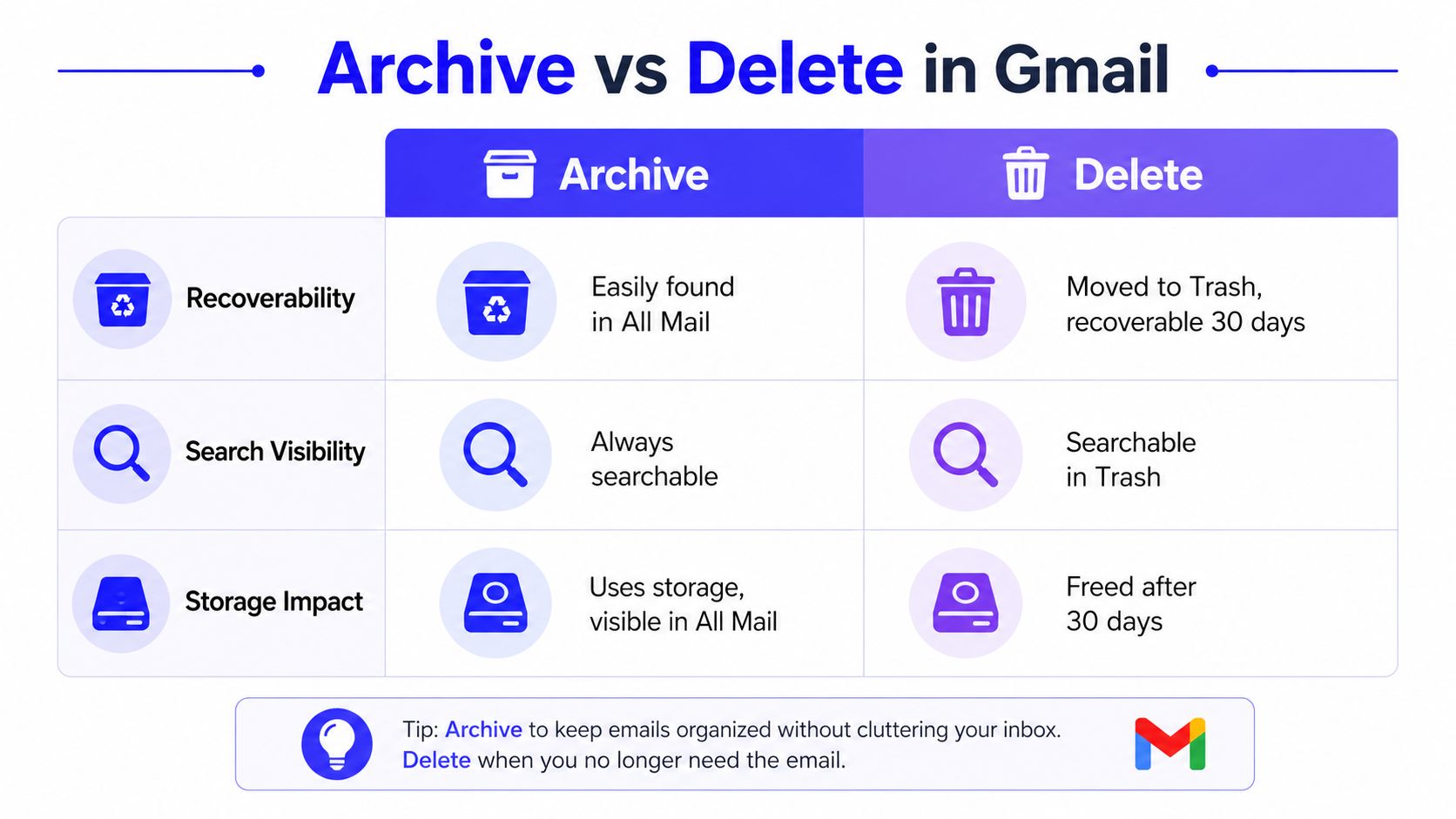
| Action | Recoverable | Searchable | Storage | Best for |
|---|---|---|---|---|
| Archive | Yes, in All Mail | Yes | Remains in the mailbox | Threads you want to keep |
| Delete | Yes, while in Trash | Yes, while in Trash | Removed after Trash handling | Junk, obvious clutter |
Archive keeps the message in Gmail, so it still shows up in search and in All Mail. Delete sends the message to Trash, where it can still be recovered for a while, but it is no longer part of your normal working mailbox. That difference matters if you handle client threads, receipts, contracts, or outreach you may need to reopen later. For a side-by-side explanation of how teams usually separate the two actions, see delete email in Gmail and Outlook.
Archive is the safer choice for ongoing work. If a thread may come back in a week, a month, or during a handoff, keep it in Gmail and archive it. Delete fits obvious spam, newsletters you never want to see again, and messages with no practical value once you have read them.
A simple decision rule
- Archive if the message is still useful later.
- Delete if the message is dead weight later.
That rule works for most inbox cleanup. It keeps you from deleting a thread that should have stayed searchable in All Mail, and it keeps the mailbox from turning into a pile of conversations you no longer need to see every day.
If your team handles both Gmail and Outlook, compare the deletion flow before people start clearing mail by habit. The wrong habit is easy to form, and it usually shows up when someone needs an old thread that was sent to Trash instead of archived.
Keyboard Shortcuts and Power-User Habits for Archived Mail
A good archive workflow starts with the keyboard. In Gmail, g then a jumps straight to All Mail, so you do not have to keep opening the sidebar just to find an archived thread. If you are cleaning up after replies all day, the archive action itself is faster too, which makes it easier to keep the inbox clear without losing anything you may need later.
Habits I use when archived mail matters
The fastest pattern is simple. Handle the message, archive it from the inbox right away, then go back to the next item.
- Use the archive shortcut: archive a thread the moment it is done.
- Jump to All Mail quickly: press g then a whenever you need the archive view.
- Keep a saved search: store in:archive if you check archived threads often.
- Use undo right away: Gmail can reverse an accidental archive immediately after the action.
A fast archive habit beats a perfect folder system that nobody follows.
I also keep the archive-related view easy to reach when the sidebar gets collapsed a lot. Even a small habit, like pinning or starring the view you open most, cuts down on clicks during a long workday. The goal is not to memorize every Gmail shortcut. The goal is to get from “where did that thread go” to “found it” as quickly as possible.
For support teams and outreach teams, that speed matters because archived mail is usually the material that comes back later. A saved search plus a keyboard habit removes a lot of repeated navigation, especially when the inbox keeps moving. If search results feel too broad, tighten them before you start clicking through labels. A query like in:archive paired with a sender or subject line is often faster than browsing by hand, and if hidden archive behavior is part of a wider deliverability problem, a close look at spam confidence level guidance can help you separate visibility issues from inbox placement issues.
Troubleshooting Missing Archive and Quick FAQ
If All Mail is missing, start by checking whether the label is hidden rather than assuming the message is gone. Gmail's view changes across desktop, Android, and iOS, and Workspace accounts can expose labels differently depending on admin settings and sidebar choices.
When search pulls in too many threads, narrow it fast. Add in:archive, then pair it with a sender, subject, or a negative term so you are not scrolling through every related conversation. If you work in a Workspace inbox, confirm you are in the right account first, then check whether a filter, label rule, or forwarding setup is changing what you can see.
If a message still feels buried, search the sender name and subject line directly before you keep clicking labels. Gmail search is usually the better tool when archive views differ across devices or when the sidebar is trimmed down.
For teams checking reply history or bounce patterns, hidden archived threads are worth finding because they often hold the context you need. A close look at spam confidence level guidance can help separate visibility problems from filtering or inbox placement issues.
Quick FAQ
Where are archived emails stored in Gmail?
They live in All Mail, not in a separate archive folder. Gmail keeps them searchable, so you can find them by sender, subject, keyword, or date.
Can archived emails be moved back to the inbox?
Yes. Open the message in All Mail or from search, then choose Move to Inbox. Gmail restores the Inbox label right away.
Do archived emails count toward storage?
Yes, they remain part of the mailbox. Archiving removes inbox clutter, but it does not remove the message from your account.
Why does archived mail look different on shared or Workspace accounts?
Label visibility can vary by account state, device, and admin settings. If the sidebar looks different, search is usually the most reliable way to find the message.
Does Gmail search archived messages automatically?
Yes, Gmail search covers archived mail by default. in:archive is just the faster way to isolate only archived threads.