
The spam folder is usually in the left-hand menu of the email app or webmail client, often hidden under More, Spam, or Junk Email. In Gmail, it's hidden by default, and in Microsoft 365 business environments some messages may be held in Quarantine instead of a user-visible junk folder.
Someone says, “Check your spam folder,” and that should be simple. Then the folder isn't visible, the mobile app hides it behind another menu, or a shared Microsoft 365 mailbox sends everyone into the wrong place. For a busy team, that's not a small annoyance. It's how lead replies, approvals, interview responses, and customer messages get missed.
Why Finding Your Spam Folder Is a Critical Business Skill
Those looking for how do I find my spam folder usually need one message right now. It might be a contract, a demo reply, a password reset, or a candidate response that can't wait.
The fast answer is still the right one for most inboxes:
Gmail: look in the left sidebar and click More
Outlook personal: look for Junk Email in the folder list
Mobile apps: open the menu first, then scroll for Spam or Junk
Microsoft 365 groups: check whether the message went to Quarantine instead of a visible junk folder
That matters because missed email is often mistaken for silence. Sales teams think prospects ghosted. Recruiters think candidates lost interest. Founders think a partner never replied.
Practical rule: If an expected email hasn't arrived, check spam before sending a follow-up or assuming the other person didn't respond.
For Google Workspace teams, admins can go to the Security center dashboard and review the spam filter report, which gives exact counts of messages marked as spam across All, Phishing, and Malware views. That makes spam handling measurable, not guesswork, and it helps teams identify whether legitimate mail is getting caught too often through the Google Workspace spam filter report.
A receiver needs to know where the spam folder is. A sender needs to prevent landing there in the first place. Teams that care about outbound performance usually end up paying attention to both, especially when inbox placement starts affecting pipeline. That's why it helps to understand the broader cold email inbox placement benchmarks and best practices.
A quick visual can help before moving into platform-specific steps.
How to Find the Spam Folder in Gmail for Web and Mobile
Gmail is where many people get stuck because the spam folder often isn't visible until the user expands the menu. That's normal behavior, not user error.
On a desktop browser
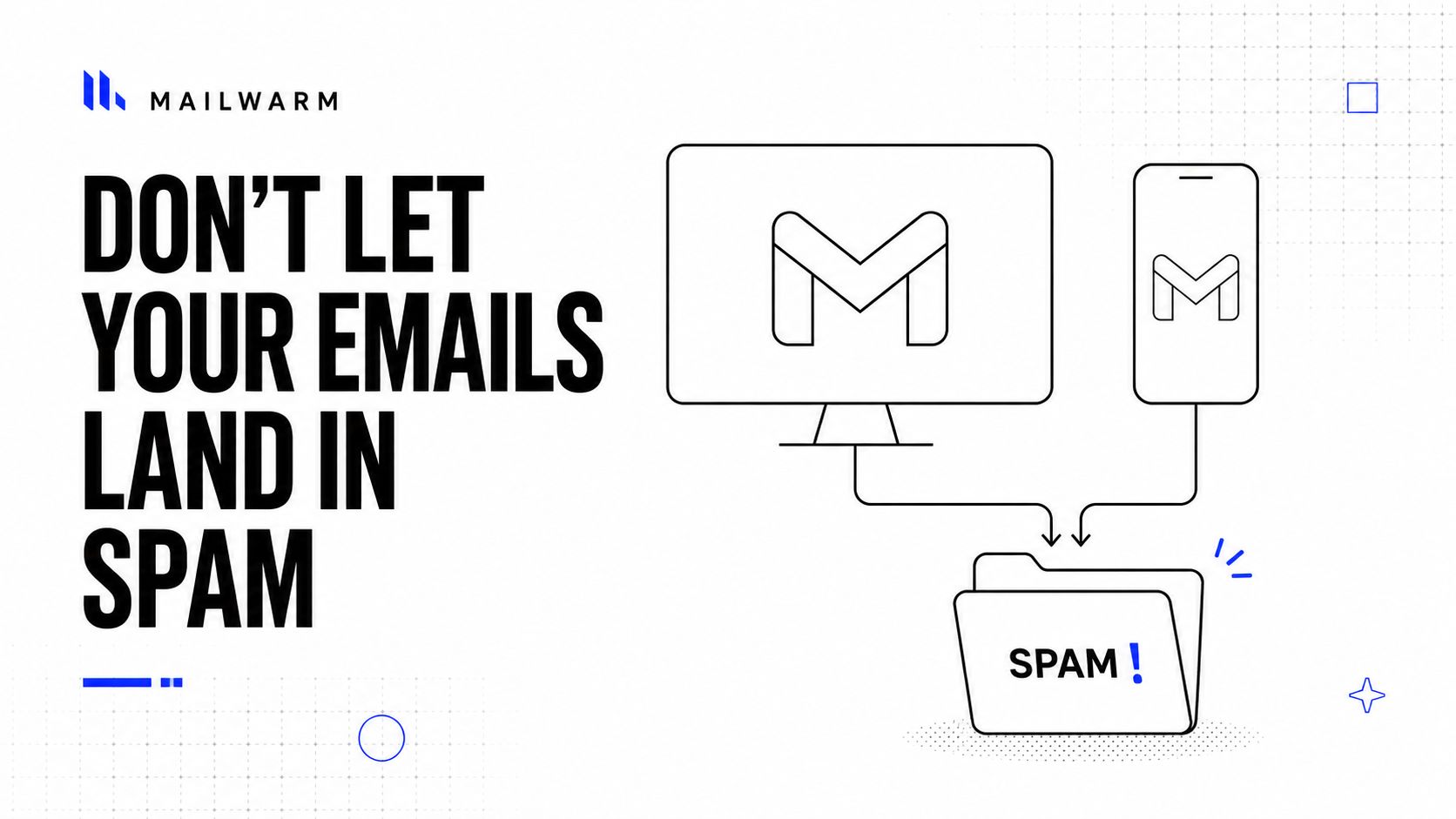
In Gmail on the web, the spam folder is hidden by default. Users need to click More in the left sidebar to reveal Spam, as explained in this guide on managing the Gmail spam folder.
Use this path:
Open Gmail in a browser.
Look at the left sidebar where Inbox, Sent, and Drafts appear.
Click More.
Click Spam.
Open the message and choose Not spam if it belongs in the inbox.
If Spam keeps disappearing from view, Gmail also has a setting that can keep the label visible:
Open Settings
Go to Labels
Find Spam
Select Show
On the Gmail mobile app
Mobile is where confusion gets worse. The app usually hides extra folders behind the menu icon, and many users don't scroll far enough.
The path is simple, but easy to miss:
Open the Gmail app.
Tap the menu icon in the upper-left corner.
Scroll down through the folder list.
Tap Spam.
On mobile, “check your spam folder” isn't always a one-click instruction. The folder may be present but buried in the app navigation.
If Gmail shows no Spam label
When the label is missing even after expanding More or enabling it in settings, the problem may not be user behavior. It may be the interface.
Try these checks:
Refresh the page: A stale session can hide labels.
Reduce sidebar clutter: A crowded left menu can make lower labels harder to see.
Switch browser or window size: Rendering issues sometimes hide parts of the label list.
Use desktop temporarily: If mobile navigation is unclear, the desktop layout is often easier for recovering the message quickly.
For most Gmail users, that resolves the problem fast. If it doesn't, the issue usually isn't about where Spam “should” be. It's about the interface failing to show it cleanly.
Locating the Junk Email Folder in Outlook and Microsoft 365
Outlook is straightforward in personal accounts and more complicated in business environments. The key difference is whether the mailbox is personal, shared, or part of a Microsoft 365 group.
Outlook.com and personal Outlook accounts
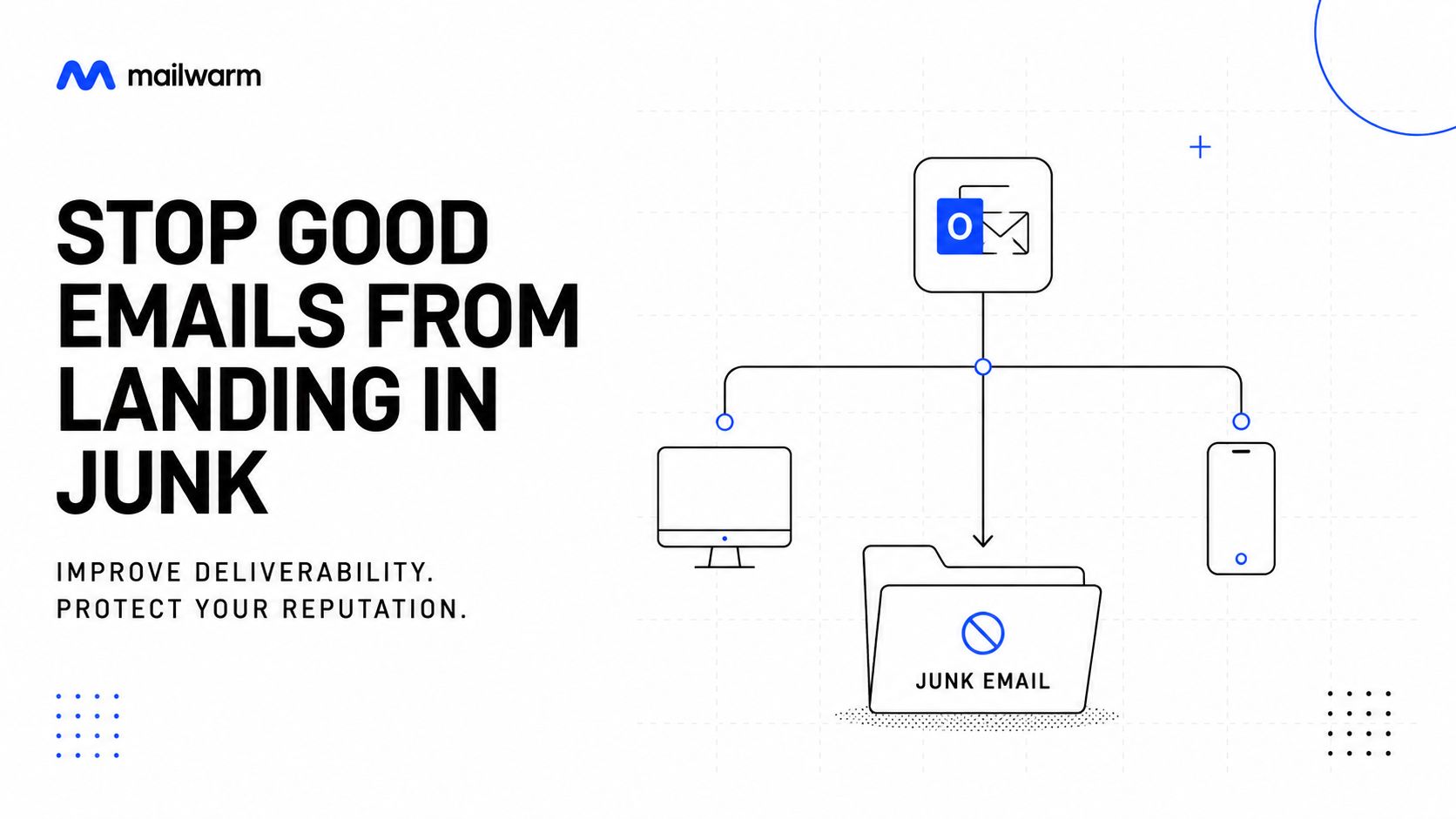
In standard personal Outlook accounts, the Junk Email folder is usually visible in the left-hand folder list. The fix is often just one click.
Use this process:
Open Outlook.
Look at the left folder panel.
Click Junk Email.
Open the message.
Mark it as not junk if it was filtered incorrectly.
This applies both to Outlook on the web and most desktop Outlook setups.
Outlook mobile app
The Outlook mobile app also uses a folder menu pattern. If Junk isn't immediately visible, the app usually needs the user to open the account folders first.
A quick check works well:
Open Outlook on the phone
Tap the account or profile menu
Expand folders
Select Junk Email
Microsoft 365 groups and shared environments
Many business users find themselves losing time. In Microsoft 365, emails sent to groups are often routed to a system Quarantine folder instead of a user-visible junk folder, which means administrators may need to inspect them in the security portal, as discussed in this thread about Microsoft 365 group spam folder access.
That creates a real trade-off:
| Setup | Where spam usually appears | Who can access it |
|---|---|---|
| Personal Outlook account | Junk Email folder | End user |
| Shared mailbox with proper access | Shared junk folder or mailbox folders | Users with mailbox access |
| Microsoft 365 group | Quarantine | Often admin or security team |
If a team uses a shared sales alias or group inbox, the fastest answer might not be “open Junk Email.” It might be “ask the Microsoft 365 admin to check Quarantine.”
For teams sending outbound campaigns from Outlook-based systems, it also helps to understand how Outlook spam filters work.
Finding Spam in Yahoo, Apple Mail, and Other Clients
Not every inbox follows Gmail or Outlook labels exactly, but the pattern is usually the same. The folder is in the left panel, the account menu, or the mailbox list. Some providers call it Spam. Others call it Junk.
Yahoo Mail
Yahoo usually keeps Spam in the main folder list.
Try this:
Open Yahoo Mail.
Look at the left sidebar.
Click Spam.
On mobile, open the menu first, then look through the mailbox list.
Apple Mail on iPhone, iPad, and Mac
Apple Mail often uses Junk instead of Spam.
On Apple devices:
iPhone or iPad: Open Mail, tap Mailboxes, then find Junk
Mac: Open Mail and look in the sidebar for Junk
Multiple accounts: Expand each account if Junk isn't visible immediately
Thunderbird and other IMAP clients
Desktop email clients like Thunderbird usually sync the spam folder name from the mail provider.
Common patterns include:
Spam
Junk
Bulk Mail
If the folder isn't visible, check whether the account folders are collapsed. In many IMAP clients, the folder exists but sits under the account name until expanded.
If the account is connected correctly, the folder usually isn't missing. It's often just collapsed, renamed, or hidden in the left pane.
What to Do When Your Spam Folder Is Missing or Hidden
This is the part most basic guides skip. Sometimes the spam folder really doesn't show up where it should, even when the user follows the normal path.
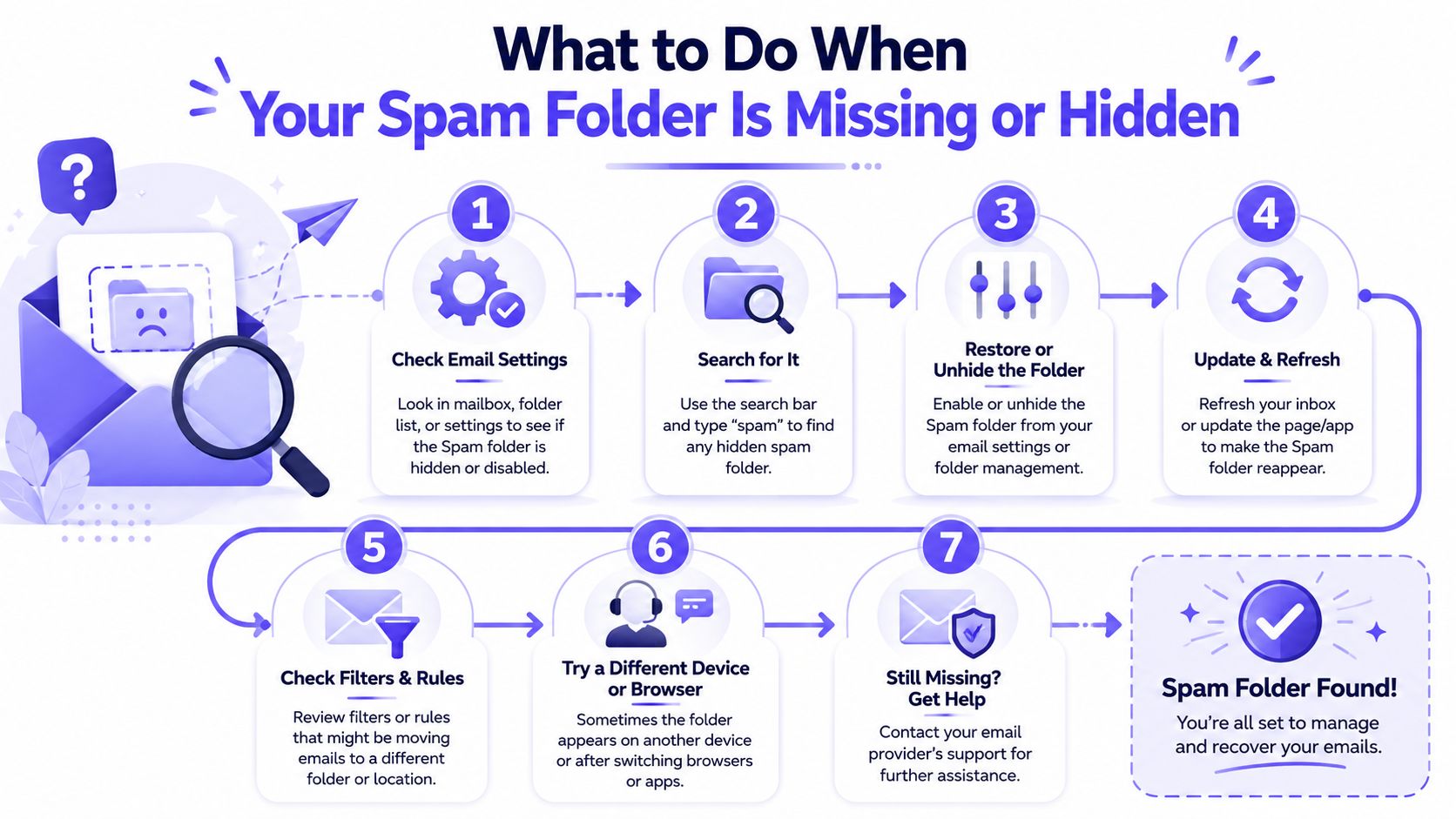
Users increasingly report that the spam folder isn't visible under More, even after enabling it in settings. Reports in the Google Support discussion about missing Gmail spam folders point to UI bugs and rendering issues where label lists collapse after interface updates.
Common reasons the folder seems missing
A missing spam folder usually comes down to one of these problems:
Collapsed sidebar: The folder list is compressed and lower labels disappear.
Browser rendering issue: Mac browsers and updated layouts can hide parts of the menu.
Mobile navigation friction: The folder exists, but the app buries it behind menus.
Admin restrictions: Corporate environments may limit what a user can see directly.
Wrong mailbox type: A shared or group mailbox may not use the same junk folder behavior as a personal account.
What actually works
Instead of clicking around randomly, use a tighter checklist:
Expand the full sidebar or mailbox list
Refresh the app or browser
Switch to desktop if mobile is unclear
Try another browser
Check account type, especially if it's shared or company-managed
Ask the admin to verify filtering activity
For Google Workspace, admins can verify whether spam filtering is actively catching messages by checking the Security center dashboard report. That's useful when a user says a message “vanished” and the UI doesn't clearly expose the spam folder.
When the folder is missing, the right question isn't “Where did Gmail move it?” It's “Is this a layout problem, a mailbox type problem, or an admin-controlled filtering problem?”
That framing saves time, especially in business settings where the missing email may belong to a team mailbox rather than one person.
How to Keep Important Emails from Being Marked as Spam
Finding the spam folder is the reactive fix. Preventing important messages from landing there is the better habit.
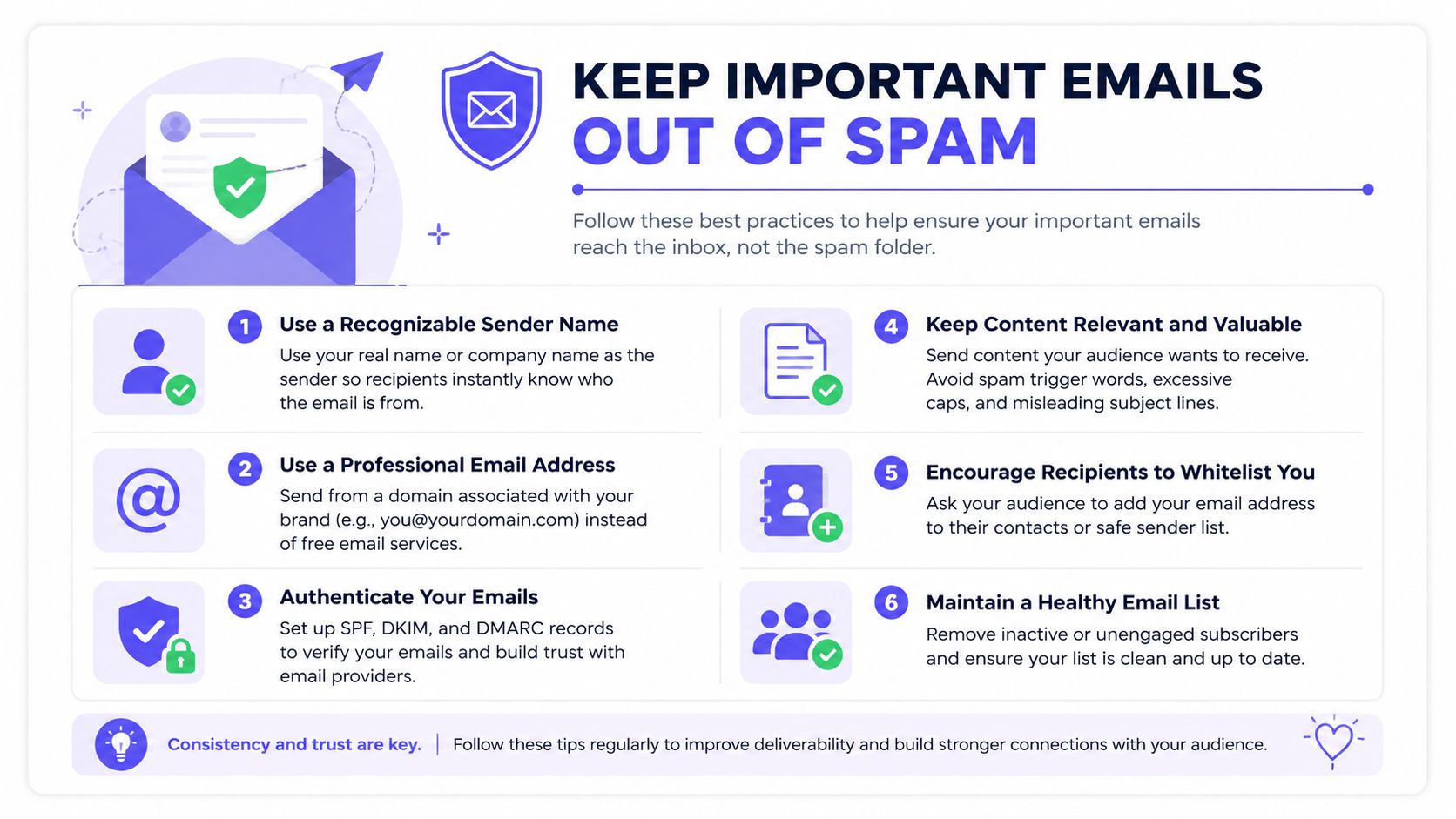
For recipients, the practical moves are simple:
Mark false positives correctly: Use Not Spam or Not Junk when a valid message is trapped.
Add trusted senders to contacts: That can help future messages look more legitimate.
Create rules or filters: Move approved senders into the inbox or a priority folder.
Check spam during active conversations: This matters during sales cycles, hiring, legal review, and onboarding.
For senders, the work is broader. If email drives revenue, hiring, or customer communication, deliverability can't be treated like an afterthought. Authentication, sender reputation, list quality, and engagement all shape whether messages land in inboxes or disappear into spam.
Teams in regulated or sensitive sectors often need extra caution. A practical resource on email delivery for compliant industries is useful for understanding how stricter communication expectations affect filtering risk.
One technical foundation is proper authentication. If that setup is shaky, even good emails can struggle, which is why teams should review SPF, DKIM, DMARC, and BIMI setup guidance.
For teams that need a stronger deliverability system, Mailwarm is a premium email warmup and deliverability platform. It helps senders build reputation, monitor inbox placement, and improve deliverability through real inbox engagement, advanced warmup controls, and expert guidance. Mailwarm maintains a network of 50,000+ aged real inboxes spanning Gmail, Outlook, Microsoft 365, Yahoo, and SMTP providers to generate authentic engagement signals like opens and replies.
That difference matters because basic warmup activity alone often isn't enough. Serious senders usually need monitoring, reputation protection, and clearer signals about where their emails are landing.
Frequently Asked Questions About Spam Folders and Deliverability
Why do emails go to spam?
Emails usually go to spam because the provider doesn't trust the message, the sender, or the sending pattern enough. That can involve poor sender reputation, weak authentication, low engagement, or filtering rules on the recipient side.
Why can't a user find the spam folder on mobile?
Mobile apps often hide extra folders behind menus, and some interfaces make the path harder to spot than desktop webmail. In business environments, the issue can also be mailbox type, especially if messages are held outside a normal junk folder.
Does marking a message as Not Spam help?
Yes. When a valid message lands in Spam or Junk, marking it correctly helps restore that message to the inbox and can improve future handling for that sender. It's one of the quickest fixes available to the recipient.
Is checking the spam folder enough to fix deliverability?
No. Checking the folder helps recover missed messages, but it doesn't solve the underlying reason messages were filtered in the first place. Teams that rely on outbound email usually need to improve authentication, reputation, and engagement quality.
How does Mailwarm help improve sender reputation?
Mailwarm is built for teams that care about real inbox placement, not just automated warmup activity. It helps improve sender reputation and reduce spam risk through real inbox engagement, inbox placement insights, spam score monitoring, provider-level warmup, and expert deliverability guidance.
Why is Mailwarm more expensive than basic warmup tools?
Mailwarm costs more because it combines real inbox engagement, up to 100% replies to warmup emails depending on the plan, spam score monitoring, provider-level warmup, authentication tools, no IMAP access required, and expert deliverability calls included in every plan, as noted on the Mailwarm platform site. Unlike basic warmup tools, Mailwarm doesn't require IMAP access or permission to read a user's private inbox.
The fix for how do I find my spam folder is usually simple. Open the left menu, look for Spam or Junk, and check whether the account is personal, shared, or company-managed. If the folder is missing, treat it as a troubleshooting issue, not a personal failure.
For business users, the bigger lesson is just as important. Recovering one trapped email matters, but keeping future messages out of spam matters more.
If email is part of a company's growth strategy, Mailwarm helps senders build reputation, monitor inbox placement, and reduce spam risk with expert-guided warmup. Mailwarm is a premium email warmup and deliverability platform built for teams that want real inbox placement improvement, not just automated warmup activity.