
A founder launches a product and needs password reset emails to land. A recruiter wants messages sent from a familiar Gmail mailbox. A developer configures a scanner, app, WordPress plugin, or outbound tool and reaches for the Gmail SMTP server because it looks simple, cheap, and already trusted.
That instinct makes sense.
Google's SMTP infrastructure is one of the most familiar mail-sending paths on the internet. But setup is only the easy part. The actual work involves understanding authentication, knowing what Gmail will and won't allow, and avoiding the assumption that a working connection means a scalable sending system.
The Gmail SMTP server is useful. It's also opinionated. It expects secure authentication, controlled sending behavior, and a sender that treats deliverability as an engineering problem, not just a checkbox in a settings panel.
Introduction
The Gmail SMTP server usually enters the picture when a team needs email to leave an app, device, or mailbox without building mail infrastructure from scratch. That could be a contact form, a CRM notification, an internal script, or a legacy printer that still needs to send scanned documents by email.
On paper, the path looks straightforward. Use smtp.gmail.com, choose the right port, authenticate, and send. In practice, the details matter more than often expected. A bad auth choice can break the integration. A poor sending pattern can trigger limits. A business that leans too hard on Gmail SMTP can discover that reliable delivery and successful delivery are not the same thing.
Practical rule: If email affects revenue, support, recruiting, or onboarding, the Gmail SMTP server should be treated as infrastructure, not as a casual convenience.
Gmail SMTP Server Quick Reference
The fastest answer is below.
Gmail SMTP Configuration Settings
| Setting | Value |
|---|---|
| SMTP server | smtp.gmail.com |
| TLS port | 587 |
| SSL port | 465 |
| Encryption | TLS or SSL |
| Authentication | OAuth 2.0 preferred, App Passwords used in some older app and device workflows |
| Relay option for Google Workspace | smtp-relay.gmail.com |
| Alternate restricted host for devices that cannot use SSL | aspmx.l.google.com |
These values are the connection basics. They are not the whole decision. The important part is choosing the right auth model and using Gmail SMTP for the kind of sending it was designed to support.
Key Terms You Need to Know
A founder ships a product update, wires Gmail SMTP into the app, and expects email to work. Then password auth fails, a plugin asks for an App Password, and the sales team starts asking why outreach volume is hitting a ceiling. The terminology matters because each term points to a real business constraint.
SMTP
SMTP stands for Simple Mail Transfer Protocol. It is the standard used to hand outgoing email from a client, app, website, or device to a mail server for delivery.
SMTP only covers sending. It does not handle mailbox sync, message retrieval, or inbox state.
Gmail SMTP server
The Gmail SMTP server is Google's outbound sending service for Gmail and Google Workspace accounts. Instead of running your own mail server, you submit mail through Google's infrastructure and Google handles the next hop.
That makes setup faster. It also means Google's rules, account security controls, and sending limits shape what your business can do.
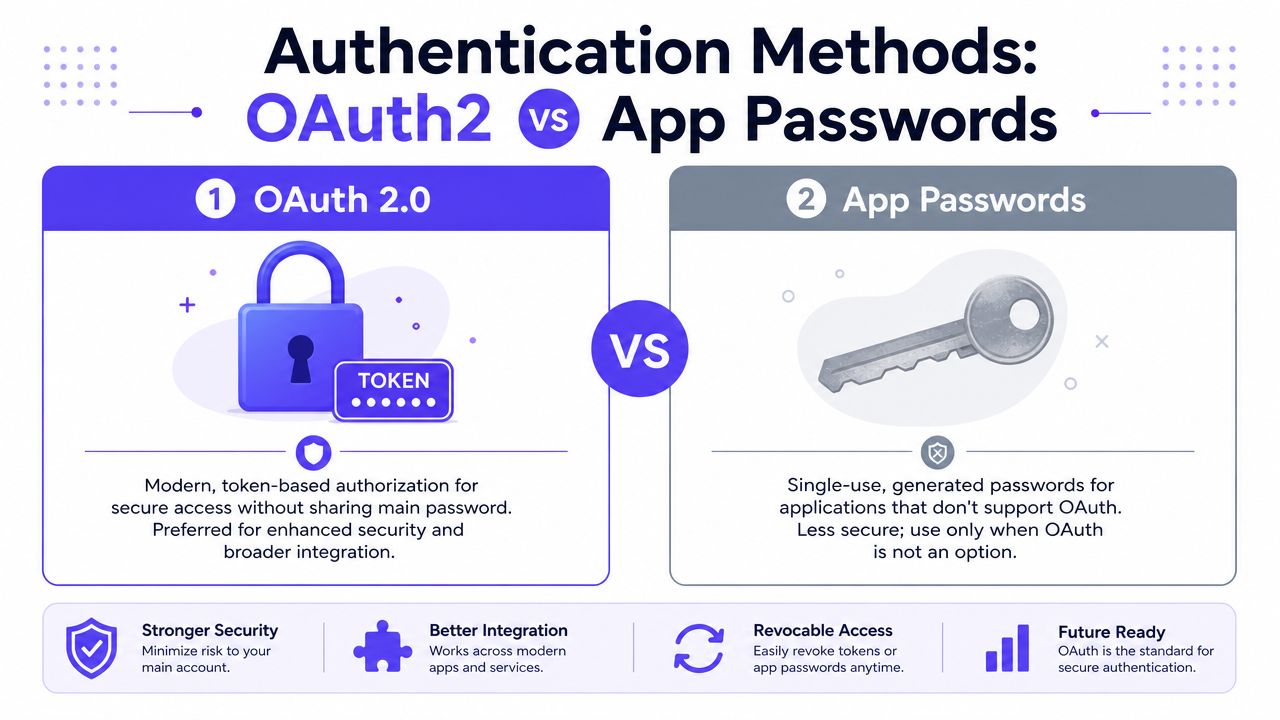
OAuth 2.0
OAuth 2.0 is Google's modern way to authorize SMTP access without handing your main account password to the app. The app gets permission to send mail for the account, usually through a token-based flow that can be revoked or limited.
For a business, that is a security and maintenance issue, not just a login detail. OAuth reduces the risk of password reuse inside plugins, scripts, and internal tools. It also fits the direction Google has been pushing for years: less basic password-based access, more controlled app authorization.
App Passwords
An App Password is a generated sign-in credential used with accounts that have 2-Step Verification enabled, typically for older apps or devices that cannot complete an OAuth flow. It lets that app send mail without exposing the primary account password.
In practice, App Passwords are a compatibility tool. They can keep a legacy workflow running, but they also signal technical debt. If a revenue-critical process depends on them, the safer long-term move is usually to migrate that workflow to OAuth or to a mail service built for application sending.
SMTP relay
An SMTP relay sends mail through a provider on behalf of another system, such as a web app, scanner, CRM, or internal service. In Google Workspace, relay-based sending is often used when you need device or system-level mail flow instead of a single user mailbox authenticating directly.
That distinction matters. User-authenticated SMTP fits one person or one mailbox. Relay setups fit shared systems better, but they need tighter policy decisions around allowed senders, IPs, and domain authentication.
SMTP handles delivery. Authentication and policy determine who can send, how they send, and how far you can scale before Gmail becomes the limiting factor.
Gmail SMTP Server Settings Explained
The core Gmail SMTP server setting is stable and familiar. Google Workspace documentation identifies smtp.gmail.com as the standard host for authenticated sending, with port 587 for TLS and port 465 for SSL, and also documents smtp-relay.gmail.com plus aspmx.l.google.com for more restricted device use cases in its guide for sending email from a printer, scanner, or app.
Why smtp.gmail.com matters
This hostname is the standard submission endpoint for Gmail and Google Workspace outbound mail. It became foundational because so many third-party systems need a trusted outbound path without running their own mail transfer infrastructure.
That includes old and new tooling alike. Mail clients use it. Websites use it. Devices use it. Automation tools use it.
Port 587 and TLS
Port 587 is the normal choice for secure submission using TLS. In many clients, that appears as STARTTLS. The session starts as a standard SMTP connection, then upgrades into an encrypted one.
For most current software, this is the default recommendation because it aligns with modern submission behavior.
Port 465 and SSL
Port 465 is still supported for SSL. The difference is mostly about how encryption begins. With SSL on 465, the connection is wrapped in encryption from the start.
Some older tools or rigid configuration screens still work better with this model.
Restricted hosts for specialized cases
Google also provides more limited alternatives for narrower use cases.
smtp-relay.gmail.com works for relay scenarios in Google Workspace environments.
aspmx.l.google.com exists for devices that cannot use SSL, but this is a constrained path and not the normal answer for modern application sending.
Encryption is not optional here. If an app still assumes plain password SMTP with no strong auth and no secure transport, the setup is behind current Gmail expectations.
Authentication Methods OAuth2 vs App Passwords
A lot of Gmail SMTP setups fail at the authentication layer, not at the server settings layer. The login method you choose affects security, maintenance overhead, and how much risk you take on when that mailbox powers sales outreach, support replies, or product notifications.
Google has been pushing Gmail SMTP access toward modern authentication, and that matters for business use. If a team builds an important workflow around a method that exists mainly for compatibility, they should expect more friction later.
OAuth 2.0
OAuth 2.0 is the right default for modern applications.
Instead of storing the account's primary password inside your app, plugin, or backend job, OAuth uses delegated access through tokens. That reduces the damage from a credential leak and gives teams tighter control over what the integration can do. For custom apps and production systems, that is the cleaner model.
It also holds up better operationally. Security reviews are easier. Credential rotation is less painful. If Google tightens account protections again, OAuth-based systems are usually in a better position than tools that still depend on password-style login.
Use OAuth 2.0 for:
Custom applications: SaaS products, internal tools, and backend services
Long-term integrations: Systems you expect to keep running for years
Security-sensitive workflows: Support, finance, and customer communication tied to real user accounts
App Passwords
App Passwords still exist for one reason. Compatibility.
They are often the fallback for software that cannot support OAuth cleanly, including older mail clients, WordPress SMTP plugins, line-of-business tools, and office hardware. In practice, they let Gmail work with systems that still expect a username-and-password pattern, even though the main account password is not being used directly.
That does not make them the better business choice. It makes them the practical workaround.
App Passwords usually create more support debt over time. They depend on the account being configured correctly, they are easier to mishandle during staff changes, and they encourage teams to keep important sending workflows tied to one mailbox credential instead of a more controlled integration model.
Typical use cases:
Legacy software: Tools with no OAuth support
Embedded devices: Printers, scanners, and appliances
Simple SMTP plugins: Products built around basic credential fields
Which one should a business use
The decision is less about what works today and more about what breaks later.
| Method | Best fit |
|---|---|
| OAuth 2.0 | Modern apps, custom software, long-term integrations |
| App Passwords | Legacy software, hardware devices, plugins with limited auth support |
For a founder or technical lead, the trade-off is simple. OAuth takes more setup effort upfront, but it gives you a safer and more stable foundation. App Passwords are fine for edge cases and older tools, but they are a weak base for revenue-critical email.
If your outbound motion depends on Gmail SMTP, choose the auth method that matches the importance of the workflow. A support inbox or founder mailbox can tolerate some manual setup. A growing sales or lifecycle system should not depend on a brittle login pattern that was kept around mainly so old software can still send.
Gmail SMTP Relay vs Authenticated SMTP
Many teams treat all Google SMTP options as the same thing. They're not.
Authenticated SMTP
Using smtp.gmail.com is standard authenticated SMTP. A user signs in and sends mail as that mailbox. The sending identity is tied directly to the authenticated account.
That setup is appropriate when mail should clearly come from a specific person or shared mailbox, such as a founder, recruiter, support agent, or app mailbox.
SMTP relay
The smtp-relay.gmail.com option is different. It is designed for Google Workspace relay scenarios, especially apps and devices that need to send through Google in a more centralized way.
This matters in environments like:
Office devices: Printers and scanners sending outbound mail
Internal applications: Systems that send notifications without acting as a human user
Admin-controlled workflows: Organizations that want sending governed at the Workspace level
For teams comparing relay options more broadly, this guide on improve email deliverability is useful because it frames relay services in operational terms instead of treating them like interchangeable SMTP hosts.
How to choose
Use authenticated SMTP when mail should be sent as a user.
Use relay when the sender is really a system or device and the organization wants a more admin-controlled model.
The mistake is forcing one model into the other's job.
How to Set Up the Gmail SMTP Server With Examples
A correct setup depends on the client, but the required values are usually simple. The variation comes from where each app hides them.
Example for Outlook or Thunderbird
In a desktop client, the outgoing mail server settings usually ask for these fields:
Server name: smtp.gmail.com
Port: 587 for TLS or 465 for SSL
Encryption type: TLS or SSL, matching the port
Username: full Gmail or Google Workspace email address
Authentication: OAuth 2.0 if supported, otherwise the app's accepted password method
The practical sequence is straightforward.
Open the account settings for outgoing mail.
Replace any old SMTP host with smtp.gmail.com.
Select the secure port and matching encryption type.
Use the full email address as the login name.
Complete sign-in using the supported auth flow.
If the goal is cold outreach or mailbox preparation before campaigns, a separate process to warm up a Gmail account often matters more than the raw SMTP connection itself.
Example for a Python script
A basic Python implementation using smtplib follows the same logic. The script connects to Gmail's SMTP endpoint, upgrades to TLS on port 587, authenticates, then submits the message.
import smtplibfrom email.mime.text import MIMETextmsg = MIMEText("Test message sent through Gmail SMTP.")msg["Subject"] = "Gmail SMTP test"msg["From"] = "yourname@gmail.com"msg["To"] = "recipient@example.com"server = smtplib.SMTP("smtp.gmail.com", 587)server.starttls()server.login("yourname@gmail.com", "your-app-password")server.sendmail(msg["From"], [msg["To"]], msg.as_string())server.quit()This example is intentionally simple. In production, teams should add error handling, logging, retry logic, and a cleaner secret-management approach than hardcoding credentials.
A short video walkthrough can help when the issue is less about code and more about seeing the configuration flow end to end.
What usually breaks during setup
The common failure points are rarely exotic.
Wrong port and encryption pairing: Port 587 should align with TLS. Port 465 should align with SSL.
Partial username format: Gmail expects the full email address, not just the local part.
Auth mismatch: The client may claim to support Gmail but still fail with older auth assumptions.
A successful SMTP test only proves that a message left the app. It doesn't prove the setup is safe, scalable, or inbox-friendly.
Understanding Gmail SMTP Sending Limits and Deliverability
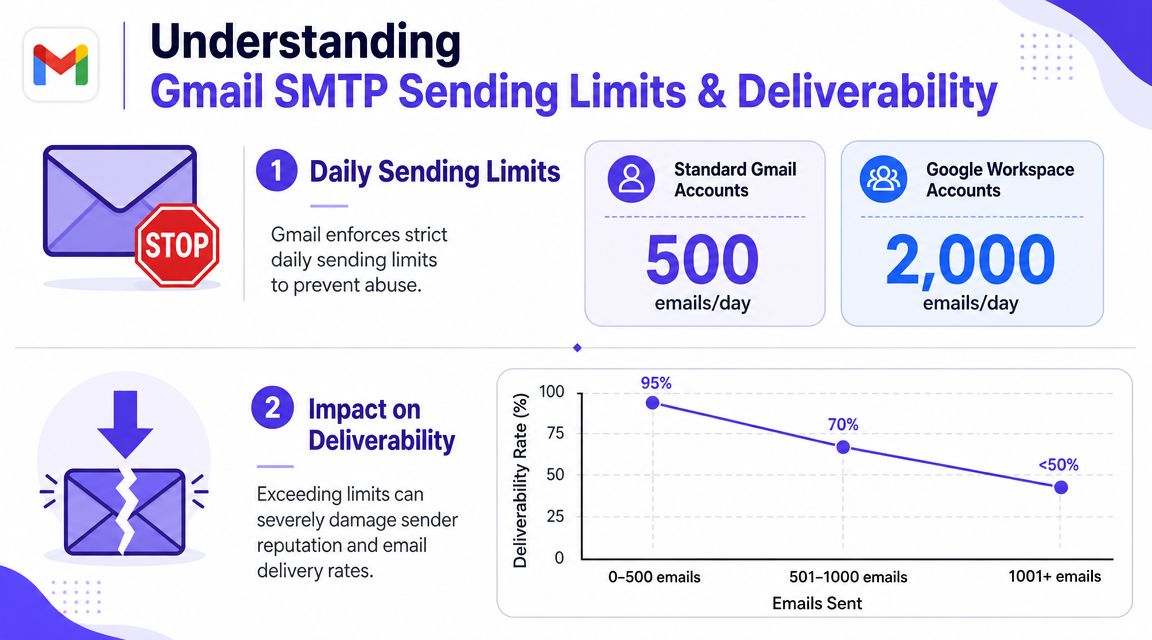
The Gmail SMTP server is not built to behave like a bulk mail platform.
Google's documented limits, as summarized in this overview of Gmail SMTP server quotas, are 500 recipients per day for free Gmail accounts and 2,000 recipients per day for Google Workspace accounts, and those quotas are counted by recipients, not messages. One email sent to a list of recipients consumes multiple units of the daily allowance.
What the limits mean in practice
These limits change how teams should think about Gmail SMTP.
Sales teams can't treat Gmail like a bulk relay: Recipient-based counting means campaign math gets tight fast.
Shared operational mailboxes need pacing: Even legitimate use can hit constraints if several workflows depend on one sender.
Notification systems need planning: A product with spikes in transactional volume may outgrow Gmail SMTP earlier than expected.
The quota is only one part of the picture. Deliverability is the other.
Deliverability implications
When teams push Gmail SMTP too hard, the problem isn't just temporary blocking. It's that the mailbox starts to look like a sender doing something Gmail doesn't want normalized on its infrastructure.
That creates a predictable chain of risk:
The team sends in a pattern that looks aggressive or unnatural.
Gmail imposes friction or rejects additional sending.
The sender's reputation becomes harder to protect.
For teams trying to improve Gmail deliverability, the bigger lesson is that throttling, authentication quality, and sender behavior matter more than merely getting an SMTP login to work. It also helps to tighten the underlying trust setup with a clear guide to email authentication fundamentals.
Common Gmail SMTP Errors and How to Fix Them
Most Gmail SMTP errors are predictable once the auth model and use case are clear.
Authentication required
If the app returns an authentication-required error, the first thing to check is whether the tool is trying to use a normal account password in a workflow that now expects stronger auth.
Likely fixes:
Switch to OAuth 2.0: Best when the client supports it.
Use an App Password: Often necessary for older apps and devices.
Confirm full email login format: Gmail usually expects the full address, not an alias fragment.
Username and password not accepted
This message often appears when the credentials are technically valid for web login but not valid for SMTP login.
Common causes include:
Primary password used in a limited client
App Password entered incorrectly
The app claiming Gmail support while using outdated auth behavior
In operational terms, this is not a mailbox problem. It is usually an integration-auth problem.
Connection refused or timeout
When the connection fails before authentication, focus on transport settings.
Check these items:
Port mismatch: 587 with TLS, 465 with SSL
Firewall or hosting restrictions: Some environments block outbound SMTP ports
Client-side encryption setting: A wrong toggle can break the handshake
Daily sending limit exceeded
This one is the simplest to diagnose. The mailbox has hit Gmail's quota behavior for its account type or sending pattern.
What to do next:
Reduce recipient volume
Split operational traffic across appropriate systems
Stop using Gmail SMTP for bulk-style sending
When error handling starts affecting campaign performance or app reliability, a dedicated troubleshooting reference for interpreting SMTP bounce errors helps teams separate auth issues from reputation issues.
Gmail SMTP errors are often symptoms, not root causes. The real problem is usually a mismatch between the sending workflow and Gmail's intended use.
When to Look Beyond the Gmail SMTP Server
Some teams don't have a Gmail SMTP setup problem. They have a systems design problem.
Current guidance around Gmail SMTP increasingly points toward stronger authentication and API-based authorization patterns, while older password-based workflows are becoming less workable for automation-heavy environments, as noted in this review of recent Gmail SMTP configuration realities. That shift matters because business email systems tend to become more automated over time, not less.
A team should start looking beyond the Gmail SMTP server when any of the following is true:
Email is revenue-linked: Sales, onboarding, recruiting, and pipeline follow-up can't depend on a fragile setup.
Multiple tools share one sending identity: One weak integration can affect the whole mailbox.
Authentication has become a maintenance burden: If every new app needs workaround logic, the system is already straining.
Deliverability needs visibility: Gmail SMTP is transport. It is not a complete deliverability management layer.
Gmail SMTP is still useful for controlled sending. It stops being the right core system when the business needs scale, diagnostics, governance, and stronger reputation protection.
How Mailwarm Protects Your Sender Reputation
A common failure pattern looks like this: Gmail SMTP is configured correctly, messages send without errors, and reply rates still stall because mailbox providers do not fully trust the sender yet. SMTP gets the message out. Reputation determines whether it reaches the inbox consistently.
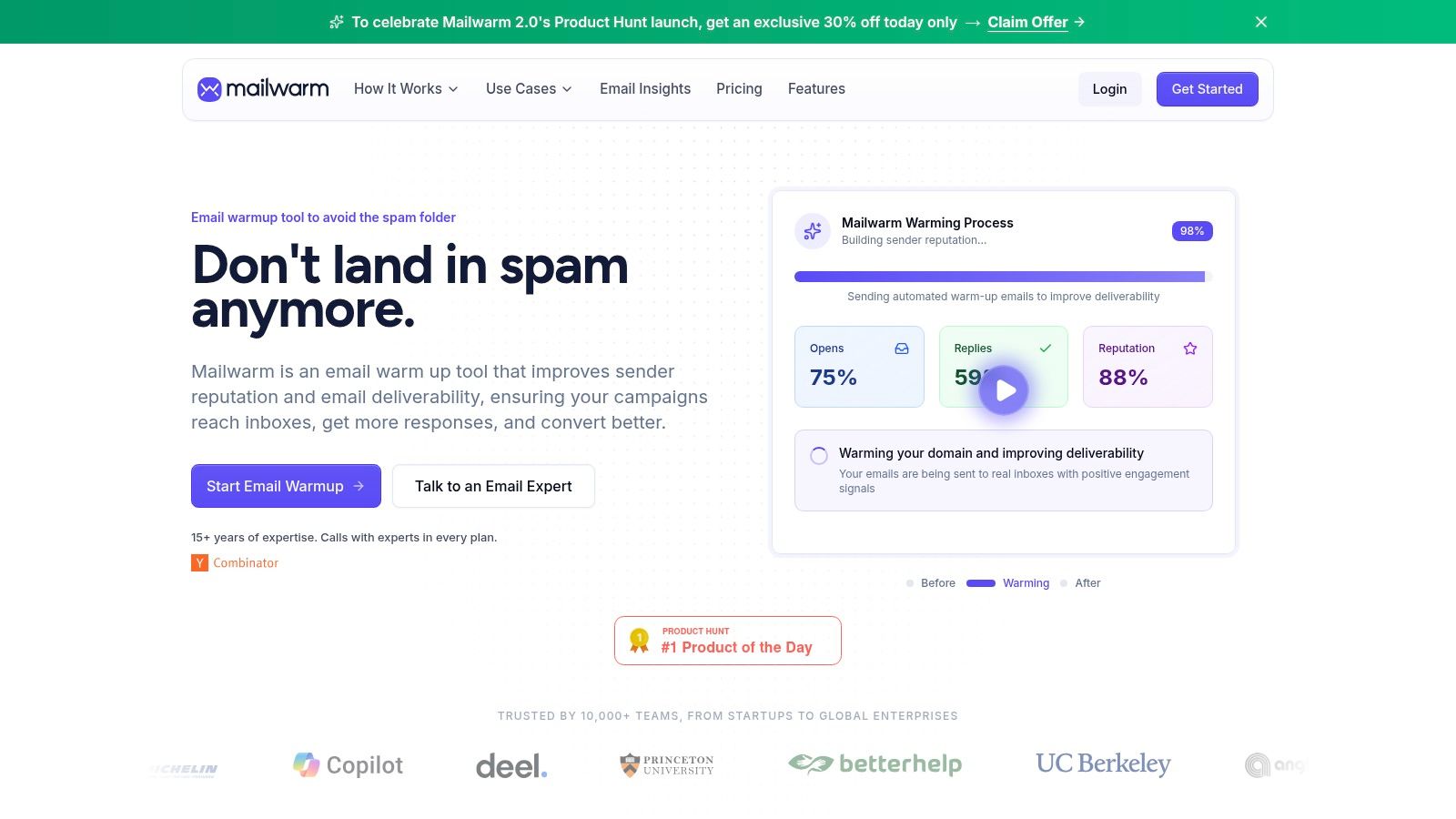
Mailwarm focuses on that reputation layer. It warms up mailboxes with aged real inboxes and engagement activity such as opens, replies, threads, spam removal, and important marking. It also gives teams visibility into spam score, inbox placement, provider-level warmup behavior, authentication issues, bounce risk, and broader deliverability trends. For a founder or revenue team, that matters more than tweaking port numbers again after the connection is already working.
Why that matters for Gmail senders
Gmail SMTP does not show whether your domain is slowly losing trust with Microsoft, Yahoo, or Gmail itself. It also does not help much when a new mailbox starts cold and your first outbound campaigns ask providers to trust behavior they have never seen before.
That gap shows up in real business situations:
A new domain starts outbound: Sales reps need replies now, but mailbox providers expect a gradual ramp.
A team increases sending volume: Growth can look like spam if engagement and sending history do not keep pace.
Inbox placement becomes inconsistent: Messages land in Primary one day and Promotions or Spam the next.
Different providers react differently: Gmail may accept mail that Outlook filters aggressively.
Mailwarm also removes one operational concern that turns some teams away from warmup tools. It does not require IMAP access or access to the user's private inbox.
That design choice matters for security reviews, especially in companies that already hesitate to grant broad mailbox permissions after Google tightened authentication and deprecated older access patterns. If Gmail SMTP is your transport, reputation management is the separate control layer that helps protect pipeline, onboarding, and other revenue-linked workflows.
Conclusion
The Gmail SMTP server is still a practical tool. It works well for authenticated sending from apps, devices, mail clients, and smaller business workflows that need a familiar outbound path.
But it isn't a complete business email system. Authentication has become stricter. Limits matter. Deliverability depends on behavior and reputation, not just on whether smtp.gmail.com accepts a connection.
For teams that treat email as infrastructure, the right move is simple. Use the Gmail SMTP server where it fits, stop forcing it into bulk or fragile automation roles, and add reputation management before inbox problems become revenue problems.
Frequently Asked Questions About the Gmail SMTP Server
FAQ
| Question | Answer |
|---|---|
| What is the Gmail SMTP server? | The Gmail SMTP server is Google's outgoing mail server for Gmail and Google Workspace. It lets apps, devices, and mail clients send email through Google's infrastructure. |
| What are the Gmail SMTP settings? | The standard host is smtp.gmail.com. Secure submission typically uses port 587 for TLS or port 465 for SSL. |
| Can the Gmail SMTP server send bulk email? | It can send email, but it isn't designed to function like a high-volume bulk relay. Gmail enforces recipient-based daily quotas, so bulk or aggressive outreach workflows are a poor fit. |
| Does Gmail SMTP use OAuth 2.0? | Yes. Google documents OAuth 2.0 support for Gmail SMTP and identifies it as the preferred modern auth model for non-Gmail clients. |
| When should App Passwords be used with Gmail SMTP? | App Passwords are usually used when an older app or device cannot support OAuth 2.0. They act as a compatibility method, not the ideal long-term architecture. |
| What is the difference between Gmail SMTP and Gmail SMTP relay? | Authenticated SMTP through smtp.gmail.com sends mail as a specific user. Relay through smtp-relay.gmail.com is aimed more at Workspace-managed apps and devices. |
| Why do Gmail SMTP messages fail even when the settings look right? | The most common causes are auth mismatch, wrong port and encryption pairing, or sending behavior that triggers quota or reputation problems. |
| Why is Mailwarm more expensive than basic email warmup tools? | Mailwarm costs more because it combines real inbox engagement, up to 100% replies to warmup emails depending on the plan, spam score monitoring, provider-level warmup, authentication tools, no IMAP access required, and expert deliverability calls included in every plan. |
If email is part of the growth engine, Mailwarm helps teams build sender reputation, monitor inbox placement, and reduce spam risk with expert-guided warmup and deliverability support.