

Sending one update to a group shouldn't expose everyone's email address or trigger a messy reply-all chain. That's why professionals add Bcc to Outlook. It hides recipients from each other and keeps group emails cleaner, more private, and easier to manage.
This matters most when the message is operational, sensitive, or sent to people who don't know each other. The click itself is simple. Using Bcc well is what separates careful email habits from sloppy ones.
Why Using Bcc Is a Critical Skill for Professionals
Bcc stands for blind carbon copy. People in the Bcc field receive the email, but other recipients can't see their addresses. That's the key difference from To and Cc, where recipient visibility is part of the message.
Bcc isn't a workaround or a hidden trick. It's a standard part of email. The feature has been part of email standards since RFC 822 in 1982, and a 2011 IDC study found that 64% of enterprise users used Bcc at least weekly, mainly to control reply-all storms and protect privacy, as noted in Microsoft's Outlook guidance.
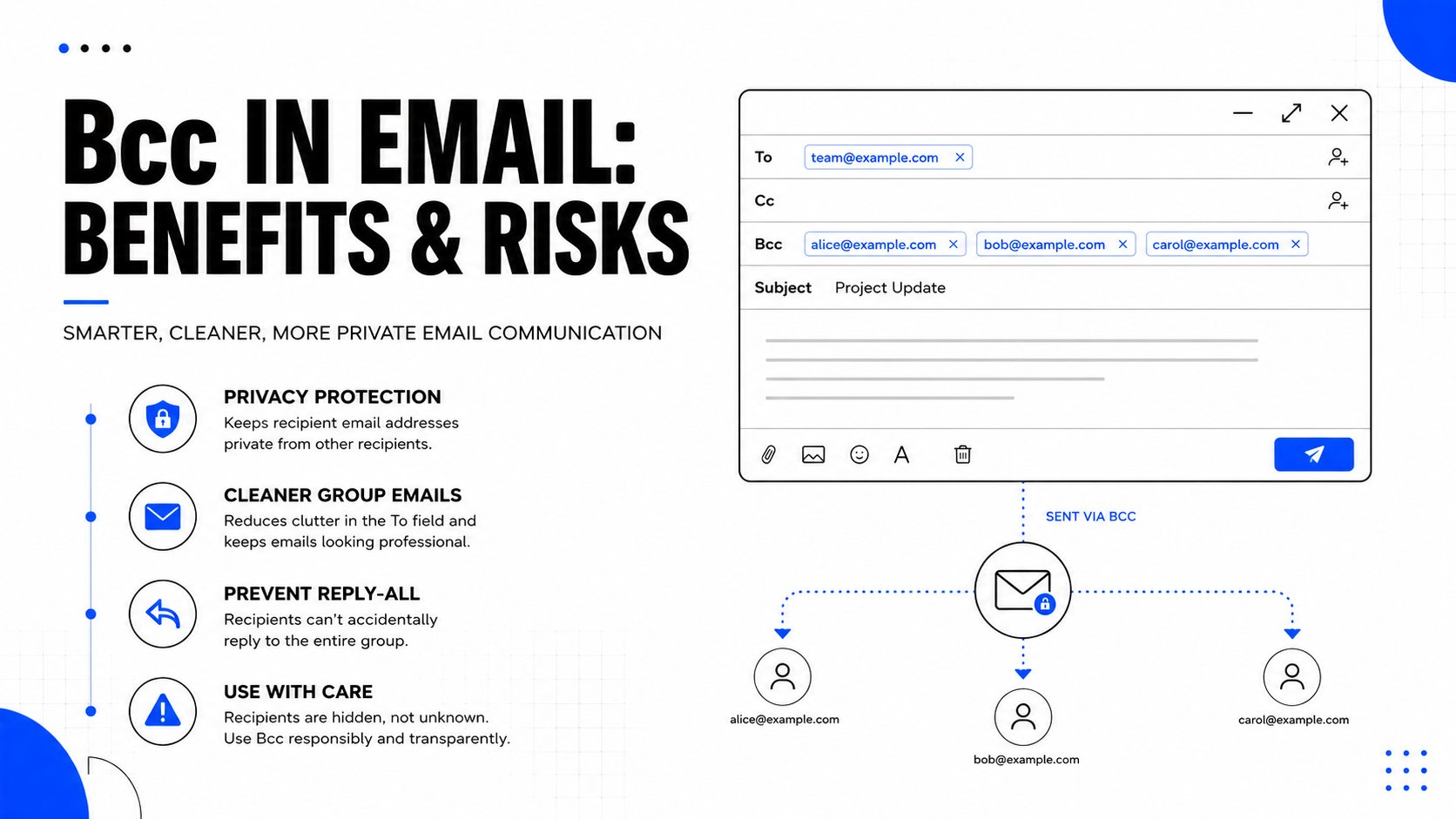
When Bcc makes more sense
A busy professional usually needs Bcc in a few common situations:
- Group announcements to clients, vendors, candidates, or partners who shouldn't see each other's addresses
- Operational updates where only one visible recipient should appear in the thread
- Small list sends that need privacy, but don't justify a full email platform workflow
- Internal coordination where someone needs visibility without being part of the visible thread
When to Use To, Cc, and Bcc
| Field | Primary Use Case | Visibility |
|---|---|---|
| To | Main recipient who is expected to act or respond | Visible to everyone on the email |
| Cc | Secondary recipient who should stay informed | Visible to everyone on the email |
| Bcc | Hidden recipient for privacy, quiet visibility, or controlled distribution | Not visible to To or Cc recipients |
Practical rule: If recipients don't know each other, Bcc is usually the safer default.
There's also a professionalism angle. A visible list of unrelated contacts looks careless. It tells everyone the sender didn't stop to think about privacy, context, or inbox clutter.
Bcc also helps reduce unnecessary thread chaos. One mistaken reply-all can turn a simple announcement into a noisy chain. That kind of clutter wastes time and makes future emails easier to ignore.
For teams that care about inbox outcomes, privacy etiquette and deliverability discipline often overlap. A messy recipient structure can create trust issues before the message is even opened. More on that is covered in Mailwarm's guide on how to avoid landing in spam.
How to Add Bcc in Outlook for Windows and Mac
If the goal is to add Bcc to Outlook, the desktop workflow is straightforward. In the Outlook desktop client, the Bcc field is controlled from the compose window's Options tab. Clicking Bcc in the Show Fields group turns the field on or off, and people added there aren't visible to anyone in To or Cc, as shown in LSUA's Outlook help guide.
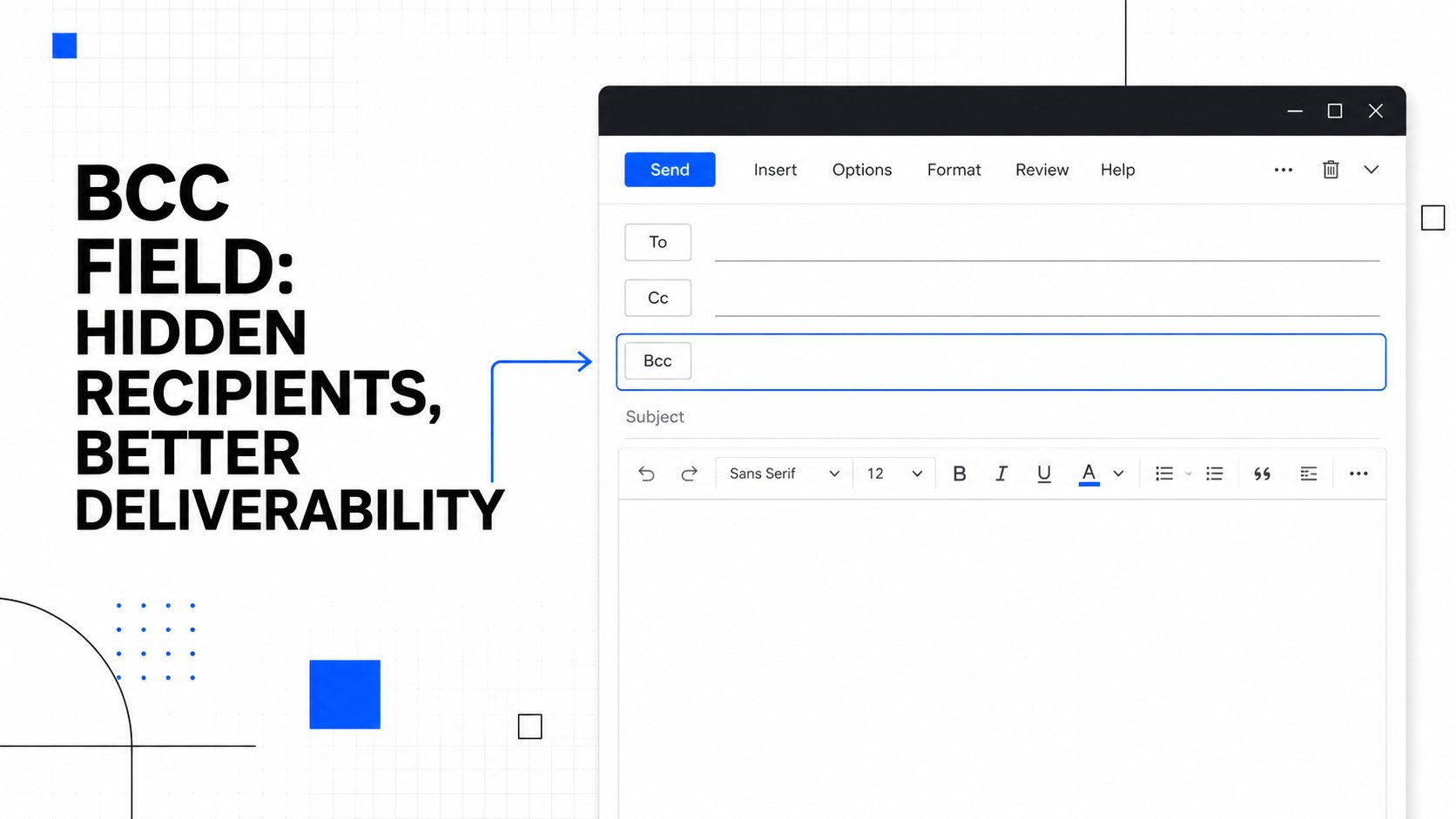
New Outlook for Windows and Mac
In newer Outlook builds, the interface is cleaner, but the logic is the same.
- Open Outlook.
- Click New Mail.
- In the compose window, look for the recipient area near To.
- Select Bcc if it appears as a visible option, or open the available message options.
- Enter the hidden recipients in the Bcc line.
- Add the main recipient in To if needed, then send.
This is the right setup when one person should appear as the visible recipient, but others need to receive the message privately.
Classic Outlook for Windows
Classic Outlook uses the ribbon more explicitly.
- Open a new email.
- Go to the Options tab.
- In Show Fields, click Bcc.
- The Bcc line appears under the address fields.
- Add addresses there, then complete the rest of the email.
If replying or forwarding, pop the message into its own window first. The full ribbon usually makes the field easier to access.
A quick visual walkthrough can help if the interface looks different from one build to another.
A small workflow detail that prevents mistakes
The most common error isn't failing to find Bcc. It's putting the wrong person in it.
Keep the primary conversation owner in To when a reply is expected. Use Bcc for hidden recipients, not for the person who actually needs to engage.
For another practical walkthrough with UI examples, this guide on Breaker tips for Outlook BCC is useful, especially for users switching between Outlook versions.
Using Bcc in Outlook on the Web and Mobile Apps
A lot of Outlook usage now happens in a browser or on a phone. The good news is that Bcc is available there too. In Outlook on the web, usage is common enough that a 2017 Microsoft analysis noted a large share of users enable it per message or as a default, and by 2022, 72% of security-aware organizations trained staff to use Bcc for mass external emails, linking it to privacy and compliance, according to IONOS's summary of Outlook Bcc practices.

Outlook on the web
For Outlook.com and Microsoft 365 in a browser:
- Click New message.
- In the compose pane, find the area near the To field.
- Click Bcc.
- Enter the hidden recipients.
- Finish the email and send.
If the field doesn't appear immediately, check the compose options. Outlook on the web often keeps advanced fields tucked away until the user asks for them.
Outlook mobile on iPhone and Android
The mobile app is tighter on space, so the Bcc option is less obvious.
- Start a new message
- Tap the recipient line
- Expand the address fields if needed
- Choose Bcc
- Add hidden recipients
On mobile, the exact tap path can vary slightly by app version and device, but the principle stays the same. The Bcc field is usually nested behind the visible recipient fields rather than shown by default.
If a message is sensitive, draft it on desktop or web first. Mobile works, but it's easier to verify recipient placement on a larger screen.
How to Make the Bcc Field Always Visible in Outlook
If Bcc is used often, toggling it every time gets annoying fast. Outlook gives users a way to keep it visible, depending on the version.
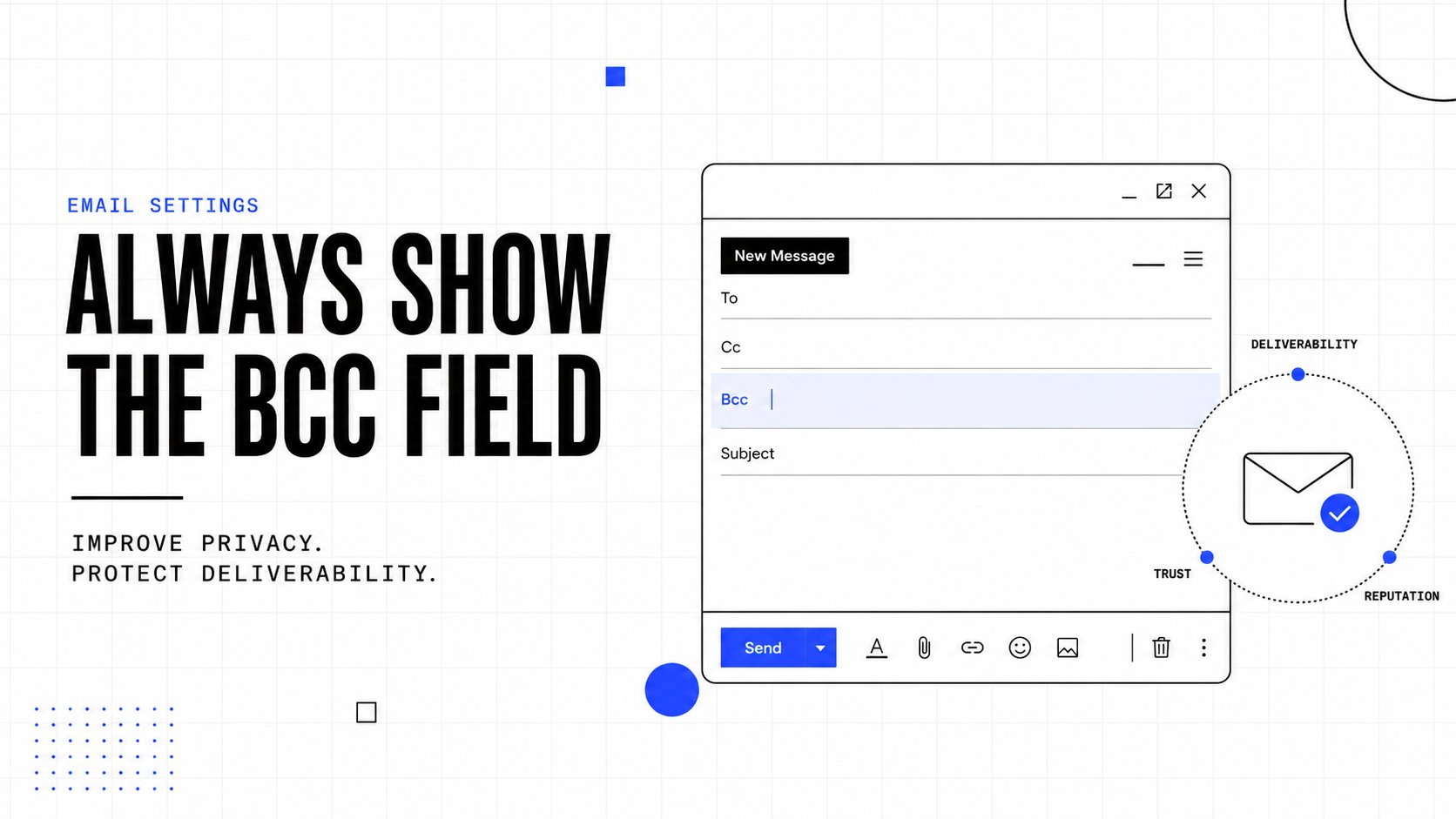
In classic Outlook desktop
There's a useful sticky behavior in the classic desktop app. Enabling the Bcc field once through Options in a new message makes it appear by default in future new, reply, and forward messages until it's manually turned off again, based on Microsoft Answers guidance for classic Outlook.
That's a small productivity gain, but for recruiters, agencies, and sales teams, it removes one more avoidable miss before sending.
In Outlook on the web
Use the account-level setting:
- Open Settings
- Go to Mail
- Choose Compose and reply
- Turn on Always show Bcc
That setting is the better option for frequent users because it makes privacy-friendly sending part of the default workflow, not an afterthought.
When it's worth making permanent
Always-visible Bcc makes sense when someone regularly sends:
- Client updates to groups
- Candidate communications to multiple contacts
- Partner notices across separate organizations
- Internal oversight copies that shouldn't clutter the visible thread
Bcc Best Practices and Common Mistakes to Avoid
A common Outlook mistake looks small right up until someone hits Reply All. A recruiter sends one update to ten candidates in Cc, a client sees competitor addresses, or an assistant Bccs a large list and treats Outlook like a mailing platform. The fix is simple, but the judgment behind it matters more than the click.
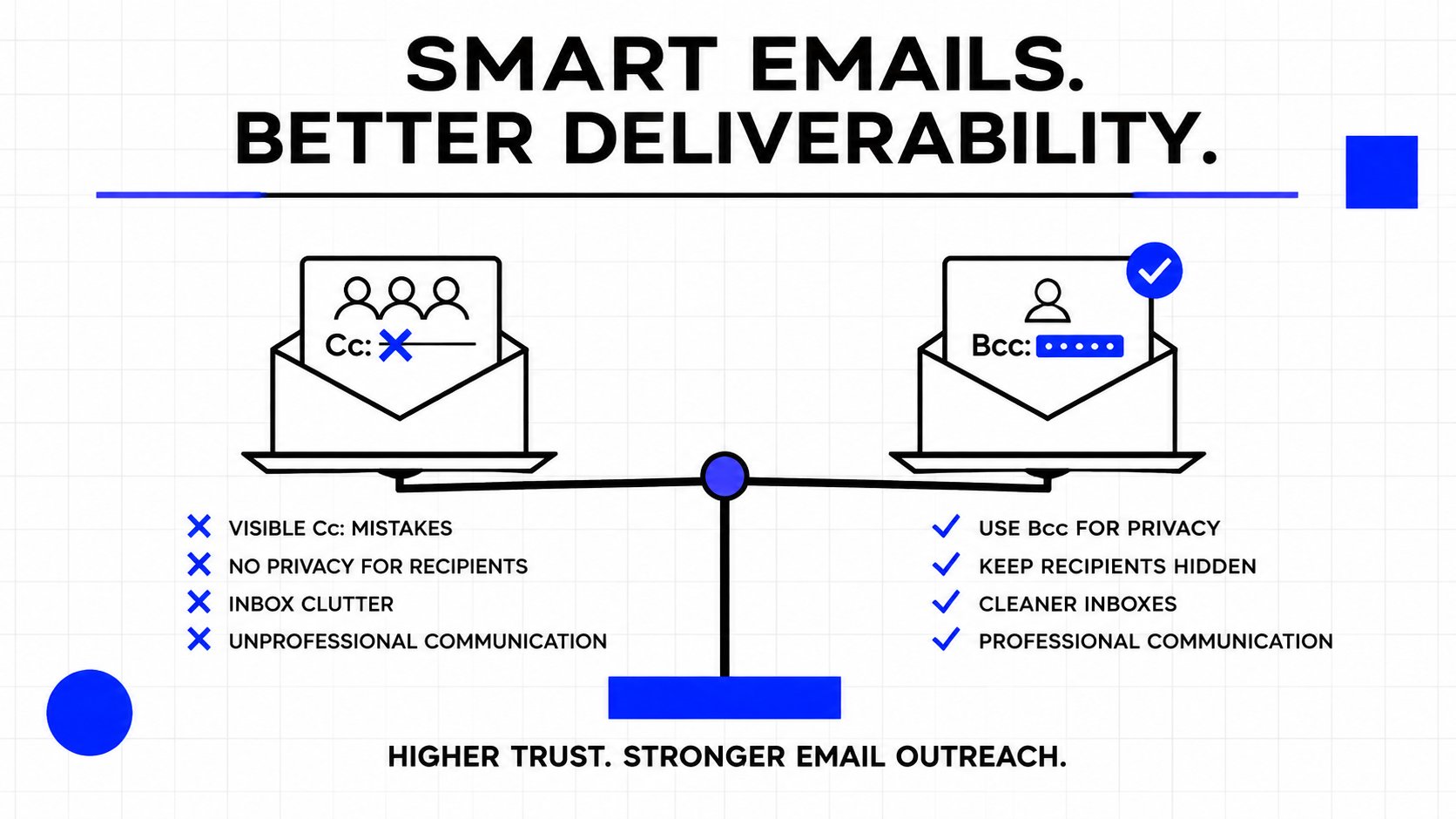
Bcc is best used for privacy, not concealment. Use it when recipients do not need visibility into the full audience and the message is informational rather than collaborative. That makes it appropriate for client notices, interview updates, event reminders, and one-to-many operational emails where exposing addresses would be careless.
What works well
A good Bcc send still has a clear visible recipient. Put your own address in To, or use a shared team inbox when that fits the context, then place the private audience in Bcc. That gives recipients a clear sender and reply path instead of making the message feel anonymous or evasive.
Repeatable sends also benefit from structure. Teams that send the same type of update over and over should use templates or saved workflows to reduce manual addressing mistakes. HubSpot's Outlook Bcc guide also notes Outlook recipient limits, which is another reason to treat Bcc as a controlled communication tool, not a bulk sending method.
What tends to go wrong
The biggest mistakes are usually judgment errors, not Outlook errors:
- Using Bcc to hide a conversation owner. If one client or partner should clearly be the primary recipient, put that person in To.
- Using Bcc for relationship-sensitive threads. Hidden recipients can feel political or deceptive if the email involves approvals, disputes, or decisions.
- Sending large outreach batches from Outlook. Recipient limits, throttling, and missing unsubscribe controls make Outlook the wrong tool for recurring campaigns.
- Assuming Bcc helps inbox placement. It hides addresses. It does not improve authentication, sender reputation, or engagement.
That last point gets overlooked. Mailbox providers judge the sender by sending behavior, domain setup, complaint rates, and engagement patterns. Bcc changes who can see the list. It does not make a weak sending setup look trustworthy.
Professional etiquette matters here too. If the purpose of the email is transparency, use Cc. If the purpose is privacy, use Bcc. Mixing those up creates avoidable friction, especially in client services, recruiting, and cross-company communication where audience visibility carries meaning. For practical examples, this guide to blind cc Outlook tips is useful. For a broader look at sender habits that affect trust and inbox performance, this article from TheMailX blog also fits the topic well.
A simple decision rule
Use Bcc when recipients should receive the same message privately and do not need to know who else got it.
Skip Bcc when the email needs open collaboration, visible accountability, or campaign-grade sending controls.
Frequently Asked Questions About Using Bcc
What's the difference between Cc and Bcc
Cc shows every listed recipient to everyone else on the email. Bcc hides those recipients from the visible audience. Use Cc for transparency and Bcc for privacy.
Can Bcc recipients see each other
No. People in the Bcc field receive the email privately and their addresses aren't shown to To or Cc recipients. That's the main purpose of the field.
Does using Bcc improve email deliverability
Not by itself. Bcc helps with privacy and cleaner communication, but inbox placement depends more on sender reputation, authentication, engagement, and sending behavior. For a deeper look at filtering behavior in Microsoft environments, Mailwarm's Outlook spam filters guide is worth reviewing.
Should newsletters be sent with Bcc in Outlook
Only for very small, simple sends where privacy is the main concern and campaign tooling isn't necessary. For larger or recurring email programs, a dedicated sending platform is the safer choice because it handles compliance, list management, and reporting better than Outlook.
Can Outlook always show the Bcc field
Yes. In classic Outlook desktop, the field can stay visible after it's enabled once, until it's turned off. In Outlook on the web, the Always show Bcc setting handles this at the account level.
Why would someone use Bcc instead of To
Because the message still needs to reach several people, but those people shouldn't see one another's email addresses. This is common in client updates, external group notices, and any email where privacy and professionalism matter.
If email is part of your growth strategy, Mailwarm helps senders build reputation, monitor inbox placement, and improve deliverability through real inbox engagement, advanced warmup controls, and expert guidance. It's a premium email warmup and deliverability platform built for teams that care about real inbox placement, not just automated warmup activity. Unlike basic warmup tools, Mailwarm doesn't require IMAP access or permission to read your private inbox.