
To whitelist an email in Gmail, you need to signal to Google that you trust the sender. The most effective method is creating a filter that tells Gmail to "Never send it to Spam." You can also mark emails as "not spam" or add the sender to your Google Contacts.
For businesses, having recipients take these actions improves sender reputation. It tells Gmail your emails are wanted, which is crucial for landing in the primary inbox instead of the spam folder.
Why Whitelisting in Gmail Matters
Did a critical email from a client or lead ever vanish? It likely ended up in their spam folder. This isn't just an inconvenience; it's a business risk that can stall deals, delay projects, and erode customer trust.
Knowing how to get whitelisted in Gmail is a necessary skill for founders, sales reps, and marketers. Gmail accounts for a significant portion of email opens globally, so its algorithm largely decides who gets seen. If you're not in the primary inbox, you're invisible to a large part of your audience. You can learn more about Gmail whitelisting as a key strategy for improving deliverability.
Image Alt Text: A minimalist graphic depicting an email icon connected to a secure shield with a checkmark, representing email security and whitelisting.
Here are the three main ways to whitelist a sender in Gmail.
Three Quick Ways to Whitelist an Email in Gmail
| Method | Primary Benefit | Best For |
|---|---|---|
| Mark as "Not Spam" | Rescues a specific email and trains the filter. | Quick, one-off fixes for messages that were wrongly filtered. |
| Add to Contacts | Creates a strong, permanent "safe sender" signal. | Important contacts you never want to miss, like clients and partners. |
| Create a Filter | Guarantees future emails from a sender bypass Spam. | Newsletters, essential service updates, or any sender you always want to see. |
Each method sends a positive signal to Gmail. However, creating a filter is the most powerful and permanent solution for ensuring deliverability from a specific source.
What’s the Business Impact of Being Ignored by Gmail?
Landing in the spam folder damages your sender reputation. It makes it harder to reach anyone's inbox over time.
Here is what's at stake:
- Lost Revenue: Sales quotes, proposals, and follow-ups disappear. Opportunities are lost before they begin.
- Weakened Customer Engagement: Onboarding instructions and support replies that go to spam make you look unreliable.
- Damaged Sender Reputation: Every email in spam teaches Gmail that your domain might be untrustworthy, creating a difficult cycle to break. Find out what to do if your emails are going to spam.
The key takeaway: Whitelisting is a direct command to Gmail's algorithm. It is a user telling Gmail, "I trust this sender, and I want their emails." That endorsement is invaluable for any business.
How to Create a Filter to Permanently Whitelist Senders
Marking an email as "Not Spam" is a good first step. But if you want to ensure a sender never lands in spam again, you must create a filter. This sets up a VIP lane for your most important emails.
It is the most powerful way to whitelist an email in Gmail. It's perfect for ensuring you see every message from clients, partners, or essential software tools.
Creating the rule is simple. Go to your Gmail settings (click the gear icon, then "See all settings"). Navigate to the "Filters and Blocked Addresses" tab and click "Create a new filter."
Enter the email address you want to whitelist. The crucial last step is to check the box for "Never send it to Spam." This command creates a permanent rule that bypasses the spam folder.
Pro Tip: How to Whitelist an Entire Company
Want to receive every email from a specific company? Instead of adding individual addresses, you can whitelist their entire domain. This is useful for sales teams managing a key account or anyone tracking communications from a partner.
In the "From" field of the filter, type the "@" symbol followed by the company's domain.
- Example: To get every email from Mailwarm, you would enter
@mailwarm.com.
This tells Gmail to apply your rule to every address from that domain. It’s a simple way to manage important business relationships.
Here’s what that final step looks like in the filter settings.
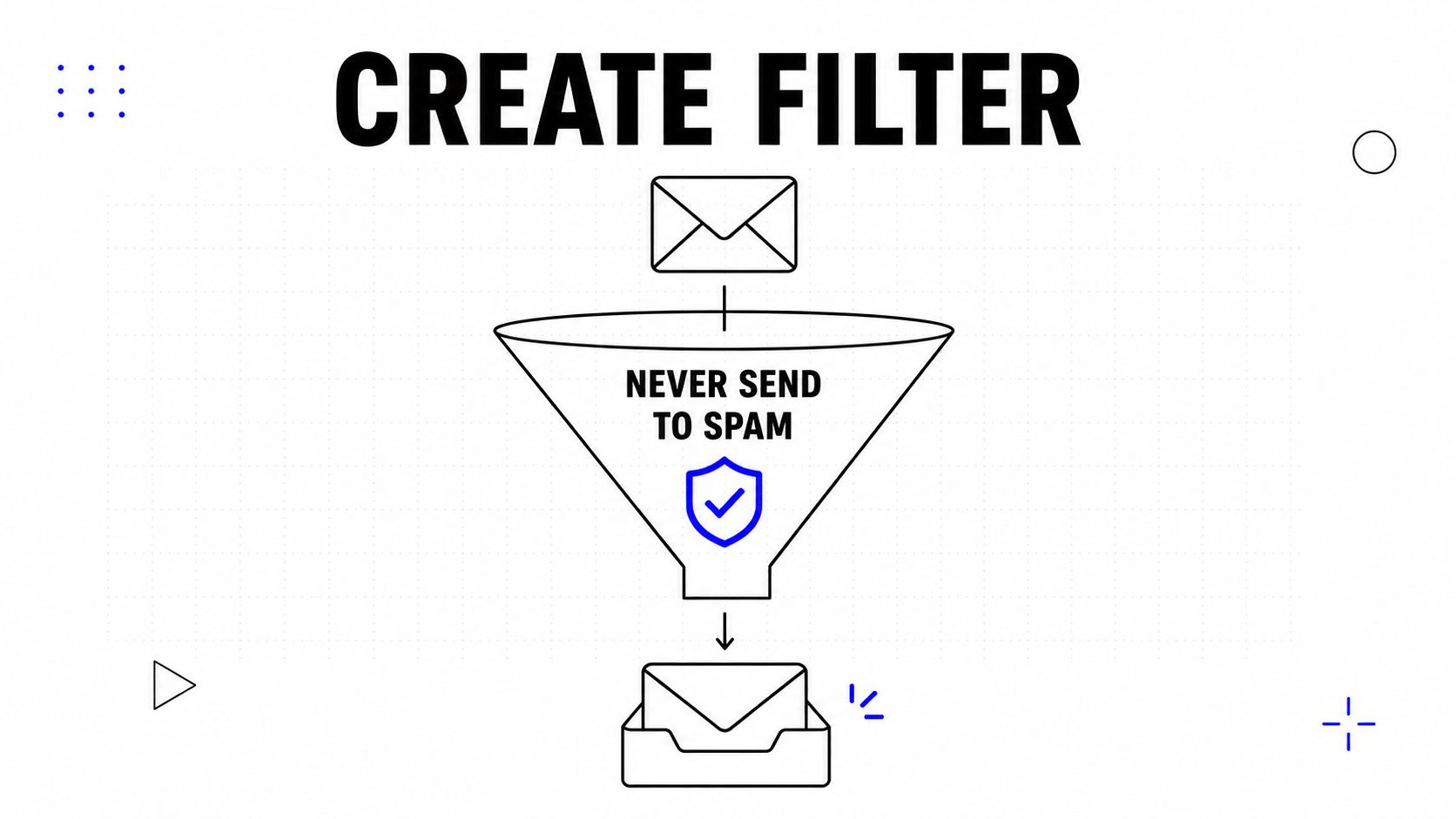
Image Alt Text: A screenshot showing the Gmail filter creation process, with an arrow pointing to the "Never send it to Spam" checkbox.
Ticking the "Never send it to Spam" box is the most important part. Don't forget it.
The key takeaway: Creating a filter is the most effective action a user can take to ensure they receive your emails. Encouraging recipients to do this is a major step toward better deliverability.
Understanding how to set up rules is a fundamental part of managing your inbox. For example, similar filters can automate administrative tasks. There’s a helpful guide for UK freelancers to automate admin that explains similar rule-based workflows.
The ideal scenario is building a sender reputation so strong that your recipients don't need to whitelist you. Mailwarm helps you build that trust. It generates real engagement from a network of over 50,000+ aged inboxes, showing providers like Gmail that your emails are valuable from day one.
What Are Faster Whitelist Methods for Desktop and Mobile?
Creating a filter is the most robust way to keep an email out of spam, but it isn't always the quickest. Sometimes you need a simple way to tell Gmail you trust a sender, especially on the go.
Thankfully, there are two fast methods that work on both desktop and the Gmail mobile app:
- Marking an email as “Not Spam”
- Adding the sender to your Google Contacts
Each action takes only a few seconds but sends a powerful, positive signal to Gmail’s algorithm about who you want to hear from.
How to Rescue Good Emails From the Spam Folder
It happens to everyone. An important message from a client or a newsletter you want gets sent to the spam folder by mistake. This is an opportunity to train Gmail’s algorithm.
When you find a legitimate email in your spam folder, open it and click the “Report not spam” button at the top.

Image Alt Text: A graphic showing a finger tapping the "Report not spam" button on a smartphone screen, illustrating mobile email whitelisting.
This simple click does two things. It moves the email back to your primary inbox and tells Gmail its filter was wrong. Over time, these corrections help train your personal spam filter to be more accurate.
Why You Should Add Senders to Your Google Contacts
An even stronger signal is adding a sender’s email address directly to your Google Contacts. This is a clear, proactive way of telling Gmail you have a trusted relationship with this person or company.
Why this works so well: Gmail assumes you want to receive emails from people you know. By adding a sender to your contacts, you give their emails an express pass to your inbox. It’s one of the most effective ways to whitelist an email in Gmail without creating a filter.
This is a great habit for crucial contacts, like clients, business partners, or any sender whose messages you cannot afford to miss.
How Can Admins Whitelist Domains in Google Workspace?
If your team uses Google Workspace, an admin can whitelist email in Gmail for the entire organization. This ensures no one misses a critical message from a partner, client, or essential tool.
Instead of asking every person to create their own filters, you can build one central "allowlist" in the Google Admin console. This is the most efficient way to protect important business communications.
How to Use the Google Admin Console for Whitelisting
To do this, you need admin rights for your Google Workspace account. The goal is to create a rule telling Gmail that emails from specific senders are always trusted and should not go to spam.
Here is the general path to follow inside the admin console:
- First, log in to your Google Admin console.
- Go to Apps > Google Workspace > Gmail.
- Look for the section called Spam, Phishing, and Malware.
- Find the Email allowlist setting. This is where you will add the domains (like
partnercompany.com) or specific IP addresses you want to approve.
The key takeaway: Centralized whitelisting is a lifesaver for business operations. It guarantees that invoices, software updates, and client messages land where they should for everyone in the company.
Many teams streamline real estate operations with Google Workspace, and whitelisting their CRM’s notification domain is essential for smooth operation.
While an allowlist is a great tool, it is just one piece of the deliverability puzzle. It works with proper email authentication but does not replace it. To protect your domain's reputation, you also need to set up your technical authentication. For more on that, check our guide on how to add SPF records in Google Workspace.
How to Build a Strong Sender Reputation Beyond Whitelisting
Asking users to whitelist you is a good defensive move. The real goal is to build a sender reputation so strong that you don’t have to ask.
Proactive reputation management is always better than reactive fixes. While a user can whitelist email in Gmail with a filter, your sending practices are what truly convince mailbox providers to trust you from the start.
That trust begins with a solid technical foundation.
What Are the Technical Foundations of Trust?
Your sender reputation starts with email authentication. These are the technical checks that prove your emails are genuinely from you. Without them, you look suspicious.
The three essential protocols are:
- SPF (Sender Policy Framework): A public record listing servers authorized to send email for your domain.
- DKIM (DomainKeys Identified Mail): Adds a digital signature to your emails, ensuring they are not altered in transit.
- DMARC (Domain-based Message Authentication, Reporting, and Conformance): Tells servers what to do with emails that fail SPF or DKIM checks, protecting your domain from phishing.
Setting up these records correctly is the first step. If you are having deliverability issues, our guide on how to avoid the spam folder provides more detail.
Google Workspace admins can also create another layer of trust by setting up rules at the organization level.
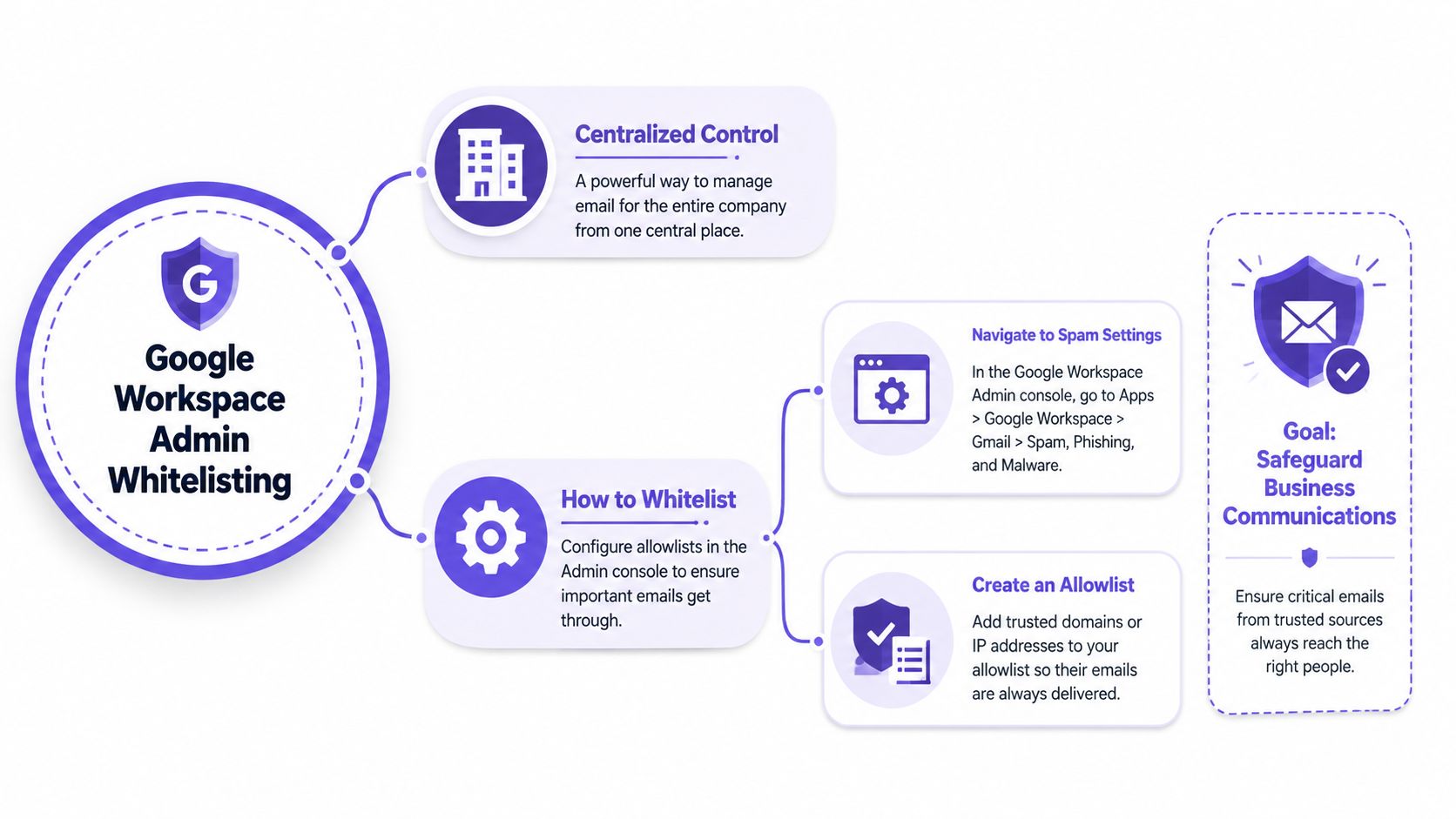
Image Alt Text: A diagram showing the Google Workspace Admin console interface with arrows pointing to the email allowlist settings, demonstrating admin-level whitelisting.
As you can see, creating a domain-level allowlist gives administrators a central way to ensure business-critical communications are never missed.
How to Build Reputation Through Positive Engagement
Once your technical setup is correct, your sender reputation depends on how recipients interact with your emails. Positive engagement signals convince Gmail that you are a trusted sender.
Mailwarm helps senders build reputation, monitor inbox placement, and improve deliverability through real inbox engagement, advanced warmup controls, and expert guidance. We help you generate the positive signals that get you recognized as trustworthy.
Mailwarm uses a network of over 50,000+ real inboxes to generate genuine, positive interactions with your warmup emails. This includes opens, threaded replies, and marking your emails as important. These actions teach mailbox providers that your emails are wanted, helping you land in the inbox without asking recipients to manually whitelist you.
If email is part of your growth strategy, Mailwarm helps you build sender reputation, monitor inbox placement, and reduce spam risk with expert-guided warmup.
Frequently Asked Questions About Gmail Whitelisting
What is the difference between whitelisting and adding a contact?
Adding a sender to your Google Contacts is like giving a strong recommendation. It's a positive signal to Gmail. However, creating a filter with the "Never send it to Spam" rule is a direct order that Gmail must follow, making it the most powerful way to whitelist an email.
Does whitelisting stop emails from going to the Promotions tab?
No, whitelisting only keeps emails out of the Spam folder. To move an email from the Promotions tab to the Primary tab, you must drag it over. When Gmail asks if you want to do this for future emails, click "Yes" to train the algorithm.
Why do my emails go to spam even after I was whitelisted?
If a contact whitelisted you but your emails still go to spam, it indicates a deeper issue with your sender reputation. A high spam complaint rate or incorrect email authentication (like missing SPF or DKIM) can create negative signals that override a user's whitelisting rules.
How does Mailwarm help improve my sender reputation?
Mailwarm helps senders build reputation, monitor inbox placement, and improve deliverability through real inbox engagement, advanced warmup controls, and expert guidance. Our platform uses a network of 50,000+ real inboxes to generate positive signals like opens, replies, and "mark as important" actions, showing providers like Gmail that your emails are valuable.
Is whitelisting in Gmail enough to fix my email deliverability?
No, whitelisting is a reactive measure taken by the recipient. While helpful, it doesn't solve underlying deliverability problems. True deliverability depends on your sender reputation, which is built through proper authentication (SPF, DKIM, DMARC) and consistent positive engagement with your emails.
How long does it take for whitelisting to work?
Whitelisting an email address by creating a filter in Gmail works instantly for all future emails from that sender. If you add a sender to your contacts or mark an email as "not spam," the effect is also immediate for that message, and it helps train Gmail's algorithm over time.