
A lot of teams land here the same way. The contact list lives in Excel, outreach needs to go out today, and nobody wants to copy and paste hundreds of emails by hand.
Send Email Excel VBA means using Visual Basic for Applications inside Excel to generate and send messages from worksheet data. It usually works in one of two ways: through Outlook on the local machine, or through direct SMTP code that skips Outlook and talks to a mail server instead.
A macro can absolutely handle this job. The part most tutorials skip is that sending is only half the problem. The other half is choosing the right method, controlling send speed, handling errors, and avoiding the deliverability problems that show up once a workbook starts sending at volume.
Understanding Email Automation Options
VBA has been around for this kind of workflow for a long time. Visual Basic for Applications was officially introduced by Microsoft in 1993 with Excel 5.0, and that foundation still supports Excel-driven email sending today through Outlook integration or SMTP-based methods, as described in this VBA email automation overview.
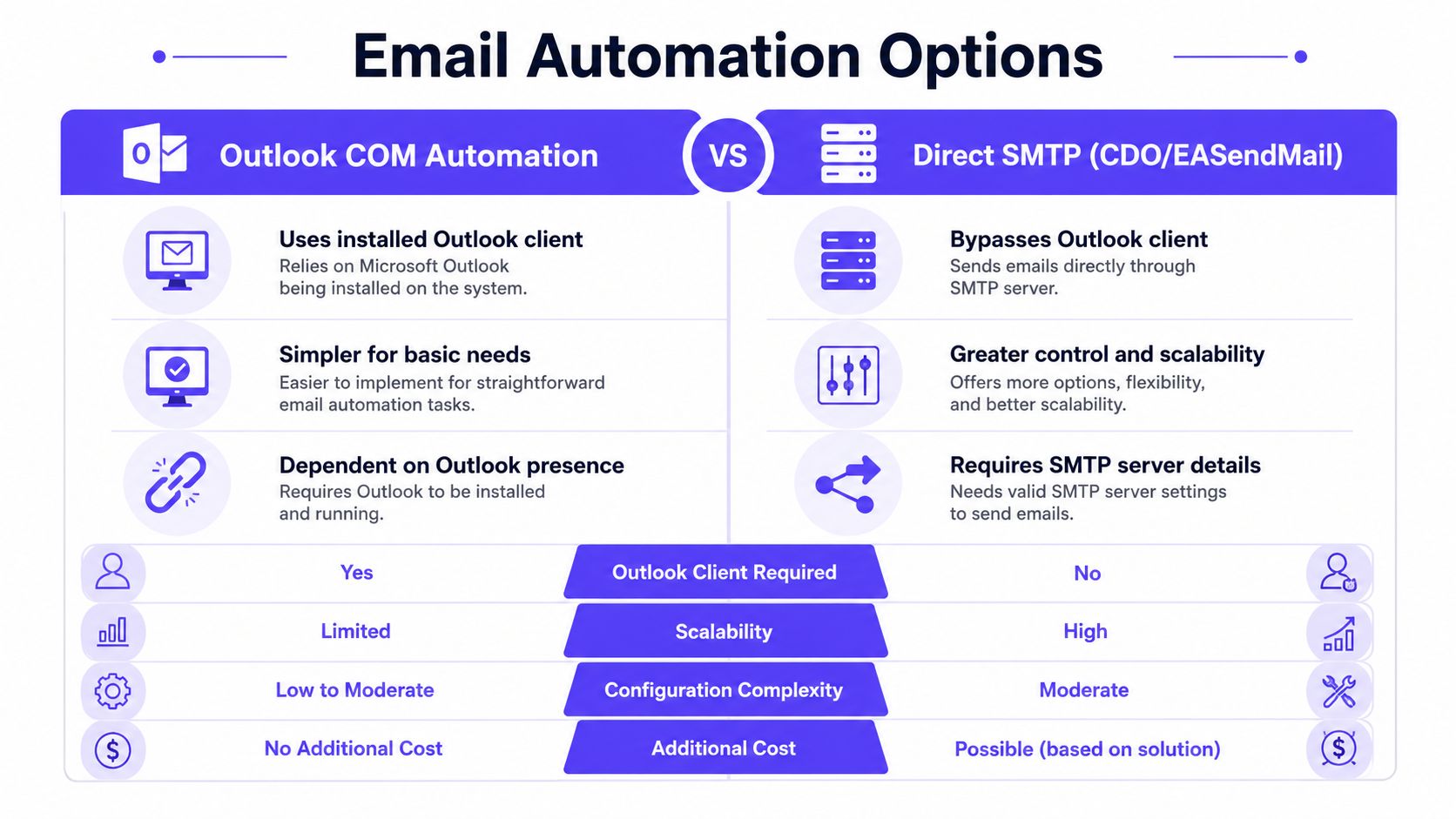
Outlook COM automation
This is the familiar approach. Excel creates an Outlook mail item, fills in the To, Subject, and Body fields from cells, then sends or displays the email.
It fits well when:
- Outlook is already installed and part of the team's daily workflow
- Users want previews before sending
- The workbook runs on a desktop with an interactive session
- Business users maintain the process without extra server setup
Direct SMTP with CDO or EASendMail
This route bypasses Outlook. VBA connects to an SMTP server directly, which is useful when Outlook isn't available or shouldn't be part of the workflow.
It fits better when:
- A headless process is needed and no Outlook session should open
- Security prompts from Outlook are a problem
- The sender wants tighter control over authentication and transport settings
- The process may move toward server-side execution
Practical rule: Choose Outlook COM when the workbook is a desktop tool for staff. Choose SMTP when the workbook needs to send without relying on the local Outlook client.
| Method | Depends on Outlook | Easier to start | Better for headless sending | Typical pain point |
|---|---|---|---|---|
| Outlook COM | Yes | Yes | No | COM references, security prompts, new Outlook compatibility |
| Direct SMTP | No | No | Yes | SMTP credentials, ports, TLS handling |
The wrong choice usually shows up fast. Outlook COM is simpler at first, but newer client changes can break old macros. SMTP gives more control, but setup is less forgiving.
Initial Setup for Outlook Automation
For many teams, Outlook automation is still the fastest path from worksheet to inbox. The setup is old-school, but it works when the machine has classic Outlook and the macro references are in place.
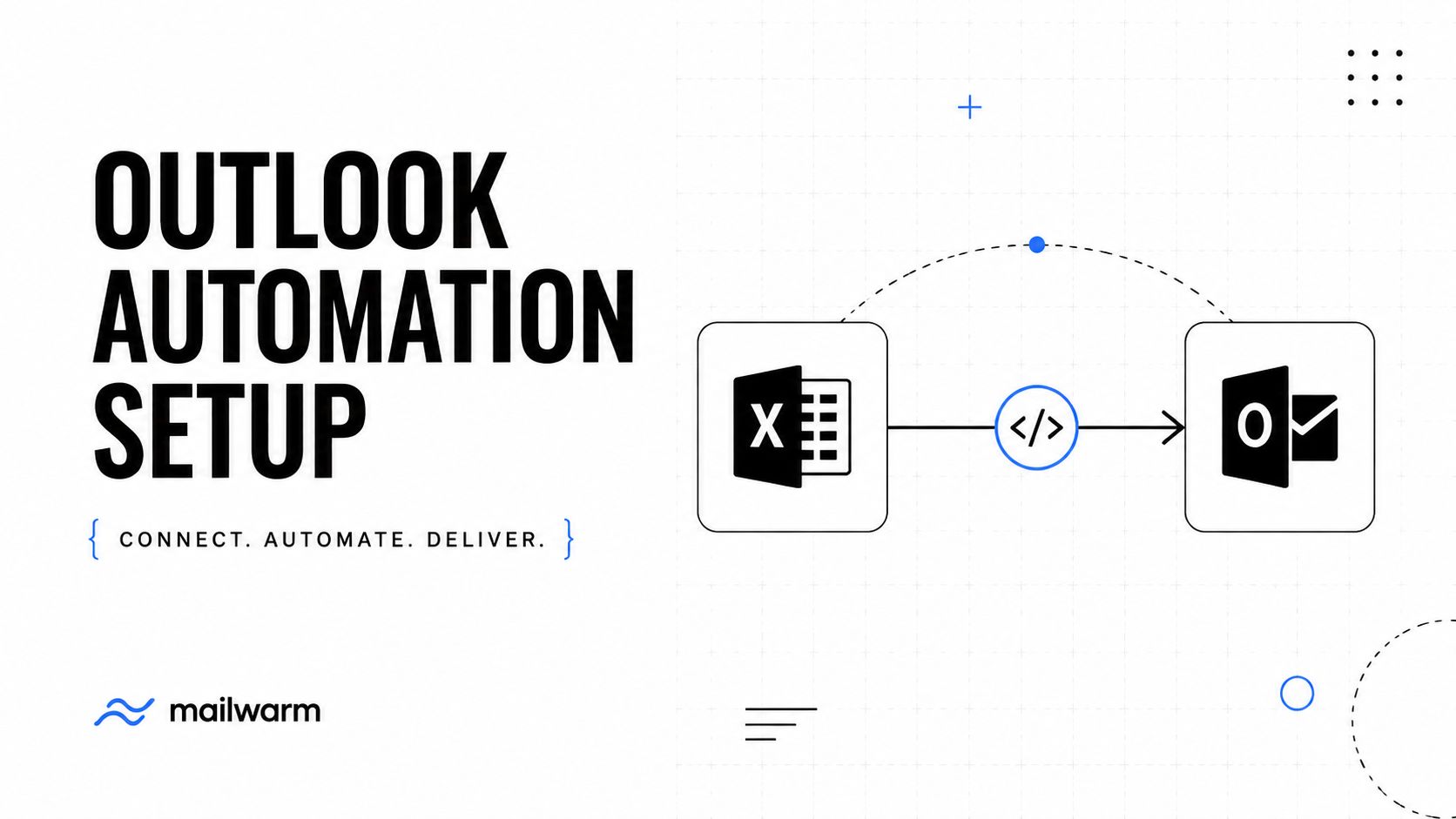
Enable the Outlook library
Inside the VBA editor:
- Open Alt + F11
- Go to Tools > References
- Check Microsoft Outlook Object Library
That reference matters. Outlook automation depends on the Outlook application object model, and missing references are one of the fastest ways to hit compile errors.
Use a clean starter macro
A reliable pattern is one row per recipient. Put email addresses in column A, subjects in column B, and message text in column C.
Option ExplicitSub SendEmailsWithOutlook()Dim ws As WorksheetDim lastRow As LongDim i As LongDim EmailApp As Outlook.ApplicationDim NewEmailItem As Outlook.MailItemSet ws = ThisWorkbook.Sheets("Sheet1")lastRow = ws.Cells(ws.Rows.Count, "A").End(xlUp).RowSet EmailApp = New Outlook.ApplicationFor i = 2 To lastRowIf ws.Cells(i, 1).Value <> "" ThenSet NewEmailItem = EmailApp.CreateItem(olMailItem)With NewEmailItem.To = ws.Cells(i, 1).Value.Subject = ws.Cells(i, 2).Value.Body = ws.Cells(i, 3).Value.Display' .SendEnd WithEnd IfNext iSet NewEmailItem = NothingSet EmailApp = NothingEnd SubWhy this pattern works
The key object creation step is not optional. When using Outlook.Application, the critical step is declaring Dim NewEmailItem As Outlook.MailItem and then using Set NewEmailItem = EmailApp.CreateItem(olMailItem). Adding a .Display preview before .Send reduces bulk sending errors by 65%, according to this Outlook VBA tutorial.
A preview step catches bad merge fields, broken HTML, and missing attachments before the macro turns a worksheet mistake into a sending problem.
For live sending, test with .Display first. Once the workbook behaves correctly, switch to .Send only after a few controlled test rows pass.
Using CDO and SMTP for Direct Sending
Some environments can't rely on Outlook at all. Shared machines, unattended jobs, or newer Outlook behavior can make COM automation fragile. That's when direct SMTP becomes the more stable option.
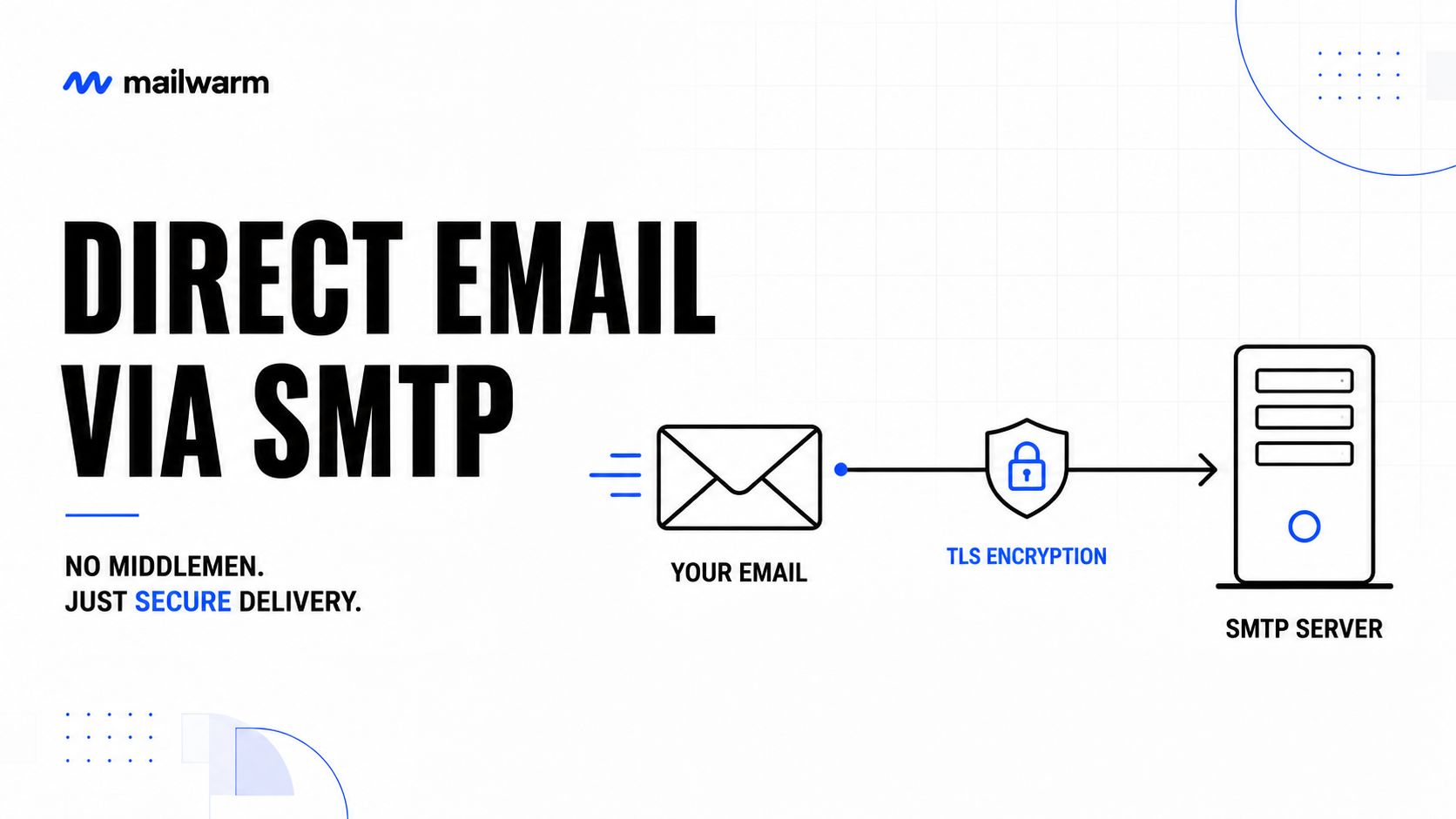
When SMTP makes more sense
Direct SMTP avoids Outlook security prompts and user interface delays. It also keeps the sending logic closer to the mail transport itself.
One common route uses EASendMail. To send emails from Excel VBA without Outlook dependencies, developers must reference the EASendMailObj ActiveX Object 1.0 Type Library in the VBA editor. That enables direct SMTP communication, but it also requires manual SMTP credentials and port settings, and it can fail when the server requires TLS 1.2+ without explicit implementation, as explained in this Excel SMTP guide.
Example SMTP structure
The exact object names depend on the SMTP library in use, but the workflow is consistent:
Option ExplicitSub SendEmailsWithSMTP()Dim ws As WorksheetDim lastRow As LongDim i As LongSet ws = ThisWorkbook.Sheets("Sheet1")lastRow = ws.Cells(ws.Rows.Count, "A").End(xlUp).RowFor i = 2 To lastRowIf ws.Cells(i, 1).Value <> "" Then' Pseudocode structure for SMTP libraries such as EASendMail' Set Mail = CreateObject("EASendMailObj.Mail")' Mail.ServerAddr = "your.smtp.server"' Mail.ServerPort = 587' Mail.UserName = "your-username"' Mail.Password = "your-password"' Mail.FromAddr = "sender@domain.com"' Mail.AddRecipientEx ws.Cells(i, 1).Value, 0' Mail.Subject = ws.Cells(i, 2).Value' Mail.TextBody = ws.Cells(i, 3).Value' Mail.ConnectType = 1' Mail.SendEnd IfNext iEnd SubMany workbook-based senders get stuck. They treat SMTP like a shortcut, but it isn't. Authentication errors, relay policies, and blocked recipients need real handling. If replies start bouncing with policy or relay issues, this guide on fixing SMTP 550 errors is a useful next check.
Watch the mechanics, not just the macro
A workbook that sends through SMTP needs three things to be verified before launch:
- Credential handling: The login must match the allowed sender identity.
- Port choice: The mail server has to accept the configured transport port.
- TLS support: Older snippets often fail because they don't explicitly handle newer encryption requirements.
A visual walkthrough can help before adapting library-specific code:
Incorporating Attachments and HTML Body
Plain text works for internal alerts. For sales outreach, account updates, or candidate communication, the message usually needs formatting and often needs a file attached.
Add attachments safely
Attachments fail more often than the macro author expects. The issue usually isn't VBA itself. It's the file path.
A safer Outlook example looks like this:
Sub SendEmailWithAttachment()Dim EmailApp As Outlook.ApplicationDim NewEmailItem As Outlook.MailItemDim attachmentPath As StringattachmentPath = ThisWorkbook.Sheets("Sheet1").Range("D2").ValueSet EmailApp = New Outlook.ApplicationSet NewEmailItem = EmailApp.CreateItem(olMailItem)With NewEmailItem.To = ThisWorkbook.Sheets("Sheet1").Range("A2").Value.Subject = ThisWorkbook.Sheets("Sheet1").Range("B2").Value.HTMLBody = "<p>Hello,</p><p>Please see the attached file.</p>"If Dir(attachmentPath) <> "" Then.Attachments.Add attachmentPathEnd If.DisplayEnd WithSet NewEmailItem = NothingSet EmailApp = NothingEnd SubBuild HTML from worksheet data
HTMLBody is usually better than Body for business messages. It allows spacing, links, bold text, and cleaner signatures.
Dim firstName As StringfirstName = ThisWorkbook.Sheets("Sheet1").Range("E2").ValueNewEmailItem.HTMLBody = _"<p>Hello " & firstName & ",</p>" & _"<p>Attached is the document discussed earlier.</p>" & _"<p>Regards,<br>Team</p>"Field note: If a workbook inserts dynamic text into HTML, previewing the message matters more than polishing the markup. Broken merge values look worse than simple formatting.
For teams sending one-to-one documents, it also helps to optimize attachments for sales outreach so file naming, size, and presentation don't undercut the email itself.
A simple attachment checklist
- Confirm the path exists before calling
.Attachments.Add - Store file paths in cells so users don't edit the macro each time
- Keep HTML simple because Outlook rendering can be inconsistent
- Preview before sending if the body includes dynamic variables or files
Managing Recipients Rate Controls and Logging
A macro that can send isn't automatically a macro that should send fast. That distinction matters.
Why rate control matters
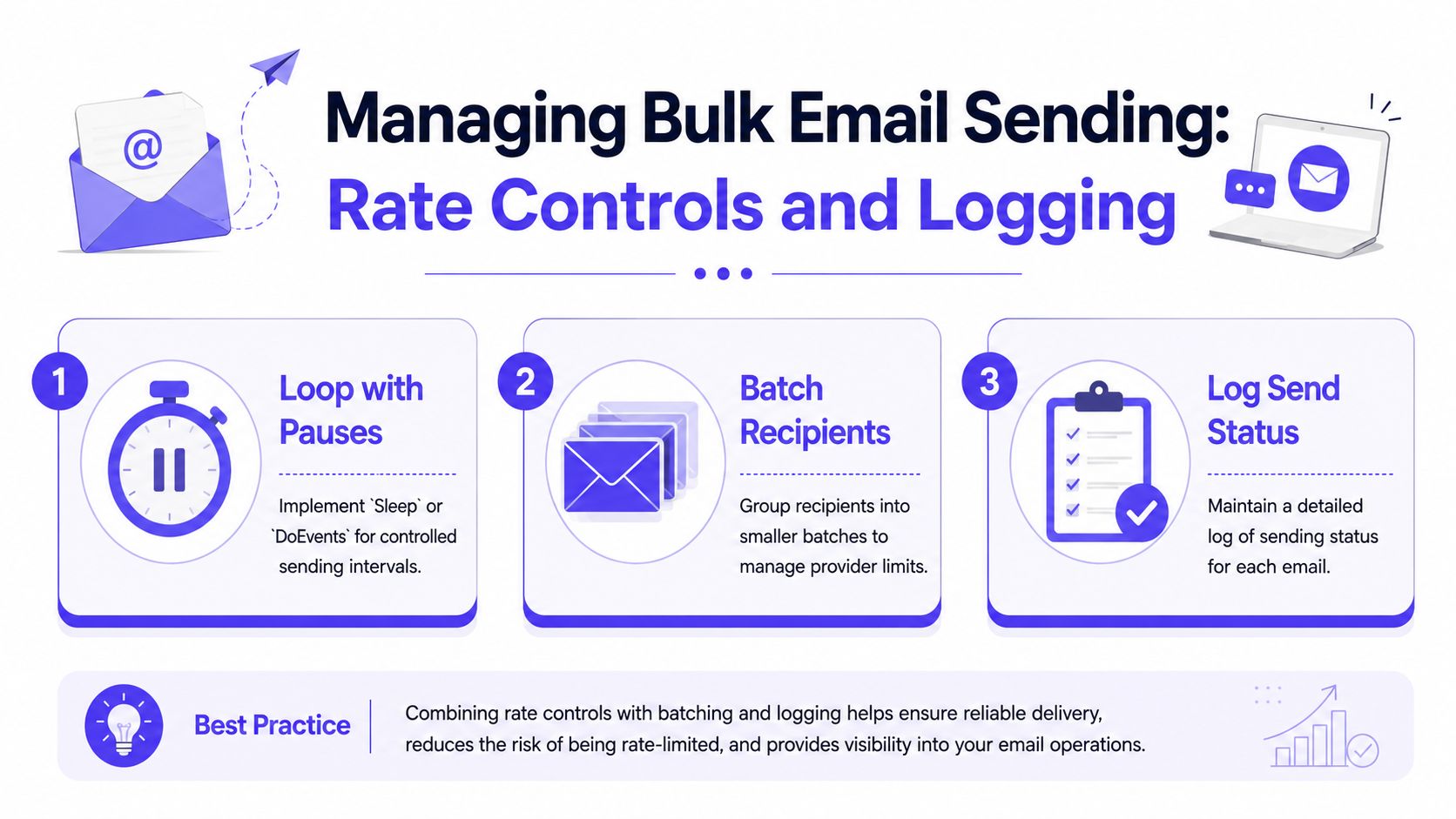
Bulk VBA email sending has no built-in throttling or reputation management, and sending 50+ emails from a single workbook can lead to immediate domain blacklisting. Many tutorials skip delays and logging, which causes providers to flag rapid, identical bursts as spam, based on this VBA bulk sending warning.
That means the loop itself needs controls. Excel won't add them for the sender.
Use a status column and pauses
A SendStatus column prevents duplicate sends and gives the sheet an audit trail.
#If VBA7 ThenPrivate Declare PtrSafe Sub Sleep Lib "kernel32" (ByVal dwMilliseconds As LongPtr)#ElsePrivate Declare Sub Sleep Lib "kernel32" (ByVal dwMilliseconds As Long)#End IfSub SendWithLogging()Dim ws As WorksheetDim lastRow As LongDim i As LongDim EmailApp As Outlook.ApplicationDim NewEmailItem As Outlook.MailItemSet ws = ThisWorkbook.Sheets("Sheet1")lastRow = ws.Cells(ws.Rows.Count, "A").End(xlUp).RowSet EmailApp = New Outlook.ApplicationFor i = 2 To lastRowIf ws.Cells(i, 5).Value <> "Sent" ThenOn Error GoTo SendErrorSet NewEmailItem = EmailApp.CreateItem(olMailItem)With NewEmailItem.To = ws.Cells(i, 1).Value.Subject = ws.Cells(i, 2).Value.Body = ws.Cells(i, 3).Value.SendEnd Withws.Cells(i, 5).Value = "Sent"Sleep 2000DoEventsEnd IfContinueLoop:On Error GoTo 0Next iExit SubSendError:ws.Cells(i, 5).Value = "Failed"Resume ContinueLoopEnd SubA workable operating pattern
Instead of hitting the whole worksheet in one blast, use a tighter process:
- Batch small groups: Send a limited set, then stop and review results.
- Log every row: Write
Sent,Failed, orSkippedinto a dedicated status column. - Pause between sends:
SleepandDoEventshelp break up mechanical bursts. - Review warmup pacing: Teams scaling outbound should follow a staged plan such as the guidance in these email warmup schedules.
A workbook without logging becomes impossible to trust after the first interruption. That is usually when duplicate sends start.
Troubleshooting Security Prompts and Errors
Most failures in send email Excel VBA workflows aren't mysterious. They usually come from a missing reference, a client mismatch, or Outlook blocking an action the macro assumes it can perform.
Common compile and runtime issues
If the macro throws "Constant not defined", the olMailItem constant is often the issue. That points back to the Outlook Object Library reference not being enabled.
If the macro throws "Object required", the Outlook application object probably wasn't created correctly, or the installed Outlook version doesn't support the expected COM behavior.
A fast triage list:
- Check References first: Broken object library references can stop the whole project.
- Step through with F8: Watch where object creation fails.
- Print values to the Immediate Window: This helps confirm recipient, subject, and path values before send.
- Trap errors per row: One bad record shouldn't stop the full run.
New Outlook changes the picture
A lot of older VBA examples assume CreateObject("Outlook.Application") will always work. That assumption doesn't hold everywhere now.
Recent reports around the New Outlook for Windows note that legacy VBA .Send automation can fail after Office 365 upgrades, and fallback methods such as Application.SendMail or mailto: based approaches may be required, as discussed in this Microsoft Answers thread on Excel VBA and the new Outlook.
Security prompts and SendKeys
In some Office 365 and newer Outlook scenarios, VBA-based sending has also shifted toward workarounds that simulate UI actions. Microsoft community guidance notes cases where automation now relies on SendKeys behavior to trigger send actions in newer environments, covered in this Office 365 VBA email discussion.
Last resort only:
SendKeyscan keep a process moving, but it is brittle. UI focus changes, pop-ups, or a different Outlook window can break it instantly.
If a team depends on unattended sending, that's usually the signal to stop forcing Outlook automation and move the process to SMTP or a different sending architecture.
Bulk Sending Best Practices and Warmup Tips
The macro is only one layer. The mailbox provider still decides whether those emails belong in the inbox.
Authenticate before sending anything
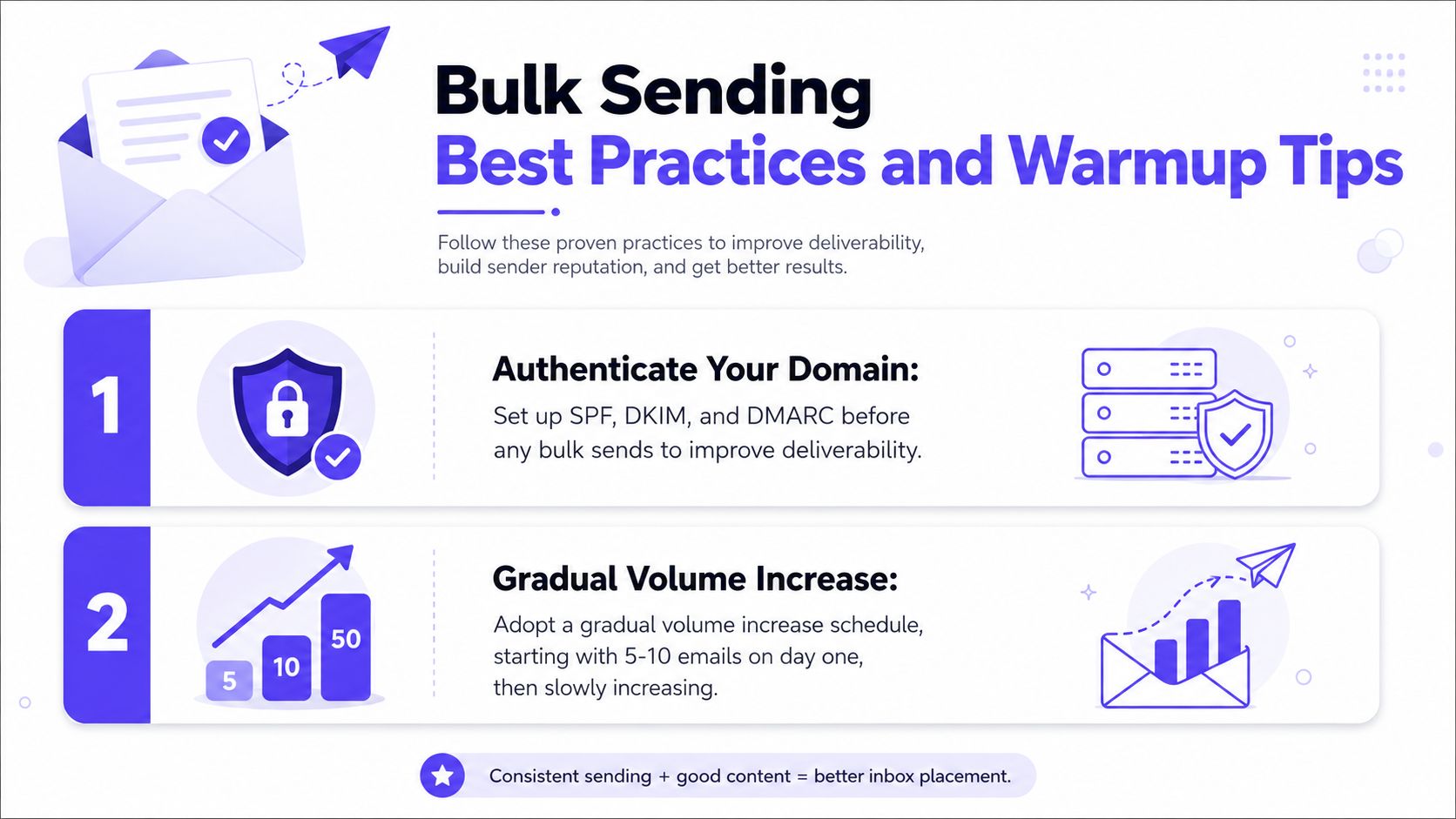
Before any warmup starts, the domain should have SPF, DKIM, and DMARC in place. Guidance summarized in this email warmup overview also notes that Gmail-specific warmup should happen gradually over 2 to 4 weeks, beginning with 5 to 10 emails per day in Week 1, then 15 to 25 in Week 2, and 30 to 50 in Week 3.
That matters even more when Excel is driving the send process, because workbook automation makes it easy to send faster than reputation allows.
Engagement matters more than raw volume
Mailbox providers don't just look at count. They look at how recipients interact with messages.
A better operating pattern looks like this:
- Start small: Keep initial sends limited and personal.
- Watch replies: Positive engagement is more useful than pushing volume.
- Change weak content: Repetitive, identical messaging creates risk faster.
- Warm the domain before scaling: Don't let the workbook dictate the ramp.
Why warmup systems exist
A sending spreadsheet doesn't build reputation on its own. It only automates output.
One reason premium deliverability platforms exist is to create the engagement layer that ordinary workbook macros can't. Mailwarm uses a network of 50,000+ aged real inboxes across Gmail, Outlook, and Microsoft 365 to generate signals such as opens, threaded replies, spam removal, and important marking, according to this Mailwarm platform review.
That kind of setup supports the sending reputation side of outreach while the Excel workflow handles list-driven execution.
If email is part of a growth strategy, Mailwarm helps senders build reputation, monitor inbox placement, and improve deliverability through real inbox engagement, advanced warmup controls, and expert guidance. It goes beyond basic warmup by combining warmup automation, spam score monitoring, inbox placement insights, and expert deliverability guidance, without requiring IMAP access or permission to read a private inbox.
FAQ
What does send email Excel VBA mean
It means using Excel's VBA scripting language to create and send emails from worksheet data. The usual methods are Outlook COM automation or direct SMTP sending through a mail library.
Is Outlook or SMTP better for send email Excel VBA
Outlook is usually easier for desktop users because it integrates with a familiar client. SMTP is better when the process can't depend on Outlook or needs to run in a more controlled, headless setup.
Why does an Excel VBA email macro fail in the new Outlook
Older VBA scripts often rely on COM automation patterns that the new Outlook client doesn't support the same way. In those cases, the sender may need to use fallback methods such as SendMail, mailto:, or move the process to SMTP.
Can Excel VBA send bulk emails safely
It can, but only with controls. The workbook needs logging, delays, batching, and careful review of reputation risk, otherwise rapid sends can trigger spam filtering or sender issues.
Does email warmup improve inbox placement
Warmup can help improve sender reputation by creating healthier engagement patterns over time. It isn't a standalone fix for every deliverability issue, but it supports inbox placement when paired with authentication, controlled volume, and solid list quality.
Is email warmup enough to fix deliverability
No. Warmup helps, but it doesn't replace domain authentication, clean data, sending discipline, and message quality. If those basics are weak, a warmup process alone won't solve the problem.
How does Mailwarm help improve sender reputation
Mailwarm is a premium email warmup and deliverability platform built for teams that care about real inbox placement, not just automated warmup activity. It helps improve sender reputation and reduce spam risk through real inbox engagement and deliverability insights.
Why is Mailwarm more expensive than basic warmup tools
Mailwarm costs more because it combines real inbox engagement, up to 100% replies to warmup emails depending on the plan, spam score monitoring, provider-level warmup, authentication tools, no IMAP access required, and expert deliverability calls included in every plan.
Excel VBA is still a practical way to send email when the contact list and message logic already live in a workbook. The right method depends on the environment. Outlook COM is simpler for desktop users, while SMTP is better when Outlook gets in the way.
The important part isn't just making the macro run. It's making the process stable, logged, throttled, and safe for the domain behind it.
If email is part of your growth strategy, Mailwarm helps you build sender reputation, monitor inbox placement, and reduce spam risk with expert-guided warmup.