
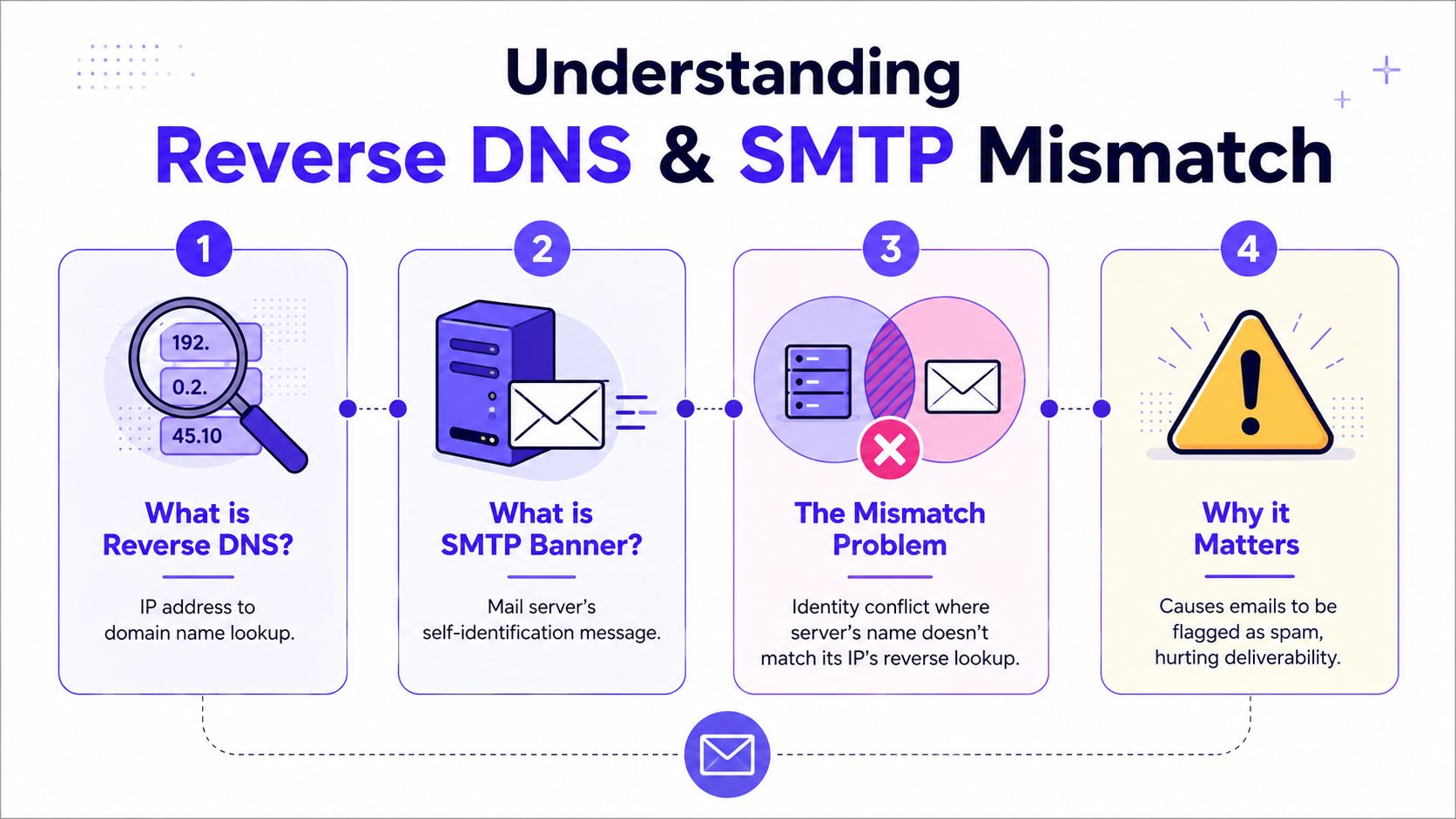
The error means the hostname your mail server announces during the SMTP handshake does not match the hostname returned by the sending IP's reverse DNS lookup. Reverse DNS does not match SMTP banner is an identity conflict, and receiving mail systems see that conflict before they decide whether to trust the message.
That matters because mail servers are judged on consistency, not intent. If the server's greeting, PTR record, and forward DNS point in different directions, the sender looks sloppy at best and suspicious at worst.
A sender can do everything else right and still hit this wall after a migration, a provider change, or a panel update. Cloud and VPS setups make it more common, because the PTR record, mail hostname, and MTA banner often live in different places.
Understanding the Reverse DNS and SMTP Banner Mismatch
A sender can have working mail flow and still fail this check. Reverse DNS does not match SMTP banner means the hostname your server announces during the SMTP handshake is different from the hostname returned by the IP address's PTR record. Mailbox providers read that as a server identity mismatch, not a cosmetic warning. The mismatch is between the SMTP banner, also called the HELO or EHLO greeting, and reverse DNS for the sending IP (InboxAlly's explanation of the mismatch).
That mismatch shows up often in cloud and VPS hosting, where the PTR record, the mail hostname, and the MTA banner are usually managed in different consoles. A provider may let you set the SMTP hostname inside your mail software, while the reverse DNS must be changed at the IP owner level. If those settings drift apart after a migration, a panel change, or a server rebuild, the server starts speaking with two different identities.
The cleanest way to read the problem is simple. The PTR record is the IP's registered name, and the SMTP banner is the name the server gives during the handshake. If those names do not line up, the receiving side has to decide whether the sender is misconfigured, hidden behind the wrong hostname, or just not presenting a stable mail identity.
Practical rule: the IP's PTR record, the mail hostname's A record, and the SMTP greeting should all point to the same fully qualified domain name, or FQDN, to reduce rejections and diagnostic failures across major mailbox providers (Easydmarc's FCrDNS guidance).
That alignment is called forward-confirmed reverse DNS, or FCrDNS. The reverse lookup resolves to a hostname, and that hostname resolves back to the same IP address. When those layers agree, the sender presents a consistent identity instead of a patched-together one.
Email systems use that consistency as one of several trust checks. For a broader networking comparison, understanding internet reliability in China shows why clean DNS relationships matter in any environment. The same basic logic applies to mail, but the checks are stricter and the tolerance for mismatch is lower.
A clean PTR and banner do not fix DMARC, SPF, DKIM, or weak content on their own. They do remove one avoidable reason for extra scrutiny, and that matters when you are tracing why mail lands in spam. If you are already seeing placement problems, this guide to emails going to spam helps you separate hostname issues from broader reputation problems.
Why This Mismatch Hurts Your Email Deliverability
Mailbox providers look for signals that the sender is consistent, legitimate, and technically maintained. A matched PTR, forward DNS, and SMTP banner are one of those signals, because they make the sending identity easier to verify. When those values line up, the server looks like a real mail system instead of an unstable relay or a spoofed host. If you want a practical outside view on why admins end up chasing this problem in the first place, Nerds 2 You's email expertise is a useful reference point.
FCrDNS is the mechanism that matters here. Providers compare the sending IP, the reverse lookup, and the hostname announced during SMTP, and the tighter that match is, the less friction there is during validation.
A clean hostname match does not guarantee inbox placement, but a broken one gives providers another reason to slow down, warn, or reject.
That is why the issue is more than a stray warning. A matched banner and PTR reduce one layer of technical doubt, while a mismatch leaves the sender open to extra scrutiny. In practice, that can show up as spam placement, deferrals, or outright rejection depending on the provider and the rest of the sending profile.
The trade-off is scope. Reverse DNS is only one part of deliverability, alongside SPF, DKIM, DMARC, IP reputation, and content signals. A perfect hostname match helps, but it will not rescue weak authentication or poor sender reputation. For a broader look at how these signals stack up against other inbox filters, see why email goes to spam.
The practical impact also changes by environment. On a shared VPS, cloud instance, or hosted mail gateway, the PTR record may be controlled by the provider, while the SMTP banner is controlled on the server itself. If those two layers are owned by different teams, the mismatch can persist even after a local config change, and mailbox providers will still see the inconsistency.
A clean PTR and banner remove one avoidable reason for distrust. They do not fix content problems, poor list quality, or authentication failures, but they do stop a technical mismatch from adding noise to the rest of the reputation picture.
How to Diagnose the Mismatch on Your Server
The quickest way to diagnose the problem is to compare what the IP says about itself with what the mail server says about itself. That means checking the PTR lookup, the forward hostname, and the live SMTP greeting from the outside, not just from inside the server.
Start with reverse lookup tools, then move to an SMTP handshake test. The point is to see the identity that a receiving server sees, because local checks can hide a mismatch in cloud or proxy-backed setups.

Check the reverse lookup first
Use a reverse DNS lookup tool such as dig -x or host against the sending IP. The result should return the same FQDN that the mail server plans to use in its banner.
If the output shows a hostname that belongs to a provider default, an old migration target, or an internal system name, that's the first sign of drift. The fix may still involve the hosting provider, because PTR records are usually controlled at the IP owner level, not at the domain registrar.
Test the live SMTP greeting
Connect to the mail service externally and read the banner the server presents. Tools like telnet or openssl s_client show the greeting before authentication starts, which is exactly where the mismatch appears.
If the banner hostname differs from the PTR result, the server identity is inconsistent. If the banner looks right but the PTR is wrong, the configuration is still broken from the receiving server's point of view.
Watch for environment-specific traps
Modern hosting makes this harder than old-school self-managed mail servers. The PTR might be set by the hosting provider, the banner may be inherited from the MTA defaults, and cloud DNS or proxy layers can obscure the A-to-PTR chain, which makes it hard to know which system to edit first (community troubleshooting discussion).
Diagnostic rule: trust the external view more than the local config, because receivers only care about what the server presents on the network.
For a practical reference on mailbox-provider checks, Nerds 2 You's email expertise is useful context when building a validation workflow. External diagnostics matter more than assumptions, especially when a VPS panel, cloud DNS, and mail stack defaults all disagree.
Fixing Your PTR Record and Forward DNS
The DNS side of the fix starts with the PTR record, but it doesn't end there. The PTR is usually set by the IP owner, which means the hosting provider, ISP, or cloud platform often controls it, while the domain registrar or ordinary DNS host controls the forward A record.
That division of responsibility causes a lot of confusion. A domain admin can change the hostname's A record all day and still fail the check if the IP owner hasn't updated the PTR record to the same FQDN.
The right move is to choose a single golden hostname and make every layer agree with it: the IP's PTR, the hostname's A record, and the SMTP banner (Warmy's alignment guidance). Anything less leaves the configuration inconsistent.
Who should make the PTR change
Contact the provider that owns the sending IP address and ask for a PTR update to the chosen FQDN. If the sender is on a VPS, that usually means the hosting dashboard or support ticket. If the IP comes from a cloud service or ISP, the request may need to go through their reverse DNS tools or support team.
The request should be specific. Ask for the PTR to point to the same hostname used by the mail server, and confirm that the hostname's forward record resolves back to that IP. That two-way loop is the point of FCrDNS.
What the forward record must do
The A record for the chosen hostname has to resolve back to the same sending IP. If it doesn't, the reverse lookup may look fine in isolation, but the full trust chain still breaks. That's why providers can still warn about a mismatch even after a partial fix.
A clean DNS setup usually looks like this:
| Checkpoint | What should happen |
|---|---|
| PTR record | IP resolves to the chosen mail hostname |
| A record | Mail hostname resolves back to the same IP |
| SMTP banner | Server greets with the same chosen hostname |
Mailwarm's authentication guide is a useful companion when the issue sits alongside SPF, DKIM, or DMARC work. DNS alignment is only one layer, but it has to be clean before the rest of the stack can be trusted.
What not to do
Do not update only the PTR and stop there. Do not change the forward DNS and leave the server greeting on an old hostname. Those half-fixes create exactly the inconsistency receivers are trying to detect.
A provider can also reject changes if the hostname doesn't resolve cleanly or if the chosen name is an internal label that never belonged on a public-facing mail server. The safer approach is one hostname, one IP, and one banner.
Aligning Your Mail Server SMTP Banner
The DNS side can be perfect and the error can still remain if the mail server itself announces the wrong name. That's because the banner is part of the SMTP handshake, and receiving systems compare that greeting against the PTR record directly (PowerDMARC on mail server configuration).
The fix is platform-specific. Postfix, Exim, and Microsoft Exchange all expose the hostname in different places, so the admin has to change the mail stack as well as the DNS settings.
Postfix
Postfix uses myhostname in main.cf. Set that value to the chosen FQDN so the HELO or EHLO greeting matches the PTR record. If the server still advertises an old system hostname, receivers will see the mismatch immediately.
Exim
Exim uses primary_hostname. That setting controls the name the server presents during SMTP, so it has to match the same golden hostname used in DNS. A banner that still reflects a default install name is a common reason the mismatch persists after a DNS fix.
Microsoft Exchange
Exchange typically requires changing the Send Connector FQDN so the HELO or EHLO response matches the PTR record. If the connector still presents a legacy or internal host label, the receiving side sees a split identity even when the DNS records are already aligned.
| SMTP Banner Configuration by Mail Server | Configuration Parameter | Typical File Location |
|---|---|---|
| Postfix | myhostname | main.cf |
| Exim | primary_hostname | Exim config file |
| Microsoft Exchange | Send Connector FQDN | Exchange admin settings |
For teams that track sender reputation across outbound systems, Mailwarm's HELO and sender reputation guidance fits naturally here. The banner is not just a string, it's part of the trust signal the server gives to every recipient.
Operational note: changing the banner without confirming the DNS side can leave a server looking more inconsistent than before.
The cleanest workflow is to update the mail server, then verify the greeting from the outside. That external verification matters because local config alone doesn't prove what a mailbox provider will see during the SMTP handshake.
Verifying the Fix and Monitoring Reputation
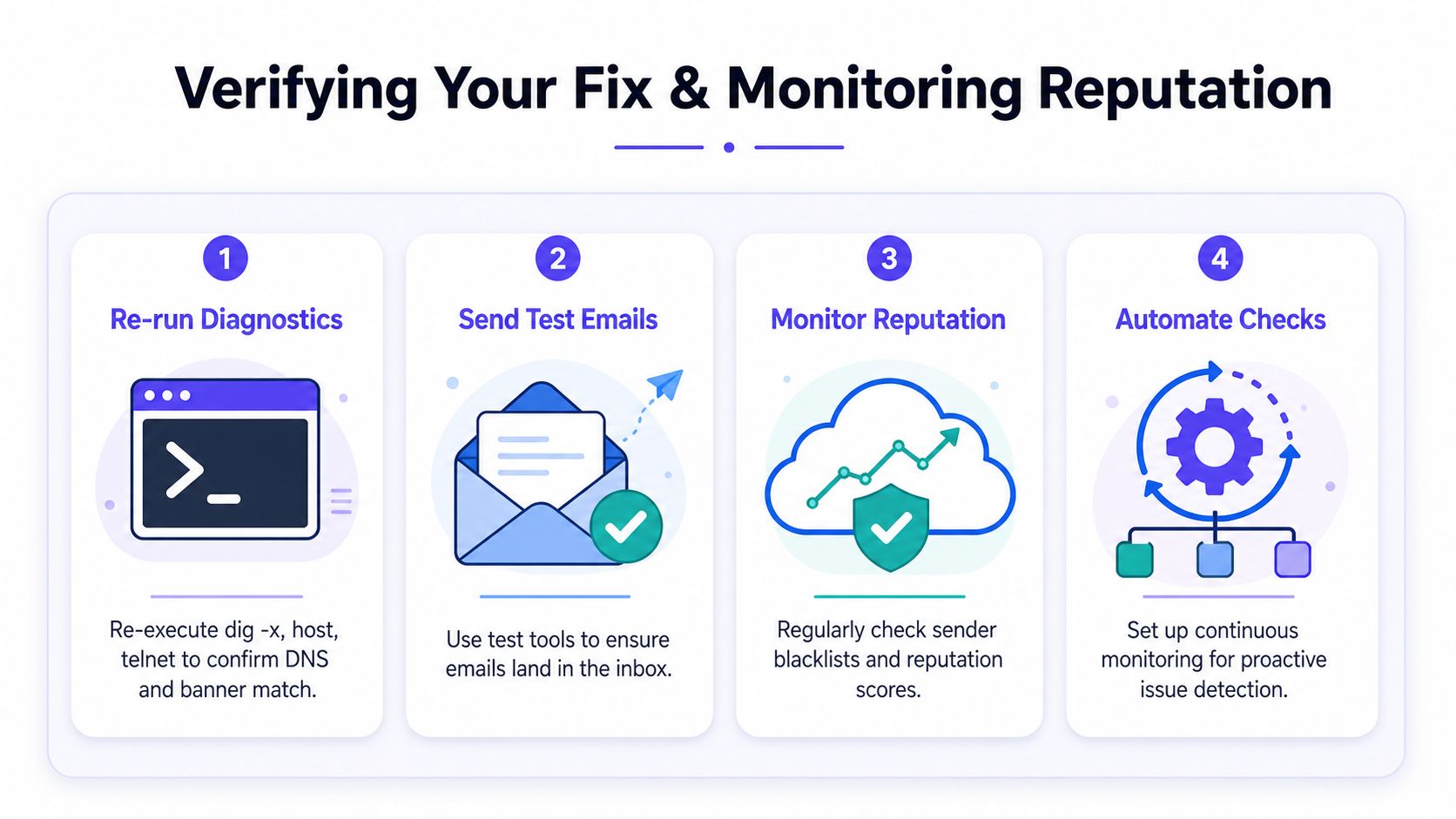
After the PTR, forward DNS, and SMTP banner all match, run the same checks from outside the server again. Use dig, host, or an SMTP probe from another machine, because local config only proves what the server thinks it is sending. The outside view should show the same FQDN at each layer, and that consistency is what mailbox providers look for during the handshake.
Send a test message after that and inspect the receiving side. Check the banner shown in the SMTP conversation, the Received headers, and the final delivery result. If the server still throws identity warnings, the DNS fix is incomplete or the mail service is still advertising the wrong host name.
Mailbox placement still depends on more than this one repair. A correct hostname match will not save a sender with weak IP reputation, broken SPF, missing DKIM, DMARC alignment problems, or poor content signals. Fix the identity mismatch first, then keep watching the rest of the sender profile so you can tell whether a later delivery problem comes from authentication, content, or reputation drift.
Mailwarm is useful for teams that need ongoing validation. It helps senders build reputation, monitor inbox placement, and track deliverability with real inbox engagement, warmup controls, and guidance around authentication issues. It also gives teams deliverability analytics, spam score monitoring, inbox placement insights, and authentication fix tools without requiring IMAP access to a private inbox.
For senders that need routine checks, the practical checklist is simple:
- Re-run diagnostics: Confirm the PTR, A record, and SMTP banner still align after any hosting or DNS change.
- Send test emails: Check whether messages land where they should, not just whether they leave the server.
- Monitor reputation: Watch for new trust signals that weaken delivery.
- Automate checks: Build validation into server maintenance so regressions get caught early.
Stability is the primary benefit. Once the sender identity stays consistent, every future change is easier to troubleshoot because you already know the clean baseline.
A reverse DNS and SMTP banner mismatch is a server identity problem, not a cosmetic warning. Fix the PTR, make the forward record resolve correctly, and align the mail server banner so every layer tells the same story.
After that, keep watching deliverability, because reputation and authentication still decide where messages land. If email is part of the growth engine, Mailwarm can help maintain sender reputation, monitor inbox placement, and reduce spam risk with expert-guided warmup and deliverability tracking.