

You're trying to get an important email out of spam and into the inbox where it belongs. How to whitelist an email depends on the mail client, but the core idea is simple, add trust at the recipient or mailbox level so future messages from that sender are less likely to be filtered out. That said, whitelisting is not a universal override, and it won't rescue a sender with weak authentication or poor reputation.
That distinction matters because inbox placement is shaped by more than one setting. Gmail and Apple Mail together accounted for roughly 63% of email opens in many campaigns by 2023, so what happens inside those major clients has outsized impact on whether a message is seen, and not just sent. Campaign Monitor's whitelisting guide is useful background for the client-side mechanics, but the core lesson is broader: whitelisting works best when it's paired with solid sender identity and healthy engagement.
What Whitelisting an Email Actually Does
Whitelisting means telling a mailbox to treat a sender as trusted, so future messages are more likely to skip spam handling and land in the inbox. In practice, it's a persistent trust signal at the mailbox level, not a global pass that every provider must honor forever.
That's why the exact method changes by client. Gmail usually uses a filter with Never send it to Spam, Outlook uses Safe senders and domains, and Yahoo often relies on Not spam or contacts to teach the filter over time. Those are the main controls inside the largest consumer and business mail environments, which makes them valuable for anyone sending transactional email, recruiting messages, or cold outreach.
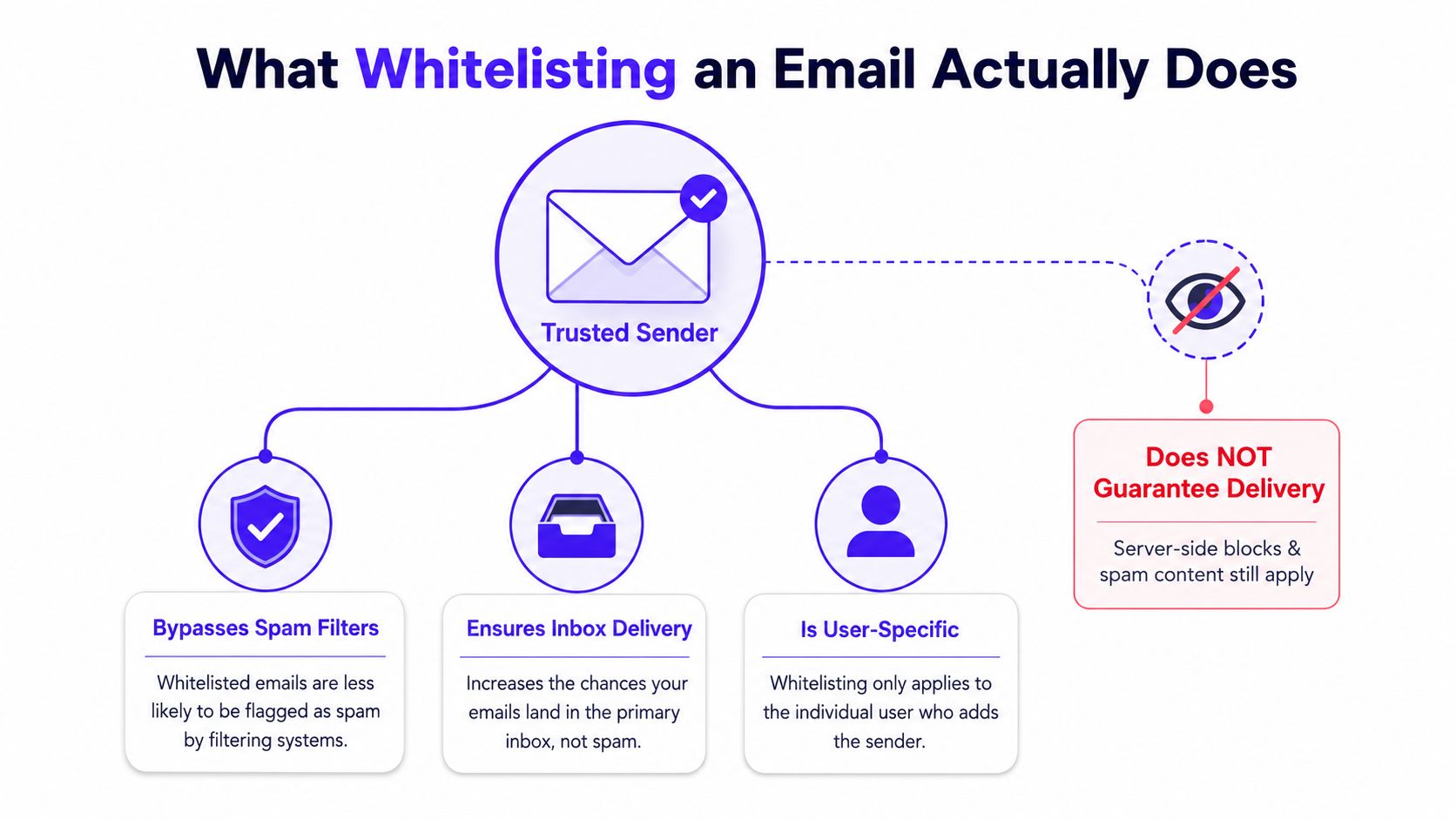
Practical rule: whitelisting helps most when the sender is already legitimate, already authenticated, and already relevant to the recipient.
The limit is just as important as the benefit. A whitelist entry usually applies to one mailbox, not an entire company or domain, which is why one contact's action won't protect every teammate or every prospect. If the sender's mail is failing SPF, DKIM, or DMARC, or if the content looks suspicious, providers can still route it away from the inbox.
For teams tightening their overall email security posture, essential email protection tips are a helpful companion read because inbox trust starts with safe sender behavior, not only recipient settings. The authentication side also matters enough that it deserves its own operational baseline, which is why this email authentication guide belongs in every sender's playbook.
How to Whitelist an Email in Gmail
Gmail gives the most durable control through the desktop web version. The key move is to create a filter, enter the sender address or domain in the From field, then select Never send it to Spam before saving the rule.
Use Gmail filters on the web
Open Gmail in a browser, click the settings gear, then go to See all settings and open Filters and Blocked Addresses. From there, create a new filter, add the sender address or a domain like @example.com, and save it with the spam-bypass option checked.
A useful detail, domain-level rules are more scalable because they cover more than one address from the same organization. A single sender rule is safer when the contact is one-off or tightly scoped, while a domain rule works better when a vendor, client, or partner sends from multiple addresses.
What mobile users can do instead
Gmail's mobile app doesn't let users create or edit filters. The practical workaround is to add the sender to Contacts first, then, if a message lands in spam, mark it Not spam so Gmail can learn the sender is trusted.
Gmail filters are a desktop-web task, not a mobile-app task. Teams that manage multiple inboxes usually need a browser-based setup process, not a phone-based one.
A domain rule can also be narrowed by using @ before the domain so the filter matches that exact domain rather than a broader variation. That's convenient, but it also broadens the blast radius if that domain later sends unwanted mail, so it should be reserved for senders that are genuinely trusted.
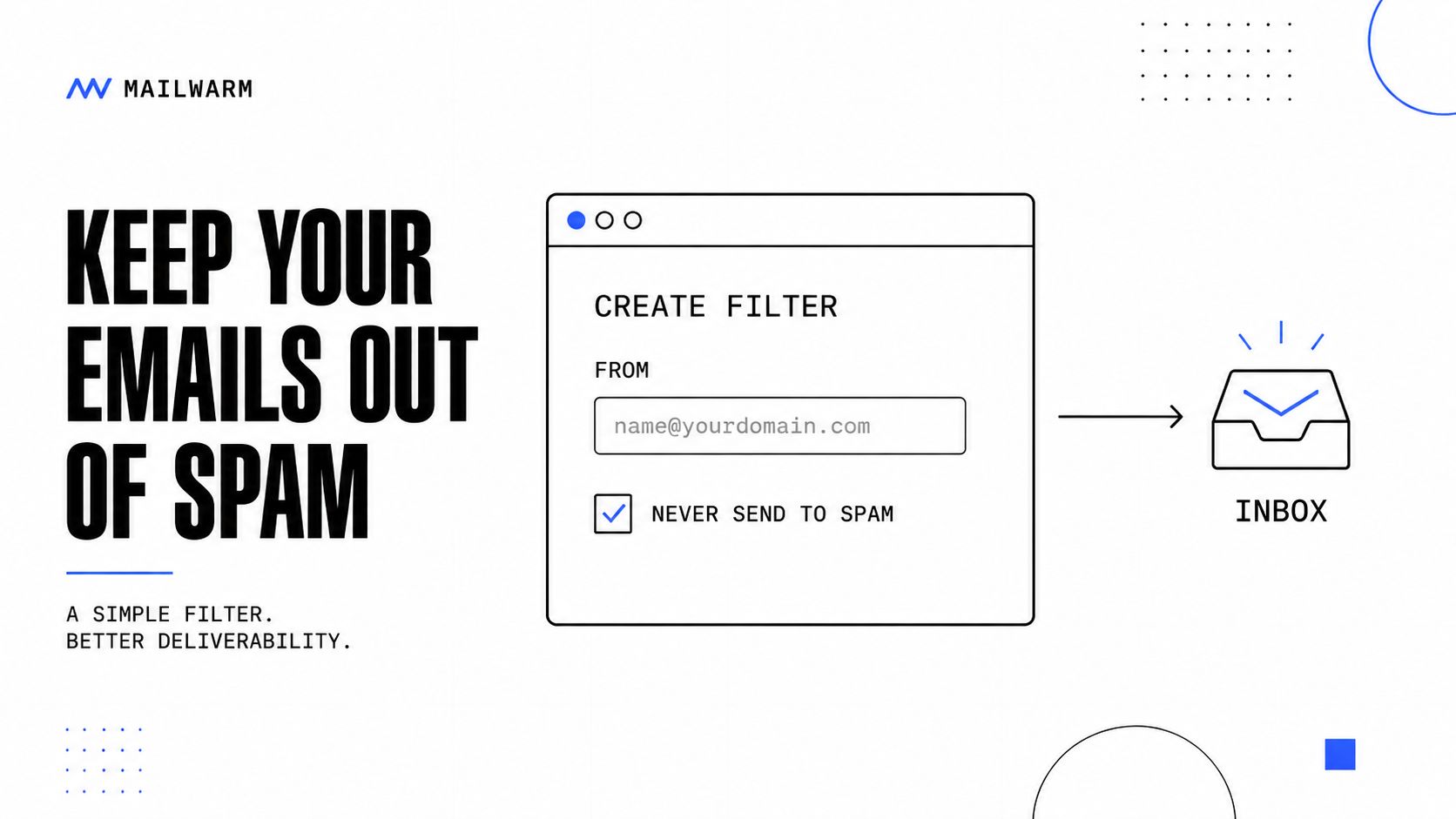
A practical Gmail workflow often starts with one test address, then expands to the domain only after delivery is stable. For senders who rely on Gmail-heavy audiences, that distinction is worth keeping tight.
How to Whitelist an Email in Outlook and Microsoft 365
Outlook and Microsoft 365 use Safe senders and domains as the main allowlist path in the web app. The flow is straightforward, open Settings, go to Junk email, then add the sender address or domain under Safe senders and domains and save.
Web and desktop paths
On Outlook on the web, the safe-sender setting lives in the mailbox settings, which means the rule is applied server-side. That matters because the allowlist follows the mailbox across web, desktop, and mobile access instead of depending on one device's local address book.
In the desktop client, the equivalent control is found under the Junk menu, where users can choose Never block sender or Never block sender's domain. This does the same practical job, it tells Outlook to treat the sender as safe for future mail.
The server-side advantage is real, but it still isn't absolute. Even safe sender entries can be overridden if authentication is weak or the sender's reputation has already been damaged, because mailbox providers still evaluate trust signals before deciding where mail lands.
A common mistake is assuming a safe-sender entry solves deliverability by itself. It doesn't, it just removes one layer of filtering pressure.
For more context on the mailbox-provider side, this Outlook spam filters guide is a useful companion when recipients keep saying a message disappeared into junk instead of landing in the inbox.
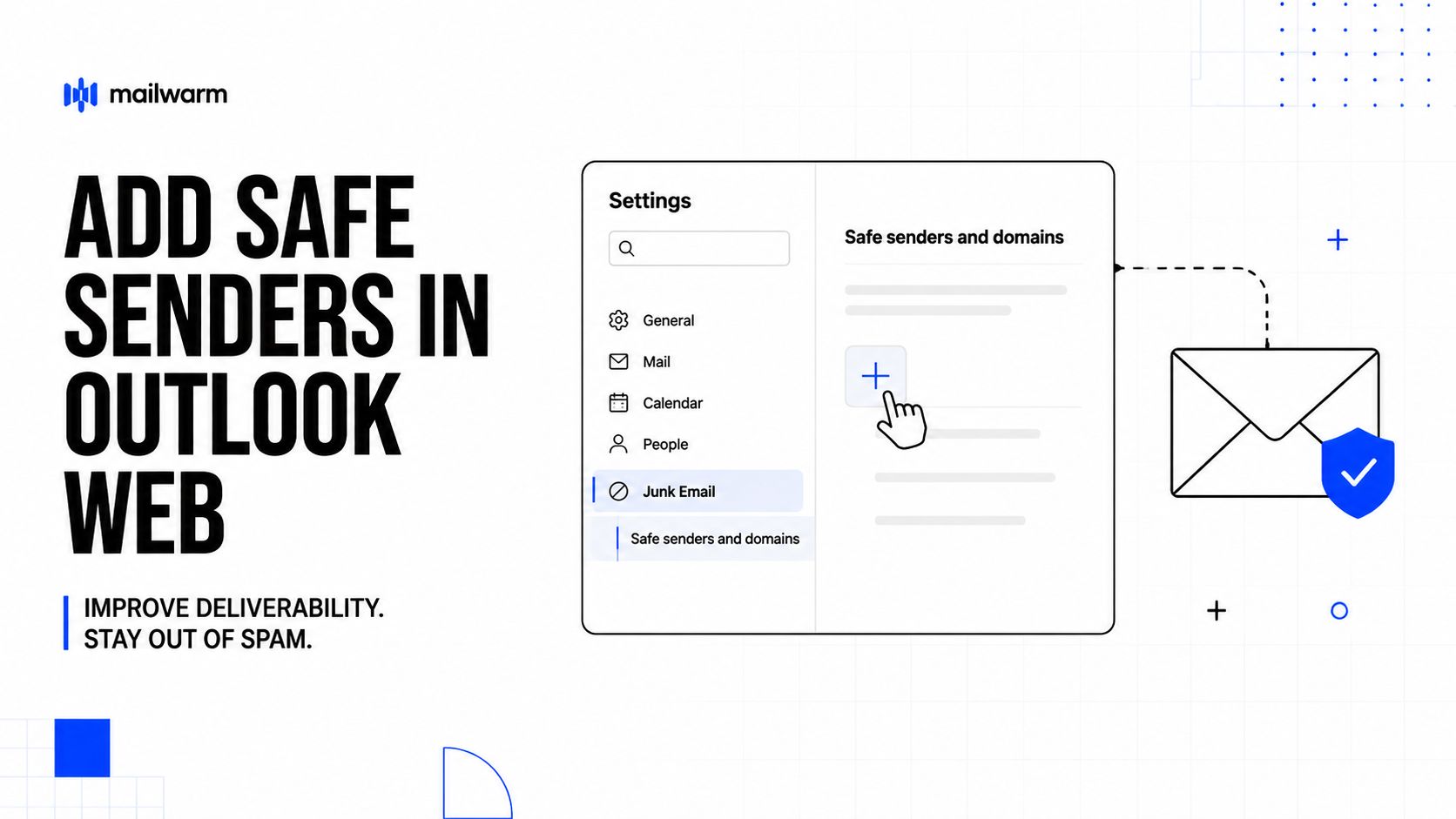
Operational note: Safe Senders is a strong override, but it's still downstream of SPF, DKIM, DMARC, reputation, and content review.
That's why Outlook allowlisting works best as one layer in a broader deliverability process. Teams that send important business mail should treat it as a mailbox preference, not a substitute for authenticated sending.
Whitelisting in Yahoo Mail and Apple Mail
Yahoo Mail keeps the process simple. If a message already landed in spam, marking it Not spam teaches the filter to let future messages from that sender through, and if no message has arrived yet, adding the sender as a new contact also helps future delivery.
Yahoo Mail paths that actually work
Yahoo's contact route is the easiest option when a recipient knows the sender but hasn't received the message yet. The filter route is better when a message already exists in spam and needs to be retrained.
Apple Mail is a little different because it leans more on contacts, VIPs, and rules than on a single universal whitelist button. On macOS, a manual Mail rule can move messages from a sender or domain straight into the inbox, while iPhone and iPad users can use the blocked-sender and contact options inside Mail settings.
| Mail Client | Primary Method | Where to Find It |
|---|---|---|
| Gmail | Create a filter, choose Never send it to Spam | Web settings, Filters and Blocked Addresses |
| Outlook | Add to Safe senders and domains | Web settings, Junk email |
| Yahoo Mail | Mark as Not spam or add to Contacts | Message actions or Contacts |
| Apple Mail | Add sender to Contacts or create a Mail rule | Mail app on Mac, Mail settings on iOS |
Yahoo and Apple both reward direct trust signals, but they do it in slightly different ways. That's why sales teams and recruiters often need a small reference sheet instead of a single recipe.
The simplest rule is to match the method to the recipient's mailbox behavior. If the message is already in spam, use Not spam. If the sender is expected in advance, add the contact first.
Admin-Level Allowlists and Sender-Side Limits
Recipient-side whitelisting is useful, but it doesn't scale across a whole company by itself. In Microsoft 365, Google Workspace, and larger Exchange environments, admins can push allowlist-style policies across many mailboxes so approved domains or senders are handled consistently.
Why organization-level allowlists matter
The admin layer is where B2B teams often uncover the limit of “just whitelist us.” One prospect can add a sender to a safe list and still have a teammate miss the same mail, because the action usually stays tied to that one mailbox instead of the whole domain.
A single recipient's whitelist action is not a company-wide permission slip.
The other limit is sender-side. Even when administrators approve a sender, mailbox providers still judge reputation, complaint patterns, and message quality. If the sending domain is weak, the allowlist can help, but it won't erase poor authentication or repeated spam signals.
For senders trying to avoid that gap, the operational fix is to combine allowlisting with good hygiene, authenticated mail, and controlled volume. This guide on how to avoid the spam folder fits well here because the same problems that send mail to spam are the ones a whitelist can't fully solve.
A practical team-level checklist usually looks like this:
- Confirm the target mailbox type. Consumer inboxes and enterprise inboxes handle trust differently.
- Ask whether the allowlist is local or tenant-wide. The scope changes everything.
- Check the sender's authentication. SPF, DKIM, and DMARC still matter.
- Watch reputation over time. Safe lists help, but they don't cancel ongoing damage.
- Use allowlists with deliverability controls. They work better when the rest of the stack is clean.
Mailwarm is one option for teams that want a deliverability platform rather than a basic warmup tool. It focuses on real inbox engagement, inbox placement insights, spam score monitoring, and authentication support, which makes it more relevant when allowlists alone aren't enough.
Testing and Troubleshooting Whitelisted Senders
A whitelist looks good on paper until a test message still lands in spam. The fastest check is simple, send a fresh message after the rule is in place and confirm it lands in the inbox, not the junk folder.
How to verify the rule really worked
If the test fails, inspect the message headers in Gmail or Outlook to see whether the safe sender rule was applied and whether other filters interfered. That step often reveals whether the problem is local, like a bad rule order, or upstream, like a reputation or authentication issue.
A seed-list or deliverability platform adds a broader view. Instead of checking one inbox, it shows whether mail is landing consistently across providers, which matters when Gmail, Outlook, and Yahoo all behave a little differently.
If a whitelist fails, the usual cause is not the whitelist itself. It's usually authentication, reputation, or a conflicting rule elsewhere in the delivery chain.
The most common blockers are familiar. Weak SPF, DKIM, or DMARC can still hurt placement, previous campaigns can damage sender reputation, and high complaint or bounce rates can outweigh a safe-sender entry.
That's where warmup becomes the next layer. Teams that send cold or transactional email at scale often need real inbox engagement, not just a recipient-side exception. Mailwarm is a premium email warmup and deliverability platform that helps build reputation, monitor inbox placement, and improve deliverability through real inbox engagement, advanced warmup controls, and expert guidance.
A good troubleshooting order is test, inspect, then isolate the failure point. That keeps teams from blaming the safe list when the actual problem is the message, the domain, or the sender reputation behind it.
Frequently Asked Questions About Whitelisting Emails
What is the fastest way to whitelist an email in Gmail?
The fastest durable method is a desktop Gmail filter with Never send it to Spam. If the message is already in spam, mark it Not spam and add the sender to Contacts.
Why do whitelisted emails still go to spam?
Whitelisting can be overridden by weak SPF, DKIM, or DMARC, poor sender reputation, or conflicting mail rules. It helps, but it doesn't bypass every filtering decision.
Does whitelisting work across a whole company?
Usually not. Most whitelist actions are tied to a single mailbox, so one person's change doesn't protect every teammate or every prospect.
Is whitelisting enough to fix deliverability?
No. It's a useful mailbox-level trust signal, but deliverability still depends on authentication, reputation, complaints, and engagement.
Does Mailwarm need access to my inbox?
No IMAP access is required, and it does not need permission to read a private inbox. That makes it less intrusive than tools that rely on mailbox-level access.
How does Mailwarm help with inbox placement?
Mailwarm builds sender reputation through real inbox engagement, then adds inbox placement insights, spam score monitoring, and authentication tools. It's built for teams that care about real inbox placement, not just automated warmup activity.
If email is part of your growth strategy, Mailwarm helps you build sender reputation, monitor inbox placement, and reduce spam risk with expert-guided warmup. Visit Mailwarm to see how a premium email warmup and deliverability platform can support stronger inbox placement across Gmail, Outlook, Yahoo, and other major providers.