
You can request a read receipt in Outlook, but the recipient can always decline, so the feature usually returns only 30% to 50% of receipts in business environments. The basic path is simple: open a new email, then use the Options or Message tab and select Request a read receipt.
That sounds useful until the business reality shows up. Outlook read receipts aren't enforced, they aren't universal across devices and account types, and they don't prove a person read or understood the message. For those seeking how to get read receipt in Outlook, the steps matter, but the limitations matter more.
Requesting a Read Receipt in Outlook The Quick Answer
Here is the practical answer. Outlook lets you request a read receipt per message, and Classic Outlook for Windows also lets you turn that request on by default for every message.
For one email, compose the message, open Options or Message, and select Request a read receipt.
For all emails in Classic Outlook for Windows, go to File > Options > Mail > Tracking, then enable Read receipt confirming the recipient viewed the message.
The setup is simple. The result is not.
Whether a receipt comes back depends on the recipient's mail client, organization settings, privacy controls, and personal choice. In many business environments, Outlook treats read receipts as a courtesy request rather than a confirmed event. That is the part sales teams often miss.
Use this feature for narrow cases. Internal handoffs, compliance-related follow-ups, or one message where a soft confirmation helps. Do not treat it as a dependable engagement signal for outbound sales, because missing receipts usually reflect system behavior and user consent, not lack of interest.
Practical rule: Request read receipts when you want a lightweight confirmation option. For pipeline decisions, use engagement tracking that does not rely on the recipient approving the signal.
Read Receipts vs Delivery Receipts What Is the Difference
A lot of Outlook users mix these up. They aren't the same thing, and they answer different questions.
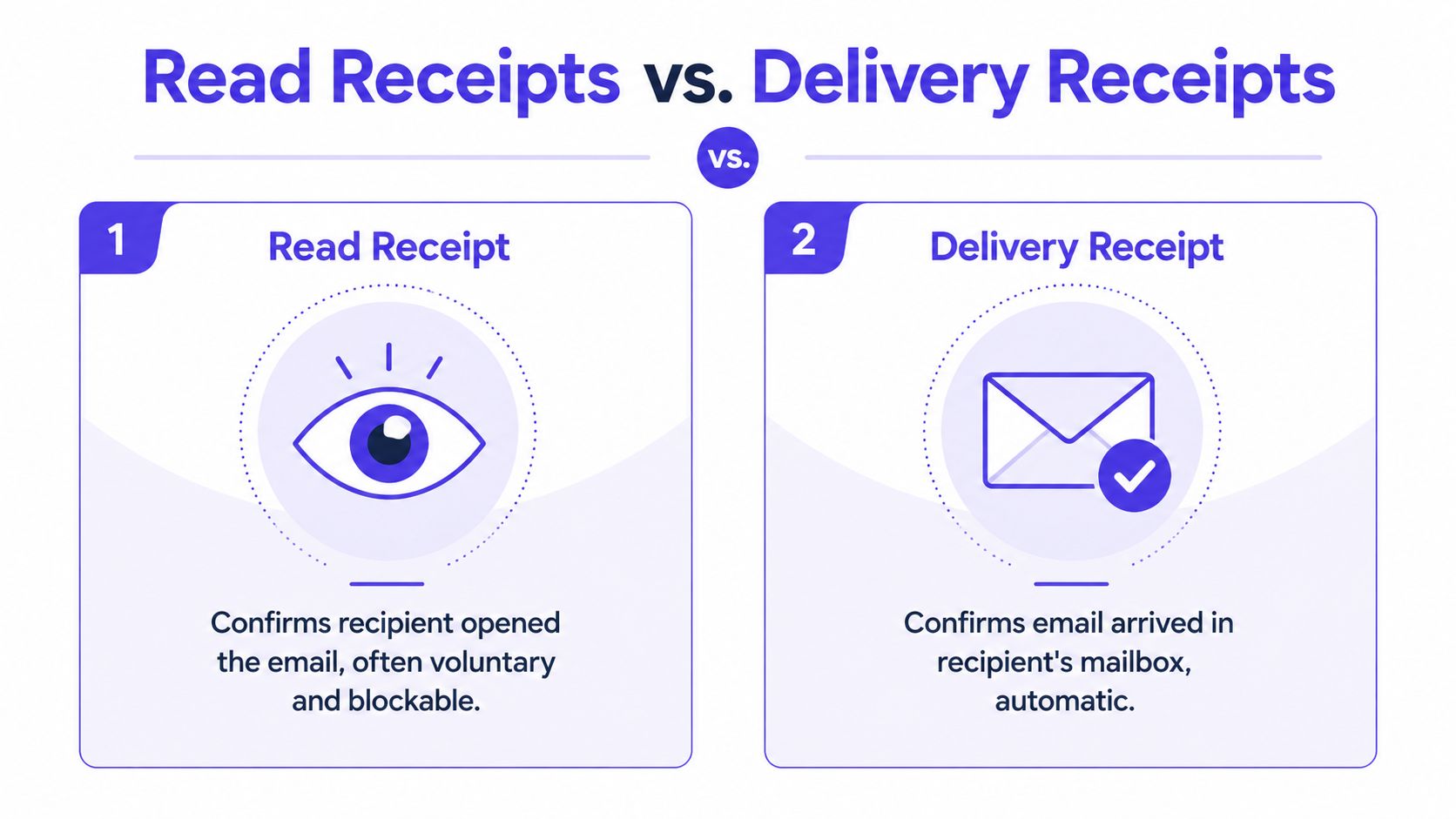
What each receipt actually tells you
A delivery receipt confirms the message reached the recipient's mail server or mailbox environment. A read receipt is supposed to confirm the message was opened in a supported client.
That sounds straightforward, but the confidence level is different.
| Feature | Delivery Receipt | Read Receipt |
|---|---|---|
| What it confirms | Message reached the receiving mail system | Message was opened in a supported email client |
| What it does not confirm | It doesn't confirm the person saw the message | It doesn't confirm the person actually read or understood it |
| User control | Less dependent on recipient action | Directly affected by recipient settings and consent |
| Typical business use | Troubleshooting delivery path | Rough visibility check on a specific message |
| Reliability | More consistent than read receipts | Less consistent because recipients can block it |
Why sales teams often read this data wrong
Sales reps often treat a read receipt like intent data. That's a mistake. Even when Outlook reports a read event, it only indicates the message was displayed. It doesn't prove engagement.
One Outlook behavior makes this even messier. A message can be displayed in the reading pane without proving the user read it, and Outlook can generate confusing outcomes around read state handling, including a later "not-read" event after deletion, as discussed in this community explanation of Outlook read and not-read behavior.
A delivery receipt helps answer "Did the system accept the message?" A read receipt tries to answer "Did a person open it?" Those are not interchangeable questions.
How to Request Read Receipts on Desktop and Web
The setup depends heavily on which Outlook version is being used. That's where many tutorials fail. The interface changed, and New Outlook doesn't work like Classic Outlook.

Classic Outlook for Windows
Classic Outlook is the only mainstream Outlook version that clearly supports a global setting for all outgoing mail.
To request a read receipt for every email:
- Open Outlook
- Click File
- Select Options
- Choose Mail
- Scroll to Tracking
- Check Read receipt confirming the recipient viewed the message
- Save the changes
To request a receipt for one message only:
- Open a new email
- Go to Options
- In the tracking controls, select Request a Read Receipt
- Send the message
This is the version most older guides describe. That's why users moving to the newer interface often think the feature has disappeared.
New Outlook for Windows
New Outlook removes the old global tracking workflow that many people expect.
Microsoft confirms New Outlook requires Message > More Options > Request a read receipt for individual emails, with no global setting for all messages in that interface. Microsoft also notes that New Outlook is becoming the default for many Office 365 users, which is why older walkthroughs feel outdated in Microsoft's guide to read receipts in Outlook on the web and New Outlook.
Steps in New Outlook:
- Click New mail
- Draft the email
- Open Message
- Select More Options
- Enable Request a read receipt
- Send
For teams working heavily in Microsoft 365, it also helps to compare read-receipt behavior with broader Outlook sending workflows and inbox preparation in this guide to email warmup tools for Outlook and Microsoft 365.
Outlook for Mac
Outlook for Mac supports read receipts, but only in specific account types.
Microsoft states the feature works for Microsoft 365 work or school accounts and Exchange Server accounts. It isn't available for Outlook.com, IMAP, or POP accounts, including common setups like Gmail, Yahoo, and iCloud through Outlook for Mac, according to Microsoft's Outlook for Mac receipt documentation.
Typical workflow on Mac:
- Open a new message
- Use the message options area
- Enable the read receipt request
- Send the email
The key issue on Mac isn't the click path. It's account compatibility. If the mailbox type doesn't support it, there is nothing to turn on.
Outlook on the Web
Outlook on the Web works more like New Outlook than Classic Outlook.
To request a receipt:
- Open New message
- Write the email
- Select Message
- Click More options
- Choose Request a read receipt
- Send
There is no broad "request this for every message" control in the same way users remember from Classic Outlook.
A short walkthrough can help if the menu feels hidden:
A practical version check before troubleshooting
Before spending time hunting through menus, it helps to verify three things:
- Outlook version: Classic, New Outlook, Mac, or Web
- Account type: Exchange and Microsoft 365 work or school accounts are more likely to support the feature
- Use case: one important email or every email
If those don't line up, the problem often isn't a hidden setting. It's platform design.
Requesting Read Receipts on Outlook Mobile Apps
Mobile is where expectations usually break down fastest. Users assume the Outlook mobile app works like desktop Outlook, but it doesn't expose the same receipt workflow in a clean, universal way.

Outlook for iPhone and Android
For most business users, the practical answer is simple: request read receipts from desktop or web, not from mobile.
The mobile apps don't offer the same dependable compose-time controls users expect from Classic Outlook. Even when a mailbox is part of a Microsoft 365 environment, mobile workflows are limited compared with desktop and web clients.
The safest workflow for mobile-first teams
If a sender works mostly from a phone, the cleanest option is:
- Draft the message on mobile if needed
- Save it as a draft
- Open it later in desktop Outlook or Outlook on the Web
- Add the read receipt request there
- Send from that supported interface
Mobile Outlook is fine for sending. It isn't the best place to manage tracking settings.
That may feel inconvenient, but it's better than assuming a missing mobile option is just hidden behind another menu.
Why Read Receipts Fail and What to Use Instead
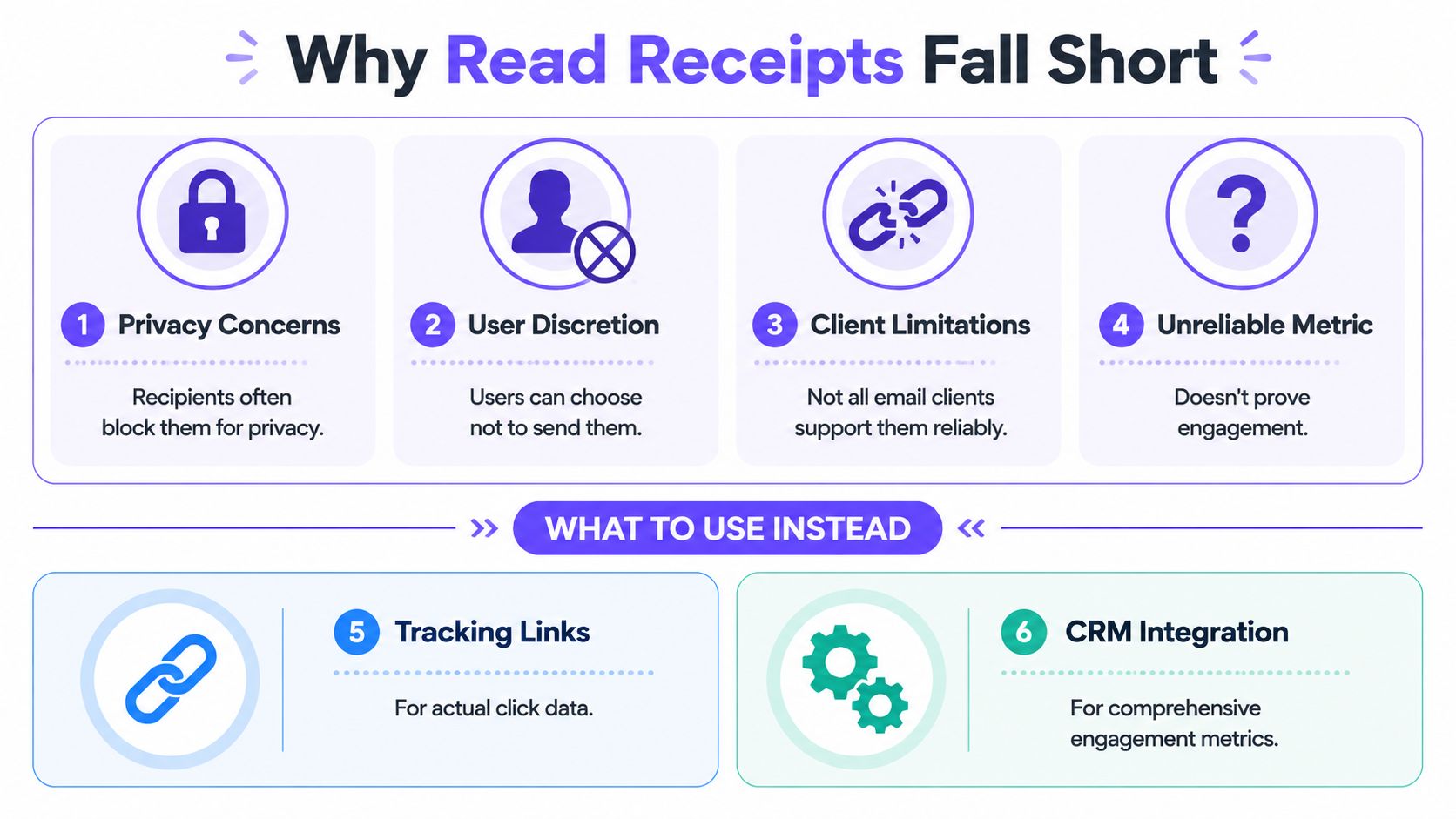
Read receipts are one of the weakest signals in business email. They can be useful as a courtesy request inside a controlled Microsoft environment, but they break fast in real sales workflows.
Recipient control breaks the model
The core problem is simple. The sender does not control the outcome.
A read receipt in Outlook is only a request. The recipient's mail client, mailbox settings, company policy, and privacy choices all affect whether anything comes back. In many organizations, users are prompted to send a receipt, and many decline. Some companies suppress them entirely because they do not want employees broadcasting reading behavior to outside senders.
That makes read receipts a poor metric for outreach, account-based sales, and follow-up timing.
Client and account limitations create blind spots
Even if the sender sets everything correctly, the message may be opened somewhere that does not handle the request the same way. The recipient might read it in Gmail, Apple Mail, a mobile app, a security gateway preview, or an Outlook setup with limited support based on account type.
This is why teams get confused. The feature looks like tracking, but it behaves more like an optional handshake between systems that may not agree.
For internal communication inside the same Microsoft environment, receipts can work well enough. For external prospecting across mixed inbox providers, they are unreliable by design.
"Opened" still does not mean engaged
Even when a receipt is returned, the signal is thin.
It usually means the message was displayed in a compatible client. It does not prove the person read the email carefully, understood the offer, shared it with a colleague, or had any intent to respond. Reading pane behavior can make this worse because message display and human attention are not the same thing.
Sales teams need signals tied to action.
What to track instead
For pipeline decisions, these signals are more useful than a receipt request:
| Better signal | Why it matters |
|---|---|
| Link click tracking | Shows the recipient took a deliberate action |
| Reply tracking | Confirms visibility and willingness to engage |
| CRM activity sync | Connects engagement to account context and follow-up |
| Deliverability monitoring | Shows whether the message reached the inbox in the first place |
I would treat read receipts as optional admin data, not as evidence that outreach is working.
What sales teams should do instead
Start with the question that matters. Did the email have a fair chance to be seen?
If inbox placement is weak, read receipts will not help. A missing receipt may have nothing to do with recipient interest and everything to do with spam filtering, tab placement, blocked images, or domain reputation. Teams trying to improve outbound performance usually get better results by fixing deliverability first, then measuring clicks, replies, and meetings.
If that is the issue, this guide on avoiding the spam folder in cold and sales email will help more than another Outlook setting.
Use read receipts for occasional internal workflows where both sides are on compatible systems and the stakes are low. For external sales outreach, build reporting around actions people choose to take.
Frequently Asked Questions About Outlook Read Receipts
Can Outlook force someone to send a read receipt
No. Outlook lets the sender request a receipt, but the recipient keeps control over whether one is returned. That is built into the product behavior across supported Outlook environments.
Why isn't Outlook sending a read receipt back
The recipient may have chosen not to send one, the client may not support it consistently, or the account type may limit the feature. In many cases, the sender setup is correct and the result still doesn't come back.
Does a read receipt mean the email was actually read
No. A read receipt only suggests the email was displayed in a supported client. It doesn't prove the recipient read, understood, or acted on the message.
What does a not-read receipt mean in Outlook
It can reflect Outlook's handling of message state after display and deletion, which is why the data can look contradictory. A sender may see one signal when the message is shown and another later when the item is removed.
Does this work when sending from Outlook to Gmail
Sometimes it won't. Cross-client behavior is one of the biggest reasons read receipts are inconsistent, especially when the sender and recipient aren't both using compatible Outlook and Exchange-style environments.
What's better than read receipts for outbound teams
For outbound, stronger signals are clicks, replies, booked meetings, and inbox placement data. Teams that aren't getting engagement often benefit more from fixing underlying deliverability issues than from looking for open confirmation, especially when diagnosing why emails don't get replies.
Conclusion
Anyone looking up how to get read receipt in Outlook can set it up in a few clicks. The harder truth is that Outlook read receipts are voluntary, limited by platform, and too weak to trust for serious sales tracking.
They still have a place for selective internal use. They aren't a dependable system for outbound performance.
The smarter move is to use read receipts sparingly, then focus on the signals that drive decisions: clicks, replies, meetings, and inbox placement.
If email is part of a company's growth strategy, Mailwarm helps senders build reputation, monitor inbox placement, and reduce spam risk with expert-guided warmup. As a premium email warmup and deliverability platform, Mailwarm helps senders build reputation, monitor inbox placement, and improve deliverability through real inbox engagement, advanced warmup controls, and expert guidance. It goes beyond basic warmup by combining a network of 50,000+ aged real inboxes, real engagement signals, up to 100% replies to warmup emails depending on the plan, spam score monitoring, inbox placement insights, provider-level warmup, authentication fix tools, bounce prevention, deliverability analytics, and expert deliverability calls included in every plan, without requiring IMAP access to a user's private inbox.