
You can encrypt email in Outlook 365 by opening a new message, going to the Options tab, and clicking Encrypt. The catch is that this button only appears if your Microsoft 365 license and tenant setup support it.
That's the part most business users run into right away. They need to send a contract, payroll detail, signed proposal, or customer file securely, and Outlook either makes it easy or hides the feature entirely. The practical choice usually comes down to two paths. Use Microsoft's built-in message encryption for normal business use, or use S/MIME only if a compliance rule or security policy requires certificate-based encryption.
Why and When to Encrypt Emails in Outlook
A normal email is fine for routine updates. It's the wrong tool for sensitive material.
If a team is sending pricing sheets, tax documents, legal agreements, account details, or internal HR information, plain email creates unnecessary exposure. Encryption adds a layer of protection so the message content and attachments aren't readable by anyone who intercepts them.
Everyday business situations that justify encryption
Encryption makes sense when email contains:
- Client agreements: Signed contracts, renewals, or legal terms
- Financial details: Invoices with account data, payment instructions, or internal budget files
- Personnel information: Offer letters, employee records, or compensation details
- Confidential strategy: Sales plans, acquisition discussions, or investor materials
Practical rule: If the message would be a problem when forwarded, misrouted, or exposed in a mailbox breach, it should be encrypted.
For most businesses, Outlook encryption isn't about extreme secrecy. It's about basic control. It helps protect sensitive content, supports internal policy, and shows customers that the sender takes confidential communication seriously.
There are two Outlook encryption paths
Outlook 365 supports two different methods:
- Microsoft 365 Message Encryption (OME): The simpler, built-in option for normal business use
- S/MIME: The certificate-based option for stricter compliance environments
That difference matters because most guides jump straight into clicks and menus. That overlooks the essential decision. A business owner usually doesn't need the most technical option. They need the one that works reliably for staff and recipients.
For teams that also care about whether important messages reach the inbox in the first place, it's worth understanding how provider filtering works in this Outlook spam filters guide. Encryption protects message content. It doesn't decide inbox placement.
Choosing Your Encryption Method OME vs S/MIME
This is the main decision. Pick the wrong method and either the setup becomes painful or the recipient can't open the message.
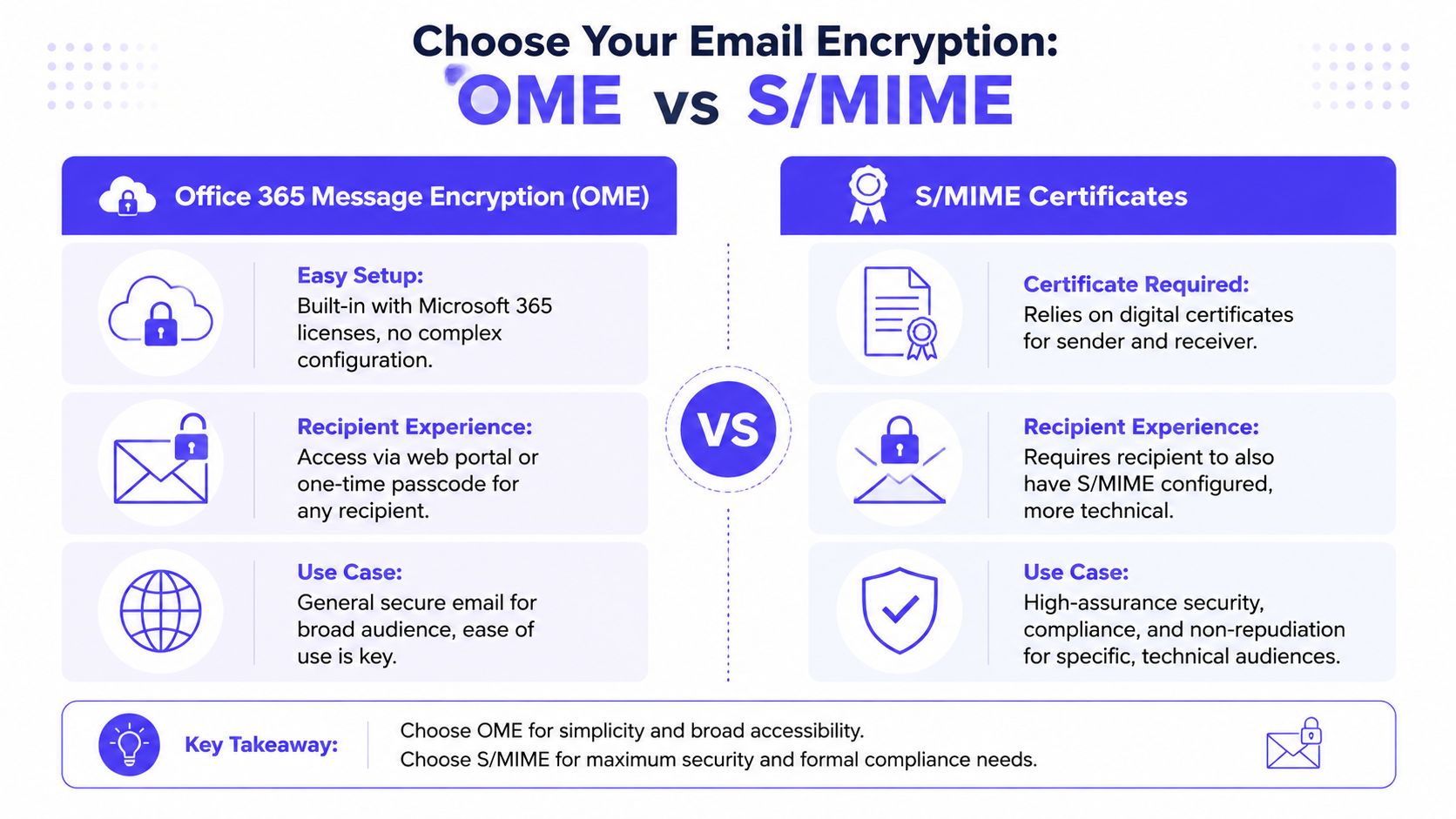
For almost every business use case, Microsoft 365 Message Encryption, now part of Microsoft Purview Message Encryption, is the right choice. It's the built-in Outlook option designed for secure email without requiring both sides to manage certificates.
S/MIME is different. It's better understood as a digital ID system for email. It can be the right fit for government, regulated, or high-assurance environments, but it adds real operational friction.
What OME is best at
Microsoft's native encryption uses Azure Rights Management to protect the message body and attachments by wrapping them in an encrypted container. The recipient gets the message in their mailbox, clicks View Message, and authenticates through the Microsoft portal so the content stays unreadable without an authorized session, as described in Microsoft's explanation of Purview message protection.
That makes OME a practical fit when:
- Recipients vary: Customers, vendors, prospects, and partners use different email providers
- Staff need simplicity: People can send secure messages from the Outlook interface
- The business wants speed: There's no certificate exchange process for normal use
What S/MIME is best at
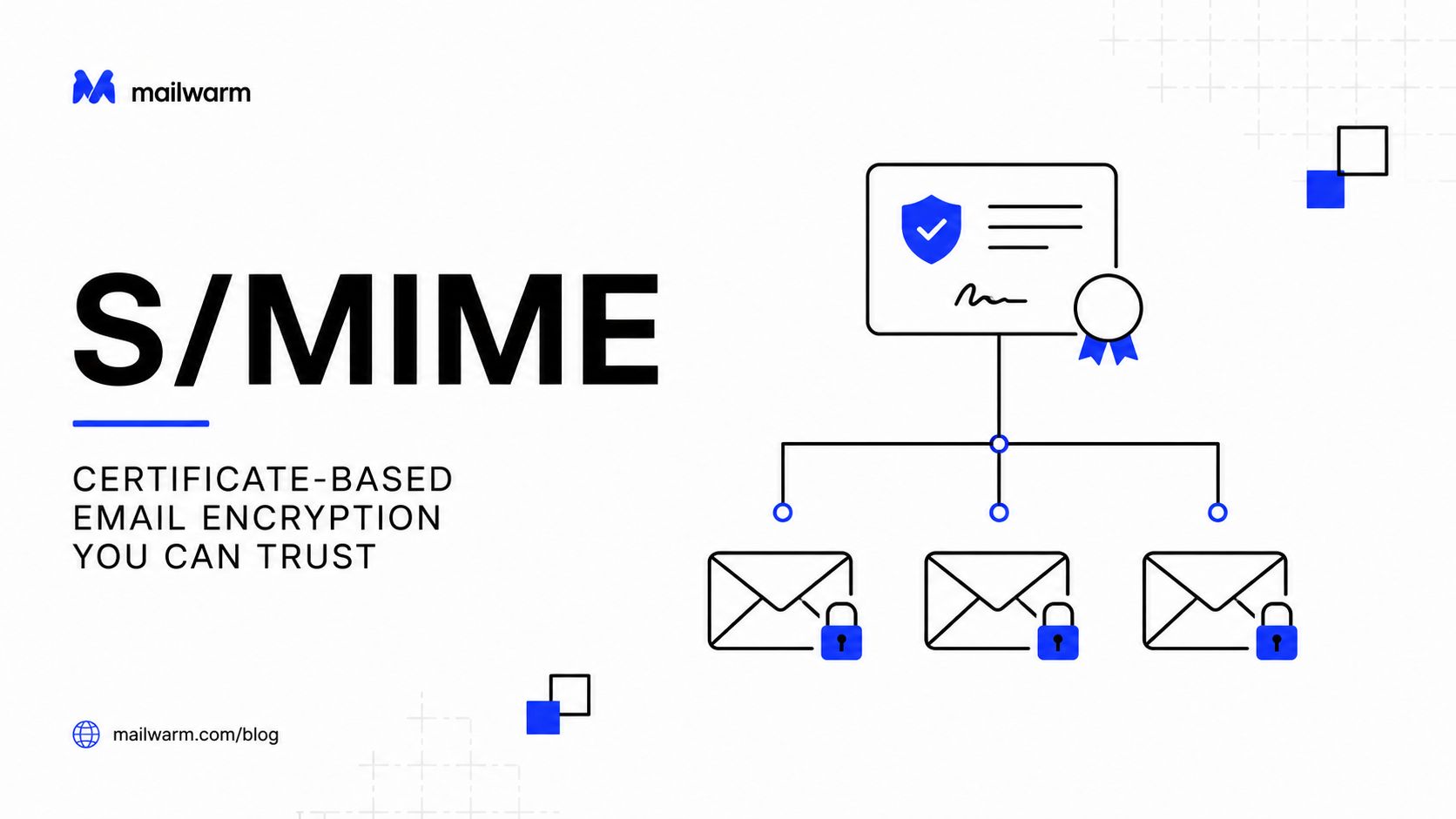
S/MIME is the stricter path. It relies on certificates and key pairs, and it expects both sides to participate correctly.
That usually means:
- The sender has a certificate or PIV card
- The recipient has the sender's public encryption certificate
- Both email environments are managed carefully
S/MIME makes sense when a policy, regulator, or industry requirement specifically calls for it. Outside that context, it's often more burden than benefit.
OME vs S/MIME at a glance
| Factor | OME | S/MIME |
|---|---|---|
| Best fit | Everyday secure business email | High-compliance or certificate-driven environments |
| Setup | Built into supported Microsoft 365 environments | Requires certificate setup and Outlook configuration |
| Recipient experience | Recipient authenticates through Microsoft portal or passcode flow | Recipient needs compatible S/MIME setup and certificate support |
| Flexibility | Easier for mixed external audiences | Harder outside tightly managed environments |
| Business recommendation | Right for nearly all teams | Use only when a specific requirement drives it |
Most teams asking how to encrypt email in Outlook 365 don't need the most advanced method. They need the method that recipients can actually open without a help desk ticket.
The practical recommendation
Choose OME unless there's a specific compliance reason to choose S/MIME.
That's the clearest answer for founders, agencies, recruiters, and sales teams. OME is the everyday secure communication tool. S/MIME is the specialist tool.
Prerequisites for Microsoft 365 Message Encryption
The most common reason Outlook encryption “doesn't work” is simple. The account doesn't include it.
Many users open a new message, look for the Encrypt button, and assume Outlook is broken when they can't find it. Usually it's a licensing issue, not a user mistake.

Which Microsoft 365 plans support the Encrypt button
The Encrypt button isn't available for standard Microsoft 365 Business Standard licenses unless the tenant adds Azure Information Protection Plan 1. The feature typically requires Microsoft 365 Enterprise E3/E5 or Office 365 E3/E5, according to this Outlook encryption setup reference.
That creates a practical rule:
- Enterprise E3/E5 or Office 365 E3/E5: Usually the intended path
- Business Standard: Often missing the feature unless an add-on is present
- User confusion: Common when teams assume all Outlook versions include the same security options
How admins can verify OME is actually enabled
An administrator can check the tenant backend with PowerShell. The command is Get-IRMConfiguration, and the key property to verify is AzureRMSLicensingEnabled. If that value is True, the encryption service is enabled. If it isn't, the Outlook client won't show the expected option.
This check matters because front-end troubleshooting wastes time when the back-end service isn't active.
A simple admin checklist looks like this:
- Confirm the license tier: Make sure the mailbox has a plan that supports OME
- Check tenant configuration: Verify
AzureRMSLicensingEnabledis enabled - Then test Outlook: Only after the service and licensing are confirmed
For teams reviewing their email stack more broadly, this guide to email authentication is useful alongside encryption planning. Authentication and encryption solve different problems, but both matter for trusted business email.
How to Send and Open Encrypted Emails with OME
Once the license is right, OME is the easiest Outlook encryption option to use.
The sender experience is straightforward. The recipient experience is usually straightforward too, which is why OME is the practical choice for normal business communication.
How to send an encrypted email in Outlook
In Outlook 365, the basic process is:
- Open a new message
- Go to Options
- Click Encrypt
- Choose the permission level
The two common choices are:
- Encrypt-Only: Secures the content but still allows forwarding
- Do Not Forward: Restricts recipients from copying, forwarding, or printing the message
That second option matters when the goal isn't just privacy, but control.
Which option should most people use
Use Encrypt-Only when the message needs protection but normal collaboration should continue.
Use Do Not Forward when the email contains material that shouldn't be redistributed, such as confidential pricing, legal content, internal HR matters, or sensitive client information.
Best default: If the concern is “keep this private,” use Encrypt-Only. If the concern is “keep this from spreading,” use Do Not Forward.
What recipients see when they open the email
Recipients don't need to be using Outlook to read an OME-protected message.
For external recipients using providers like Google or Yahoo, Microsoft says they can authenticate either by signing in with their Google or Yahoo credentials or by using a temporary one-time passcode sent to their email, and that passcode must be entered within 15 minutes to view the message, as explained in Microsoft's recipient guide for encrypted messages.
That means the recipient flow usually looks like this:
- They receive the message
- They click View Message
- They choose sign-in or one-time passcode
- They open the protected content after verification
The 15-minute passcode window is the one detail worth warning people about in advance. If they wait too long, they'll need a new code.
A quick walkthrough helps reduce recipient confusion
This demo gives a good sense of the user flow from send to open:
Practical sending tips that save time
A few habits make encrypted sending smoother:
- Warn external recipients first: Tell them they'll receive a secure message and may need to verify access
- Choose restrictions carefully: Don't use Do Not Forward unless the extra control is necessary
- Test with a personal external account: Before rolling it out to staff, send one to Gmail or Yahoo and confirm the experience
- Keep the subject line clear: Encryption protects the message body and attachments. Business users should still avoid putting sensitive details in the subject line
For most organizations, that's enough. If the team can send a normal email in Outlook, they can usually handle OME after a short demonstration.
Advanced Encryption with S/MIME Certificates
A business usually reaches for S/MIME after one of two things happens. A customer, regulator, or legal team requires certificate-based encryption, or the company already runs a tightly managed Microsoft environment with smart cards and internal IT support.
For everyone else, S/MIME is usually more work than value.
OME and S/MIME solve different problems. OME is the practical choice for day-to-day secure communication with clients, vendors, and outside partners. S/MIME is for controlled environments where both sender and recipient can manage certificates correctly, every time. This is not the default recommendation for the typical business.
What setup involves
Outlook supports S/MIME for higher-security use cases, including organizations that use a PIV card or a digital signing certificate. The Outlook-side configuration lives in File > Options > Trust Center > Trust Center Settings > Email Security, as shown in this Outlook S/MIME implementation guidance.
In practice, setup usually means:
- Getting a certificate: From a trusted certificate authority or an internal PKI team
- Installing it on the device: So Outlook can use the private key
- Configuring Outlook: To sign and encrypt with that certificate
- Sharing public certificates with recipients: So they can send encrypted mail back and decrypt what you send
The last step is where many projects slow down. S/MIME only works cleanly when both sides already have the right certificate information in place.
Where S/MIME breaks down in real use
S/MIME is strong inside a managed organization. It gets fragile fast once external recipients are involved.
If the recipient does not have the sender's public certificate, or if their mail client is not configured properly, encrypted mail can fail in ways a non-technical user cannot fix on their own. Support teams then end up handling certificate import issues, expired certificates, mismatched address books, and device-specific Outlook problems.
Key recovery is another real trade-off. If a user loses access to the private key and the organization has no recovery process, previously encrypted mail may be unreadable. That is a manageable risk in a mature IT environment. It is a serious operational risk in a small business without certificate management experience.
Encryption also does not solve deliverability. A message can be properly encrypted and still land in spam, so teams sending sensitive client communication should also review how to avoid the spam folder with business email.
When S/MIME is the right call
Use S/MIME when:
- A regulator, contract, or internal security policy requires certificate-based encryption
- Both sender and recipient are in managed environments
- Your IT team can issue, renew, revoke, and recover certificates
- You need digital signing and identity assurance tied to certificates
Skip S/MIME when you mainly need to send secure messages to normal business contacts, mixed mail providers, or outside clients who are not set up for certificate exchange.
For nearly every business owner asking how to encrypt email in Outlook 365, the decision is straightforward. Choose OME for everyday secure communication. Choose S/MIME only when a compliance rule or a tightly controlled recipient environment makes certificate-based encryption necessary.
Troubleshooting Encryption and Ensuring Deliverability
Most encryption problems come from a short list of causes.
Sometimes the Encrypt button is missing because the license or tenant setup doesn't support it. Sometimes the message sends, but the recipient has trouble opening it. And sometimes Outlook itself warns the sender before the message goes out.
In new Outlook, if the app can't verify that all recipients can decrypt the message, it shows a warning that highlights the recipients who may not be able to read it and lets the sender send anyway or remove them, as described in Microsoft's encrypted mail behavior in new Outlook.
A simple troubleshooting checklist
- Missing Encrypt button: Check license eligibility and tenant activation first
- Recipient can't open message: Confirm they followed the portal sign-in or passcode flow correctly
- Outlook shows recipient warnings: Review the highlighted recipients before sending
- Sensitive subject line: Remove confidential details from the subject because encryption mainly protects the body and attachments
Security doesn't equal inbox placement
Many teams mix up two separate issues at this point.
Encryption protects message content. It does not make mailbox providers place the email in the inbox. A secure email in spam is still a failed business message.
That's why teams that depend on email growth also need to manage sender reputation, authentication quality, and inbox placement. If that's a live issue, this spam folder prevention guide is the next practical step after encryption is working.
Frequently Asked Questions About Outlook Encryption
A common pattern looks like this. A business owner needs to send a contract, pricing sheet, or employee document to someone outside the company, sees both OME and S/MIME mentioned in Outlook guides, and wants one clear answer on what to use.
For that situation, the decision is simple. Use OME for normal business encryption. Choose S/MIME only if your company already manages certificates or a compliance rule specifically requires certificate-based encryption.
Quick answers to the questions that matter most
Can external recipients open an encrypted Outlook 365 email?
Yes. With OME, outside recipients usually sign in with their existing email provider or use a one-time passcode. They do not need a Microsoft 365 business account, which is one reason OME works well for day-to-day client and partner communication.
What's the difference between Encrypt-Only and Do Not Forward?
Encrypt-Only protects the message content in transit and at rest, but the recipient can still forward it. Do Not Forward adds usage restrictions, including blocking forwarding, copying, and printing in supported clients. If the goal is to send sensitive information securely, Encrypt-Only is often enough. If the goal is to limit redistribution, use Do Not Forward.
Why is the Encrypt button missing in Outlook?
Start with licensing and tenant setup. In many environments, encryption depends on the right Microsoft 365 plan and on the service being enabled by an admin. Check that first. Troubleshooting the Outlook app before confirming licensing wastes time.
The choice that trips people up
Should a business use OME or S/MIME?
For nearly every small and mid-sized business, OME is the right choice. It is easier to deploy, easier for recipients to open, and easier to support when someone outside your organization gets stuck.
S/MIME fits a narrower use case. It makes sense in certificate-managed environments, regulated industries with strict identity requirements, or organizations that already issue and maintain user certificates. It can be stronger in very specific compliance workflows, but it is harder to roll out and harder to support. If you are asking which one to choose, the answer is usually OME.
Does encryption keep messages out of spam?
No. Encryption protects content. Inbox placement depends on sender reputation, authentication, sending behavior, and domain health. A secure message can still land in spam if the sending setup is weak.
What if one recipient can open encrypted mail and another cannot?
That usually points to a recipient-side access issue, not a failure of Outlook encryption itself. Check whether the recipient used the correct sign-in method, whether the passcode expired, or whether their mail client opened the message in a way that skipped the Microsoft reading flow. If the message is business-critical, send a short plain-text note first telling them to expect an encrypted email and to open it from a full browser if needed.