
Google Postmaster Tools data explained for Gmail deliverability decisions
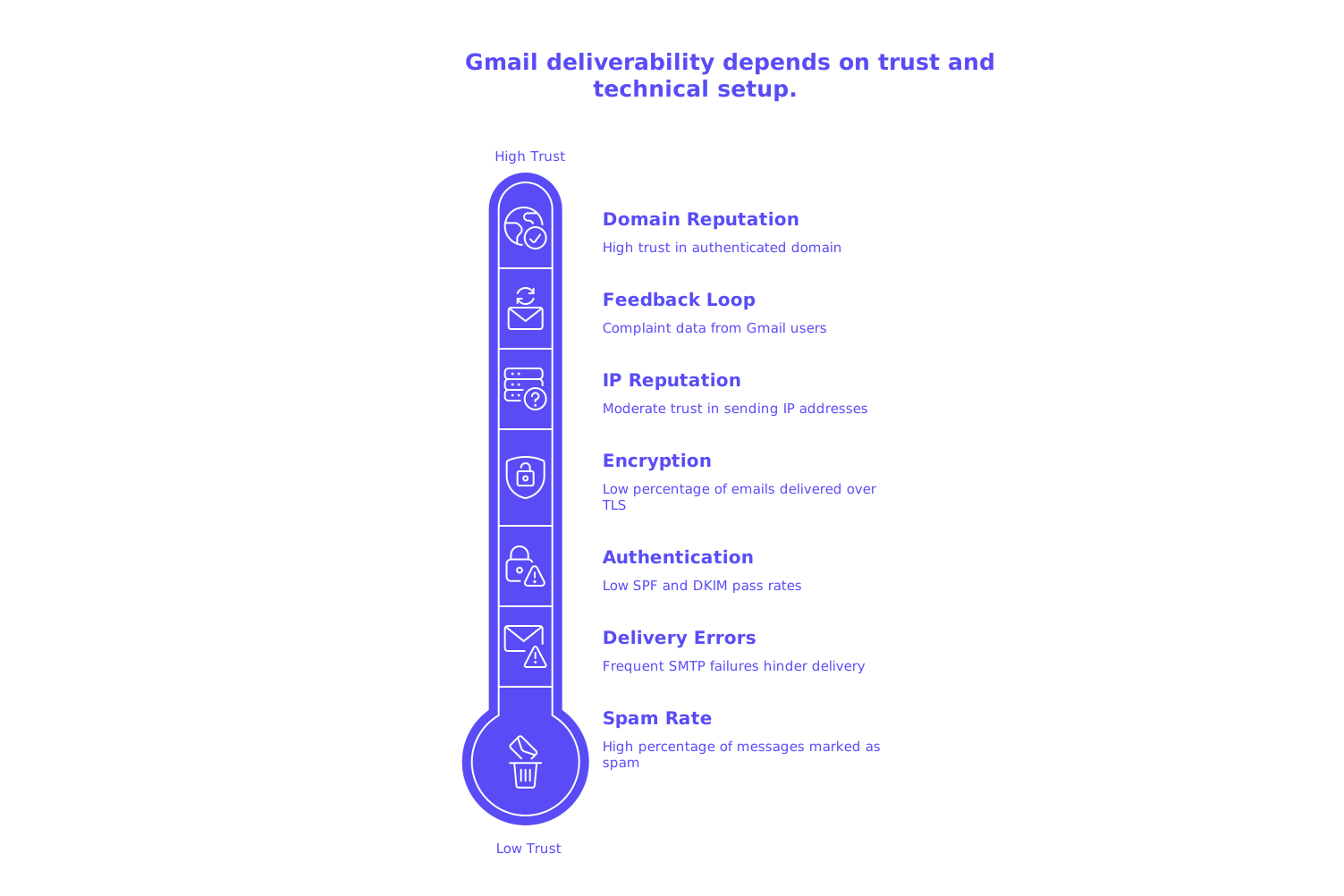
Google Postmaster Tools (GPT) aggregates activity across your email traffic, surfacing overall patterns instead of individual incidents. Here’s what each page in GPT reports on:
- Domain Reputation: Reflects how much Gmail trusts emails sent from your authenticated domain.
- IP Reputation: Measures Gmail’s trust in your sending IP addresses or IP pool.
- Spam Rate: Indicates the percentage of your sent messages that Gmail users mark as spam.
- Feedback Loop: Delivers complaint data for senders who are part of Gmail’s Feedback Loop program.
- Authentication: Displays the rate at which your emails pass SPF and DKIM authentication as seen by Gmail.
- Encryption: Shows the percentage of emails sent to Gmail that are delivered over TLS encryption.
- Delivery Errors: Summarizes SMTP failures, grouped by the reason for non-delivery.
There’s a delay before charts are populated, data will only appear after sending consistent volume and setting up proper authentication.
How to set up Google Postmaster Tools for your sending domain the right way
- Go to Google Postmaster Tools and add your sending domain.
- Verify ownership by adding the TXT record Google provides to your domain’s DNS settings.
- Send email with aligned DKIM and SPF so GPT attributes data to your domain accurately.
- Maintain consistent email traffic. Erratic or inconsistent volume can obscure actual trends.
Make sure to use the same envelope-from and DKIM d= domains across your sends. This alignment gives Gmail high confidence in associating your emails with your domain’s reputation.
Reading and acting on Domain and IP Reputation in Google Postmaster Tools
Understand the reputation tiers
- High: Gmail strongly trusts your mail; inbox placement is optimal.
- Medium: Signals are mixed; expect occasional filtering, especially during volume increases.
- Low: Filtering is frequent; you need to address issues and possibly reduce volume.
- Bad: Significant filtering or outright blocking; halt risky sends and focus on rebuilding reputation.
Key steps to improve reputation
- Identify and stop sending to sources that generate complaints or bounce-backs first.
- Pause bulk prospecting until your metrics stabilize.
- Reinforce SMTP identity, your HELO banner and SMTP details directly affect your reputation.
- Gradually increase sending volume on new domains and IPs; avoid sudden spikes.
Gmail increasingly weighs domain reputation heavily when making inbox decisions. Ensure that your sender identity is consistent and properly authenticated at all times.
Using Spam Rate and Gmail Feedback Loop inside Google Postmaster Tools
Spam Rate reveals how often Gmail users click “Report spam” on your emails. Even minor increases in this rate are critical when you’re sending at scale. Monitor daily changes for sudden upswings.
- If the spam rate rises, stop messaging the segments that are causing the increase.
- Cease sending to potentially harmful sources, including purchased email lists.
- Ensure one-click unsubscribe headers are present and work in all non-transactional emails.
- Remove individuals who recently marked your emails as spam from all future send lists.
The Feedback Loop report, when it’s available, gives greater visibility into complaints. Use both the Spam Rate and Feedback Loop data to track improvement after each adjustment.
Authentication and encryption pages in Google Postmaster Tools and what to fix
Gmail requires strong alignment between SPF and DKIM on every email. Authentication failures harm your reputation and increase the likelihood of filtering.
- SPF: Keep SPF records concise and accurate. If your SPF record approaches DNS lookup limits, see our guide on avoiding SPF record length limits in multi-domain setups.
- DKIM: Use secure keys and rotate them periodically. Ensure the signed domain matches your other identifiers.
- DMARC: Publish a DMARC policy with alignment. Begin with p=none for monitoring and tighten enforcement as your setup stabilizes.
- TLS: Aim to achieve near-total encryption for messages sent to Gmail.
Authentication is not a substitute for best practices, but it gives GPT clarity in attributing performance to the correct domain and IPs.
Delivery Errors in Google Postmaster Tools and how to resolve them
When your inbox rate drops, open the Delivery Errors page to track issues. Analyze each spike and match it to the precise cause.
421 4.7.0 Temporary System Problem. Try again later.
This typically results from sudden increases in sending volume, new IP usage, or drops in reputation. Reduce sending speed and retry with smaller batches.
550 5.7.1 Message rejected due to content or user complaints.
For this error, cut out risky sources and check that your authentication is in order. Also, review your SMTP identity and infrastructure setup.
For a broader context, see our explainer on why emails get bounced and learn about the new delivery rules. Use this guide to recognize patterns in the data surfaced by GPT.
Turning Google Postmaster Tools insights into practical deliverability fixes
Address structural issues first
- Align SPF, DKIM, and DMARC before making further adjustments.
- Ensure stable and correct HELO/EHLO names and reverse DNS settings for each email host.
- Keep your sending domains consistent, avoid frequent domain switching.
Manage list quality and sending cadence
- Immediately remove email addresses that recently bounced or reported your emails as spam.
- Validate new addresses with an email checker before outreach.
- Lower your daily email attempts until GPT metrics show recovery.
Monitor results with simple diagnostics
- Use a spam checker to review headers and authentication protocols.
- If Delivery Errors suddenly rise, run a blacklist checker.
- Monitor your GPT charts in parallel with SMTP logs and non-delivery report samples.
Implement one change at a time. Measure the impact in GPT before making the next fix.
Where email warm-up fits after Google Postmaster Tools exposes reputation issues
Email warm-up is most effective after you’ve fixed technical issues and removed risky data sources. Once your infrastructure is sound, focus on steady, reputable interactions to rebuild mailbox provider trust.
Mailwarm automates this process by creating ongoing interactions with more than fifty thousand actively monitored inboxes. As of February 2026, Mailwarm has evolved into a robust email warm-up system, featuring centralized multi-account management, detailed email reputation monitoring, cross-provider warm-up, and granular spam score tracking for Gmail, Microsoft, Yahoo, and others. Unlike traditional marketing tools, Mailwarm’s interactions are designed solely to generate positive, safe activity that helps repair sender reputation after technical corrections.
Start the warm-up process only after you’ve stabilized authentication, reputation, and sending cadence. Keep Google Postmaster Tools open as you slowly increase your daily volume. If Domain Reputation improves and Spam Rate holds steady, your approach is working.
To fine-tune SMTP identity, check out our primer on what the HELO command means and its effect on sender reputation. This advice supports your warm-up and DNS optimization steps.
How to compare Google Postmaster Tools trends with inbox placement outcomes
GPT won’t show inbox placement directly. Still, its trends often mirror your results. Rely on these correlations:
- Increasing Domain Reputation generally leads to improved inbox placement.
- A dropping Spam Rate signals safer audience targeting and better send practices.
- Consistent Authentication and Encryption remove technical uncertainty from deliverability analysis.
Combine GPT tracking with seed tests and real user replies to connect reputation shifts with actual email placement.
Advanced Gmail-specific considerations in Google Postmaster Tools
- Make sure the domain visible in the From field matches the domain specified in your DKIM (DomainKeys Identified Mail) settings.
- Use a single, unambiguous return-path per domain to support clear attribution.
- Ramp up volume gradually on new sender identities. Don’t increase sending load too quickly.
- Schedule regular DKIM key rotations to avoid key-age risks.
- If you are nearing SPF DNS lookup limits, follow our advice in this guide for avoiding SPF record length problems to maintain compliance.
Document every aspect of your setup. When you notice a downturn in Postmaster Tools, auditing becomes faster and more reliable, helping you restore stability quickly.
Ready to take action? Open Google Postmaster Tools, verify your domain, and examine each chart closely. Fix technical issues, eliminate risky sending sources, and watch as your trend lines stabilize. After those steps, if you require ongoing positive interactions, consider a structured email warm-up program to carefully rebuild trust.
FAQ
What is the role of domain reputation in email deliverability?
Domain reputation is pivotal; it dictates whether your emails land in the inbox or spam folder. Without a solid reputation, even well-crafted emails risk being ignored or blocked outright.
How can Mailwarm assist in fixing poor email deliverability?
Mailwarm helps recover sender reputation by orchestrating positive interactions across a vast network of monitored inboxes. This process, effective post-technical fixes, is key in reshaping your digital credibility.
Why is authentication alignment critical in emails?
Misaligned authentication like DKIM or SPF can lead to severe deliverability issues, as Gmail and other providers might question your mail's integrity. Aligning these indicators communicates trustworthiness and reduces filtering risks.
What should be done when the Spam Rate in Gmail increases?
A rising Spam Rate suggests reckless sending practices that need immediate correction. Cutting ties with harmful sources and refining targeting strategies is essential to prevent long-term reputation damage.
How can one effectively track improvements in deliverability metrics?
Combine GPT data monitoring with consistent testing using seed lists and real user interactions. These measures reveal the true impact of your strategy adjustments on inbox placement.