
If you need to encrypt Outlook messages, the hard part usually isn't finding the button, it's making sure Outlook, Microsoft 365, certificates, and recipient settings all line up. Outlook encryption can work well, but only when the right policy, licensing, and certificate pieces are already in place.
That's why so many teams think they've “enabled encryption” and still run into unreadable messages, missing options, or policy conflicts. In practice, this is a layered setup, not a single toggle, and the details matter more than the menu path.
Why Outlook Encryption Requires More Than a Single Setting
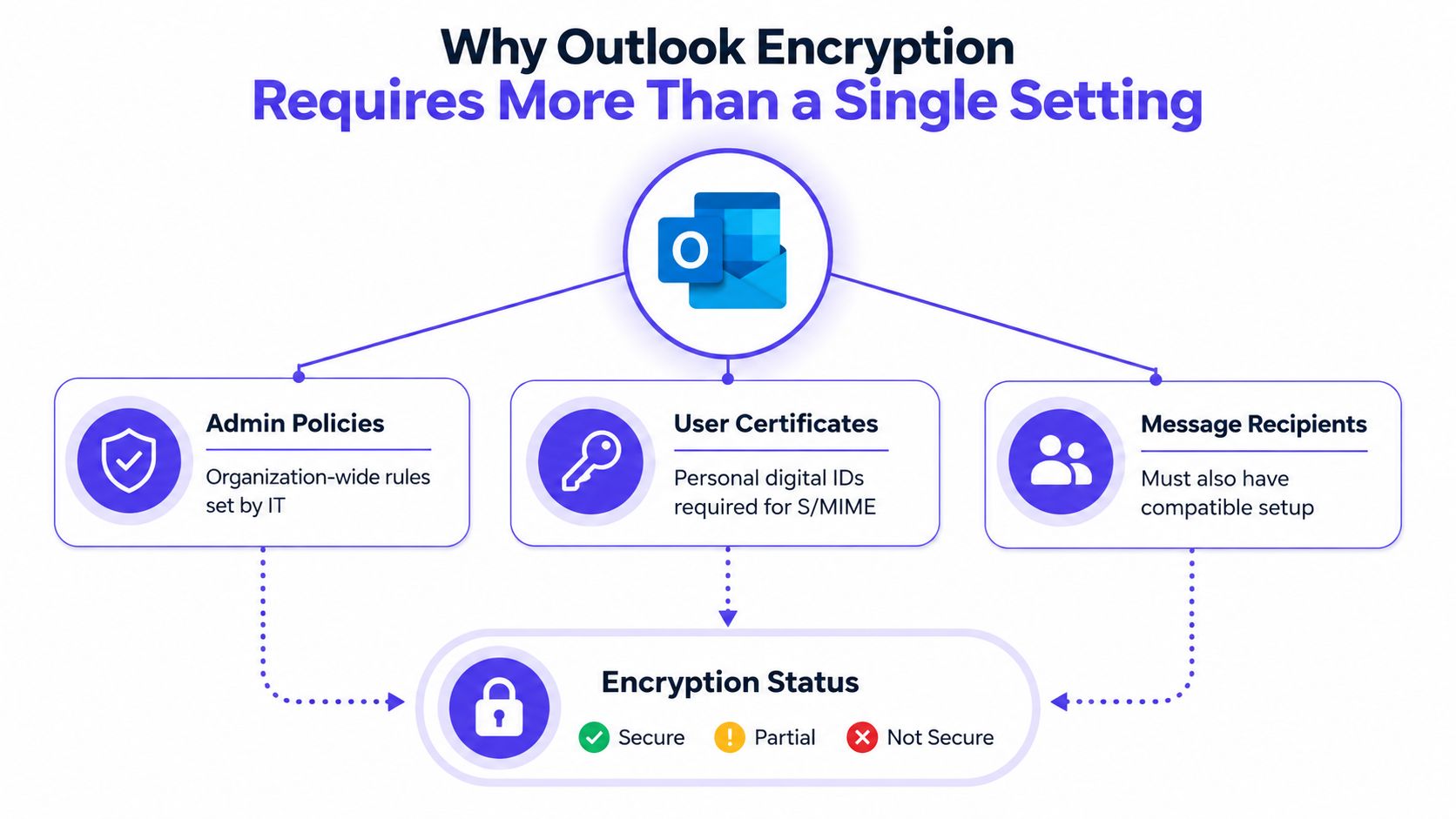
Outlook encryption is often treated like a switch, but Microsoft's model is layered. In current Outlook builds, users can encrypt from the compose window with Options > Encrypt, while older Outlook versions may rely on Trust Center settings for outgoing message protection Microsoft's Outlook encryption guidance. That means success depends on more than the sender clicking a menu item.
The core pieces have to match
For S/MIME, both sides may need compatible certificates or settings. Microsoft's guidance also shows that Outlook 2019 and 2016 use Permissions or Security Settings, while Microsoft 365 can expose choices such as Encrypt-Only and Do Not Forward Microsoft's Outlook encryption guidance. Kaspersky similarly notes that S/MIME in Outlook needs a certificate or digital ID from an organization administrator Kaspersky on Outlook email encryption.
The operational reality is simple. If the sender has the right button but the recipient lacks the right setup, the message may be protected in transit yet still be unreadable at the other end.
Practical rule: encryption works only when policy, identity, and recipient compatibility all line up.
The model has changed over time
Microsoft's current documentation still supports certificate setup in Trust Center, but newer Outlook experiences also offer direct encryption choices in the message ribbon, including Encrypt with S/MIME for Insider and Microsoft 365 users Kaspersky on Outlook email encryption. That shift matters because many orgs now run mixed environments, where one team uses Microsoft 365 controls and another still depends on classic Outlook behavior.
The result is a common admin mistake. Teams assume Outlook encryption is universal, then discover that the user experience depends on version, licensing, and policy.
Choosing Between S/MIME and Office 365 Message Encryption
S/MIME and Office 365 Message Encryption solve different problems. S/MIME is certificate-based and tied closely to enterprise-managed identity, while Microsoft 365 permission-based encryption is built around policy controls such as Encrypt-Only and Do Not Forward Microsoft's Outlook encryption guidance.
| Feature | S/MIME | Office 365 Message Encryption |
|---|---|---|
| Core model | Certificate-based message security | Policy-based message protection |
| Setup requirement | Digital ID or certificate | Microsoft 365 encryption capability and policy |
| Admin control | Strong, but certificate-heavy | Stronger policy control for teams |
| Recipient compatibility | Often depends on matching setup | More flexible for protected viewing |
| Best fit | Internal workflows with managed certificates | Organizations that want broader policy enforcement |
Where S/MIME fits best
S/MIME makes sense when an organization already manages certificates and wants message-level protection tied to identity. Microsoft says Outlook's S/MIME setup requires a pre-installed digital ID or certificate in Trust Center > Email Security, and messages encrypted this way can fail for recipients who don't have the matching setup Microsoft Q&A on encrypting Outlook messages. That makes it powerful, but less forgiving.
The trade-off is compatibility. S/MIME is precise, but it can become brittle when users move between devices, versions, or organizations.
Where OME is more practical
Microsoft 365 encryption is usually easier for day-to-day business use because the sender selects a policy from Options > Encrypt and chooses Encrypt-Only or Do Not Forward Microsoft Q&A on encrypting Outlook messages. For admins, this is also easier to govern through mail-flow rules when enforcement matters.
For teams building a broader email security stack, a useful complement is the M365 email hardening best practices guide from Ollo. It fits well alongside encryption planning because encryption alone doesn't solve every mail risk.
Step-by-Step Encryption Setup Across Outlook Platforms
The exact clicks vary by Outlook version, and that's where many setup attempts go wrong. The cleanest approach is to verify the platform first, then apply the matching encryption path.
Outlook for Windows
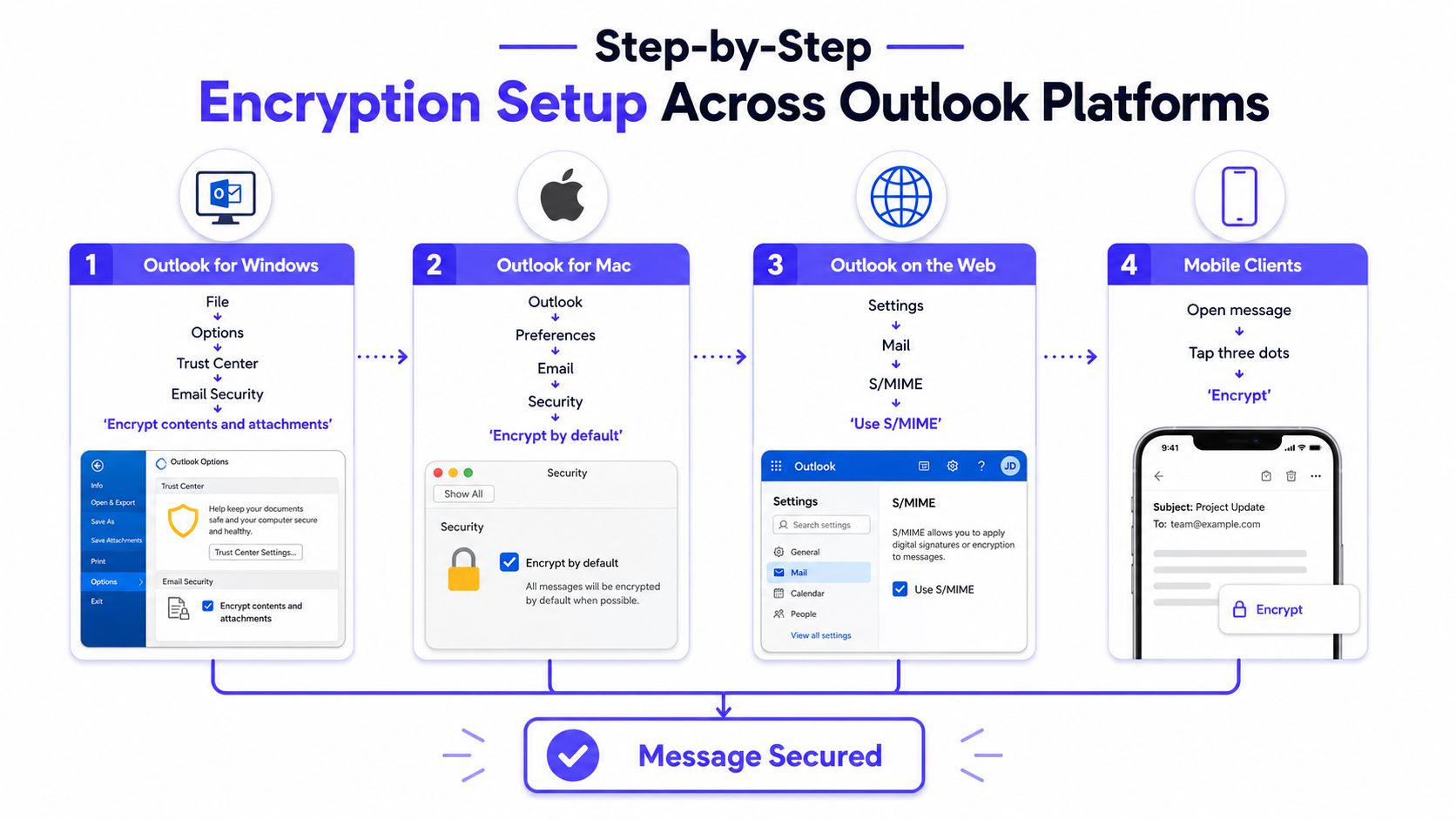
In current Microsoft 365 builds, the path is straightforward, compose a message, open Options, choose Encrypt, then select Encrypt-Only or Do Not Forward Microsoft Q&A on encrypting Outlook messages. In classic Outlook 2016 and 2019, the path shifts to Options > Permissions for similar protection choices Microsoft's Outlook encryption guidance.
For S/MIME, the setup runs deeper. The certificate has to be installed first, then configured through File > Options > Trust Center > Trust Center Settings > Email Security before message-level encryption can work Microsoft Q&A on encrypting Outlook messages.
Outlook for the web
Microsoft's newer web experience also exposes encryption choices directly in the message ribbon, including S/MIME for supported users Kaspersky on Outlook email encryption. In practice, web users still depend on tenant policy and supported identity setup, so the button being visible doesn't always mean the message can be read by every recipient.
Mobile clients
Mobile support is more limited and more policy-dependent than desktop. Users may still see encryption-related actions in supported mail apps, but the safest assumption is that mobile behavior mirrors the organization's Microsoft 365 policy rather than offering a separate encryption system.
Here's the short sequence that tends to work across Microsoft 365 environments:
- Confirm the account type. Check whether the mailbox is governed by Microsoft 365 encryption policy.
- Open the message compose window. Start the email first.
- Use the Encrypt control. Pick the required policy, usually Encrypt-Only or Do Not Forward.
- Verify certificate readiness if using S/MIME. No certificate, no reliable S/MIME.
- Send a test message. Confirm the recipient can open it before rolling it out broadly.
Prerequisites That Determine Whether Encryption Will Work
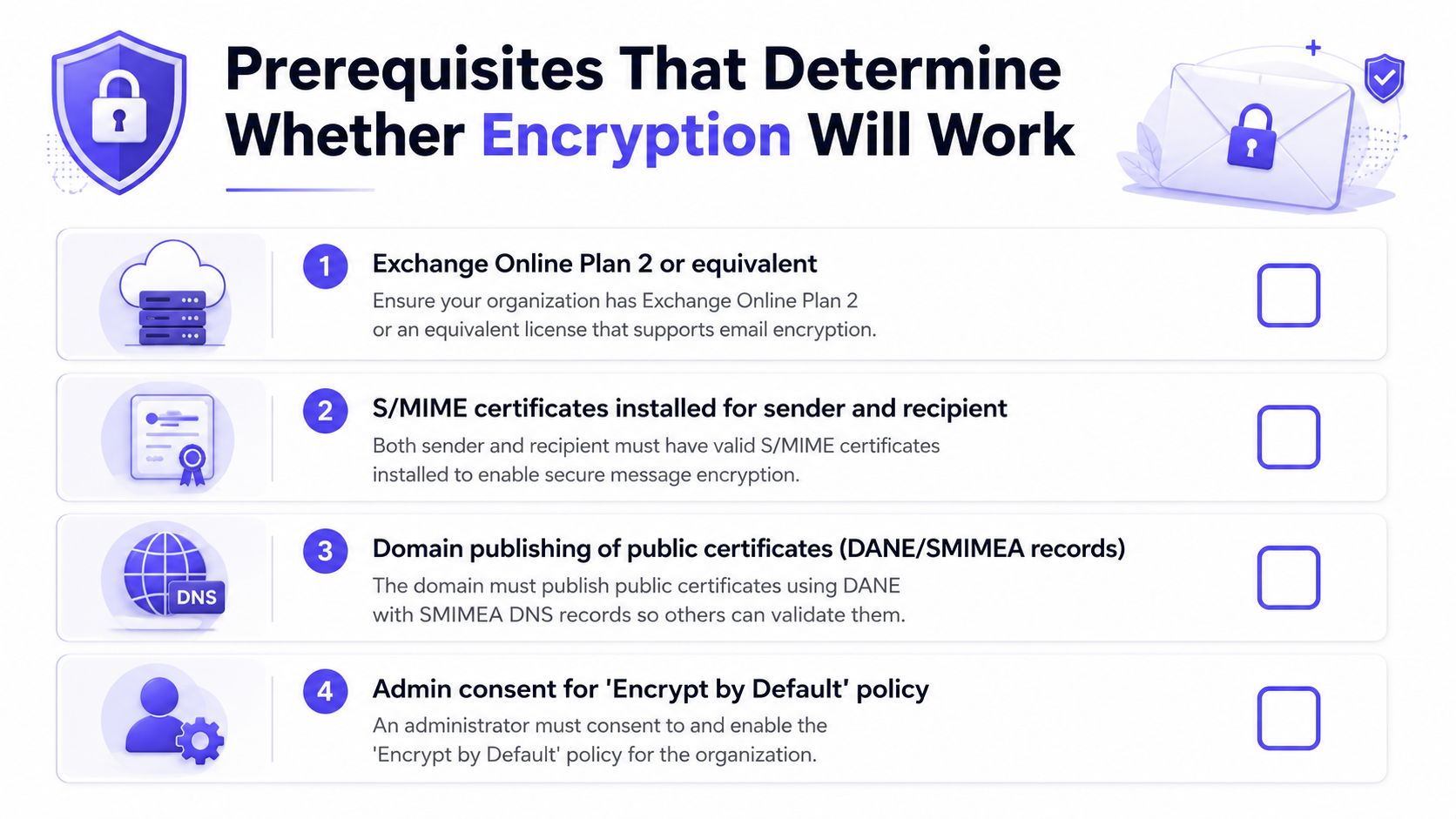
Encryption failures usually trace back to missing prerequisites, not bad intent from the sender. Microsoft and Microsoft Q&A both show that Outlook encryption can depend on qualifying Microsoft 365 subscription requirements, and one Microsoft answer specifically notes an Office 365 Enterprise E3 license for Microsoft 365 Message Encryption Microsoft Q&A on encryption licensing.
Licensing and admin policy come first
If the tenant doesn't have the right subscription or policy rights, the encryption option may never appear. That's why admins should verify licensing before troubleshooting the ribbon, because a missing button can be a licensing issue rather than a client issue Microsoft Q&A on encryption licensing.
For managed environments, Exchange mail-flow rules can also enforce encryption for specific recipients or sensitive messages Microsoft Q&A on encrypting Outlook messages. That matters because manual user action is easy to miss, while transport rules apply consistently.
Certificates are still the turning point for S/MIME
S/MIME is still certificate-driven. Microsoft's guidance points to Trust Center > Email Security for setup, and Kaspersky notes that Outlook compatibility with S/MIME depends on a certificate or digital ID from an administrator Microsoft Q&A on encrypting Outlook messages, Kaspersky on Outlook email encryption. If the certificate is missing, expired, or not deployed properly, encryption won't behave the way users expect.
Build the broader mail foundation too
Encryption sits on top of the same hygiene that supports deliverability and trust. A practical companion resource is setup DKIM SPF DMARC BIMI, because authentication and encryption together give admins a cleaner baseline for secure mail flow.
If encryption is only being applied manually, users will eventually forget. When compliance matters, automate it through policy or mail-flow rules.
Troubleshooting Common Encryption Failures
The most common failures are predictable. The button is missing, the message sends unencrypted, or the recipient can't open it, and each problem usually maps back to setup, licensing, or certificate trust.
Read the symptom before changing the setting
If No Encryption Option appears, the first thing to check is whether the user has a valid certificate and whether it's published correctly. If the message sends unencrypted, confirm that the S/MIME add-in or Trust Center setting is enabled, because the feature can exist in the tenant but still be off in the client Microsoft Q&A on encrypting Outlook messages.
When the recipient can't decrypt, the issue is usually on the receiving side. The recipient may lack the trusted certificate or the correct installation, especially in S/MIME workflows where both sides need compatible setup Microsoft's Outlook encryption guidance.
Watch for policy conflicts
A message can also lose its protection if an Exchange transport rule overrides the user's chosen settings. That's why admins should inspect mail-flow rules before blaming Outlook itself, because message security can be changed after the sender clicks Encrypt Microsoft Q&A on encrypting Outlook messages.
Another common mistake is assuming encryption becomes automatic the moment account features are enabled. Microsoft's guidance shows that users still need to apply encryption per message unless admins configure automatic encryption through settings or a mail-flow rule Microsoft Q&A on encrypting Outlook messages.
For related message hygiene issues, the Outlook spam filters guide is useful when users confuse content security problems with delivery problems.
Encryption as Part of a Complete Email Deliverability Strategy
Encryption protects content, but it doesn't guarantee inbox placement. If messages land in spam or never reach the recipient, encryption doesn't help the business outcome, because the message still fails to arrive where it's needed.
The security stack has to work together
Organizations usually get better results when encryption sits alongside SPF, DKIM, DMARC, and sender reputation work. That broader foundation helps mailbox providers trust the mail stream, while encryption protects the message content after delivery.
For new domains or outbound-heavy teams, warmup and reputation work matter too. Mailwarm is a premium email warmup and deliverability platform built for teams that care about real inbox placement, not just automated warmup activity, and it supports sender reputation, inbox placement insights, and real inbox engagement. For a practical playbook on inbox risk, the avoid spam folder guide is a useful companion.
A practical operating view
Encryption can sometimes signal that a message is sensitive, which is good for trust, but it can also increase admin complexity if policies are inconsistent. The better approach is to treat encryption as one layer in a broader deliverability and security program, not as a substitute for authentication, reputation management, or content hygiene.
When that stack is in place, encrypted messages have a much better chance of being both protected and readable.
If your team sends sensitive mail and still struggles with inbox placement, Mailwarm helps build sender reputation, monitor inbox placement, and improve deliverability through real inbox engagement, advanced warmup controls, and expert guidance. Visit Mailwarm to see how it supports secure sending alongside the rest of your email stack.
FAQ
What is the simplest way to encrypt Outlook messages?
In modern Microsoft 365 Outlook, the usual path is Options > Encrypt, then choose Encrypt-Only or Do Not Forward. Classic Outlook 2016 and 2019 often use Permissions instead.
Why doesn't the Encrypt button show up?
The missing button usually points to licensing, policy, or client configuration issues. Microsoft notes that encryption can depend on a qualifying Microsoft 365 subscription, and S/MIME also needs a certificate or digital ID.
Does S/MIME work for external recipients?
It can, but compatibility is the problem. If the recipient doesn't have a matching certificate setup, they may not be able to open the message.
Is Office 365 Message Encryption easier than S/MIME?
Usually yes, because it relies more on Microsoft 365 policy than on manual certificate deployment. That said, admins still need to verify licensing and tenant settings.
Why do encrypted Outlook messages still land in spam?
Encryption doesn't fix deliverability. Spam filtering is tied to sender reputation, authentication, and message behavior, so teams still need warmup and inbox-placement work.
Does Mailwarm help with encryption?
Mailwarm doesn't encrypt Outlook messages. It helps teams improve sender reputation and inbox placement so important mail has a better chance of reaching the inbox.
Why is Mailwarm more expensive than basic warmup tools?
Mailwarm costs more because it combines real inbox engagement, up to 100% replies to warmup emails depending on the plan, spam score monitoring, provider-level warmup, authentication tools, no IMAP access required, and expert deliverability calls included in every plan.
Does Mailwarm need access to my inbox?
No, Mailwarm does not require IMAP access or permission to read a private inbox. That makes it less intrusive than tools that depend on mailbox-level access.
For Outlook encryption to work reliably, the setup has to be treated as a system, not a shortcut. Check the license, confirm the certificate path, and make sure policy and recipient compatibility are in place before you rely on it for sensitive mail.
If encrypted email is part of your growth or sales workflow, the next step is to make sure those messages reach the inbox. Mailwarm helps teams build sender reputation, monitor inbox placement, and reduce spam risk with expert-guided warmup, so secure messages have a better chance of being delivered where they matter.