
A founder sends a campaign from Google Workspace, the copy is solid, the list is clean, and Gmail still pushes replies into spam or filters the message out. In many cases, the problem isn't the email itself. It's DKIM.
DomainKeys Identified Mail for Gmail is the digital signature Gmail uses to decide whether a message really came from the domain it claims to come from, and whether that message was changed on the way. If DKIM is missing or failing, Gmail treats the message as less trustworthy, which directly hurts inbox placement.
What Is DKIM and Why Is It Critical for Gmail
A founder can send a legitimate email from Google Workspace and still lose the inbox if Gmail cannot verify who signed that message. That is the practical job of DKIM.
DKIM, short for DomainKeys Identified Mail, adds a digital signature to outgoing mail. Gmail checks that signature against a public key stored in your DNS. If the signature matches, Gmail gets proof that the message was authorized by the signing domain and that key parts of the email were not changed after it left your system.

Why Gmail pays close attention to DKIM
Gmail uses authentication to decide how much trust to give a message before engagement data even enters the picture. A valid DKIM signature helps confirm that the email was sent by infrastructure tied to the domain in the header, and that the content stayed intact in transit.
That matters because Gmail does not judge deliverability on copy alone. It evaluates identity, consistency, and reputation together.
In practice, DKIM failures show up as business problems first. Reply rates drop. Outreach gets ignored. Password resets and onboarding emails arrive late or in spam. Teams often blame the sending tool or the subject line, but the underlying issue is that Gmail cannot verify the message cleanly.
What DKIM actually proves, and what it does not
DKIM proves two things:
- The message was signed by a server with access to the domain's private key.
- The signed parts of the message were not altered after sending.
It does not prove the sender is reputable. It does not stop spam by itself. It does not replace SPF or DMARC.
That distinction matters. A domain can have DKIM set up and still struggle with inbox placement if reputation is weak, the sending pattern is erratic, or DMARC alignment is broken.
Why founders should care
DKIM is often treated as a DNS setup task. The better way to view it is as an inbox trust control.
If your company depends on email for revenue, hiring, support, product notifications, or customer onboarding, DKIM affects whether those messages are treated as legitimate before a human ever sees them. That is why I do not recommend stopping at "record published." Confirm whether Gmail is validating the signature on live mail. A quick DKIM checker for your domain can confirm the DNS side, but the definitive diagnosis comes from the Gmail headers, where you can see why a signature passed, failed, or was ignored.
Where DKIM fits with SPF and DMARC
| Authentication layer | What it checks | Why it matters |
|---|---|---|
| DKIM | Whether the message was signed by the domain and stayed intact | Helps Gmail verify message integrity |
| SPF | Whether the sending server is allowed to send for the domain | Helps verify the sending source |
| DMARC | Whether DKIM or SPF aligns with the visible From domain, and what to do when checks fail | Ties authentication to enforcement |
The short version is simple. If DKIM is missing, broken, or signing with the wrong domain, Gmail has less reason to trust the message. Most setup guides stop at adding the DNS record. The harder and more useful skill is reading Gmail's headers so you can connect a DKIM error to the actual problem, which is mail going to spam.
How to Check DKIM Status in Gmail
A founder sends a launch email, sees solid open rates in one segment and silence in another, then assumes the copy missed. The faster check is Gmail's header view. It shows whether Gmail trusted the message enough to treat it like legitimate mail or held it back because the DKIM signature did not verify.
That is the part many setup guides skip. They show the DNS record. Gmail shows the verdict.
Start with the clue Gmail shows first
Open the message in Gmail and look near the sender details. If Gmail shows a via domain, treat it as a clue, not a conclusion. It often means the message passed through another platform, such as a CRM, help desk, or marketing tool, and that matters because the signing domain may not match the domain your recipient sees in the From address.
Then open the headers. That is where the useful evidence lives.
Open Show original
In Gmail, open the message menu and click Show original. Gmail displays the raw message and a summary of its authentication checks.
Start with Authentication-Results. This line tells you whether Gmail recorded dkim=pass, dkim=fail, or another result. If DKIM fails, Gmail has less reason to trust the message, which often lines up with spam placement or inconsistent inboxing across recipients.
What the status means
Use this table when reading Gmail headers:
Gmail DKIM Authentication Results
| Status | What It Means | Your Next Step |
|---|---|---|
| pass | Gmail verified the signature against the public key in DNS | If placement is still poor, check SPF, DMARC alignment, and sender reputation |
| fail | Gmail could not validate the signature | Check the selector, key match, and whether a relay or forwarder changed the message |
| neutral | Gmail did not reach a strong verification result | Confirm the message was signed at all and that the selector points to a valid DNS record |
A pass means this trust check worked. It does not mean the message will land in the inbox every time.
A fail is the signal to investigate right away. In practice, I usually see one of two causes. The signer is using the wrong key or selector, or the message was modified after it was signed.
What to inspect in the header
Three parts usually explain the problem:
- Authentication-Results: Gmail's verdict
- DKIM-Signature: The signing domain, selector, and signing details
- Received lines and other routing clues: Signs that the message passed through forwarding or a third-party platform
Read these together. If Authentication-Results says dkim=fail, the DKIM-Signature line tells you which domain signed the message and which selector Gmail tried to verify. That lets you connect a technical failure to the business issue. If the wrong system signed the mail, or a relay altered it, Gmail may treat your revenue email like suspicious traffic.
If you want a quick DNS check before reading raw headers, use this DKIM checker for your sending domain. It helps confirm that the public key is published and readable. Then return to Gmail to see whether the live message passed verification.
A simple reading sequence
This is the fastest workflow for non-technical teams:
- Open a real delivered email in Gmail
- Click Show original
- Find Authentication-Results
- Look for dkim=pass, dkim=fail, or dkim=neutral
- If it failed, find the d= domain and s= selector in DKIM-Signature
- Compare that selector and domain against the DNS record you intended to publish
This order matters. Start with Gmail's result on a real message, then trace back to DNS and sending tools. That is how you move from “we added the record” to “we know why Gmail did or did not trust this email.”
Diagnosing Common DKIM Failures
A founder sees the DNS record in place, sends a test, and still finds the message in spam with dkim=fail in Gmail. That usually means the problem is not the record itself. It means something in the sending path broke the signature after the message left the platform.
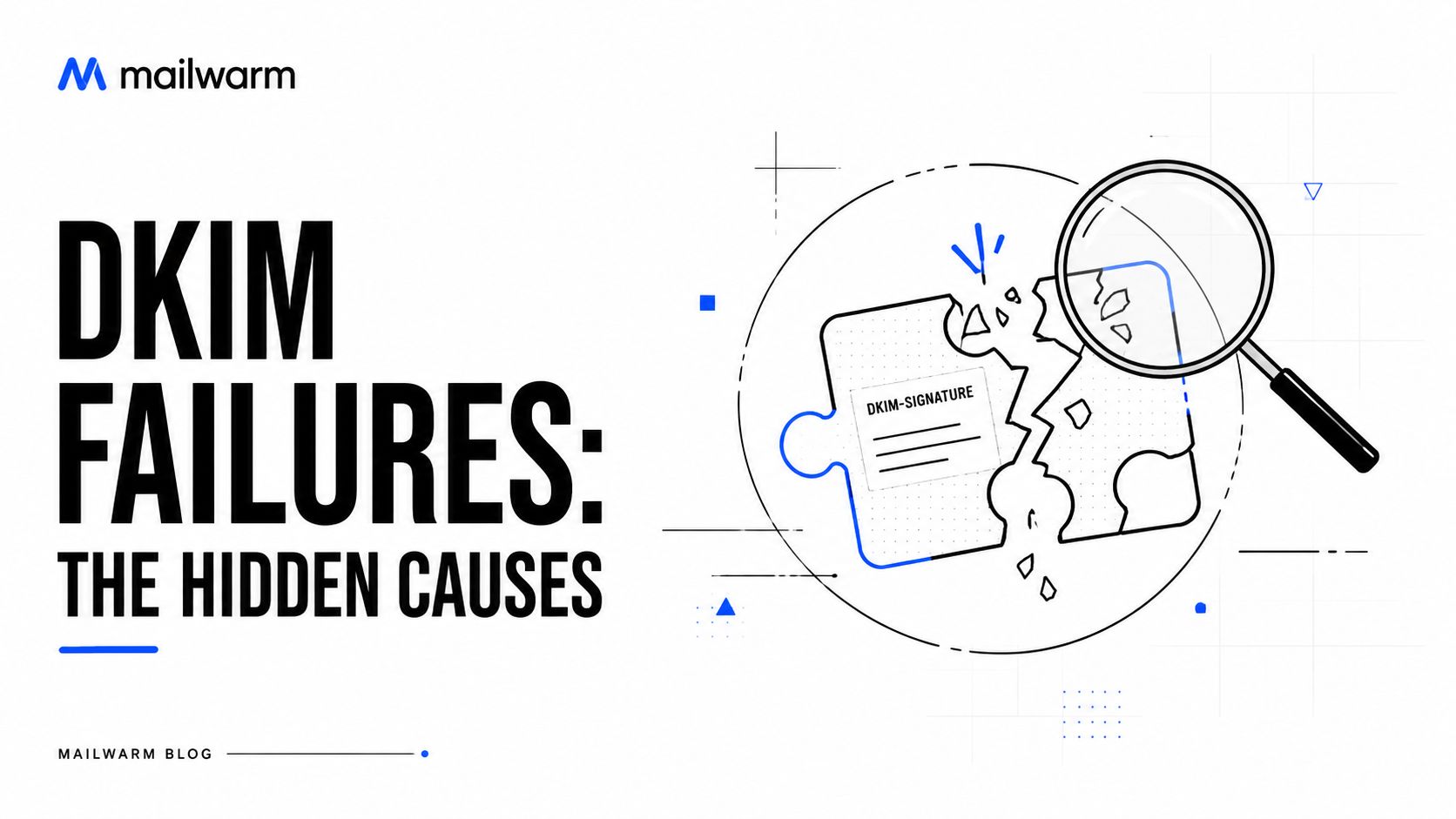
The practical mistake I see is treating DKIM as a DNS task only. DNS is just one part. Gmail is checking whether the message that arrived still matches the message that was signed. If those differ, Gmail has a reason to trust the mail less, and that can push sales outreach, onboarding emails, and renewal reminders into spam.
A common cause teams miss
Forwarding breaks more valid DKIM setups than people expect.
A message can leave your sending tool correctly signed and fail by the time it reaches Gmail because another system touched it on the way. Common examples include aliases, inbox forwarding rules, security gateways, CRM relays, and outbound tools that rewrite content or headers after signing.
That is why Gmail headers matter. They show whether the failure came from the key, the selector, or a changed message. If you only check DNS, you miss the reason the live email failed.
Why forwarding breaks DKIM
DKIM signs specific headers and a version of the message body. Any system that changes one of those signed parts can invalidate the signature.
The usual culprits are straightforward:
- A forwarding service adds or rewrites content, such as a footer, disclaimer, or tracking element
- An intermediate system changes signed headers
- Mail passes through multiple platforms, and one of them reprocesses the message
- A sales or agency workflow sends through a relay that does not preserve the original signature
Partial success often misleads founders. SPF can still pass in some of these cases, so the setup looks healthy at a glance while Gmail still distrusts the message.
A passing SPF result does not fix a broken DKIM signature if Gmail sees that the signed message was altered.
Read the DKIM-Signature header for the actual cause
The useful clues are in the header, not in the admin screenshot.
Start with the d= value. That is the domain that signed the message. Then check s=, which is the selector Gmail used to find the public key in DNS. If d= points to one domain and your published key lives under another, verification fails. If s= points to an old or missing selector, verification fails. If both are correct, but Gmail still reports dkim=fail, focus on what changed in transit.
For teams working through authentication as a whole, this guide to setting up DKIM, SPF, DMARC, and BIMI together helps put DKIM failures in context.
A practical troubleshooting checklist
When Gmail shows DKIM failure, check these in order:
Signing domain
Confirm that thed=domain is the one you intended to sign mail for this stream.Selector
Confirm that thes=selector exists in DNS and matches the active key for that sender.Key alignment
Make sure the platform that signed the message is using the private key that matches the public key published in DNS.Mail path
Review whether the message went through forwarding, aliasing, a CRM relay, a help desk tool, or a secure email gateway.Message changes after signing
Check for footers, rewritten links, added disclaimers, MIME changes, or header changes introduced after the original send.
What usually fixes the problem
The cleanest mail flow wins. Sign the message once, send it through as few systems as possible, and avoid tools that modify content after signing.
If the headers show the wrong signing domain, fix the sending platform. If the selector is wrong, fix DNS or rotate the key cleanly. If forwarding changed the message, change the route or sign at the final system that sends the email.
Many DKIM problems are really mail flow problems. Gmail headers let you prove that, which is what helps you fix spam placement instead of guessing.
A Step-by-Step Guide to Set Up DKIM in Google Workspace
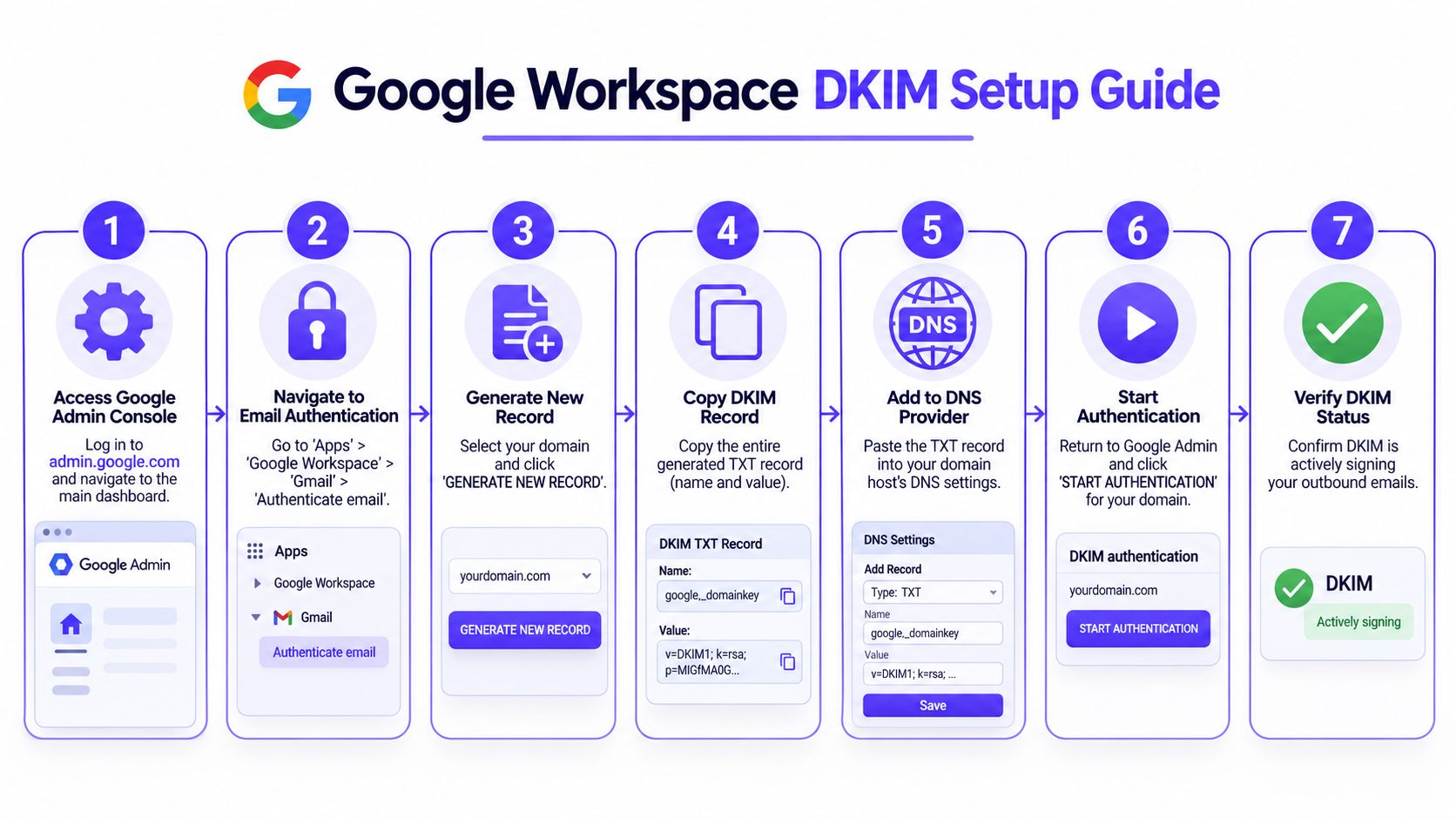
Google Workspace makes DKIM setup manageable, but the process still has a few places where teams make avoidable mistakes. The cleanest approach is to generate the key in Google Admin, publish the TXT record in DNS, then return to Google to activate signing.
This setup visual shows the flow clearly.
Generate the DKIM key in Google Admin
Inside Google Workspace Admin, go to Gmail's authentication settings and generate a new DKIM record for the sending domain.
Google supports key generation in the Admin Console, and modern best practice is to use a 2048-bit key for stronger protection. The DKIM public key is then published as a DNS TXT record in a format that starts with v=DKIM1; k=rsa; p=.
Add the TXT record to DNS
After generation, Google provides a host name and TXT value. The record commonly uses a host name like google._domainkey.yourdomain.
The DNS provider interface will vary, but the job is always the same:
- Copy the exact host name provided by Google
- Paste the full TXT value without trimming it
- Save the record and allow time for DNS to update
To set up DKIM in Google Workspace, the required flow is to generate a key in the Admin Console, add the provided TXT record to DNS, and then start authentication. If Gmail later reports dkim=fail, Google's guidance indicates a mismatch between the private signing key and the public key in DNS.
For teams that want the broader authentication stack done correctly at the same time, this guide to setting up DKIM, SPF, DMARC, and BIMI is a useful reference.
Start authentication in Google Workspace
Publishing the DNS record is only part of the setup. Signing doesn't begin until authentication is started inside Google Admin.
That final click matters. Plenty of teams add the record and stop there.
To make the flow easier to follow, this walkthrough video is useful:
Verify that DKIM is actually working
After activation, verification should happen in two places.
Check DNS visibility
Use Google Admin Toolbox or another DNS lookup method to confirm the TXT record is publicly visible.Send a test email to Gmail
Open the message, click Show original, and look for DKIM pass in the header.
Verification habit: Never treat "record added" as success. Success is when Gmail shows the message passing authentication.
Common setup mistakes
A few errors show up repeatedly:
| Mistake | Why it happens | Result |
|---|---|---|
| Wrong selector | An old or different selector was copied into DNS | Gmail can't find the right public key |
| Partial TXT value | DNS interfaces can make long values awkward to paste | Signature validation fails |
| Record added, authentication not started | Teams assume DNS publication turns signing on automatically | Outbound mail isn't signed |
| Old key mismatch | Platform rotates or regenerates the key without DNS update | Gmail shows failure |
The practical goal isn't just to "have DKIM." It's to have Google Workspace signing mail with the same key Gmail can retrieve from DNS.
Beyond DKIM SPF, DMARC, and Sender Reputation
DKIM solves one part of the problem. It proves message integrity and domain-level signing. It doesn't tell Gmail everything it wants to know.
Modern deliverability depends on three authentication layers working together:
- SPF checks whether the sending server is authorized
- DKIM checks whether the message was signed and stayed intact
- DMARC tells receivers what policy to apply when checks fail

Why all three matter
If a business only sets up DKIM, Gmail still has an incomplete picture. Authentication becomes much more reliable when SPF and DMARC are aligned with it.
This isn't just a compliance exercise. It's how a domain proves that its mail is legitimate across different providers, tools, and workflows. A useful broader overview of email platform decisions and sending considerations appears in the Wise Web email marketing guide, especially for teams comparing infrastructure choices.
DMARC changed the baseline
Gmail tightened bulk sender expectations in February 2024 by requiring a DMARC policy for bulk sending domains. The policy must be set to p=none, p=quarantine, or p=reject, and messages that fail DMARC alignment can be routed to spam or rejected.
For founders, the lesson is straightforward. Authentication is now operational hygiene. It's not a side task for later.
Reputation still decides what happens next
Even a perfectly authenticated domain can struggle if sender reputation is weak.
Mailbox providers also look at behavioral signals:
- Sending consistency
- Complaint patterns
- Engagement quality
- Bounce risk
- Provider-specific reputation history
That's why authentication alone doesn't solve inbox placement. It removes a trust blocker. Reputation determines whether the domain is treated like a sender people want to hear from.
For teams that want a deeper view of how these standards fit together, this email authentication guide covering SPF, DKIM, and DMARC is worth reading.
FAQ on DKIM and Email Authentication
What is DKIM in Gmail
DKIM is a digital signature attached to outgoing email. Gmail uses it to verify that the message came from the claimed domain and wasn't modified after it was sent.
Is DKIM required for Gmail
For serious sending, yes. Gmail relies heavily on DKIM as part of its anti-spoofing and spam filtering process, and unauthenticated mail faces much more friction.
What does DKIM fail mean in Gmail headers
It means Gmail couldn't validate the signature against the public key published for the signing domain. That usually points to a DNS mismatch, a selector problem, or a message that changed after signing.
Why does DKIM fail even when the DNS record looks correct
Because DNS isn't the only variable. Forwarding services, relays, and other intermediaries can alter signed content or headers, which breaks validation even when the published key is correct.
What is the difference between SPF and DKIM
SPF checks whether the sending server is authorized to send for the domain. DKIM checks whether the actual message was signed by that domain and remained intact during delivery.
Does Gmail need both SPF and DKIM
In practice, yes. A healthier setup includes SPF, DKIM, and DMARC working together, because each covers a different part of email trust and policy enforcement.
How can a team confirm DKIM is working after setup
Send a test email to a Gmail account, open Show original, and read the Authentication-Results header. If Gmail shows DKIM pass, the signature validated correctly for that message.
How does Mailwarm help improve sender reputation
Mailwarm is a premium email warmup and deliverability platform. It helps senders build reputation, monitor inbox placement, and improve deliverability through real inbox engagement, advanced warmup controls, and expert guidance.
Why is Mailwarm more expensive than basic warmup tools
Mailwarm costs more because it combines real inbox engagement, up to 100% replies to warmup emails depending on the plan, spam score monitoring, provider-level warmup, authentication tools, no IMAP access required, and expert deliverability calls included in every plan.
Does Mailwarm need access to my inbox
No. Unlike basic warmup tools, Mailwarm does not require IMAP access or permission to read your private inbox.
If email is part of a company's growth strategy, Mailwarm helps senders build reputation, monitor inbox placement, and reduce spam risk with expert-guided warmup. As a premium email warmup and deliverability platform, it goes beyond basic warmup activity with real inbox engagement, advanced monitoring, authentication fix tools, and expert guidance built for teams that care about real inbox placement.