
Can You Unsend an Email? What Actually Works
You hit send and feel that familiar drop in your stomach, a situation we’ve all experienced at some point. The hard truth: Real “unsend” is almost never possible once delivery has occurred. Some email services provide brief delays for last-second cancellations, while others attempt message recalls with significant limitations. Understanding these distinctions will help you act quickly and limit any potential fallout.
Once your message is accepted by a recipient’s server, retrieving or removing it is virtually impossible.
This guide explores the options currently available to counter sending an unintended email. You’ll see where short delays make a difference, why true recalls often fail, and learn practical steps to help prevent mistakes in the future.
How Email Sending Works and Why True Unsend Is Rare
Email relies on the SMTP protocol. When you send an email, your client connects to a server in a series of steps, identifying the sender, listing recipients, and transmitting your message and any attachments. After the server acknowledges with an “OK,” your message is handed off and usually stored on the recipient's mail server or in their mailbox. At this stage, you can’t force deletion remotely. That’s why most recall promises are misleading and why prevention is more effective than rescue.
If you want a primer on how SMTP works, including the crucial HELO command and its impact on sender reputation, it helps clarify why genuine recalls rarely work between different organizations.
Gmail Undo Send: How the Feature Works and How to Set It Up
Gmail offers the feature to unsend a message before it’s actually delivered. It achieves this by delaying the final delivery briefly, giving you a short window to cancel. This buffer is invaluable for catching mistakes right as you send.
How to Adjust Gmail’s Undo Send Delay
- Open Gmail Settings and find the “Undo Send” option.
- Select a delay duration that fits your workflow.
- Save your changes, and test with a non-critical email to confirm it works as expected.
On mobile, you’ll notice a brief “Undo” snackbar after hitting send, tap it quickly before the countdown expires. Once that window closes, the message is gone for good, and no feature can remove it from the recipient’s mailbox.
Outlook Recall and Undo Send: What Works and What Fails
Outlook’s approach includes two features. First, some Outlook versions let you set an “Undo send” delay, functioning much like Gmail’s buffer. Second, classic Outlook offers Message Recall, but this is often misunderstood.
Message Recall only works in narrow situations: both you and the recipient must typically use Microsoft Exchange on the same organizational domain, and the message must remain unread in Outlook. As many people now check email with mobile devices or web clients, these technical requirements are seldom met.
You can also create a rule to hold outgoing mail for a minute, providing a short grace period to catch errors. This helps avoid mistakes but is only effective before delivery, after that, the mail is irreversible.
Delay and Recall Features in Various Email Providers
Apple Mail now allows you to set an “Undo Send” delay in Preferences, holding the email locally for a few seconds so you can cancel if needed. Once the delay passes, the send is final. Several other webmail providers offer similar features: often a brief “Undo” button or an option tucked away in Settings. The common thread is the limited, short window for cancellation, remote recalls are still not feasible.
If any service advertises true unsend or recall functionality that claims to work across the internet or for external domains, be skeptical. Email protocols simply don’t enable remote deletion between different providers.
What To Do After a Sent Mistake When You Cannot Unsend
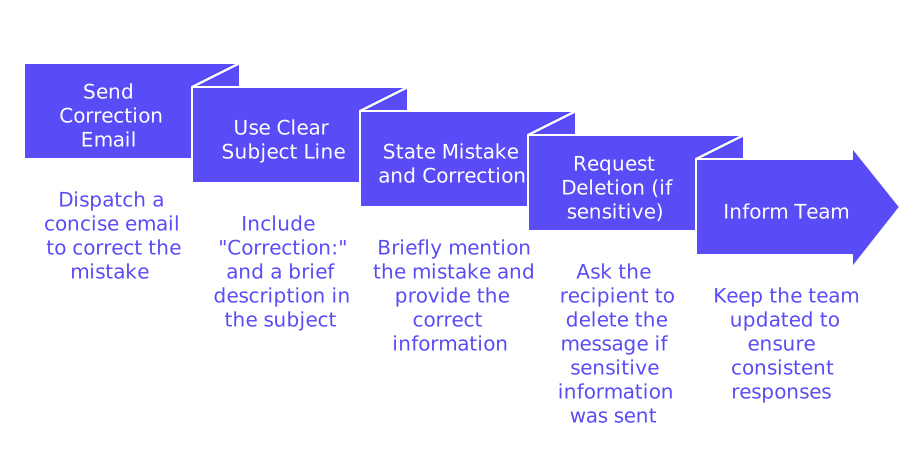
Move quickly and communicate simply. Take responsibility, clarify the correct information, and make your correction clear from the subject line onward.
- Send a concise correction email as soon as possible.
- Use a subject line such as “Correction: [Very short description].”
- Briefly state the mistake in one line, then provide the correct information in the next.
- If sensitive information was sent by error, request that the recipient delete the message.
- Keep your team informed so responses remain consistent and clear.
If the error was internal, check with your IT team about potential recall options. For external recipients, a quick and human follow-up is your best approach. Don’t rely on technical interventions that likely won’t succeed.
Deliverability Matters When Sending a Correction Email
No apology or correction helps if it’s lost in the spam folder. Straightforward, plain-text emails are best for transparency, but deliverability issues can still get in the way. Familiarize yourself with factors influencing inbox placement, this resource on inbox placement benchmarks is useful for understanding what you can (and cannot) control.
Bounced emails also create problems for corrections. If a server rejects your message, the intended fix won’t arrive. Understand up-to-date delivery requirements by reading why emails bounce and the latest rules. Addressing underlying issues now can break the cycle of repeated apologies.
Why an Email Warm-Up Process Helps Prevent Panic Moments
If your email domain is new or lacks recent activity, mailbox providers may not trust it, increasing the risk of your critical messages going to junk. That’s where a structured email warm-up process comes in, gradually building up sending volume and engagement to foster inbox placement, so your important corrections actually get seen.
Mailwarm automates this process by connecting your inbox to a network of over 50,000 active mailboxes that open, reply to, and move your messages out of spam. The interactions appear natural and varied, boosting your sender reputation.
This isn’t about marketing but about reliably signaling technical trust so vital follow-ups and corrections are delivered. When it matters most, a properly warmed-up inbox gives your message, and your reputation, a better chance to succeed.
In February 2026, Mailwarm evolved into a next-generation email warm-up service, introducing powerful new capabilities such as multi-account management, advanced deliverability and reputation monitoring, multi-provider warm-up, and provider-specific spam score tracking, all designed to perform reliably at scale.
Technical Checks That Reduce Errors Before You Send
Good habits beat last-minute recalls every time. Build small delays and double-checks into your workflow:
- Enable an “Undo send” delay on all your email clients.
- Create rules to keep mail in the Outbox for at least a minute before departure.
- Use distinct labels or color categories for sensitive recipients.
- Always verify attachments by filename, not just by icon or preview.
- Enable SPF, DKIM, and DMARC records to boost domain trust and reduce misdelivery.
- Regularly test deliveries to different providers to monitor reliability.
Prepare a simple response playbook for mistakes: include your correction template, approval steps, and timing targets. Share it across your team so everyone can act swiftly when minutes matter.
Key Takeaways on Email Unsend Options That Actually Work
- True unsend is nearly impossible once an email is accepted by a recipient’s server.
- Short “Undo send” delays are available in many major services, these are the most effective safety nets.
- Outlook’s recall feature only works under strict internal circumstances.
- Swift, plain corrections help minimize confusion and risk.
- Email warm-up and deliverability practices increase the likelihood your corrections are seen.
You can’t change the past after an email is delivered. But you can manage what happens next: utilize delays, set protective rules, and respond calmly to mistakes. Keeping your infrastructure in good standing will help ensure your corrections and critical updates actually reach their recipients.
Ready to send with steadier confidence? Try a gentle email warm-up process and let your domain earn trust before the big send. Start with Mailwarm’s inbox warm-up solution to keep your important messages visible when it counts the most.
FAQ
Is it possible to truly unsend an email after it has been delivered?
Once an email leaves the sender's server and reaches the recipient’s server, unsend options are off the table. Many services offer short delays where you can retract a message, but once delivered, retrieval is nearly impossible.
How does Google's 'Undo Send' feature work?
Google's 'Undo Send' creates a delay between clicking send and the actual delivery, allowing you to stop an email before it's sent out. Be quick; once the delay window closes, you lose control over the email.
Why do Outlook’s message recalls often fail?
Outlook recalls require specific conditions: both users must be on Microsoft Exchange under the same domain, and the email must be unread, significantly limiting its reliability. On mobile and non-Microsoft clients, recall attempts are usually futile.
Can delay features guarantee email corrections?
Delay features only offer a narrow window to fix errors before sending. Once sent, no technical afterthought can alter the message, so sharp attention to details remains crucial.
What should be done immediately after an email mistake is made?
A swift correction email with clear information is crucial. Accept responsibility and ensure your follow-up is plain and direct to minimize confusion and maintain trust.
Can using Mailwarm assist in email corrections?
Mailwarm can enhance your domain's reputation, ensuring correction emails don't end up in spam. A strong sender reputation can make or break the effectiveness of your follow-ups.
How do email warm-up processes help in emergencies?
Increased domain trust from an email warm-up process boosts the likelihood that critical messages, such as corrections, land in the inbox. Swiftly addressing mistakes is ineffective if your emails aren't even seen.
What measures can prevent email mistakes before sending?
Implementing delay settings, double-checking details, and establishing clear processes are practical ways to prevent email blunders. Proactive actions are superior to reactive ones when dealing with sensitive communications.